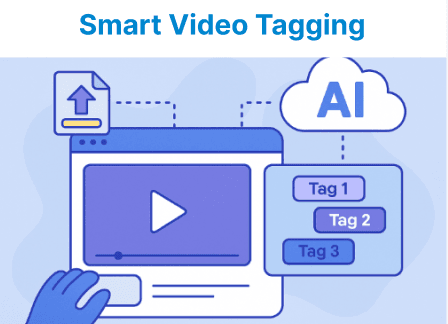
Automatically tagging uploaded videos in a Content Management System (CMS) revolutionizes how organizations manage and organize their video libraries. By leveraging AI-powered video recognition, tags are generated instantly, improving content discoverability and user experience. This automation not only saves time but also ensures consistent and accurate metadata across large video collections. Integrating such intelligent tagging transforms video management into a more efficient and scalable process.
Key Components for Automatic Video Tagging
AI-powered automatic video tagging streamlines content management by analyzing and labeling video content. Several essential components work together to enable this system, from video storage to tag generation and insertion:
- Content Management System: Platform for storing, managing, and distributing videos. Examples include Strapi and Contentful, which offer flexible tagging and metadata APIs.
- Video Tagging Service: ML-based service that recognizes objects, scenes, and keywords in videos by analyzing visual and audio data. Popular choices include Google Cloud Video Intelligence, AWS Rekognition, and IBM Watson Video Analytics.
- API Integration: Connects the tagging service with the CMS workflow, enabling automated analysis and tagging after video upload.
- Custom Tagging Logic: Scripts or functions that process the tagging service’s results to refine and insert tags into CMS content entries.
- Security Tip: Always secure API keys via environment variables or secrets management tools instead of hardcoding credentials.
Step 1: Video Upload and Integration with CMS
Configure your CMS to accept video uploads and capture metadata such as title, description, and URL. When a video is uploaded, the CMS should capture essential metadata, such as video title, description, and file URL. Here’s an example of a Strapi content type definition:
Example:
{
"name": "Video",
"attributes": {
"title": { "type": "string" },
"description": { "type": "text" },
"video_url": { "type": "string" },
"tags": { "type": "json" }
}
}Explanation:
- "name": This defines the name of the content type or model. It suggests that this structure will represent a "Video" object in your system.
- "Attributes": This key holds all the fields or properties that each "Video" object will have.
When the video is uploaded, a webhook or event trigger can be set up to initiate the video analysis process.
Storage Note: This example assumes videos are stored in cloud services like Google Cloud Storage. The setup can be adapted for AWS S3, Azure Blob Storage, or other accessible providers compatible with your tagging service.
Step 2: Integrating with Video Tagging Service
Once the video is uploaded, use a video tagging service to analyze its content. For example, integrating with Google Cloud Video Intelligence involves making an API call to analyze the video file. The result will include labels (tags) that are relevant to the video.
Example: Google Cloud Video Intelligence API
- Install Google Cloud SDK: Ensure that the Google Cloud SDK is installed, and your project is set up for the Video Intelligence API.
- Send API Request: After the video is uploaded, the video file is sent to the Video Intelligence API for analysis.
Example:
const videoIntelligence = require('@google-cloud/video-intelligence').v1;
const client = new videoIntelligence.VideoIntelligenceServiceClient();
async function analyzeVideo(videoUrl) {
try {
const request = {
inputUri: videoUrl,
features: ['LABEL_DETECTION'],
};
const [operation] = await client.annotateVideo(request);
const [response] = await operation.promise();
const labels = response.annotationResults[0].segmentLabelAnnotations
// Filter labels by confidence score for better accuracy
const filteredLabels = labels.filter(label => label.segments.some(segment => segment.confidence > 0.8));
return filteredLabels.map(label => label.entity.description);
} catch (error) {
console.error('Error analyzing video:', error);
// Handle error appropriately, e.g., retry or fallback to manual tagging
return [];
}
}
analyzeVideo('gs://your_bucket/video.mp4').then(tags => {
console.log('Video tags:', tags);
});Explanation:
- const client = new videoIntelligence.VideoIntelligenceServiceClient();: Creates a client instance of the Google Cloud Video Intelligence API.
- async function analyzeVideo(videoUrl): An asynchronous function that takes a videoUrl (from Google Cloud Storage, e.g., gs://...) and returns relevant tags.
- inputUri: URI pointing to the video file in Google Cloud Storage.
- Features: Specifies what kind of analysis you want. In this case, it's ‘LABEL_DETECTION’: identifies objects/concepts like "dog", "car", "beach", etc.
- annotateVideo(): Performs video processing in the cloud, which may take several seconds or minutes depending on length and complexity.
- entity.description is the human-readable name of each label.
- Cost Reminder: Using AI video analysis services typically involves pay-per-use billing. Monitor usage and costs regularly to avoid unexpected charges.
- Security Tip: Protect your cloud API keys using IAM roles and environment variables with least privilege permissions.
Step 3: Inserting Tags into the CMS
After extracting tags, update the video metadata in the CMS using its API. Using Strapi’s API, the tags can be added to the video’s metadata, either as an array or as individual fields. Here’s an example of how you can use Strapi's API to update the tags field in the database with the new tags:
Example:
async function addTagsToVideo(videoId, tags) {
// Remove duplicates and validate tags
const cleanTags = [...new Set(tags)].filter(tag => typeof tag === 'string' && tag.trim() !== '');
try {
const response = await fetch(`http://localhost:1337/videos/${videoId}`, {
method: 'PUT',
headers: {
'Content-Type': 'application/json',
'Authorization': `Bearer ${process.env.STRAPI_API_KEY}`, // Use env variable
},
body: JSON.stringify({ tags: cleanTags }),
});
if (!response.ok) {
throw new Error(`Failed to update tags: ${response.statusText}`);
}
const data = await response.json();
return data;
} catch (error) {
console.error('Error updating video tags:', error);
// Optionally notify or retry
}
}
// Example usage:
addTagsToVideo(1, ['Nature', 'Adventure', 'Wildlife']);Explanation:
- videoId: The ID of the video entry in the backend.
- tags: An array of tags to associate with the video.
- Content-Type: Indicates JSON is being sent.
- Authorization: Sends a Bearer token stored in process.env.STRAPI_API_KEY for security.
Step 4: Handling Video Metadata Updates and Tagging Logic
You can add a fallback mechanism in case the video analysis service fails to detect tags, such as prompting manual tagging by the content administrator. The tagging logic can be expanded by creating more sophisticated algorithms, such as:
- Tagging Based On Categories Or Themes: Automate tagging by analyzing scenes, dialogues, or audio cues.
- Refining Tags: Apply natural language processing (NLP) or additional ML models to filter out irrelevant tags or enrich tags based on context (e.g., adding “Wildlife” to videos showing animals).
- Fallback Mechanisms: In case the video analysis service fails to detect tags or has low confidence, prompt manual tagging by content administrators to ensure completeness.
Step 5: Displaying Tags on the Frontend
The video player on the frontend can display the tags by retrieving the tags field from the CMS. This can enhance video searchability and provide more context to viewers. Here’s an example of how the tags might be displayed alongside a video using HTML and JavaScript:
Example:
<video id="video-player" controls>
  <source src="https://path/to/video.mp4" type="video/mp4">
</video>
<p>Tags: <span id="video-tags"></span></p>
<script>
  const videoTags = ['Nature', 'Adventure', 'Wildlife']; // Retrieved from CMS
  document.getElementById('video-tags').textContent = videoTags.join(', ');
</script>Explanation:
- <video>: Used to embed a video player directly in the webpage.
- Controls: attribute adds built-in playback controls (play, pause, volume, etc.).
- <source>: Specifies the actual video file source.
- src="https://path/to/video.mp4": The URL to the video file.
- type="video/mp4": Tells the browser what format it is. Most browsers support mp4.
Step 6: Enhancing Search and Discovery
Once videos are tagged, users can filter content based on tags, improving the discoverability of videos. You can create a search feature that uses tags as a filter criterion, ensuring that users can quickly find videos relevant to their interests.
Best Practices for Video Tagging
Effective video tagging enhances content discoverability and user engagement by organizing videos with accurate, relevant keywords. Implementing best practices ensures consistency, improves searchability, and supports better content recommendation algorithms. Mastering these techniques can significantly elevate the reach and impact of video libraries.
Leverage AI for Accuracy
Implement machine learning-based tagging systems to minimize manual input and enhance the accuracy of content classification. These systems can interpret context more effectively than rule-based approaches, enabling the generation of relevant, consistent tags that align with the content’s subject matter.
Automate Workflows
Automating tagging processes and metadata updates can significantly reduce operational overhead. Integrating automated workflows ensures that new content is tagged promptly and consistently, facilitating more efficient content organization and lifecycle management.
Maintain Tag Quality
Establish procedures for the regular evaluation and refinement of tagging logic. Over time, content taxonomies may evolve, and automated tagging models may require tuning. Periodic review helps maintain the relevance and usefulness of tags across the content library.
Integrate with Search
Incorporate tags as filter criteria within search interfaces to improve discoverability and user navigation. Well-structured tagging supports faceted search, allowing users to locate specific content more efficiently based on attributes such as topic, format, or audience.
Monitor Costs and Security
Track the usage of AI-based services to manage operational costs effectively. Secure API credentials using appropriate methods such as Identity and Access Management (IAM) roles and environment variables, rather than hardcoding keys. This helps mitigate the risk of unauthorized access and supports compliance with security standards.