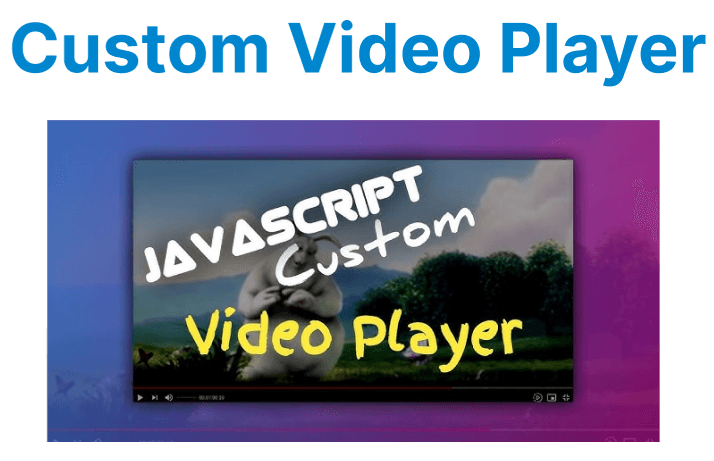
A custom video player UI built with HTML5 <video> and JavaScript allows direct control over playback functionality and interface elements. Core features such as play/pause toggling, seek bar updates, mute control, fullscreen support, and playback speed adjustments are implemented using standard DOM methods and media events. This avoids browser-default controls and enables precise control over user interaction and playback behavior.
Building the Video Player Structure
Video Element and Basic HTML Setup
The first step is embedding the HTML5 video element, which is the container for video playback. Below is the basic structure:
<video id="videoPlayer" width="640" height="360">
<source src="video.mp4" type="video/mp4">
Your browser does not support the video tag.
</video>
<div id="controls">
<button id="playPauseBtn">Play</button>
<input type="range" id="seekBar" value="0" max="100">
<button id="muteBtn">Mute</button>
<button id="fullscreenBtn">Fullscreen</button>
<span id="currentTime">00:00</span> / <span id="duration">00:00</span>
</div>
Explanation:
- The <video> element serves as the container for the video.
- The controls div contains buttons for play/pause, mute, fullscreen, and a seek bar.
- The currentTime and duration spans display the current and total video playback time.
Custom Video Controls with JavaScript
Play/Pause Button
The play/pause button toggles the video between playing and paused states. Here's how you can implement this functionality:
var video = document.getElementById('myVideo');
var playPauseBtn = document.getElementById('playPauseBtn');

playPauseBtn.addEventListener('click', function() {
if (video.paused) {
video.play();
playPauseBtn.textContent = 'Pause';
} else {
video.pause();
playPauseBtn.textContent = 'Play';
}
});
Explanation:
- playPauseBtn: Listens for the click event. If the video is paused, it will start playing and change the button text to "Pause". If it’s playing, it pauses and changes the text back to "Play".
Seek Bar Control
A seek bar lets users skip to specific parts of the video by dragging the slider. The following code implements this functionality:
var seekBar = document.getElementById('seekBar');

seekBar.addEventListener('input', function() {
var seekTo = (seekBar.value / 100) * video.duration;
video.currentTime = seekTo;
});

video.addEventListener('timeupdate', function() {
var value = (video.currentTime / video.duration) * 100;
seekBar.value = value;
});
Explanation:
- The input event updates the video’s current time based on the slider position.
- The timeupdate event updates the seek bar as the video plays, showing the current playback position.
Mute Button
The mute button toggles the audio on and off. Here's how to implement it:
var muteBtn = document.getElementById('muteBtn');
muteBtn.addEventListener('click', function() {
if (video.muted) {
video.muted = false;
muteBtn.textContent = 'Mute';
} else {
video.muted = true;
muteBtn.textContent = 'Unmute';
}
});
Explanation:
- muteBtn: Toggles the muted property of the video. If the video is muted, it unmutes and changes the button text to "Mute", and vice versa.
Fullscreen Button
The fullscreen button toggles the video between fullscreen and normal mode.
var fullscreenBtn = document.getElementById('fullscreenBtn');
fullscreenBtn.addEventListener('click', function() {
if (video.requestFullscreen) {
video.requestFullscreen();
} else if (video.mozRequestFullScreen) { // Firefox
video.mozRequestFullScreen();
} else if (video.webkitRequestFullscreen) { // Chrome, Safari
video.webkitRequestFullscreen();
} else if (video.msRequestFullscreen) { // IE/Edge
video.msRequestFullscreen();
}
});
Explanation:
- The requestFullscreen() method is used to make the video enter fullscreen mode.
- The code includes fallbacks for different browsers, such as Firefox, Safari, and IE.
Managing Video Events for Interactivity
Displaying Current Time and Duration
Displaying the current time and total duration of the video is essential. Use the timeupdate event to monitor the playback status.
var currentTimeDisplay = document.getElementById('currentTime');
var durationDisplay = document.getElementById('duration');

video.addEventListener('loadedmetadata', function() {
durationDisplay.textContent = formatTime(video.duration);
});

video.addEventListener('timeupdate', function() {
currentTimeDisplay.textContent = formatTime(video.currentTime);
});

function formatTime(time) {
var minutes = Math.floor(time / 60);
var seconds = Math.floor(time % 60);
return minutes + ':' + (seconds < 10 ? '0' + seconds : seconds);
}
Explanation:
- loadedmetadata: Fires when the video metadata (such as duration) is loaded, allowing us to display the total duration.
- timeupdate: Fires as the video plays, updating the current time displayed on the UI.
Advanced Features: Speed Control
Video players often offer speed control, allowing users to adjust playback speed. This can be implemented as follows:
Changing Playback Speed
<select id="speedControl">
<option value="0.5">0.5x</option>
<option value="1" selected>1x</option>
<option value="1.5">1.5x</option>
<option value="2">2x</option>
</select>
var speedControl = document.getElementById('speedControl');
speedControl.addEventListener('change', function() {
video.playbackRate = parseFloat(speedControl.value);
});
Explanation:
- The dropdown allows users to choose the playback speed.
- The change event updates the video.playbackRate to the selected value, modifying the video’s speed.
Optimizing Performance
Lazy Loading for Video Sources
In cases of multiple video formats, the browser only loads the necessary source depending on the user's capabilities. This reduces initial loading time and ensures smoother playback.
<video id="myVideo" controls preload="auto">
<source src="video.mp4" type="video/mp4">
<source src="video.webm" type="video/webm">
<source src="video.ogv" type="video/ogg">
</video>
Explanation:
- The <video> element tries to load the first compatible video format it finds based on the browser's capabilities. This ensures quick loading times and improved compatibility across devices.
Custom Controls Overlays
For better user experience, the controls can be displayed as an overlay on the video when the user hovers over the player.
#myVideo {
position: relative;}
.controls {
position: absolute;
bottom: 10px;
left: 50%;
transform: translateX(-50%);
opacity: 0;
transition: opacity 0.3s;
}
#myVideo:hover .controls {
opacity: 1;
}
Explanation:
- The controls are hidden by default using opacity: 0 and appear only when the user hovers over the video (#myVideo:hover).
- The transition effect (opacity 0.3s) provides a smooth appearance and disappearance of the controls.