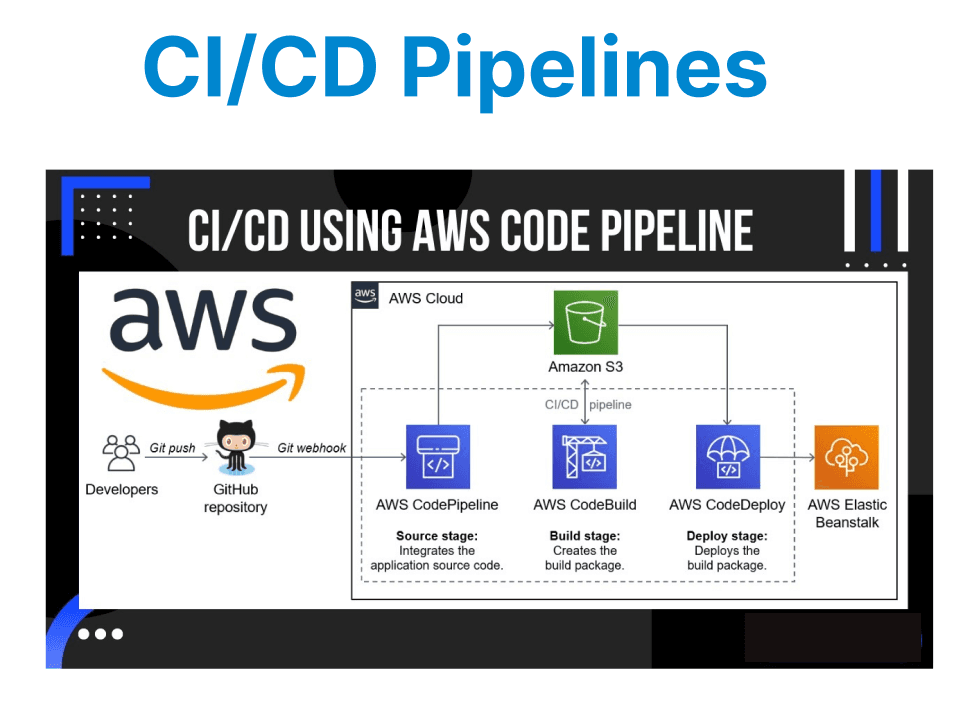
Continuous Integration (CI) and Continuous Delivery (CD) are modern software development practices, particularly in video projects, where efficient workflows are crucial for handling large files, rendering, and real-time processing. AWS CodePipeline, a fully managed CI/CD service, can streamline the build, test, and deploy stages of a video project.
Setting Up CodePipeline for Video Projects
AWS CodePipeline is a service that automates the end-to-end lifecycle of application and infrastructure updates. In the context of video projects, CodePipeline can integrate various stages, such as file uploads to S3, video processing with AWS Lambda, and deployment of video assets to a content delivery network (CDN) like Amazon CloudFront.
Key Stages in the Pipeline
A typical CI/CD pipeline for a video project could include these stages:
- Source Stage: The source stage pulls in the latest video files from a source repository (e.g., AWS CodeCommit, GitHub) or an S3 bucket that contains raw video files.
- Build Stage: During this stage, video processing scripts or code (such as transcoding, thumbnail generation, or format conversion) are executed using AWS Lambda, EC2, or containerized services like AWS Fargate.
- Test Stage: Automated tests, including video format validation, file integrity checks, and video playback tests, are run to ensure the processed content meets the required standards.
- Deploy Stage: The final stage is responsible for deploying the processed videos to the production environment. This could involve uploading the videos to Amazon S3 and invalidating CloudFront cache, ensuring fresh content delivery.

Creating the Pipeline
Step 1: Define the Source Stage
In the first stage, CodePipeline fetches the video files from the source repository or S3 bucket. You can configure the source stage to trigger the pipeline whenever a new video file is uploaded, enabling real-time processing.
Example:
{
"name": "Source",
"actions": [
{
"name": "S3Source",
"actionTypeId": {
"category": "Source",
"owner": "AWS",
"provider": "S3",
"version": "1"
},
"configuration": {
"S3Bucket": "video-source-bucket",
"S3ObjectKey": "input/video.mp4"
},
"outputArtifacts": [
{
"name": "VideoInputArtifact"
}
],
"runOrder": 1
}
]
}
Explanation:
- S3Source: This action pulls files from an S3 bucket.
- S3Bucket: The source bucket where the original video file resides.
- S3ObjectKey: The specific file to be fetched.
Step 2: Set Up the Build Stage
The build stage of the pipeline typically involves video processing tasks, such as transcoding the video into multiple formats or generating thumbnails. You can use AWS Lambda functions or EC2 instances in this stage to process the video.
Example with Lambda:
{
"name": "Build",
"actions": [
{
"name": "VideoProcessing",
"actionTypeId": {
"category": "Build",
"owner": "AWS",
"provider": "Lambda",
"version": "1"
},
"configuration": {
"FunctionName": "VideoProcessingLambdaFunction"
},
"inputArtifacts": [
{
"name": "VideoInputArtifact"
}
],
"outputArtifacts": [
{
"name": "ProcessedVideoArtifact"
}
],
"runOrder": 1
}
]
}
Explanation:
- Lambda: The Lambda function processes the video, such as transcoding or adding metadata.
- VideoProcessingLambdaFunction: This function processes the video and outputs the processed video files.
Step 3: Test Stage for Quality Assurance
In the testing stage, you can integrate automated testing tools to validate the processed video. This may include checking for playback errors, verifying video formats, or running performance tests on the video files.
Example:
{
"name": "Test",
"actions": [
{
"name": "VideoValidation",
"actionTypeId": {
"category": "Test",
"owner": "AWS",
"provider": "CodeBuild",
"version": "1"
},
"configuration": {
"ProjectName": "VideoTestProject"
},
"inputArtifacts": [
{
"name": "ProcessedVideoArtifact"
}
],
"outputArtifacts": [
{
"name": "TestResults"
}
],
"runOrder": 1
}
]
}
Explanation:
- VideoValidation: This action runs a CodeBuild project to verify that the video passes various quality checks before moving forward.
Step 4: Deployment to Production
The final stage involves deploying the processed video content to a production environment. This typically means uploading to S3 and ensuring the CDN (CloudFront) reflects the new content by invalidating the cache.
Example:
{
"name": "Deploy",
"actions": [
{
"name": "S3Deployment",
"actionTypeId": {
"category": "Deploy",
"owner": "AWS",
"provider": "S3",
"version": "1"
},
"configuration": {
"BucketName": "video-production-bucket",
"Extract": "true"
},
"inputArtifacts": [
{
"name": "ProcessedVideoArtifact"
}
],
"runOrder": 1
}
]
}
Explanation:
- S3Deployment: This action uploads the processed video files to the S3 bucket.
- Extract: This option ensures that the file content is extracted and stored in S3 properly.
Advanced Features and Best Practices
Parallel Processing for Multiple Videos
For high-volume video processing, AWS CodePipeline can be enhanced with AWS Step Functions to manage parallel tasks, such as transcoding multiple video files concurrently.
Handling Failures and Notifications
Incorporate AWS CloudWatch to monitor the pipeline and set up failure notifications. Alerts can be triggered for build failures, deployment issues.
Cost Optimization and Monitoring
Optimizing Video Transcoding Costs
Transcoding large video files can be expensive, especially when dealing with high-resolution content. Consider implementing conditional transcoding based on the video file’s format or resolution, allowing you to minimize the resources required for unnecessary transcodes.
Tracking Pipeline Metrics
Utilize CloudWatch metrics to monitor the status of each pipeline action. You can track metrics like job duration, successful/failed deployments, and S3 storage usage.