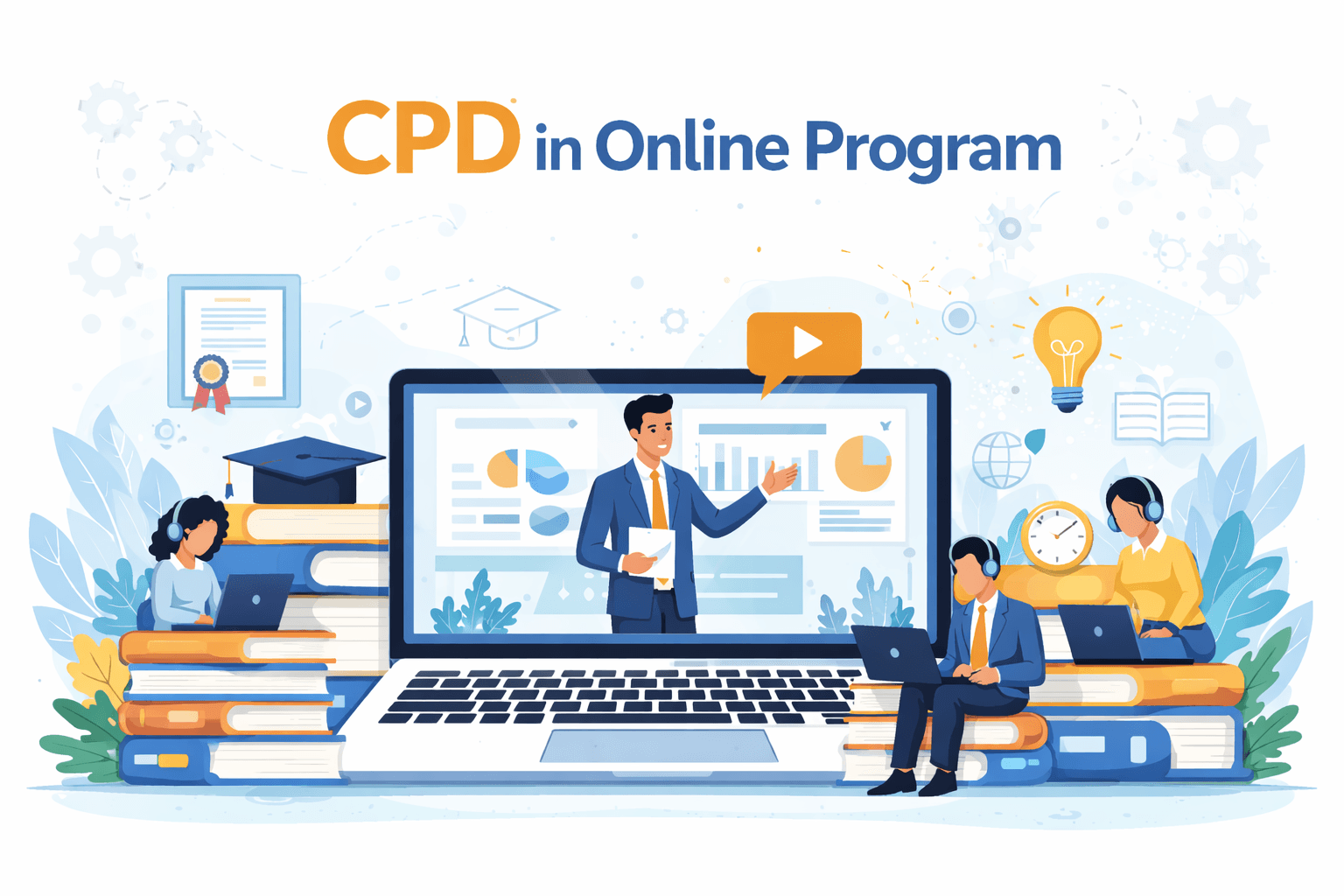
How do educators grow when their teaching environment exists online? Continuing Professional Development in an online program focuses on the ongoing learning teachers need to handle digital tools, virtual classrooms, and remote learner needs.
It strengthens a teacher’s ability to teach effectively across platforms while adapting to the constant shifts in online learning practices. Supporting steady skill development helps ensure that online teaching stays clear, engaging, and responsive to learners who depend on digital spaces for their education.
Prerequisites
Before diving into the program, gather these essentials to ensure everything runs smoothly. Having them in place prevents distractions and lets you focus fully on the content.
- A stable internet connection.
- A device with a modern browser.
- Familiarity with basic video controls like play, pause, and volume.
- A quiet space for focused sessions.
- Access to note-taking tools, such as a digital notepad or paper.
Starting the Session: Goals Before Play
Starting with clear goals directs your attention right from the beginning. This approach makes each session purposeful for you to build skills that stick instead of just watching passively.
Step 1: Open the program dashboard and review upcoming modules.
Step 2: Pick one based on your current challenges, like improving code reviews or classroom management.
Step 3: Write a quick goal in your notes, such as "Learn three new debugging steps."
Step 4: Set a timer for 25 minutes to keep it bite-sized.
Step 5: On Screen: The module list appears, with titles like "Debugging Basics" and thumbnails showing key scenes.
Step 6: Off-screen: Jot down your goal on a notepad app, then click play.
Building a Plan Around Video Modules
Creating a plan ties the videos to your real needs and schedule. This keeps learning steady and prevents it from feeling overwhelming or disconnected from your work.
Step 1: Scan the module catalog and match them to competencies, like "Problem-Solving" or "Team Collaboration."
Step 2: Allocate hours, aiming for 5-10 per week.
Step 3: Use chapter markers to break modules into 10-15 minute chunks.
Step 4: Set a weekly cadence, such as Monday for planning, Tuesday-Thursday for watching, and Friday for review.
Step 5: For a Developer Example: Map a module on "API Integration" to your skill gap in connecting systems, planning 2 hours over three days, and bookmarking chapters at 05:30 for key code demos.
Step 6: For a Non-Developer Example: Map a module on "Formative Assessment" to improving student feedback, scheduling 1.5 hours weekly, and using chapter markers at 08:45, for example, lesson clips.
Step 7: On screen: The catalog shows modules with skill tags and estimated times.
Step 8: Off-screen: Drag modules into a weekly planner, noting timestamps for breaks.
Working Inside the Player: Controls That Drive Learning
Using the player's controls lets you customize how you watch and learn. This makes videos more effective by matching your pace and needs, so you absorb details without wasting time.
Step 1: Enable captions for text support and transcripts for offline reading.
Step 2: Adjust speed to 1.25x for fast walkthroughs or 0.75x for complex demos.
Step 3: Add bookmarks at key moments, like 12:45 for a code snippet.
Step 4: Take notes directly in the player, labeling them "Key Insight" or "To Try."
Step 5: Use timestamps for quick replays, jumping back 10 seconds to catch a step.
Step 6: Set speed to 1.25x for walkthroughs; 1.0x for demos you'll copy.
Step 7: Pause at 03:12 to note a formula, then replay from 02:50.
Step 8: On screen: Controls pop up—speed slider at 1.0x, bookmark button glowing.
Step 9: Off-screen: Type a note: "Pause here for practice."
Practice Loops Paired With Video
Pairing practice with video pauses turns watching into doing. This builds real skills right away, ensuring what you learn applies to your daily tasks.
Step 1: At pause points, like after a demo segment, complete micro-tasks.
Step 2: Use check-for-understanding overlays, such as quick quizzes popping up at 15:20.
Step 3: For a developer scenario: After a demo segment on testing at 10:45, pause and run a small test in your code editor, write a unit test for a function shown, then resume to compare.
Step 4: For a non-developer scenario: After a demo on report building at 07:30, pause and draft a one-page report using the steps, check your draft against the video's example before proceeding.
Step 5: On-screen: A quiz overlay asks, "What tool do you use next?"
Step 6: Off-screen: Open your tool and apply the step.
Tracking Evidence and Hours
Tracking what you do and learn creates a record of progress. This shows real growth and helps you see how skills improve over time.
Step 1: Log time automatically or manually after sessions.
Step 2: Save notes and export certificates.
Step 3: Map outcomes to competencies, like linking a completed task to "Data Analysis."
Step 4: For a developer example: Date: 10/15/2023. Module: API Integration. Time: 45 minutes. Skill: System Connectivity. Evidence: Code commit link. Reflection: Applied to reduce errors by 20%.
Step 5: For a non-developer example: Date: 10/15/2023. Module: Formative Assessment. Time: 30 minutes. Skill: Student Feedback. Evidence: Lesson plan draft. Reflection: Students responded better in discussions.
Step 6: On screen: A log form appears post-module, with fields to fill.
Step 7: Off-screen: Attach a file and click submit.
Assessment and Feedback in a Video-First Flow
Assessments and feedback during videos check your understanding as you go. This catches gaps early, so you can adjust and learn more effectively.
Step 1: Answer embedded quizzes at timestamps, like a multiple-choice at 22:10.
Step 2: Submit assignments linked to video moments, such as uploading a file after 18:45.
Step 3: Receive time-stamped comments from mentors, like "Good start at 14:20, try this tweak."
Step 4: On screen: A quiz overlays the video: "Select the correct step."
Step 5: Off-screen: Submit your answer and read feedback.
Collaboration Around Timestamps
Sharing thoughts at exact video moments builds teamwork. This connects solo learning to group insights, making skills stronger through discussion.
Step 1: Join study groups and post in discussion threads tied to timestamps, such as commenting on 09:15.
Step 2: Use peer review rituals, like sharing bookmarks for feedback.
Step 3: On screen: A thread links to 11:30, with replies.
Step 4: Off-screen: Add your note and tag a colleague.
Accessibility and Inclusion by Default
Making videos accessible ensures everyone can follow along. This creates equal opportunities, so no one misses out on learning due to barriers.
Step 1: Turn on captions and download transcripts.
Step 2: Use keyboard shortcuts for navigation.
Step 3: Adjust contrast for readability.
Step 4: Ensure chapter titles are descriptive, like "Step-by-Step Code Walkthrough."
Step 5: On screen: Caption toggle activates, text scrolling below.
Step 6: Off-screen: Press Tab to jump sections.
Time Management That Sticks
Managing time keeps sessions short and sustainable. This fits learning into busy days without causing stress or burnout.
Step 1: Use 25-30 minute blocks with built-in break cues.
Step 2: Review weekly progress on the dashboard.
Step 3: Check metrics like hours completed.
Step 4: Sample weekly plan: Monday: 30 min planning (target: select 2 modules). Tuesday: 25 min watching (target: complete chapter 1). Wednesday: 30 min practice (target: apply one skill). Thursday: 25 min review (target: log notes). Friday: 20 min assessment (target: quiz score 80%+).
Step 5: On screen: The Dashboard shows a calendar with slots.
Step 6: Off-screen: Block time in your calendar app.
Privacy, Consent, and Data Hygiene
Handling data carefully protects your information. This builds trust and follows rules, so you can learn without worries.
Step 1: Give consent for any recordings before starting.
Step 2: Handle identifiable data in submissions by anonymizing, like removing names.
Step 3: Follow retention basics, deleting logs after 1 year.
Step 4: On screen: A consent prompt appears: "Allow tracking?"
Step 5: Off-screen: Click yes and proceed.
Metrics That Actually Reflect Learning
Using real metrics shows true progress beyond just watching. This helps you see what works and adjust for better results.
Step 1: Track skill demonstrations, like passing a post-quiz.
Step 2: Measure task completion, such as submitting a working feature.
Step 3: Note the time-to-apply, like days from the video to use.
Step 4: On screen: Metrics page lists: Quiz score 85%, Task done in 2 days.
Step 5: Off-screen: Review and adjust plans.
Common Pitfalls and Fast Fixes
Spotting common mistakes early keeps learning on track. This avoids wasted time and helps you improve quickly.
Step 1: Watching Without Pausing: Fix by setting reminders to stop every 10 minutes for notes.
Step 2: Ignoring Captions: Fix by enabling them first for better focus.
Step 3: Overloading Sessions: Fix by capping at 30 minutes and taking breaks.
Step 4: Skipping Practice: Fix by pausing at demos and trying steps immediately.
Step 5: Not Logging Time: Fix by using auto-track features or quick manual entries.
Step 6: Rushing Through Quizzes: Fix by reading questions twice before answering.
Step 7: Sharing Unanonymized Data: Fix by removing personal details from submissions.
Step 8: Forgetting Bookmarks: Fix by labeling them clearly, like "Key Demo at 05:20."
Day 30: What Changes in Practice
After a month, your code reviews include three new checks from modules, cutting bugs by 15%. Classroom lessons now feature quick feedback loops, boosting student participation. You log 8 hours weekly, with notes showing applied skills. Sessions feel routine, not rushed, and collaborations yield shared tips. CPD has shifted from obligation to tool, with videos as your go-to for growth.