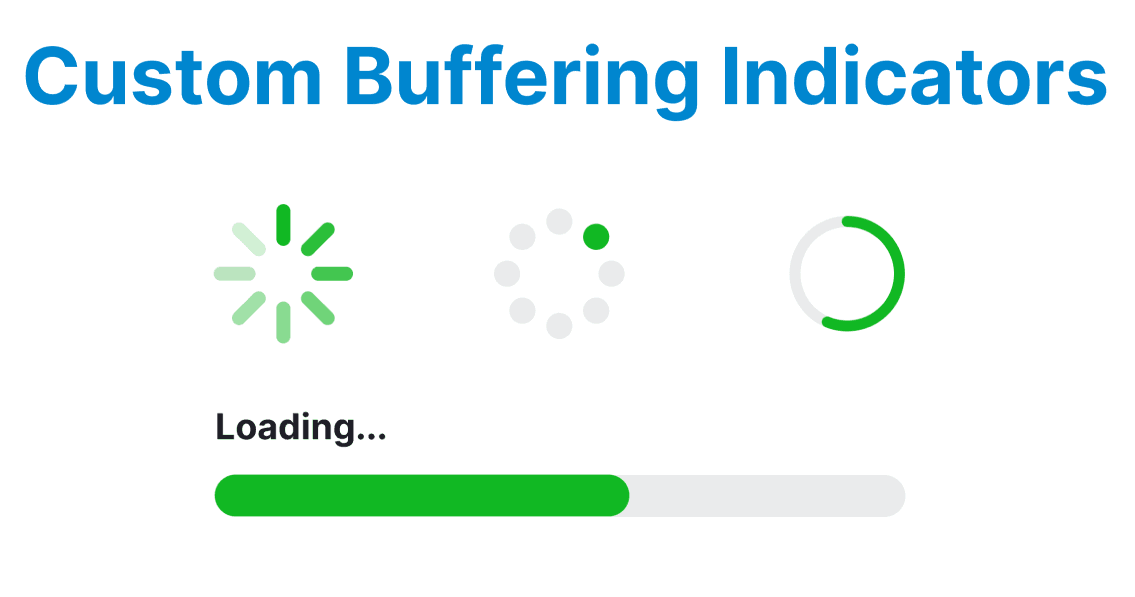
Buffering indicators are a crucial part of video playback, especially in environments with varying network conditions. When a video is buffering, it's important to keep the user informed about the loading state to prevent frustration. Custom buffering indicators and loaders provide a tailored user experience that informs viewers when the content is loading, improving user satisfaction and engagement.
Setting Up Custom Buffering Indicators
Buffering is an inevitable part of video playback, especially for high-quality streams or slower network speeds. By adding custom indicators, users can better understand what is happening when playback stalls.
Example: Basic HTML5 Video Player with Custom Buffering Indicator
Here’s an example of a basic video player that includes a custom buffering indicator using JavaScript and CSS:
<video id="videoPlayer" controls>
<source src="video.mp4" type="video/mp4">
Your browser does not support the video tag.
</video>
<div id="bufferingIndicator" class="buffering-indicator">
<span>Loading...</span>
</div>
Explanation:
- The <video> tag provides the video content, and controls adds the standard play/pause and volume buttons.
- The #bufferingIndicator is initially hidden and will be shown when buffering occurs.
Customizing the Buffering Indicator
Styling the buffering indicator ensures it is visible without obscuring the video content and maintains a consistent visual hierarchy.
CSS for Custom Buffering Indicator
.buffering-indicator {
display: none;
position: absolute;
top: 50%;
left: 50%;
transform: translate(-50%, -50%);
background-color: rgba(0, 0, 0, 0.5);
color: white;
padding: 10px 20px;
border-radius: 5px;
font-size: 18px;
font-weight: bold;
}

#videoPlayer {
position: relative;
width: 100%;
height: auto;
}
Explanation:
- Positioning: The .buffering-indicator is absolutely positioned in the center of the video element.
- Styling: The indicator has a semi-transparent black background and white text to ensure visibility on top of the video.

Detecting Buffering Events and Showing the Indicator
Use JavaScript to listen for the waiting event (buffering start) and playing event (buffering end) to toggle the indicator.
const videoPlayer = document.getElementById('videoPlayer');
const bufferingIndicator = document.getElementById('bufferingIndicator');

// Show buffering indicator when the video is buffering
videoPlayer.addEventListener('waiting', () => {
bufferingIndicator.style.display = 'block'; // Show indicator
});

// Hide buffering indicator when video is playing
videoPlayer.addEventListener('playing', () => {
bufferingIndicator.style.display = 'none'; // Hide indicator
});
Explanation:
- waiting event: Triggered when the video pauses for buffering. When this event occurs, the buffering indicator becomes visible.
- playing event: Triggered when the video starts playing after buffering. The indicator is hidden again.
Advanced Customization: Animated Buffering Indicator
For a more visually appealing loading experience, you can add animations to the buffering indicator. Here’s how you can animate the indicator to give the user better feedback during the buffering process.
CSS Animation for the Buffering Indicator
.buffering-indicator span {
animation: loading 1.5s infinite linear;
}

@keyframes loading {
0% { content: 'Loading...'; }
50% { content: 'Loading..'; }
100% { content: 'Loading...'; }
}
Explanation:
- @keyframes loading: This defines an animation that cycles through three dots (e.g., 'Loading...', 'Loading..', 'Loading...') to indicate that the video is still buffering.
- animation property: Applies the animation to the text in the buffering indicator, creating a dynamic effect.
Handling Buffering in Adaptive Bitrate Streaming
For video players that support Adaptive Bitrate Streaming (like HLS or DASH), buffering can occur more frequently due to bitrate adjustments based on network conditions. You may want to display additional information or use a more complex loading animation to reflect changes in streaming quality.
Example: Buffering Indicator with Dynamic Text Based on Network Conditions
You can use JavaScript to monitor the player's network conditions and display different messages based on buffering severity.
videoPlayer.addEventListener('waiting', () => {
const bufferedTime = videoPlayer.buffered.end(videoPlayer.buffered.length - 1);
if (bufferedTime < 10) {
bufferingIndicator.innerHTML = "Buffering... (low bandwidth)";
} else {
bufferingIndicator.innerHTML = "Buffering...";
}
bufferingIndicator.style.display = 'block';
});
Explanation:
- buffered property: Tracks the buffered data time ranges for the video.
- Dynamic message: If the video has buffered less than 10 seconds, it displays a message indicating potential low bandwidth.
Best Practices for Optimizing Buffering Indicators
- Minimal Disruption: The buffering indicator should be noticeable but not intrusive. Avoid large, distracting overlays.
- Adaptive Feedback: Customize the feedback based on network conditions to inform users more precisely about buffering reasons (e.g., slow internet or low-quality stream).
- Smooth Transitions: Use CSS transitions and animations to make the appearance and disappearance of the buffering indicator seamless.
- Lazy Loading of Buffers: For videos with multiple sources, implement lazy loading techniques to ensure that the browser only loads video files as needed, reducing initial buffering time.
- Cross-Browser Testing: Ensure that the buffering indicators work consistently across different browsers, especially for mobile browsers.