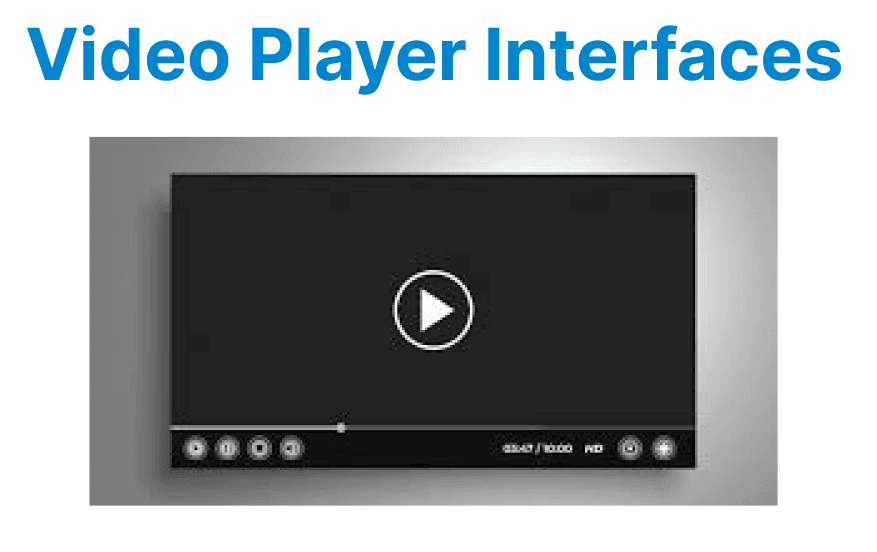
Dynamic theming enhances the user experience by allowing a video player’s interface to adapt to different visual contexts such as light and dark modes, as well as user preferences. This not only helps in providing a customized viewing experience but also ensures that the video player remains consistent with the system's or browser’s display settings. As more users expect customizable and adaptable user interfaces, incorporating dynamic theming becomes a key aspect of modern video player design.
Key Considerations for Dynamic Theming
Implementing dynamic theming requires a few key considerations to ensure the theme adapts to the user’s environment and preferences.
User Preferences
Allowing users to choose between themes (e.g., light or dark mode) adds personalization, improving the user experience. It’s important to provide an easy way to toggle themes, which can be done via buttons or other UI controls.
System Settings
Leverage system preferences to automatically adjust the theme based on the user’s device or browser settings. For example, if the user has set dark mode on their operating system, the video player should automatically switch to dark mode.
Consistency
The theme should be applied consistently across the entire video player interface, including buttons, progress bars, volume control, and other components. This ensures that the overall look and feel of the player aligns with the selected theme.
Accessibility
Dynamic themes should not hinder accessibility. Ensure proper contrast ratios and legible fonts are used in both light and dark modes to ensure the player is usable for everyone.

Implementing Dynamic Theming Using CSS Variables
CSS variables (custom properties) provide an efficient way to manage dynamic theming in a video player. By defining color schemes and other style properties as variables, you can easily update them at runtime, giving you full control over the visual experience.
Step 1: Define CSS Variables for Themes
First, define the CSS variables for both light and dark themes in your stylesheets. These variables will control key visual elements like the background color, text color, and button styles.
:root {
/* Fallback values for older browsers */
background-color: #ffffff;
color: #000000;

/* Modern theming with CSS variables */
--bg-light: #ffffff;
--bg-dark: #121212;
--text-light: #000000;
--text-dark: #ffffff;
--button-light: #f0f0f0;
--button-dark: #333333;

/* Apply default theme */
background-color: var(--bg-light);
color: var(--text-light);
}

[data-theme="dark"] {
color-scheme: dark; /* For OS-level controls */
}
Explanation:
- CSS Variables: Variables are defined for background colors, text colors, and button colors for both light and dark modes.
- Default Theme: The default background color and text color are set for light mode using --bg-light and --text-light.
- Theme Switching: The [data-theme="dark"] selector applies specific styles when the theme is set to dark mode (i.e., when the data-theme attribute on the body tag is dark).
Step 2: Switch Themes Using JavaScript
To dynamically change the theme based on user interaction or system preferences, JavaScript is used to toggle the data-theme attribute on the document.body element.
Example: Toggle Between Light and Dark Modes
const themeToggleButton = document.getElementById('themeToggle');

// Check system preference and apply theme on load
if (window.matchMedia && window.matchMedia('(prefers-color-scheme: dark)').matches) {
document.body.setAttribute('data-theme', 'dark');
} else {
document.body.setAttribute('data-theme', 'light');
}

// Toggle theme on button click
themeToggleButton.addEventListener('click', () => {
const currentTheme = document.body.getAttribute('data-theme');
if (currentTheme === 'light') {
document.body.setAttribute('data-theme', 'dark');
} else {
document.body.setAttribute('data-theme', 'light');
}
});
Explanation:
- System Preference: window.matchMedia('(prefers-color-scheme: dark)'): Checks for the user’s system-wide color scheme preference.
- Toggle Theme: When the user clicks the theme toggle button, the theme is switched by changing the data-theme attribute on the body tag.
Step 3: Apply Dynamic Theming to Video Player Controls
Once the theme is set, apply the appropriate colors and styles to the video player controls, such as the play/pause button, progress bar, and volume control.
Example: Styling Video Player Controls Based on Theme
<!-- Add this HTML at the start of Step 3 -->
<div class="video-container">
<video id="video" src="demo.mp4"></video>
<div class="custom-controls">
<button class="play-btn">▶</button>
<input type="range" class="seek-bar" value="0">
<button class="volume-btn">🔊</button>
</div>
</div>

<style>
/* Replace all existing control styling with this */
.custom-controls {
background: var(--button-light);
padding: 8px;
display: flex;
align-items: center;
gap: 10px;
}

[data-theme="dark"] .custom-controls {
background: var(--button-dark);
}

.play-btn, .volume-btn {
background: transparent;
color: var(--text-light);
border: none;
font-size: 16px;
}

[data-theme="dark"] .play-btn,
[data-theme="dark"] .volume-btn {
color: var(--text-dark);
}

.seek-bar {
flex-grow: 1;
height: 4px;
background: var(--button-light);
}

[data-theme="dark"] .seek-bar {
background: var(--button-dark);
}
</style>

<script>
// Add this JavaScript at the end of Step 3
const video = document.getElementById('video');
const playBtn = document.querySelector('.play-btn');
const seekBar = document.querySelector('.seek-bar');

playBtn.addEventListener('click', () => {
video[video.paused ? 'play' : 'pause']();
playBtn.textContent = video.paused ? '▶' : '⏸';
});

video.addEventListener('timeupdate', () => {
seekBar.value = (video.currentTime / video.duration) * 100;
});

seekBar.addEventListener('input', () => {
video.currentTime = (seekBar.value / 100) * video.duration;
});
</script>
Explanation:
- Custom Controls: The .custom-controls class styles the play, volume, and seek bar buttons, with dynamic background and text colors depending on the selected theme.
- Color Updates: The color and background properties are updated based on the active theme (light or dark).
Step 4: Storing Theme Preferences Persistently
To improve user experience, store the selected theme in local storage so that the theme persists across page reloads. This ensures that the user's theme preference is retained for subsequent visits.
Example: Store Theme Preference in Local Storage
// Unified theme handling (system + storage + toggle)
const themeToggleButton = document.getElementById('themeToggle');

function setTheme(theme) {
document.body.setAttribute('data-theme', theme);
localStorage.setItem('theme', theme);
}

// Initialize theme
const preferredTheme = window.matchMedia('(prefers-color-scheme: dark)').matches ? 'dark' : 'light';
setTheme(localStorage.getItem('theme') || preferredTheme);

// Toggle theme
themeToggleButton.addEventListener('click', () => {
setTheme(document.body.getAttribute('data-theme') === 'light' ? 'dark' : 'light');
});
Explanation:
- Local Storage: The theme preference is stored in localStorage, allowing the user’s theme selection to persist between page loads.
- Initial Theme: On page load, the theme is applied based on the user's system preference or the stored theme in local storage.
Step 5: Handling Theme Transitions Smoothly
To ensure that the transition between themes is smooth and visually appealing, CSS transitions can be used.
Example: Adding Smooth Transitions for Theme Changes
body {
transition: background-color 0.3s ease, color 0.3s ease;
}

button {
transition: background-color 0.3s ease, color 0.3s ease;
}
Explanation: The transition property allows smooth changes to the background color, text color, and button color when switching between themes.