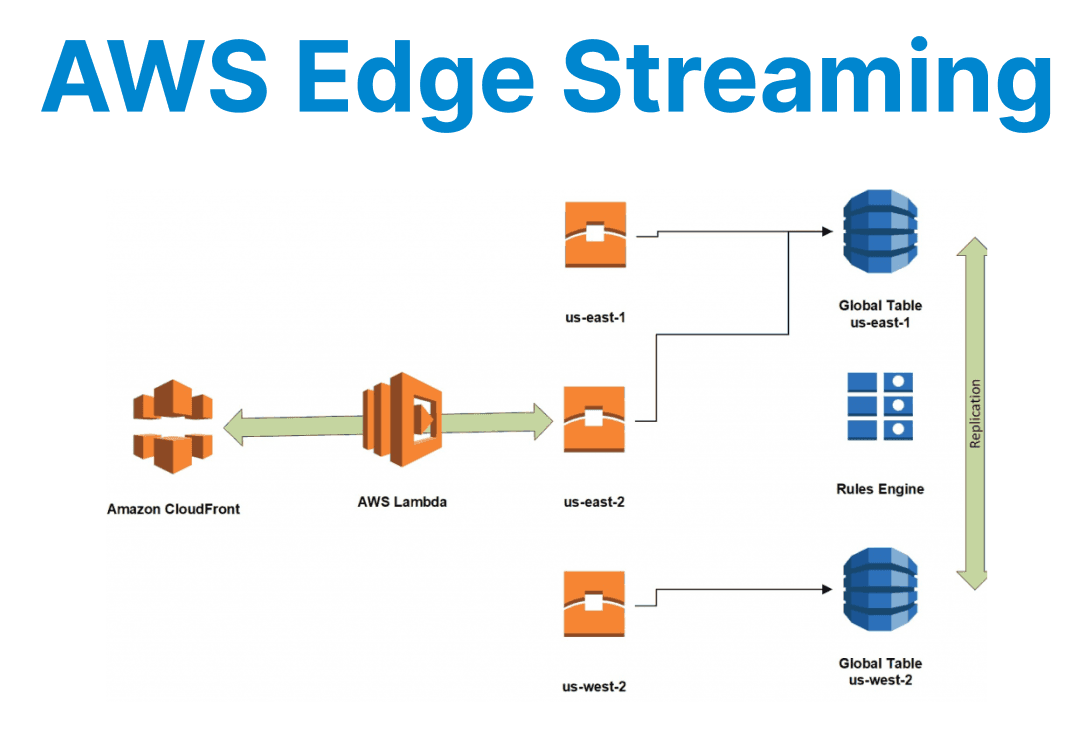
Building a live video streaming workflow that supports global audiences requires careful coordination of encoding, packaging, and delivery services. AWS provides components that can be integrated to create a reliable and low-latency pipeline. MediaLive handles real-time encoding of incoming streams, MediaPackage prepares them for playback across devices, and CloudFront distributes the content through edge locations to reduce latency.
Additional services like Lambda and CloudWatch support automation and monitoring for operational reliability. This architecture is designed to maintain consistent stream quality, reduce delivery delays, and support adaptive playback across varying network conditions.
Key Components of an Edge-Optimized Live Video Workflow
To build a low-latency, scalable live video solution, you need to integrate various AWS services and configure them properly to work together. These services include:
- AWS Elemental MediaLive: A real-time video processing service that allows you to encode and prepare live video streams for distribution.
- AWS Elemental MediaPackage: A service for packaging, securing, and delivering video streams at scale.
- Amazon CloudFront: AWS’s global CDN that caches content at edge locations to ensure fast, low-latency delivery of video to end-users.
- AWS Lambda: For real-time processing and automation tasks like monitoring video health, serverless functions, and event-driven tasks.
- AWS CloudWatch: For real-time monitoring, logging, and alerting.
By distributing the video stream to edge locations, the load is offloaded from the central server, minimizing latency and improving the experience for viewers across various geographical regions.
Setting Up Live Video Streaming with AWS Elemental MediaLive
AWS Elemental MediaLive is the core service for video stream encoding. You can configure it to ingest live video from sources like cameras, video servers, or other media sources, and then encode and format that video for delivery to viewers.
Creating a MediaLive Channel
To get started, you need to define a MediaLive channel. This channel will ingest, process, and output video streams.
import boto3

medialive_client = boto3.client('medialive')

# Define input (replace 'input-123456' with your real input ID)
input_id = 'input-123456'

# NOTE: This is a simplified example. For production, use the full structure from AWS docs.
channel = {
'InputAttachments': [{
'InputId': input_id,
'InputSettings': {
'SourceEndBehavior': 'LOOP'
}
}],
'EncoderSettings': {
'OutputGroups': [{
'Name': 'HLS Output',
'OutputGroupSettings': {
'HlsGroupSettings': {
'SegmentLength': 10
}
},
'Outputs': [{
'OutputSettings': {
'HlsOutputSettings': {}
},
'VideoDescriptionName': 'video_1080p30'
}]
}]
}
}

# Create the channel (simplified for illustration)
response = medialive_client.create_channel(**channel)
print(response)
Explanation:
- boto3.client('medialive'): Initializes a MediaLive client to interact with the service.
- InputId: References a predefined MediaLive input (like RTMP or RTP input).
- SourceEndBehavior='LOOP': When the input source ends, MediaLive will loop the input and continue streaming.
- EncoderSettings: Defines the streaming format (HLS here) and segment length.
- SegmentLength=10: Each HLS segment will be 10 seconds long.
- VideoDescriptionName='video_1080p30': Refers to an encoding profile (1080p resolution, 30fps).
Using AWS Elemental MediaPackage for Stream Packaging
After encoding with MediaLive, the next step is stream packaging. AWS MediaPackage helps prepare the live video stream for distribution and ensures device compatibility.
import boto3

mediapackage_client = boto3.client('mediapackage')

response = mediapackage_client.create_channel(
Id='live-video-channel',
Description='Channel for live video packaging'
)
print(response)
Explanation:
- boto3.client('mediapackage'): Initializes the MediaPackage client.
- create_channel(): Creates a new MediaPackage channel to receive live inputs and generate streaming endpoints (HLS, DASH, CMAF).
- Id='live-video-channel': Unique identifier for the channel.
Distributing Live Streams with Amazon CloudFront
To ensure low-latency delivery of live video to users around the world, CloudFront is essential. CloudFront caches content at edge locations, reducing the distance between the content and the end-user.
import boto3
import time

cloudfront_client = boto3.client('cloudfront')

# Replace with your MediaPackage endpoint
mediapackage_endpoint = 'abcdef12345678.mediapackage.us-west-2.amazonaws.com'

response = cloudfront_client.create_distribution(
DistributionConfig={
'CallerReference': 'my-live-stream-' + str(int(time.time())),
'Origins': {
'Quantity': 1,
'Items': [{
'Id': 'MediaPackageOrigin',
'DomainName': mediapackage_endpoint,
'OriginPath': '/out/v1/abcdef12345678',
'CustomHeaders': {'Quantity': 0},
}]
},
'DefaultCacheBehavior': {
'TargetOriginId': 'MediaPackageOrigin',
'ViewerProtocolPolicy': 'allow-all',
'AllowedMethods': {'Quantity': 2, 'Items': ['GET', 'HEAD'], 'CachedMethods': {'Quantity': 2, 'Items': ['GET', 'HEAD']}},
'ForwardedValues': {
'QueryString': False,
'Cookies': {'Forward': 'none'},
'Headers': {'Quantity': 0}
},
'MinTTL': 0
},
'Enabled': True,
'Comment': 'CloudFront distribution for live video'
}
)
print(response)
Explanation:
- create_distribution(): Sets up a new CloudFront CDN distribution.
- DomainName: The MediaPackage endpoint acts as the origin for CloudFront.
- ViewerProtocolPolicy='allow-all': Viewers can access the stream over both HTTP and HTTPS.
- AllowedMethods=['GET', 'HEAD']: Limits CDN requests to only safe methods.
- MinTTL=0: Ensures CloudFront doesn’t cache objects unnecessarily long.
Reducing Latency with Edge Locations
To optimize live streaming performance, use CloudFront edge locations for caching and content delivery. AWS CloudFront automatically routes video content to the nearest edge location, reducing the round-trip time and ensuring a low-latency experience for viewers.
The streaming delay is minimized by ensuring that viewers are connected to the nearest edge server.
Handling Video Quality and Adaptive Streaming
Using HLS or DASH, you can provide adaptive bitrate streaming, allowing users to experience the best video quality based on their network conditions. AWS MediaLive and MediaPackage support the encoding and packaging of multiple video quality streams.
Configuring Adaptive Bitrate Streaming
Configure MediaLive and MediaPackage to output multiple streams with different quality levels.
# Inside the 'EncoderSettings' dictionary of the MediaLive channel:
'EncoderSettings': {
'OutputGroups': [{
'Name': 'HLS Output',
'OutputGroupSettings': {
'HlsGroupSettings': {
'SegmentLength': 10
}
},
'Outputs': [
{
'OutputSettings': {
'HlsOutputSettings': {}
},
'VideoDescriptionName': 'video_1080p30'
},
{
'OutputSettings': {
'HlsOutputSettings': {}
},
'VideoDescriptionName': 'video_720p30'
},
{
'OutputSettings': {
'HlsOutputSettings': {}
},
'VideoDescriptionName': 'video_480p30'
}
]
}]
}
Explanation:
- Adds multiple outputs with different resolutions (1080p, 720p, 480p).
- All outputs share the same segment length of 10 seconds.
- Adaptive bitrate streaming is enabled automatically when the player chooses the best quality based on bandwidth.
Monitoring and Scaling with AWS CloudWatch
To ensure your live stream is performing optimally, you can use CloudWatch to monitor important metrics like latency, bitrate, and stream health. Setting up alarms for issues like excessive buffering or stream failures ensures that you can quickly address performance issues.
import boto3

cloudwatch_client = boto3.client('cloudwatch')

response = cloudwatch_client.put_metric_alarm(
AlarmName='HighLatencyAlarm',
MetricName='TotalErrorRate',
Namespace='AWS/CloudFront',
Statistic='Average',
Period=60,
EvaluationPeriods=5,
Threshold=0.01, # 1% error rate threshold (adjust as needed)
ComparisonOperator='GreaterThanThreshold',
AlarmActions=['arn:aws:sns:region:account-id:sns-topic']
)
print(response)
Explanation:
- put_metric_alarm(): Creates an alarm that monitors the TotalErrorRate metric.
- Threshold=0.01: Alarm triggers if the error rate goes above 1%.
- EvaluationPeriods=5: Alarm evaluates over 5 consecutive 1-minute intervals.
- AlarmActions: Sends notification to an SNS topic when triggered.
Optimizing Performance for Mobile Devices
For mobile users, it is crucial to optimize video streaming by reducing buffering times and ensuring smooth playback. Ensure the use of responsive video players and adjust video bitrates based on network conditions.
- Use responsive video players that adjust to screen sizes across devices.
- Implement network-aware streaming by dynamically adjusting video quality based on network bandwidth.
- Leverage progressive loading to begin playback as soon as enough of the video is buffered.