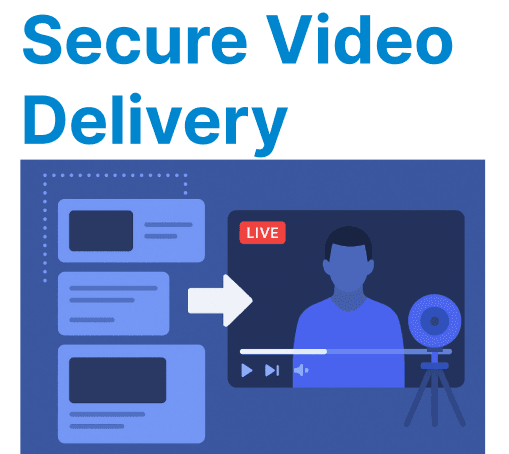
Embedding live streams into a Content Management System (CMS) via blocks allows content creators and developers to deliver real-time video content seamlessly within the CMS structure. This setup is useful for platforms that require dynamic video content, such as news websites, online events, e-learning platforms, and sports broadcasts. By embedding live streams directly into CMS blocks, content can be updated dynamically and presented in a user-friendly format.
Understanding CMS Blocks for Livestreams
In CMS systems like WordPress, Drupal, or headless CMS platforms, a “block” is a modular element used to display content in various sections of a page. By embedding a livestream player within a CMS block, you can ensure that the video content is managed and updated in real time without the need for hard coding or manual intervention.
Embedding Live Streams with CMS Blocks
Adding a Livestream Block in WordPress
In WordPress, blocks are the building blocks of content. You can easily add a livestream player into a block using custom HTML or by utilizing a plugin. This method works for live stream platforms like YouTube, Vimeo, or custom RTMP streams.
Example: Embedding a YouTube Livestream
<!-- Add this block in the WordPress block editor -->
<div class="livestream-block">
<iframe width="100%" height="315" src="https://www.youtube.com/embed/live_stream?channel=YOUR_CHANNEL_ID" frameborder="0" allowfullscreen></iframe>
</div>
Explanation:
- YouTube Embed Code: You can use YouTube’s iframe embed code to add a live stream to any block. Replace YOUR_CHANNEL_ID with the specific channel ID for the live stream.
- Customization: You can adjust the width, height, and other attributes to fit your CMS layout.
Embedding Custom RTMP Streams into CMS Blocks
For custom RTMP-based live streaming, you can embed a player like Video.js or JW Player into a CMS block using the embed code provided by your media server.
Example: Embedding an RTMP Stream with Video.js
<!-- Add this block in the CMS -->
<div class="livestream-block">
<video id="videojs-player" class="video-js vjs-default-skin" controls>
<source src="rtmp://YOUR_SERVER/live/streamKey" type="rtmp/flv">
Your browser does not support the video tag.
</video>
</div>

<script>
var player = videojs('videojs-player');
</script>
Explanation:
- RTMP Stream: The source element is configured to fetch an RTMP stream from your server.
- Video.js Player: The video.js player is used to handle the RTMP stream within a browser that supports Flash or uses modern streaming protocols.
Embedding Live Streams in Headless CMS via API
In headless CMS platforms (like Strapi, Contentful, or Sanity), live streams can be embedded dynamically using an API and JavaScript. This allows for more flexibility and control over the presentation layer.
Example: Dynamically Embedding Live Stream in Headless CMS
const liveStreamURL = 'https://www.example.com/live/stream'; // Replace with dynamic URL

fetch('/api/get-live-stream-url')
.then(response => response.json())
.then(data => {
const iframe = document.createElement('iframe');
iframe.src = data.streamUrl; // The live stream URL from the API
iframe.width = '100%';
iframe.height = '315';
document.getElementById('livestream-container').appendChild(iframe);
})
.catch(err => console.error('Error fetching live stream URL:', err));
Explanation:
- API Call: Fetches the live stream URL dynamically from the CMS API.
- Dynamic Embed: The live stream is embedded into the page by creating an iframe element dynamically and appending it to the DOM.
Handling Video Formats and Playback Options
When embedding live streams into CMS blocks, it's essential to handle multiple video formats for cross-browser compatibility. You should support HTML5, HLS (HTTP Live Streaming), and RTMP for broader audience reach, especially for mobile devices and browsers that may not support Flash.
HLS Support for HTML5
HLS is a modern video streaming protocol widely used for live broadcasts. It provides adaptive bitrate streaming and ensures the video quality adjusts based on the viewer's bandwidth.
Example: Embedding HLS Stream in Video.js
<video id="videojs-player" class="video-js vjs-default-skin" controls>
<source src="https://www.example.com/path/to/hls/stream.m3u8" type="application/x-mpegURL">
Your browser does not support the video tag.
</video>

<script>
var player = videojs('videojs-player');
</script>
Explanation:
- HLS Stream: The source element points to an .m3u8 file, which is the HLS playlist format. Video.js handles the playback of this format.
Multiple Streaming Protocols
Ensure your CMS block can handle different streaming protocols. For platforms that require adaptive streaming, HLS or DASH are commonly used, while RTMP is favored for live events.
Example: Adaptive Streaming with Dash.js
<video id="dash-player" class="video-js vjs-default-skin" controls>
<source src="https://www.example.com/path/to/dash/manifest.mpd" type="application/dash+xml">
Your browser does not support the video tag.
</video>

<script src="https://cdn.dashjs.org/latest/dash.all.min.js"></script>
<script>
var player = dashjs.MediaPlayer().create();
player.initialize(document.querySelector("#dash-player"), "https://www.example.com/path/to/dash/manifest.mpd", true);
</script>
Explanation:
- DASH Streaming: The .mpd manifest file is used for MPEG-DASH streams. Dash.js allows smooth streaming of live content.
Best Practices for Streaming in CMS Blocks
Auto-Detecting Playback State
Ensure the video player within your CMS block automatically detects when to play or pause, particularly when embedded in a carousel or gallery. Use the IntersectionObserver API for efficient loading and playback.
Example: Auto Play Video Based on Viewport Visibility
const videos = document.querySelectorAll('video');
const observer = new IntersectionObserver((entries, observer) => {
entries.forEach(entry => {
const video = entry.target;
if (entry.isIntersecting) {
video.play();
} else {
video.pause();
}
});
}, { threshold: 0.5 });

videos.forEach(video => observer.observe(video));
Explanation:
- IntersectionObserver: Automatically plays the video when it enters the viewport, saving resources by pausing off-screen videos.
Responsive Video Embeds
Ensure that your video content remains responsive across various screen sizes and devices. Use CSS to scale the video player container to fit different viewport sizes.
.video-container {
position: relative;
width: 100%;
height: auto;
}

.video-js {
width: 100%;
height: auto;
}
Explanation:
- Responsive Design: The video player’s size adjusts dynamically, ensuring it scales properly across various screen sizes, including mobile devices.