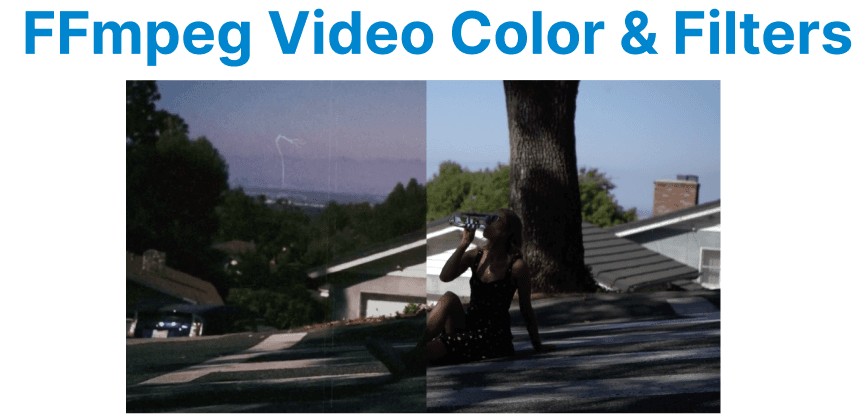
Video color grading and filtering are essential steps in post-production, allowing for aesthetic adjustments, creative control, and enhancing visual appeal. FFmpeg, a powerful multimedia framework, provides a wide range of tools to apply color grading and filters to videos.
Basic Color Adjustments
FFmpeg allows you to perform basic color adjustments, such as changing the contrast, brightness, and saturation. These adjustments are often used as a starting point for color grading.
Adjusting Brightness and Contrast
You can use the eq (equalizer) filter to adjust the brightness and contrast of a video.
ffmpeg -i input.mp4 -vf "eq=brightness=0.05:contrast=1.2" output.mp4Explanation:
- brightness=0.05: Increases the brightness by 5%.
- contrast=1.2: Increases the contrast by 20%.
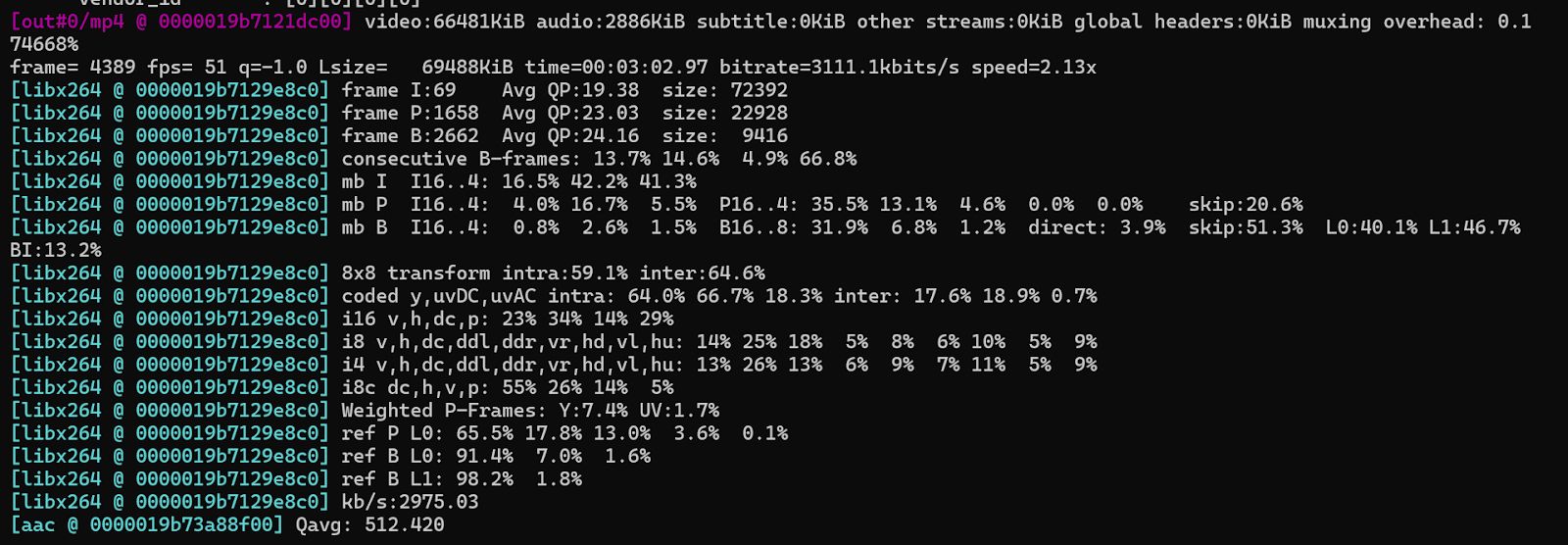
This command applies basic adjustments to improve the visibility and clarity of the video.
Adjusting Saturation
The eq filter also allows for adjusting the saturation of a video.
ffmpeg -i input.mp4 -vf "eq=saturation=1.5" output.mp4Explanation:
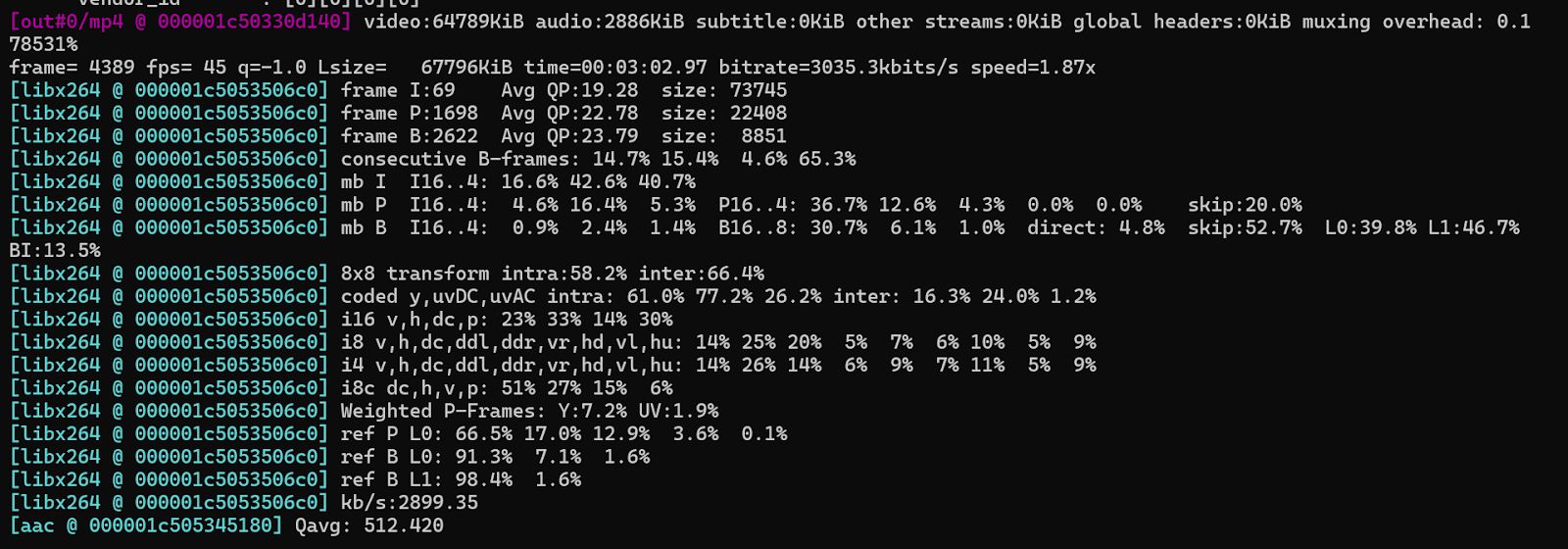
- saturation=1.5: Increases the saturation by 50%, making the colors more vivid.

Using the Color Balance Filter
FFmpeg also provides the colorbalance filter, which is useful for adjusting the color balance of the shadows, midtones, and highlights.
ffmpeg -i input.mp4 -vf "colorbalance=rs=0.3:gs=-0.2:bs=0.1" output.mp4Explanation:
- rs=0.3: Adjusts the red shadows.
- gs=-0.2: Adjusts the green midtones.
- bs=0.1: Adjusts the blue highlights.
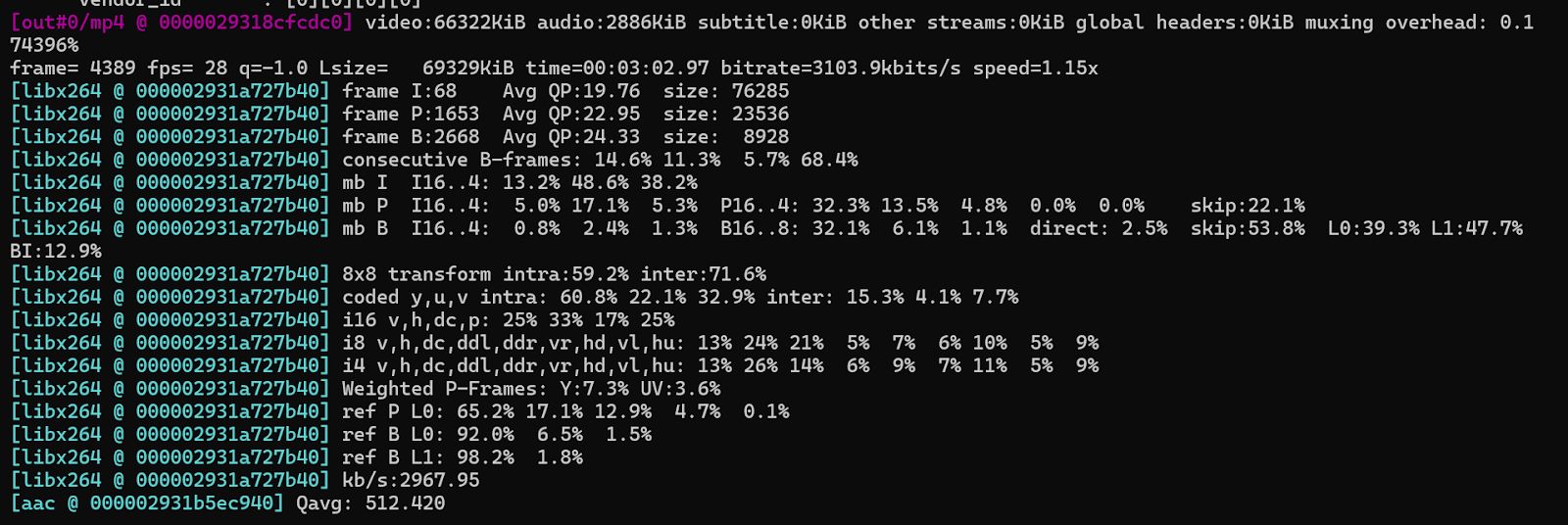
These parameters allow for detailed adjustments to the video’s color balance across different tonal ranges.
Adjusting Gamma
Gamma correction is used to adjust the brightness of the midtones in an image or video without affecting the shadows and highlights too much. You can adjust the gamma using FFmpeg’s eq filter as well.
ffmpeg -i input.mp4 -vf "eq=gamma=1.2" output.mp4Explanation:
- gamma=1.2: Increases the gamma, brightening the midtones.
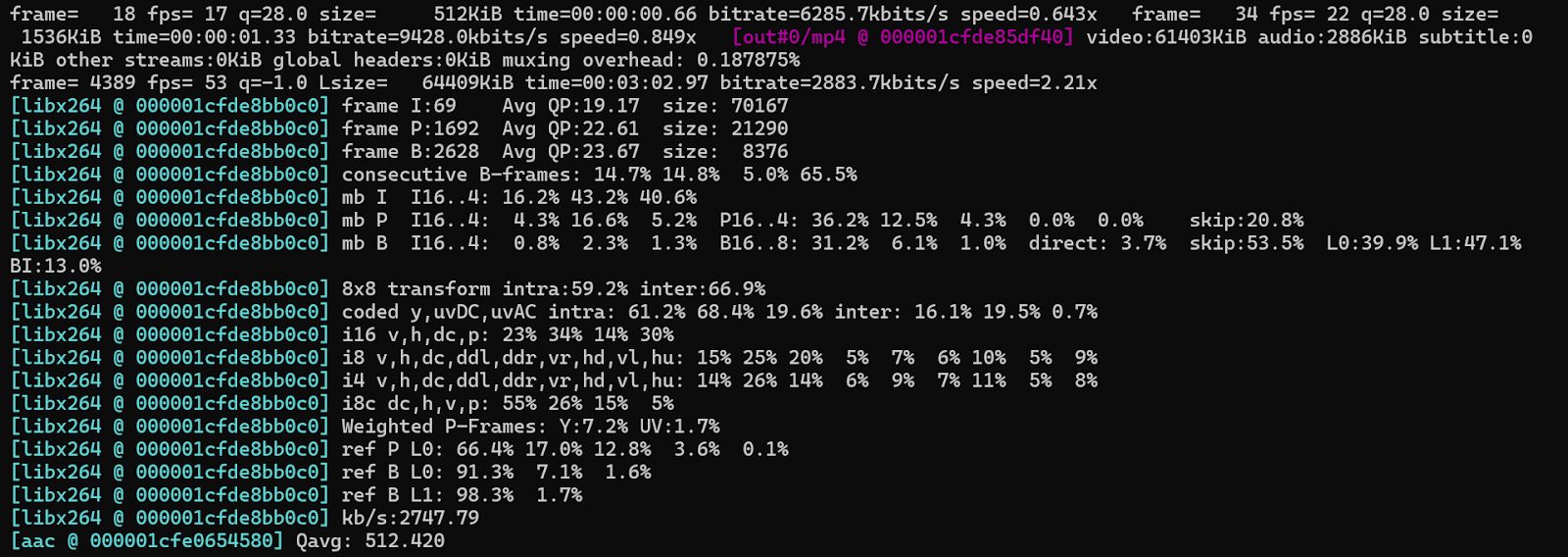
Gamma adjustments are important for videos that require proper exposure or are intended for viewing on different devices.
Sharpening Video
Sharpness is an important aspect of color grading as it enhances the fine details in a video. FFmpeg offers an unsharp filter for sharpening the video.
ffmpeg -i input.mp4 -vf "unsharp=luma_msize_x=7:luma_msize_y=7:luma_amount=1.5" output.mp4Explanation:
- luma_msize_x=7:luma_msize_y=7: Specifies the size of the sharpening matrix.
- luma_amount=1.5: Sets the amount of sharpening applied to the luma channel (brightness).
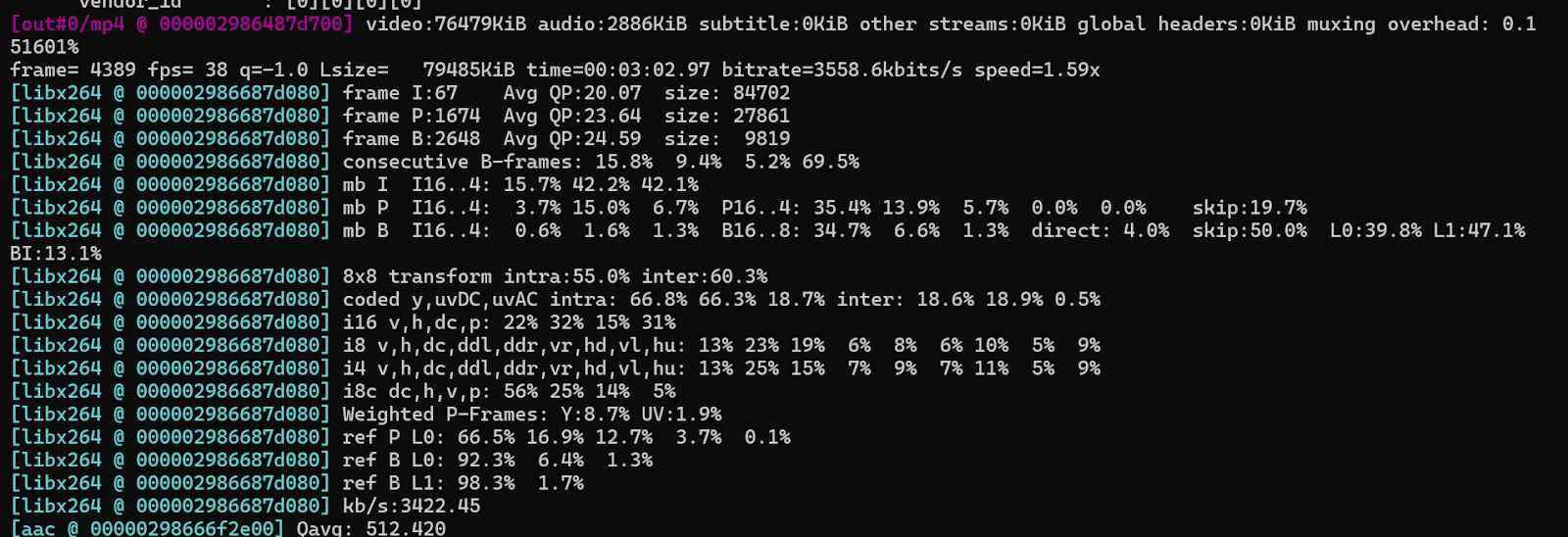
This command enhances the sharpness of the video, making edges and fine details more pronounced.
Vignette Effect for Video
A vignette effect can be applied to create a focus on the center of the frame by darkening the edges. This is useful for emphasizing the subject in a scene.
ffmpeg -i input.mp4 -vf "vignette" output.mp4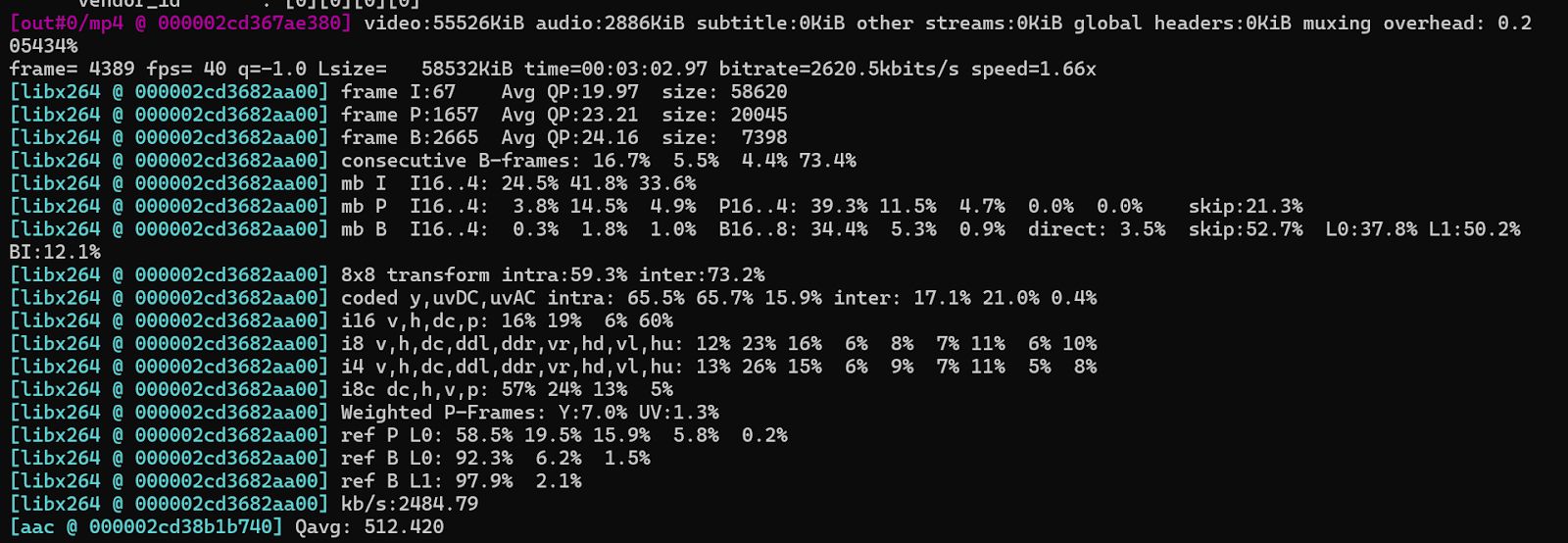
The vignette filter applies a gradual darkening around the edges of the frame, leading the viewer’s attention to the center of the video.
Color Space Conversion
In some cases, you may need to convert the video from one color space to another, such as from RGB to YUV. This is often necessary when preparing content for various devices or broadcasts.
ffmpeg -i input.mp4 -vf "format=yuv420p" output.mp4Explanation:
- format=yuv420p: Converts the video to the YUV color space with 4:2:0 chroma subsampling, which is widely used in video compression.
Combining Multiple Filters
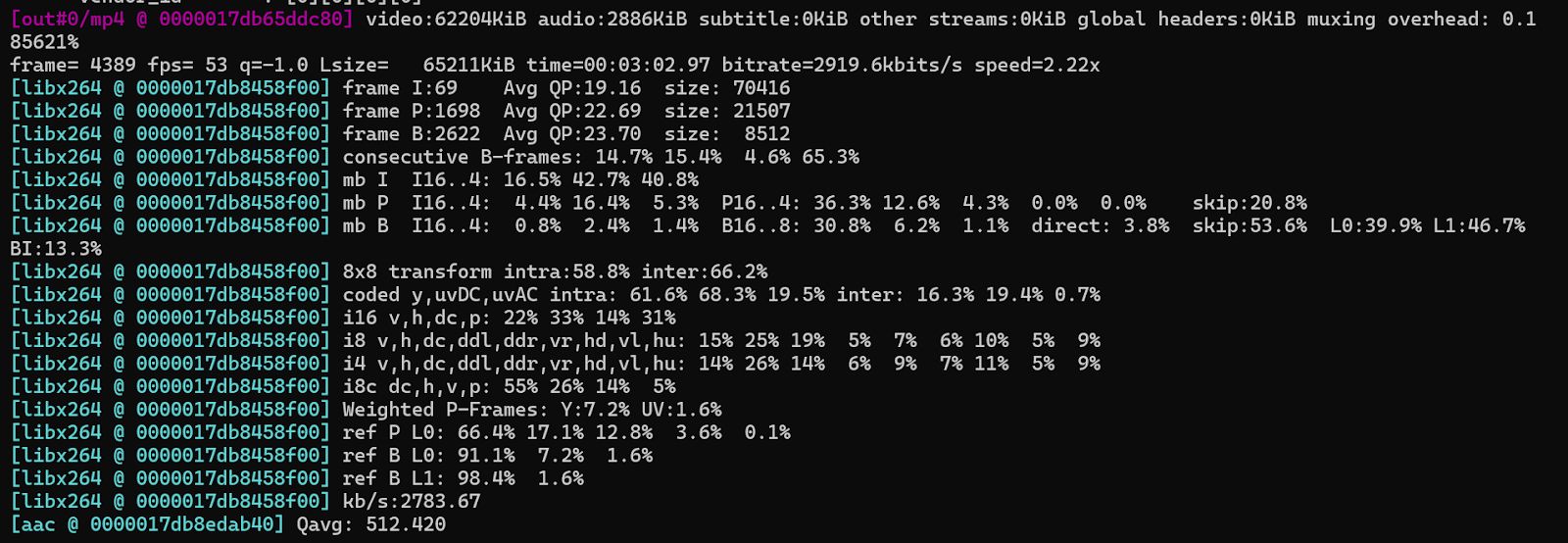
You can combine multiple filters in FFmpeg to achieve complex color grading effects in one pass. For example, applying both contrast and saturation adjustments:
ffmpeg -i input.mp4 -vf "eq=contrast=1.2:saturation=1.5" output.mp4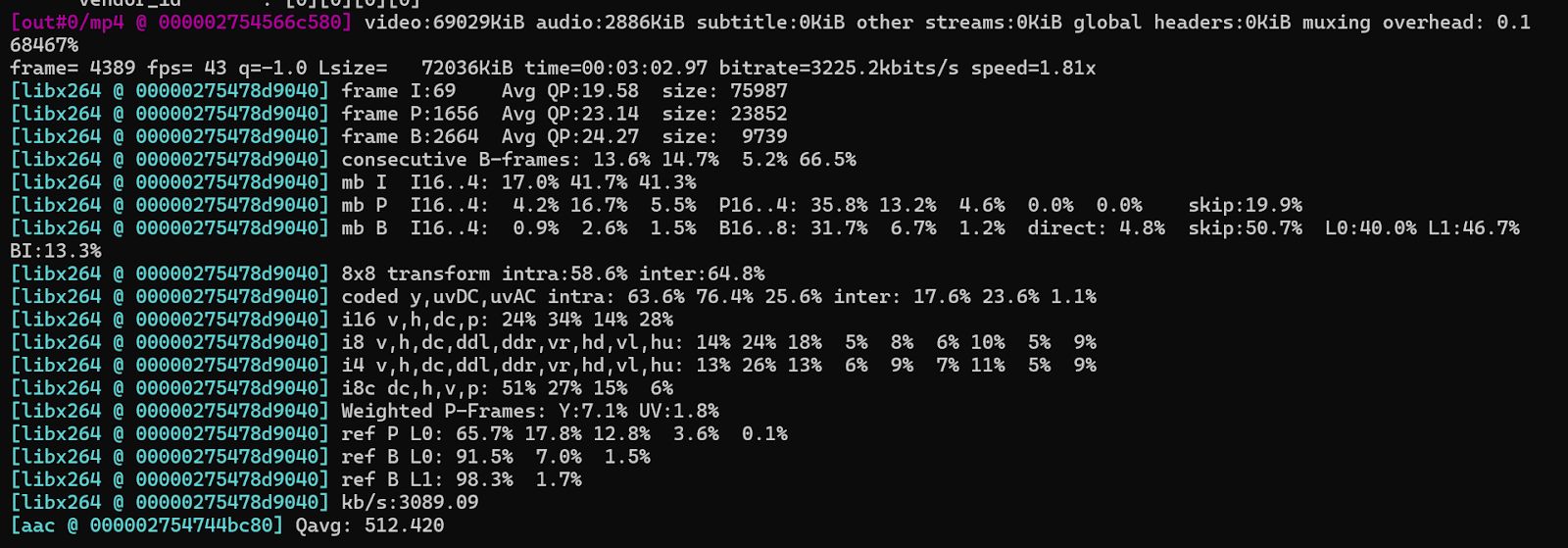
This command simultaneously adjusts both the contrast and saturation, enhancing the color and visual appeal of the video.
Batch Processing Color Grading for Multiple Files
If you have a large number of videos to apply the same color grading to, you can automate the process using a script. Here’s an example of a bash script that processes all MP4 files in a directory:
#!/bin/bash for video in /path/to/videos/*.mp4; do ffmpeg -i "$video" -vf "eq=contrast=1.2:saturation=1.5" "${video%.mp4}_graded.mp4"doneExplanation:
- The script loops through each MP4 video in the specified directory and applies the same color grading filter to save the output with a new filename.
What’s Next?
Looking to build automated pipelines for consistent color grading across thousands of video assets? Use Cincopa’s API to integrate FFmpeg-based filters with cloud-based batch workflows. Trigger predefined presets for contrast, saturation, gamma, and sharpness enhancement, then automatically convert to delivery-ready formats like HLS or MP4. Streamline post-production by applying uniform grading rules to large video libraries without manual configuration or local processing.