Grading assignments in Moodle 4 helps instructors review learner work in one place and record scores with accuracy. It brings together submissions, feedback tools, and grading options so each evaluation stays consistent across a course.
Clear grading not only supports fair assessment but also helps learners understand their progress. By knowing how grading works in Moodle 4, instructors can manage coursework more smoothly and maintain a structured learning flow.
Prerequisites
- An active Moodle 4 course, and you are enrolled as an instructor or grading administrator.
- An assignment activity must be created and made visible to learners on the course page.
- Confirm the assignment’s grading method before learners submit. Set up grading as points, scale, rubric, or marking guide to match your assessment plan.
- For group assignments, create groups or groupings and add learners to them before enabling group submission. This step ensures correct feedback distribution and grade allocation for collaborative work.
- If anonymous grading is needed, enable this option in the assignment settings before grading begins.
- Confirm that your browser supports inline document previews and annotation tools used in Moodle’s assignment grading window.
- Add criteria for rubrics or guides in advance if you use advanced grading, so graders can select or add feedback efficiently.
Grading Assignments in Moodle 4
Grading assignments in Moodle 4 keeps all learner work in one place, making evaluation clear and consistent. It helps instructors review submissions efficiently so every learner receives fair scoring and meaningful progress tracking.
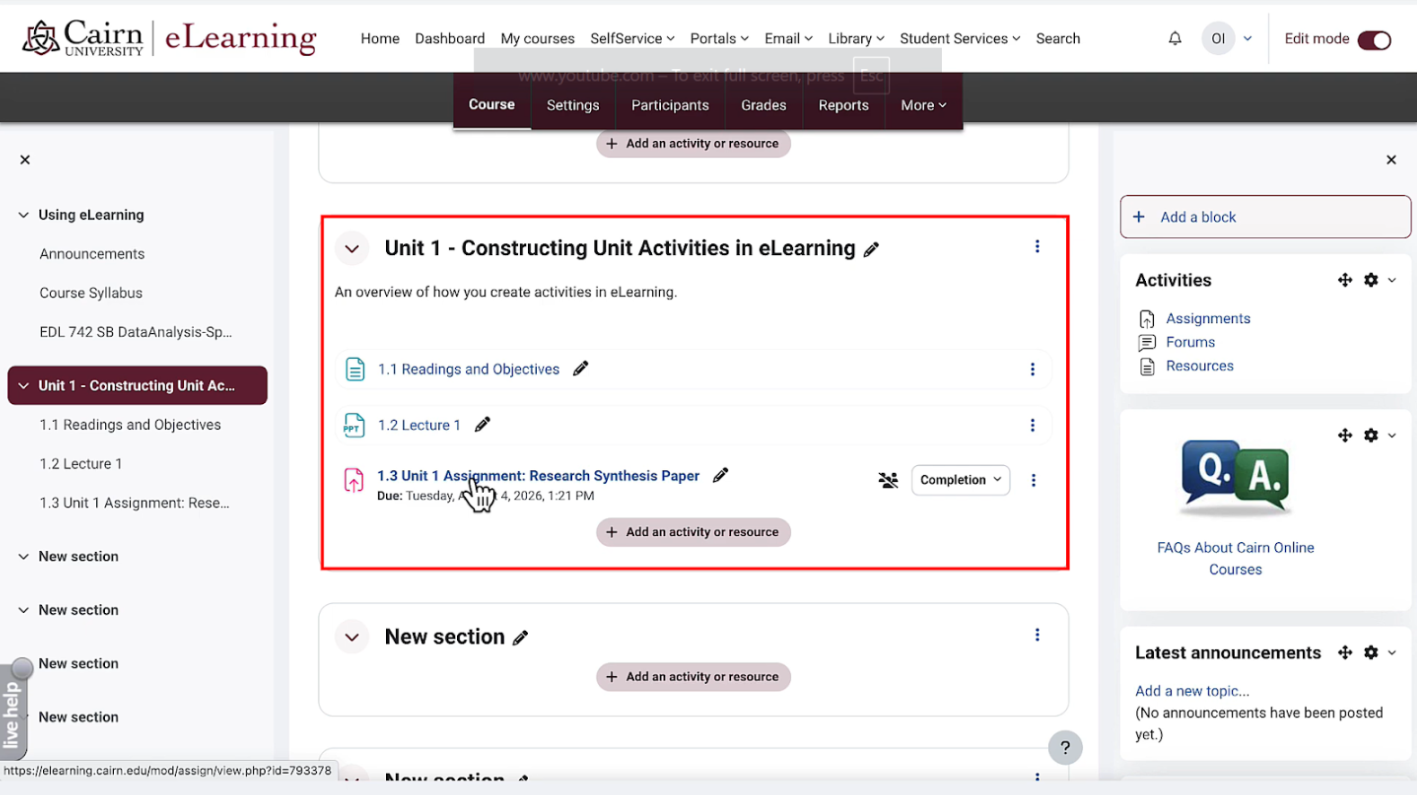
Step 1: Log in to your Moodle course as an instructor and click on the section whose submissions you want to grade.
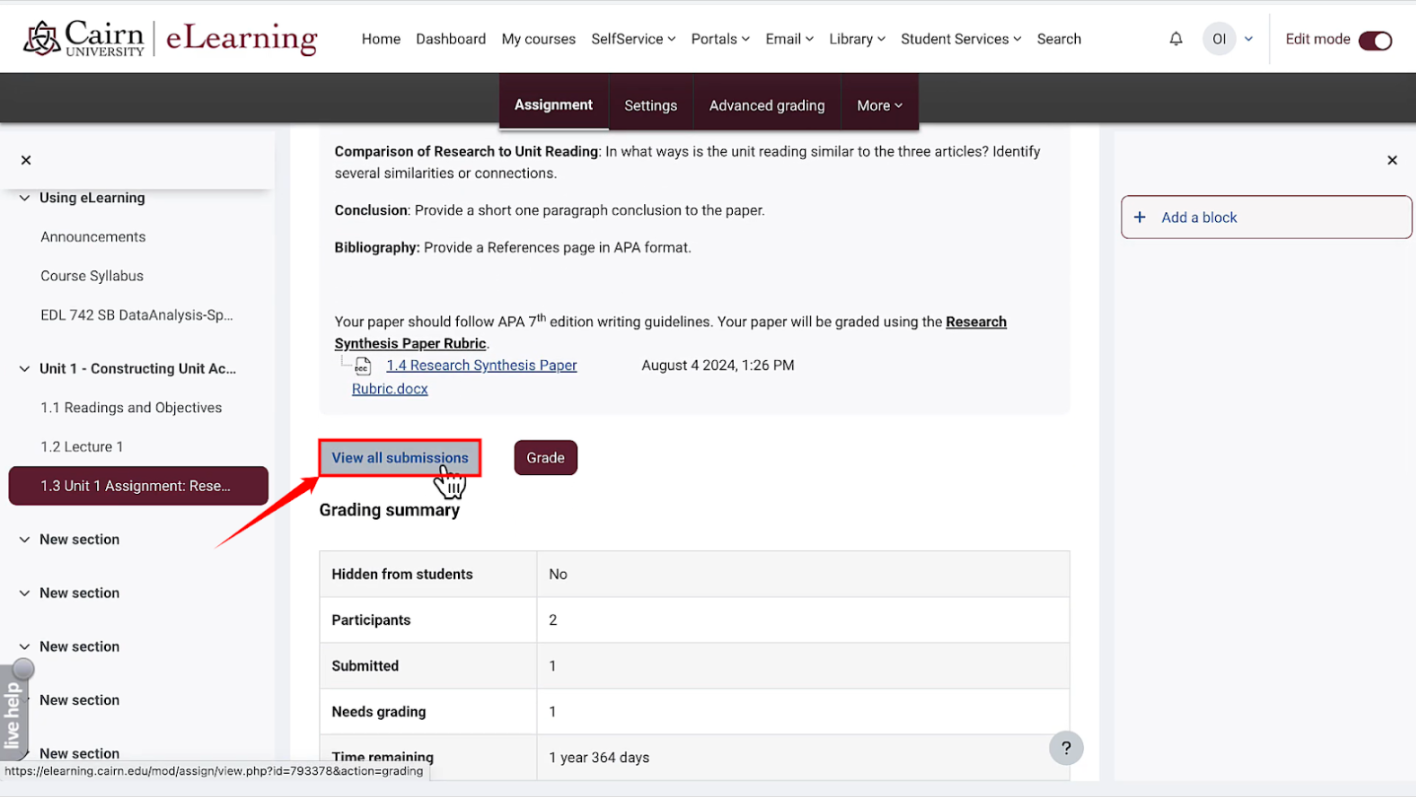
Step 2: The course’s section window will open. Scroll to the bottom of the page, then click on the “View all submissions” button.
Step 3: A new window will open with a list of all the submissions for the particular course’s section you selected earlier.
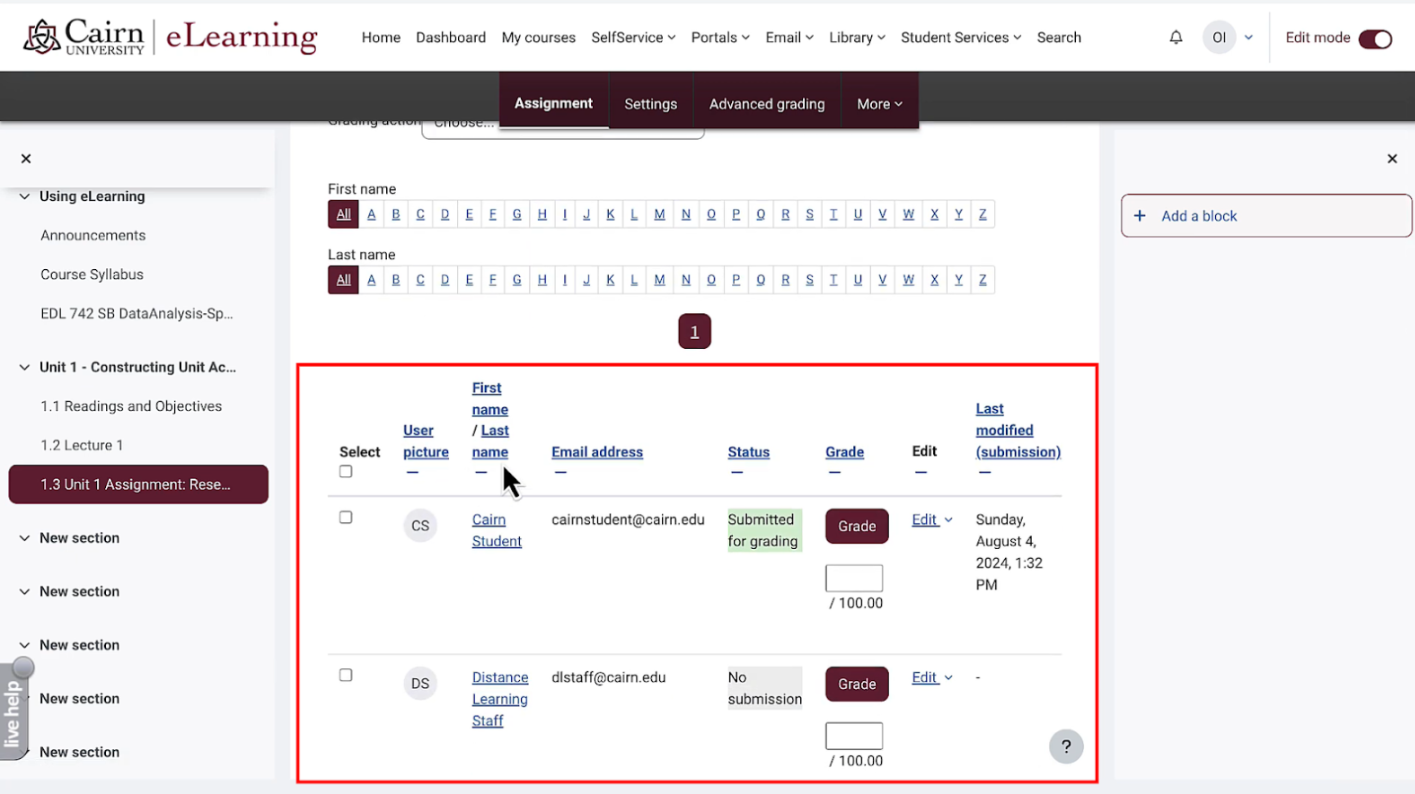

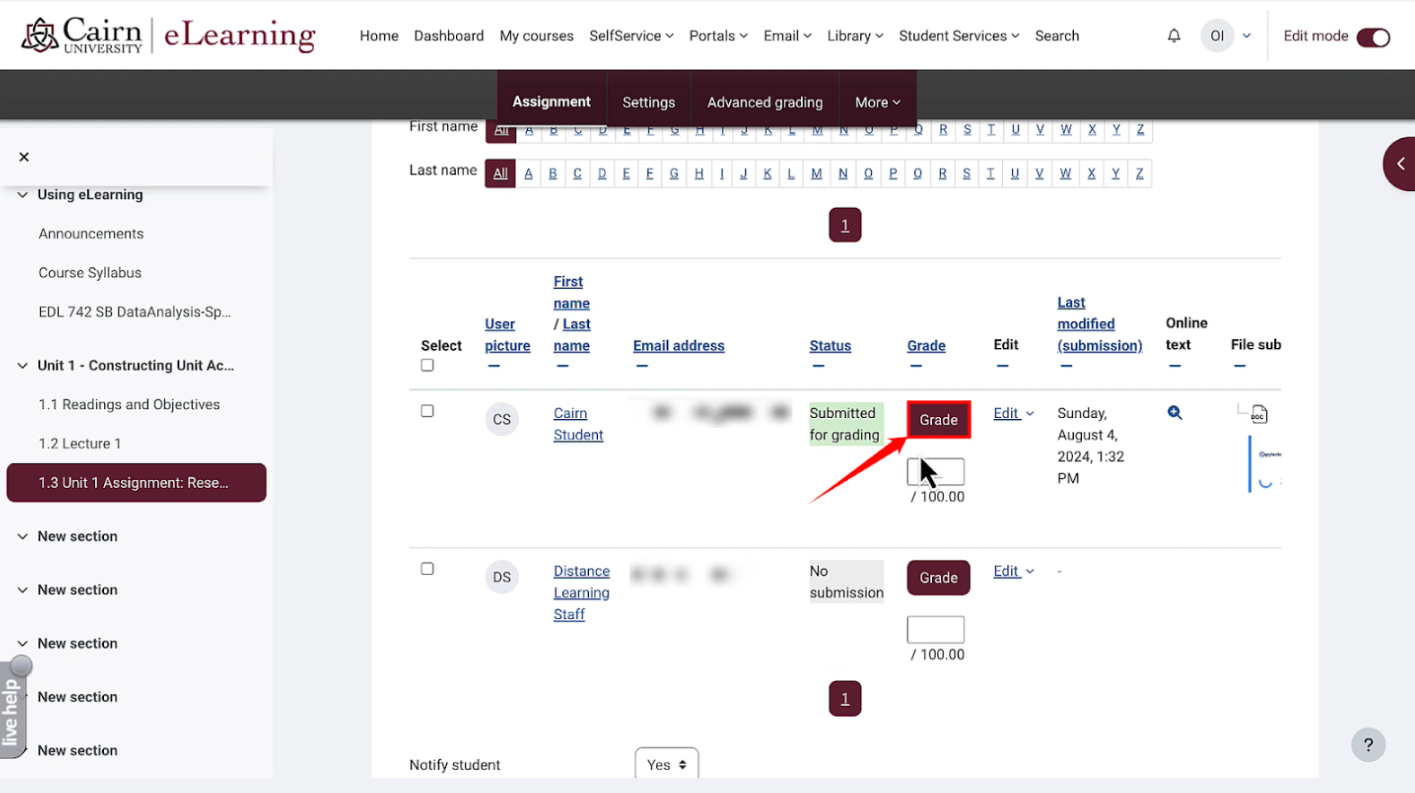
Step 4: Click on the “Grade” button for the submission you want to grade.
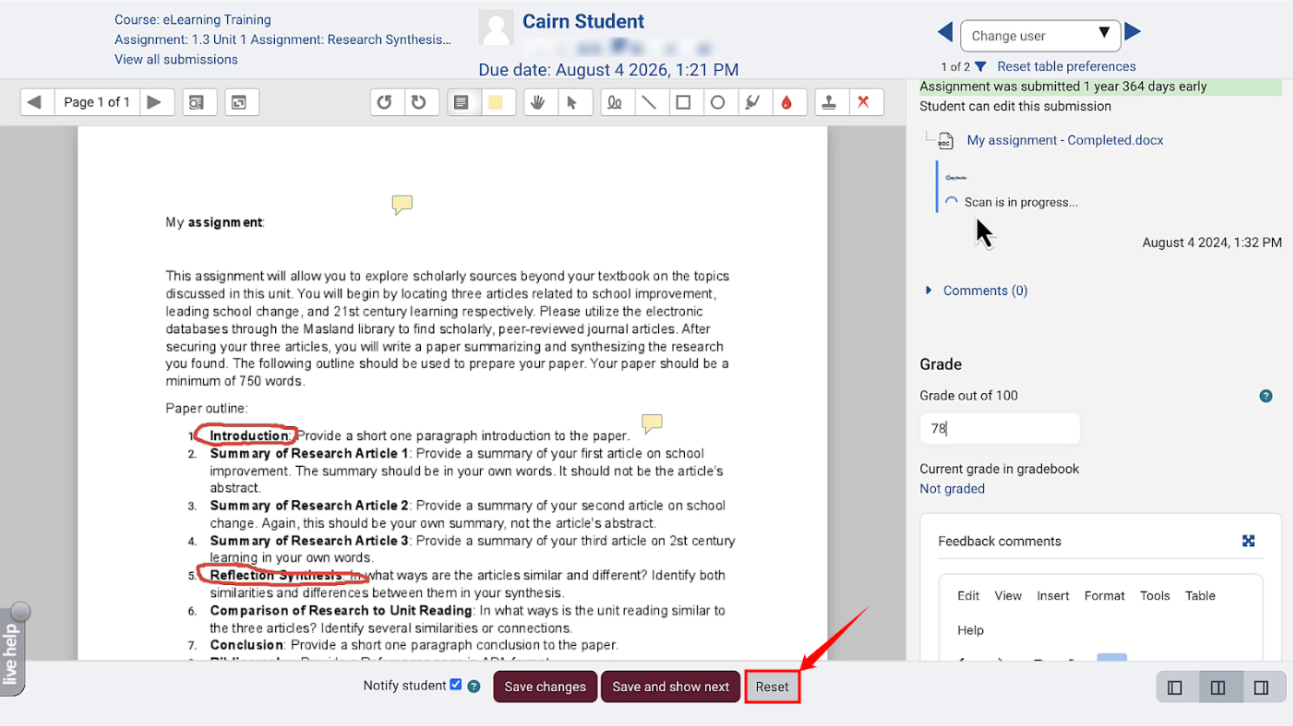
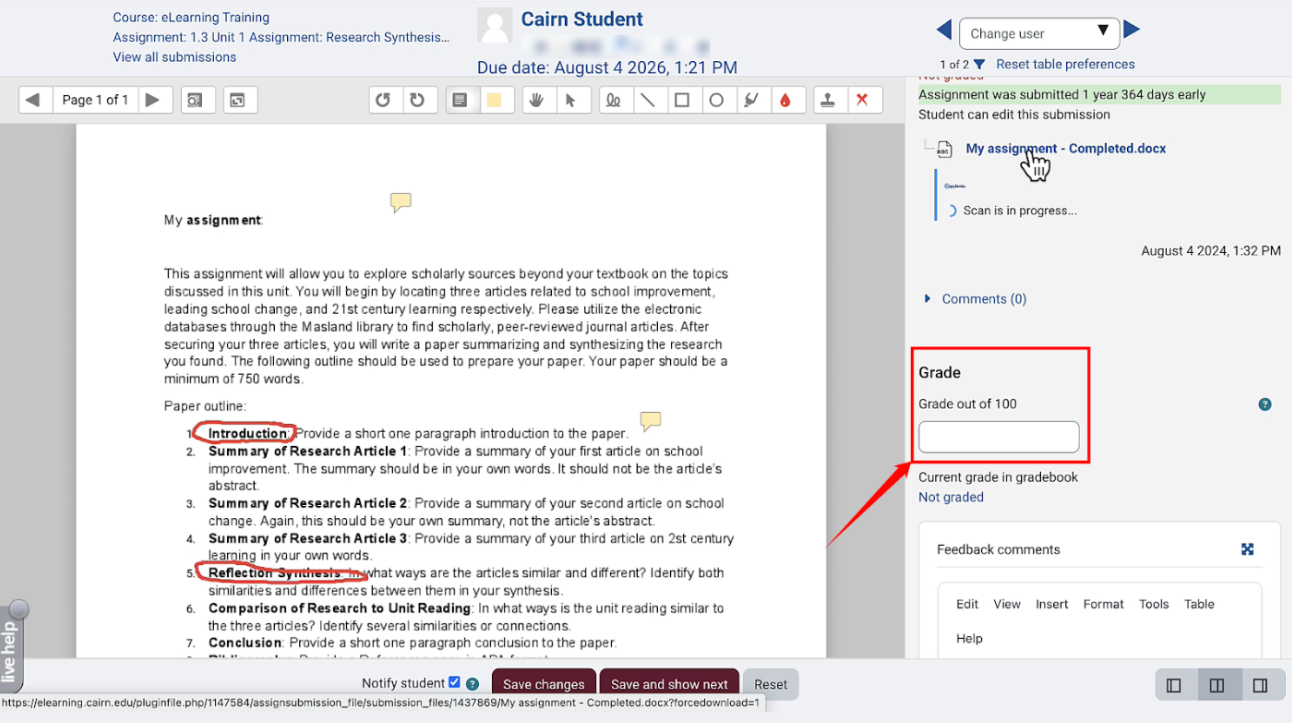
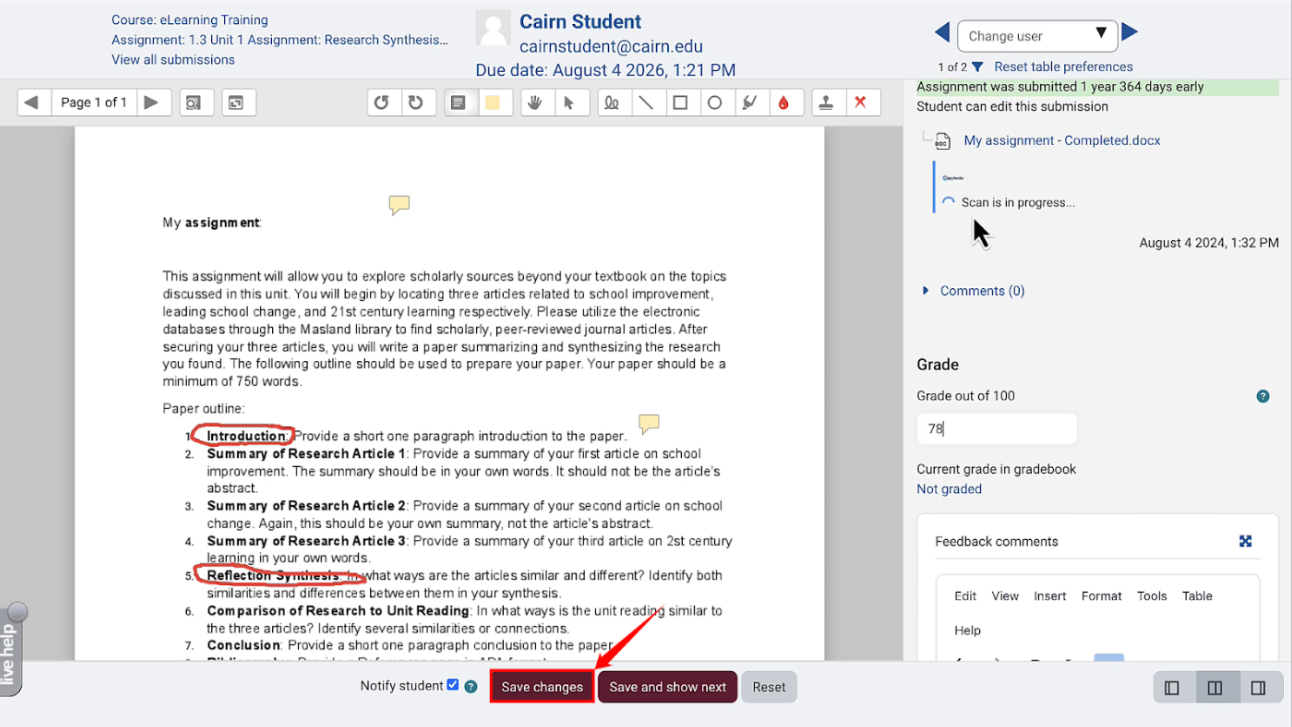
Step 5: A new assignment page will open. On the right-hand side “Submission” panel, locate the “Grade out of 100” section, then enter the grade you want to give to the particular submission.
Step 6: If you have made any deductions while grading the documents, you can provide your feedback in the “Feedback comments” section, as shown in the image below.
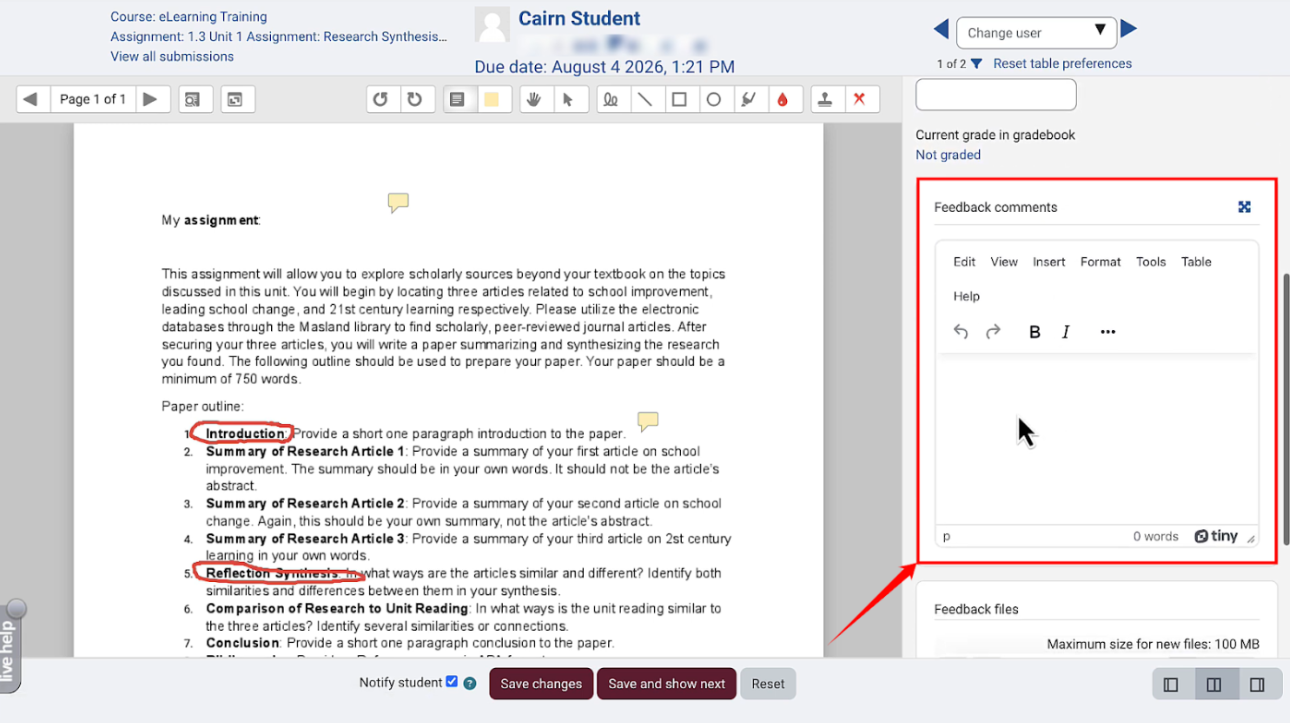
Step 7: Once you grade the submission and provide your feedback, click on the “Save changes” button at the bottom of the page.
Step 8: At the bottom of the page, you can also click on the “Save and show next” button to start grading the next submission.
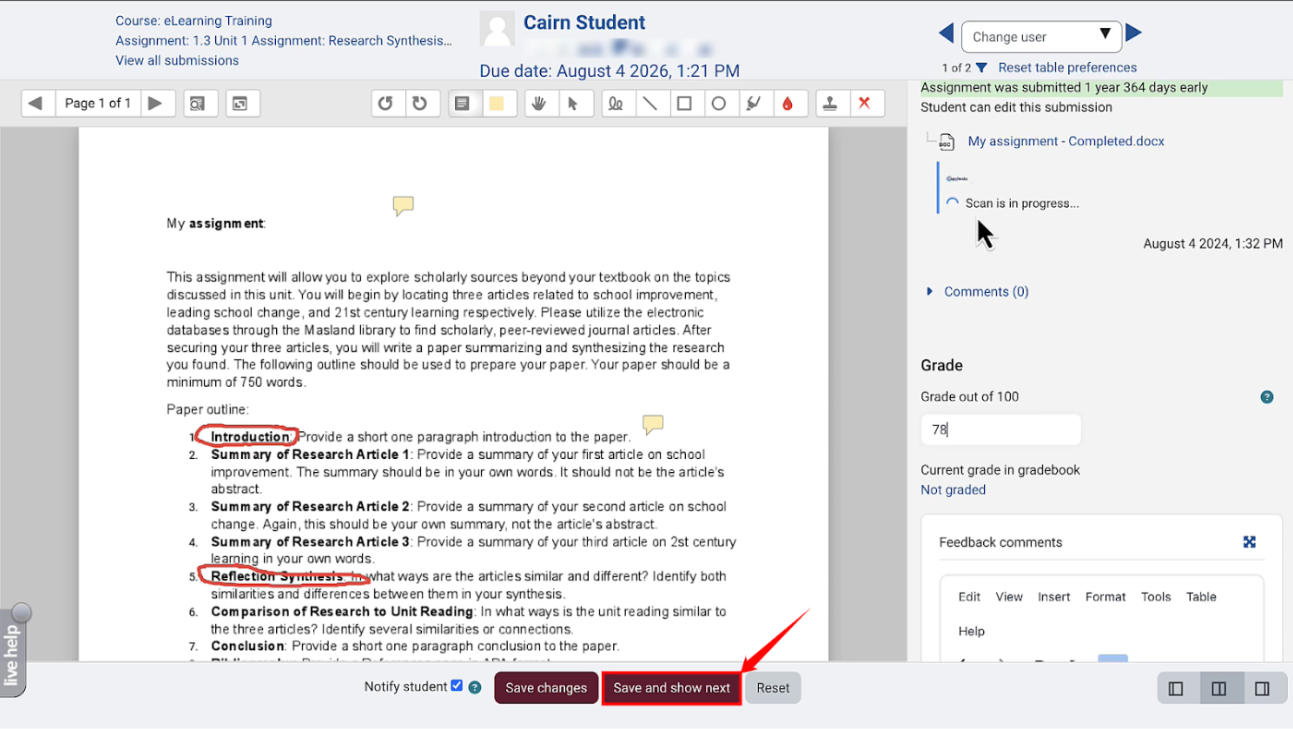
Step 9: You can also click on the “Reset” button if you want to reset the changes you’ve made.