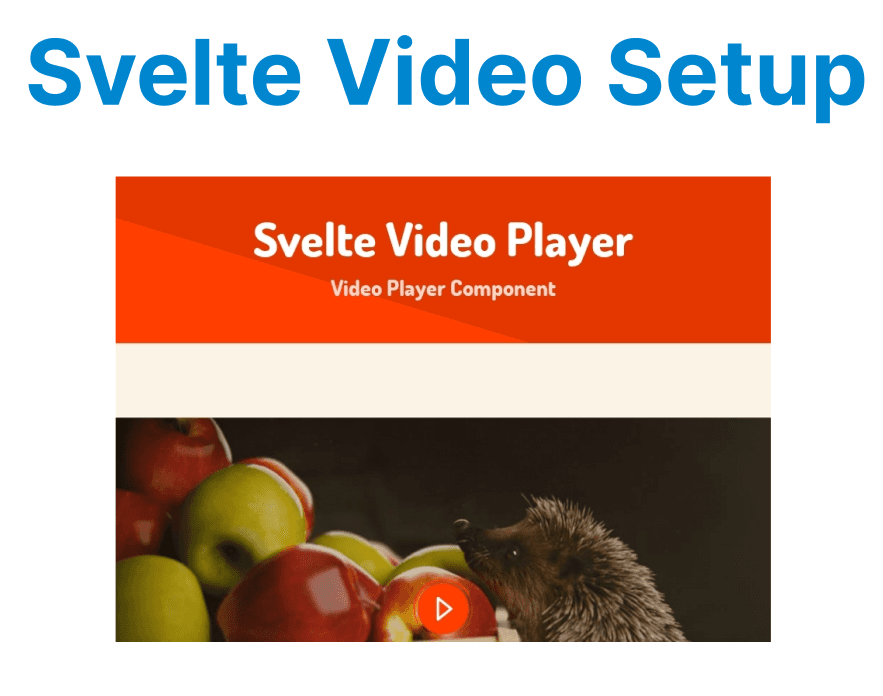
Integrating video functionality into a Svelte application involves using the native HTML5 <video> element or external libraries to handle video playback and provide user controls. With Svelte’s reactive nature and efficient reactivity model, you can create highly optimized and dynamic video players that are lightweight and performant.
Setting Up the Basic Video Player
To begin integrating a simple video player into a Svelte application, use the native HTML5 <video> element. All modern browsers support this element and can be easily controlled through Svelte’s binding and event system.
Example: Basic Video Player in Svelte
<script>
let videoSource = "video.mp4";
let videoElement;
let isPlaying = false;
$: isPlaying = videoElement && !videoElement.paused;
</script>
<video bind:this={videoElement} controls>
<source src={videoSource} type="video/mp4">
Your browser does not support the video tag.
</video>
<button on:click={() => videoElement.paused ? videoElement.play() : videoElement.pause()}>
{isPlaying ? 'Pause' : 'Play'}
</button>
Explanation:
- <video> Element: This element is used to display video content and has built-in controls such as play, pause, volume control, etc.
- bind:this={videoElement}: This binds the native video DOM element to the videoElement variable, allowing direct access to its properties and methods.
- Dynamic Play/Pause Button: A button is added to toggle the video play/pause state. The button's text dynamically changes based on whether the video is playing or paused, achieved using Svelte’s reactive $: syntax.
Handling Multiple Video Formats
Different browsers and devices support varying video formats. To ensure compatibility, it’s essential to include multiple video formats within your <video> element. This allows the player to fallback to a format that the browser can handle.
Example: Video Source with Multiple Formats
<video controls>
<source src="video.mp4" type="video/mp4">
<source src="video.webm" type="video/webm">
<source src="video.ogv" type="video/ogg">
Your browser does not support the video tag.
</video>
Explanation:
- Multiple <source> Tags: Each source tag includes a different video format (MP4, WebM, OGG). The browser will attempt to load the first supported format.
- Fallback Content: The text inside the <video> tag provides fallback content for browsers that don’t support the video element.
Custom Video Controls in Svelte
To enhance the video player, you may want to create custom controls such as play/pause buttons, volume sliders, and seek bars. This allows for a more personalized user interface that better fits your app's design.
Example: Custom Play/Pause Button with Video Controls
<script>
let videoElement;
let isPlaying = false;

// Toggle playback
function togglePlay() {
if (!videoElement) return;
if (videoElement.paused) {
videoElement.play();
} else {
videoElement.pause();
}
}

// Update state on play/pause events
function handlePlay() {
isPlaying = true;
}
function handlePause() {
isPlaying = false;
}
</script>

<video
bind:this={videoElement}
width="600"
on:play={handlePlay}
on:pause={handlePause}
src="video.mp4"
>
Your browser does not support the video tag.
</video>

<button on:click={togglePlay} style="margin-top: 1em;">
{isPlaying ? 'Pause' : 'Play'}
</button>
Explanation:
- Video Playback Control: This button listens for clicks to toggle the play/pause state of the video, changing the text to “Pause” or “Play” based on the isPlaying state.
- Binding with bind:this={videoElement}: This binds the video element to videoElement so you can control it programmatically with methods like play() and pause().
Handling Video Events with Svelte
Svelte allows you to handle native events from HTML elements. For video players, you can track events such as play, pause, ended, and error to gather analytics or update the UI dynamically.
Example: Handling play and pause Events
<script>
let videoElement;
let isPlaying = false;

const handlePlay = () => {
isPlaying = true;
};

const handlePause = () => {
isPlaying = false;
};
</script>

<video bind:this={videoElement} on:play={handlePlay} on:pause={handlePause} width="600">
<source src="video.mp4" type="video/mp4">
Your browser does not support the video tag.
</video>

<p>{isPlaying ? 'Playing' : 'Paused'}</p>
Explanation:
- Event Binding: on:play and on:pause are used to trigger the handlePlay and handlePause functions respectively when the video plays or pauses.
- Reactive UI: The UI updates dynamically based on the video’s playback state, showing “Playing” or “Paused”.
Optimizing for Mobile Devices
When implementing video players for mobile devices, it's essential to optimize the layout and controls for smaller screens and touch interactions. The <video> element is responsive by default, but custom controls might need additional styling for mobile devices.
Example: Responsive Video Player for Mobile
<video bind:this={videoElement} controls width="100%">
<source src="video.mp4" type="video/mp4">
Your browser does not support the video tag.
</video>
Explanation:
- Responsive Width: Setting width="100%" ensures the video player adapts to different screen sizes, especially on mobile devices.
- Mobile-Friendly Controls: The default video controls are touch-friendly, but custom controls (like buttons) should be optimized for mobile devices as well.
Advanced Features: Fullscreen Mode & Picture-in-Picture (PiP)
Modern browsers support features like fullscreen and picture-in-picture (PiP) for video playback. You can implement these features in your Svelte video player by leveraging the native Fullscreen API and Picture-in-Picture API.
Example: Enabling Fullscreen Mode
<script>
const toggleFullscreen = () => {
if (videoElement.requestFullscreen) {
videoElement.requestFullscreen();
} else if (videoElement.webkitRequestFullscreen) { // Safari
videoElement.webkitRequestFullscreen();
}
};
</script>

<video bind:this={videoElement} controls width="600">
<source src="video.mp4" type="video/mp4">
Your browser does not support the video tag.
</video>

<button on:click={toggleFullscreen}>Go Fullscreen</button>
Explanation:
- Fullscreen Mode: This function allows the user to enter fullscreen mode when the button is clicked. It checks for compatibility with different browsers (e.g., Safari uses webkitRequestFullscreen).
Example: Enabling PiP Mode
<script>
const togglePiP = async () => {
if (document.pictureInPictureEnabled) {
if (videoElement !== document.pictureInPictureElement) {
await videoElement.requestPictureInPicture();
} else {
document.exitPictureInPicture();
}
}
};
</script>

<video bind:this={videoElement} controls width="600">
<source src="video.mp4" type="video/mp4">
Your browser does not support the video tag.
</video>

<button on:click={togglePiP}>Toggle PiP</button>
Explanation:
- PiP Mode: The requestPictureInPicture() method is used to activate the PiP mode, allowing users to watch videos in a floating window while interacting with other content.