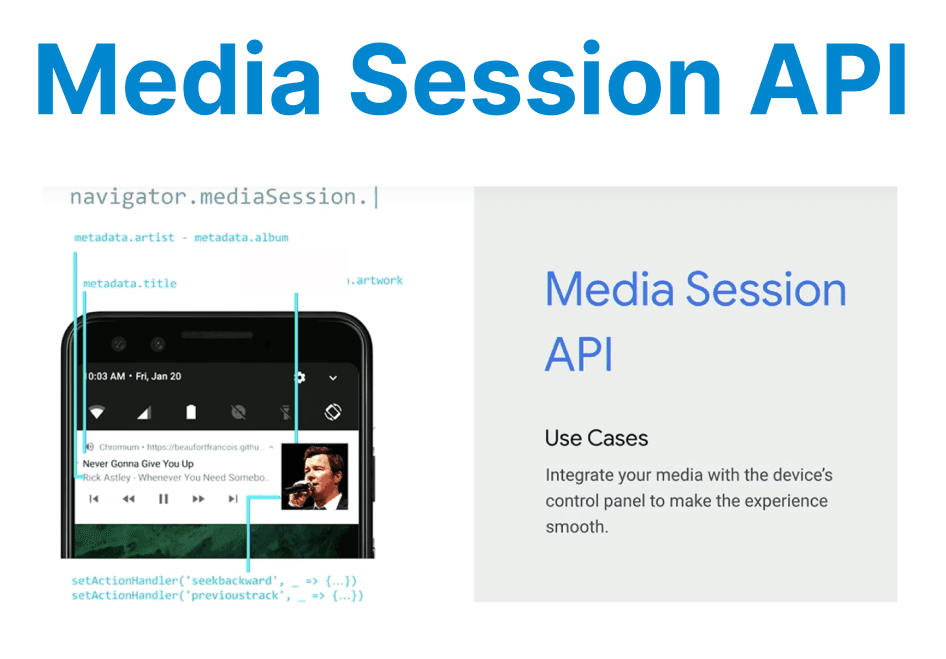
The Media Session API is a tool for integrating media playback controls into mobile and desktop environments, especially for web applications that need to provide a native-like user experience. It allows developers to enhance video, audio, and other media playback by providing playback control features like play, pause, skip, and volume control directly from the operating system's native media controls, such as those in lock screens, notifications, and external hardware.
Browser Support and Compatibility
Support for the Media Session API is available in most major browsers, though the level of feature support varies. This ensures developers can enhance media playback controls across devices, with some differences in functionality depending on the platform and browser.
| Platform | Support | Notes |
| Chrome Android | Yes | Full lock screen controls, metadata, and seek support |
| iOS Safari | Partial | Basic play/pause only (no lock screen controls) |
| Firefox | Yes | Play/pause and metadata (seek support added in v82+) |
| Edge | Yes | Full feature support |
Setting Up the Media Session API for Media Playback
To implement the Media Session API, you begin by registering media metadata and event handlers for playback control, allowing users to control media using their mobile device's built-in controls. These include locking the screen, controlling media from a notification, and using hardware buttons.
Registering Media Metadata
To enable interaction with mobile control systems (like Android or iOS), you need to register metadata that will be displayed in the media player controls. The setMetadata() function is used to associate a title, artist, album, artwork, etc., with the media.
if ('mediaSession' in navigator) {
navigator.mediaSession.metadata = new MediaMetadata({
title: 'Sample Video',
artist: 'Example Artist',
album: 'Example Album',
artwork: [
{ src: 'poster.jpg', sizes: '96x96', type: 'image/jpg' },
{ src: 'poster.jpg', sizes: '128x128', type: 'image/jpg' },
{ src: 'poster.jpg', sizes: '192x192', type: 'image/jpg' }
]
});
}
Explanation:
- navigator.mediaSession.metadata: This registers the media session's metadata like title, artist, and album.
- MediaMetadata: This class is used to create metadata for the media being played, which can include the title, artist, album, and associated artwork.

Setting Up Media Controls
Once metadata is registered, the next step is to implement media control actions like play, pause, seek, and skip. This is done using the setActionHandler() method, which allows you to define handlers for specific media actions triggered by the user.
if ('mediaSession' in navigator) {
navigator.mediaSession.setActionHandler('play', function() {
video.play();
});
navigator.mediaSession.setActionHandler('pause', function() {
video.pause();
});
navigator.mediaSession.setActionHandler('seekto', function(event) {
video.currentTime = event.seekTime;
});
}
Explanation:
- setActionHandler(action, handler): This method binds media control actions to their corresponding event handlers. For example:
- 'play': Starts playback.
- 'pause': Pauses playback.
- 'seekto': Allows the user to seek to a specific time in the video.
These handlers ensure that user interaction with mobile controls (like pressing play or pause) is reflected in the video player.
Handling Media Session Events for Enhanced User Experience
Handling Media Interruptions
One important aspect of the Media Session API is its ability to handle interruptions like incoming calls, which is especially useful on mobile platforms. When a media session is interrupted (e.g., a user answers a phone call), the pause or stop actions can be triggered automatically to pause the media until the session is resumed.
document.addEventListener('visibilitychange', function() {
if (document.hidden) {
// Pause media when the user navigates away
video.pause();
} else {
// Resume media playback when the page becomes visible again
video.play();
}
});
Explanation:
- The visibilitychange event listens for when the document's visibility state changes (e.g., when the user navigates away from the page).
- When the document is hidden, the media is paused, and when the page is visible again, the media is resumed.
This ensures that media playback aligns with the user’s focus and attention.
Testing and Optimizing Media Session Performance
Testing Across Browsers and Devices
The Media Session API is supported by most modern browsers, but there may be differences in how each browser or device handles media session events. Therefore, it is essential to test the implementation across various platforms, such as Android, iOS, and desktop browsers, to ensure consistency.
Testing Checklist:
- Check media playback controls (play, pause, seek) across different devices (mobile, tablet, desktop).
- Test responsiveness to background interruptions (e.g., incoming calls, app switching).
- Ensure custom artwork, titles, and metadata display correctly across browsers.
Optimizing for Low-Latency Playback
Media session controls can add a small amount of overhead, especially when integrating with other APIs (like HLS.js or DASH). To ensure the best user experience, developers should optimize the integration by limiting redundant actions and minimizing delays in processing events.
- Reduce the number of unnecessary metadata updates.
- Ensure handlers are efficient and don’t block UI updates.
- Use asynchronous techniques when possible to avoid UI thread blocking.