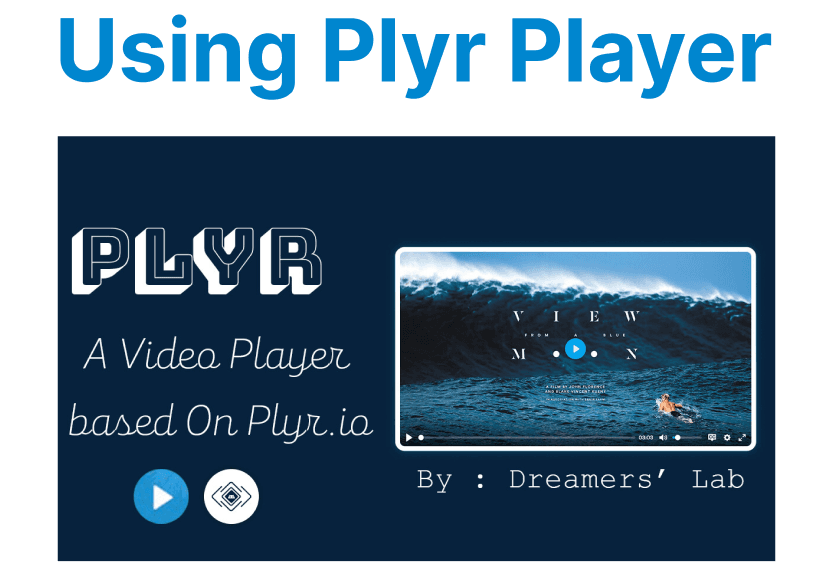
Plyr is a lightweight, customizable HTML5 media player that supports audio, video, and even streaming protocols like HLS and DASH. With a minimalistic design and full support for modern web standards, it offers an ideal solution for integrating video playback functionality in web applications while maintaining performance and accessibility.
Getting Started with Plyr
Step 1: Install Plyr
The first step in using Plyr is to include the necessary Plyr resources (CSS and JavaScript files) in your HTML document.
<!-- Plyr CSS -->
<link href="https://cdn.jsdelivr.net/npm/plyr@3.6.2/dist/plyr.css" rel="stylesheet">

<!-- Plyr JS -->
<script src="https://cdn.jsdelivr.net/npm/plyr@3.6.2/dist/plyr.min.js"></script>
Explanation:
- The plyr.css file ensures the player has the default styling.
- The plyr.min.js file includes all necessary JavaScript to handle the player functionality.
Step 2: Setup the Video Element
Once you have Plyr included, the next step is to define your video element. This will be the element Plyr attaches to for controlling playback.
<video id="player" controls>
<source src="path_to_video.mp4" type="video/mp4">
Your browser does not support the video tag.
</video>
Explanation:
- The <video> tag defines the media content to be played. The controls attribute enables basic controls like play/pause, volume, and fullscreen.
- The <source> element specifies the video file’s path and format.
Step 3: Initialize Plyr
Once your video element is in place, you need to initialize Plyr on the video element.
const player = new Plyr('#player');Explanation:
- The Plyr() constructor initializes the player on the target video element (identified by #player).

Customizing the Video Player UI
Plyr offers various configuration options and customization features to fit specific UI and functionality needs.
Customizing Controls and Theme
You can customize the player's controls and style by passing options to the Plyr() constructor. For example, you can enable or disable specific controls such as the mute button, speed control, or quality selector.
const player = new Plyr('#player', {
controls: ['play', 'progress', 'current-time', 'mute', 'volume', 'fullscreen'],
autoplay: true,
muted: false,
});
Explanation:
- The controls array specifies which controls are visible on the player. In this case, it includes play/pause, progress bar, current time, mute, volume, and fullscreen.
- The autoplay option starts the video as soon as the player is ready, while the muted option ensures the video isn’t muted by default.
Styling the Player
While Plyr comes with default styling, you may want to apply custom CSS for further adjustments to the player’s look and feel.
/* Example custom styles */
.plyr__controls {
background-color: rgba(0, 0, 0, 0.5);
border-radius: 5px;
}
Explanation:
- The CSS snippet above targets the player controls, changing their background color and adding rounded corners.
Using Plyr for HLS & DASH Playback
Plyr supports adaptive bitrate streaming with HLS and DASH, which is essential for optimal video playback on varying network conditions. Below is how to configure Plyr for HLS playback.
Step 1: Install the Plyr HLS.js Plugin
To enable HLS playback, you need to load the hls.js library alongside Plyr. HLS.js is a JavaScript library that enables HLS support in browsers that do not natively support it.
<script src="https://cdn.jsdelivr.net/npm/hls.js@0.14.19/dist/hls.min.js"></script>Explanation:
- The hls.min.js script allows the player to play .m3u8 streams, enabling HLS streaming.
Step 2: Initialize HLS with Plyr
Now, initialize Plyr with HLS support. This example uses hls.js to load an HLS stream and integrates it with Plyr.
const video = document.getElementById('player');
const player = new Plyr(video);

if (Hls.isSupported()) {
const hls = new Hls();
hls.loadSource('https://path_to_your_hls_stream.m3u8');
hls.attachMedia(video);
hls.on(Hls.Events.MANIFEST_PARSED, function () {
player.play();
});
}
Explanation:
- This code checks if the browser supports Hls.js and then attaches the HLS stream to the video element.
- The player starts automatically once the manifest is parsed.
Enhancing Accessibility with Plyr
Plyr is designed with accessibility in mind for keyboard navigation, screen reader support, and ARIA labels out of the box. This ensures compliance with WCAG guidelines and a seamless experience for users with disabilities.
Step 1: Enable Keyboard Navigation
Plyr automatically supports keyboard controls (e.g., spacebar for play/pause, arrow keys for seek). To customize:
const player = new Plyr('#player', {
keyboard: {
focused: true, // Enables keyboard shortcuts when player is focused
global: false // Restricts shortcuts to when the player is in focus
}
});
Explanation:
- focused: true ensures keyboard inputs work only when the player is active.
- global: false prevents conflicts with other page shortcuts.
Step 2: Add Screen Reader Support
Plyr generates ARIA labels for controls. To override defaults:
<button class="plyr__controls__item plyr__control" aria-label="Custom play label">
<svg role="presentation">...</svg>
</button>
Explanation:
- aria-label overrides default labels (e.g., "Play" → "Custom play label").
- role="presentation" hides decorative SVG icons from screen readers.
Step 3: Customize Captions for Hearing Impaired Users
Load subtitles and adjust styling for readability:
<video id="player">
<source src="video.mp4" type="video/mp4">
<track kind="captions" label="English" srclang="en" src="captions.vtt" default>
</video>
CSS for High Contrast:

css
.plyr__captions {
font-size: 18px;
background: rgba(0, 0, 0, 0.7); /* Improves text visibility */
}
Explanation:
- WebVTT files (captions.vtt) provide subtitle content.
- CSS ensures captions are legible against varying backgrounds.