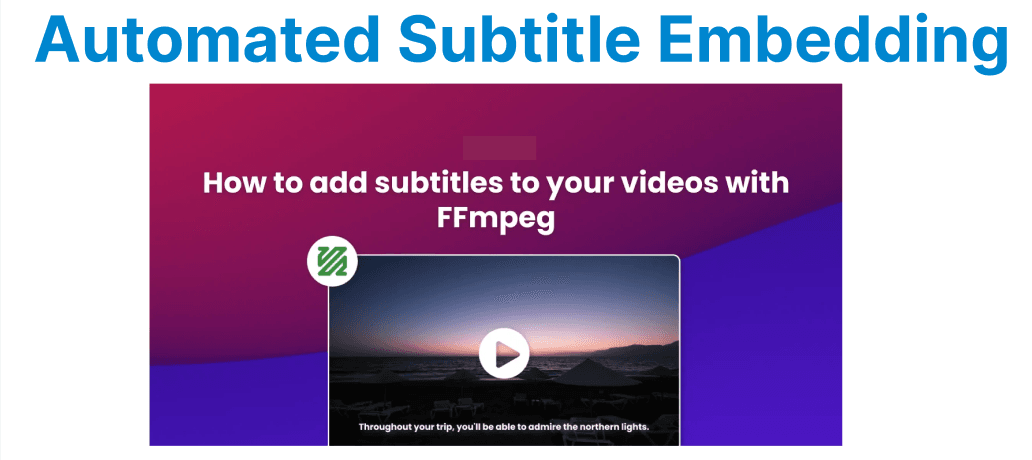
Subtitle embedding is a common task for adding text-based information to videos. FFmpeg allows subtitles to be embedded automatically into video files, making it a valuable tool for media processing, video distribution, and content delivery.
Understanding Subtitle Formats
FFmpeg supports multiple subtitle formats for embedding, including
- SRT (SubRip Subtitle): A popular subtitle format containing text files with timestamps indicating when each subtitle appears.
- ASS (Advanced SubStation Alpha): A more advanced subtitle format that supports text formatting and positioning.
- WebVTT (Web Video Text Tracks): A web-friendly subtitle format commonly used with HTML5 video players.
Each format has its use cases and can be embedded into video files with FFmpeg.
Prerequisites for Subtitle Embedding
Before embedding subtitles into a video file using FFmpeg, ensure you have the following:
- FFmpeg installed: Ensure you have a version of FFmpeg that supports subtitle encoding (usually available in most builds). To verify FFmpeg installation, run: ffmpeg -version.
- Subtitle file: You should have a valid subtitle file in formats like SRT, ASS, or WebVTT.
- Video file: The video to which you want subtitles.
Basic Subtitle Embedding
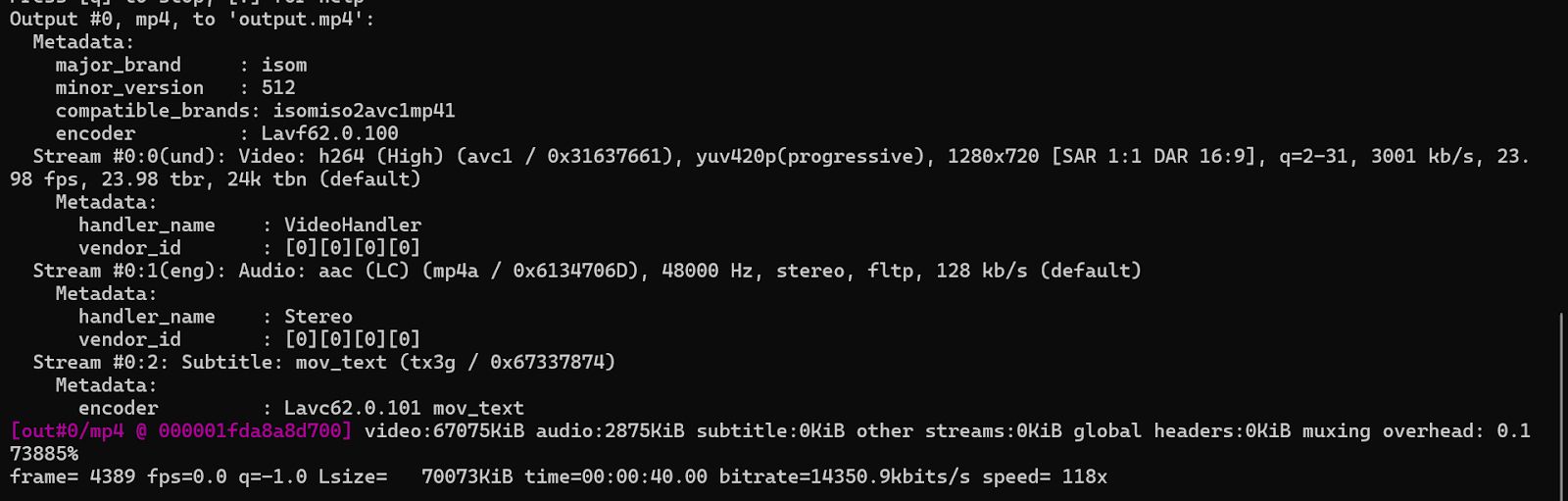
To embed subtitles into a video file using FFmpeg, the basic command structure is as follows:
ffmpeg -i input.mp4 -i subtitles.srt -c:v copy -c:a copy -c:s mov_text output.mp4- -i input.mp4: Specifies the input video file.
- -i subtitles.srt: Specifies the input subtitle file (in this case, SRT).
- -c:v copy: Copies the video stream without re-encoding.
- -c:a copy: Copies the audio stream without re-encoding.
- -c:s mov_text: Uses the mov_text codec to embed the subtitles in the MP4 container.
- output.mp4: The output file with the embedded subtitles.
Burning Subtitles into the Video (Hardcoding)
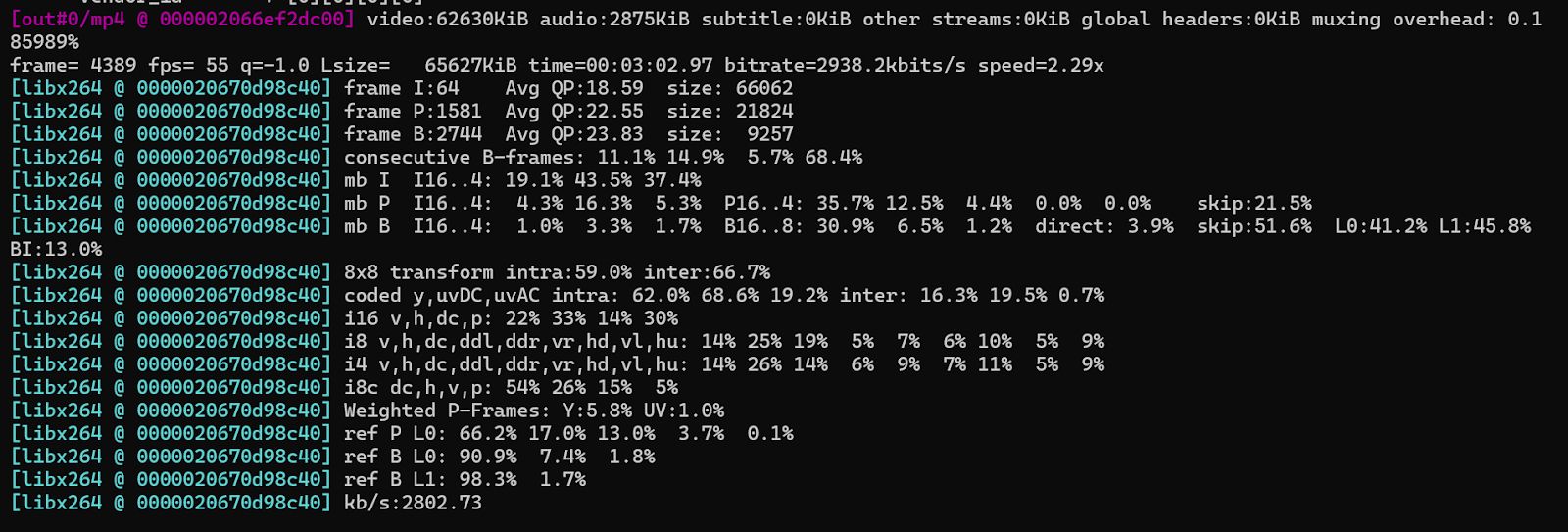
If you want the subtitles to be permanently visible on the video (i.e., hardcoded), you can burn the subtitles into the video using the subtitles filter in FFmpeg:
ffmpeg -i input.mp4 -vf subtitles=subtitles.srt -c:a copy output.mp4- -vf subtitles=subtitles.srt: Uses the FFmpeg subtitles filter to burn the subtitles directly into the video frames.
- -c:a copy: Copies the audio stream without re-encoding.
This will result in subtitles being permanently displayed on the video, with no option to turn them off.
Subtitle Positioning and Styling (ASS Subtitles)
For more advanced styling, positioning, and customizations, the ASS subtitle format is highly flexible. If you"re using an ASS subtitle file, you can adjust the position, font, color, and size of the subtitles. The following command embeds an ASS subtitle file with custom positioning:
ffmpeg -i input.mp4 -i subtitles.ass -c:v copy -c:a copy -c:s mov_text output.mp4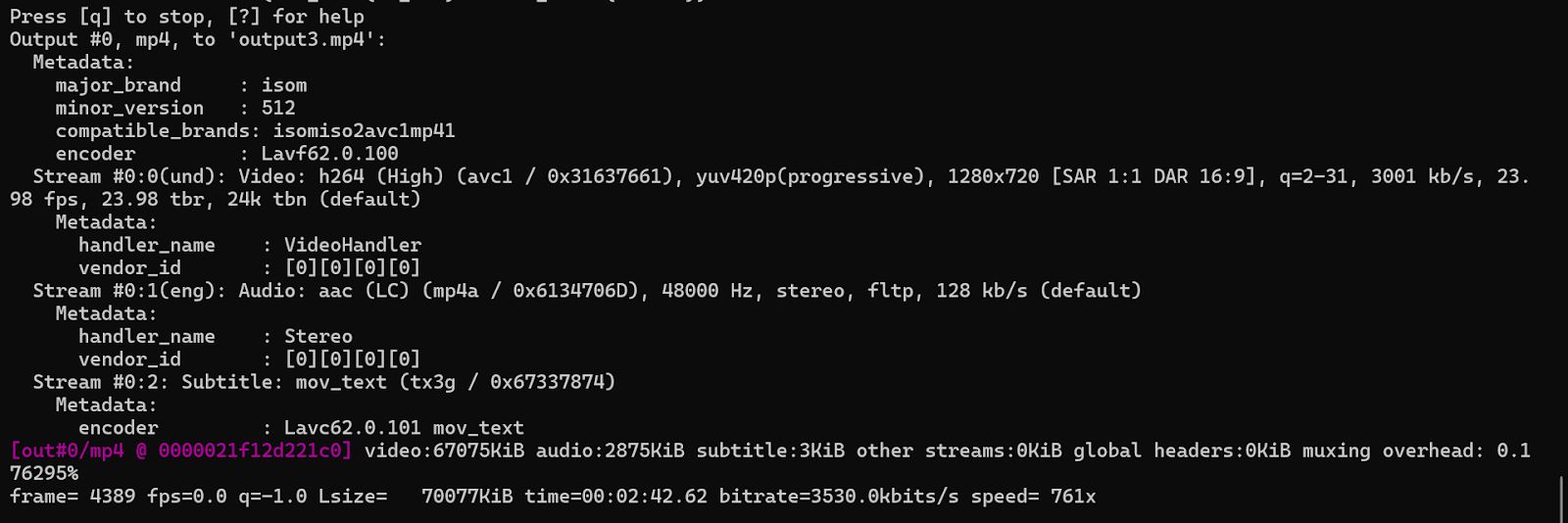
While FFmpeg doesn"t directly modify subtitle styles, using an ASS file allows for more detailed styling to be done before embedding.
Embedding Multiple Subtitle Tracks
If you want to embed multiple subtitle tracks (e.g., for multiple languages), you can use the following command:
ffmpeg -i input.mp4 -i subtitles_en.srt -i subtitles_fr.srt -c:v copy -c:a copy -c:s mov_text -map 0 -map 1 -map 2 output.mp4- -map 0: Includes the video and audio streams from the first input (the video file).
- -map 1: Includes the first subtitle track (English subtitles).
- -map 2: Includes the second subtitle track (French subtitles).
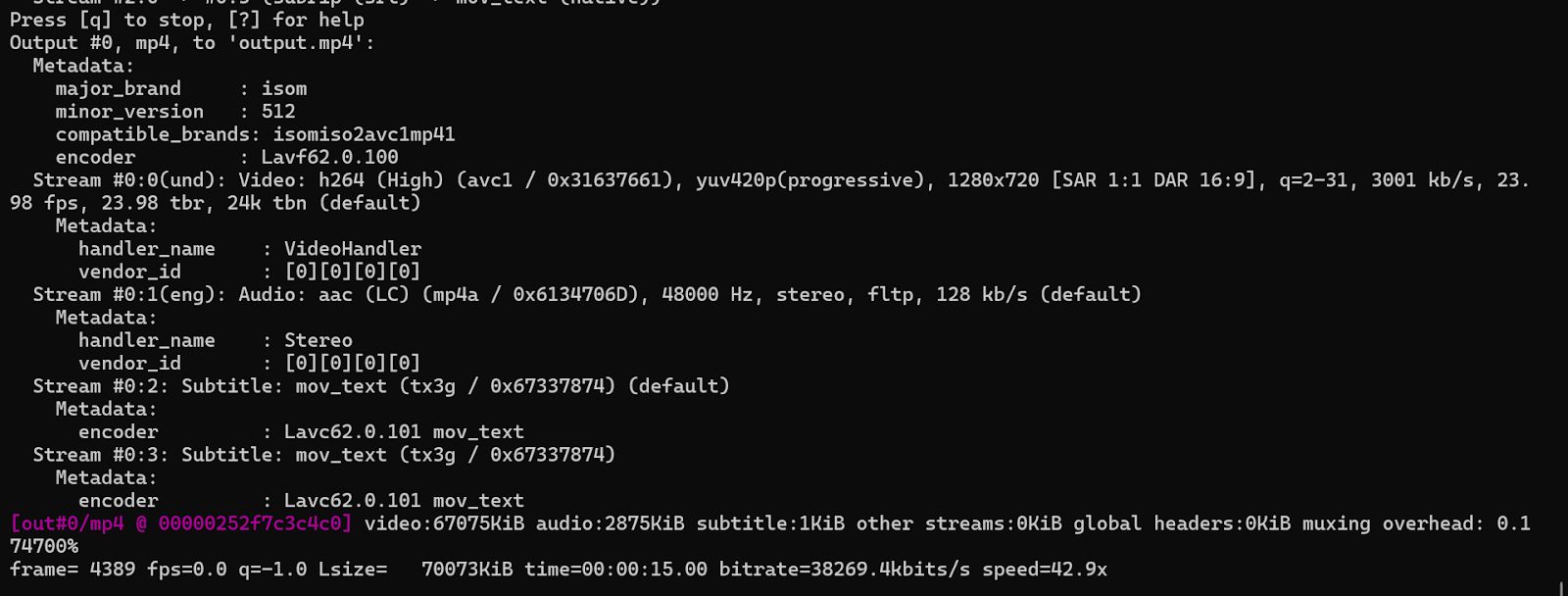
This command ensures both subtitle tracks are included in the output video file.