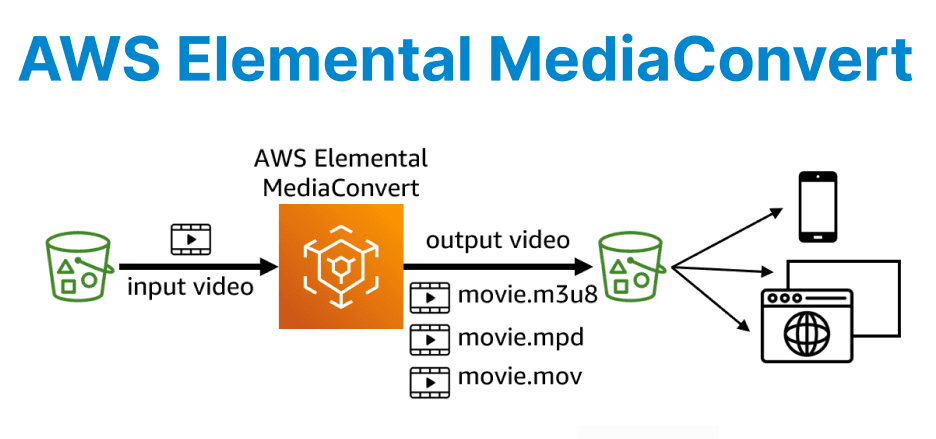
AWS Elemental MediaConvert is a cloud-based video transcoding service that transforms video files into formats optimized for broadcast, streaming, and multi-device playback. Built for file-based video processing, MediaConvert is best suited for VOD (Video on Demand), OTT (Over-the-Top) platforms, and archival workflows.
MediaConvert Core Components
1. Jobs
Each MediaConvert job represents a single transcoding task. Developers define input sources, encoding settings, and output destinations. Supported inputs include Amazon S3, HTTP/S URLs, HLS, and DASH manifests. MediaConvert delivers output to S3, MediaPackage, CloudFront, or other CDNs.
A job contains,
- Input settings: File path, timecode configuration, and clipping.
- Encoding settings: Codec (e.g., H.264 and H.265), resolution, and bitrate.
- Output groups: Format-specific outputs (HLS, DASH, CMAF, MP4, MXF).
Jobs can be submitted through the AWS Console, SDK (Python, Node.js, Java), or triggered automatically using EventBridge.
2. Presets
Presets are reusable templates that store encoding settings. AWS provides system presets (e.g., for Apple HLS or MP4), while custom presets allow fine-tuned configurations tailored to your workflow.
Example: HLS Preset (JSON)
{
"Name": "HLS-1080p-AVC",
"Description": "HLS with AVC at 1080p",
"Container": "M3U8",
"VideoDescription": {
"Codec": "H_264",
"Height": 1080,
"Width": 1920,
"Bitrate": 5000000
},
"AudioDescription": {
"Codec": "AAC",
"SampleRate": 48000,
"Bitrate": 128000
}
}
3. Queues
AWS Elemental MediaConvert processes jobs through queues that determine the order in which tasks are handled. There are several queue options available. Default queues are automatically assigned and suitable for general-purpose workloads. Priority queues are designed for high-value or time-sensitive content. Regional queues help reduce latency by aligning jobs with their geographic proximity.

MediaConvert Workflow Architecture
A typical MediaConvert workflow follows this structure:
- Input Ingestion – MediaConvert retrieves source files from S3, HTTP, or other supported locations.
- Transcoding – The service applies presets for format conversion (e.g., H.264, HEVC, AV1).
- Output Generation – MediaConvert stores output files in S3 or delivers them to a CDN.
Key Features for Developers
1. Adaptive Bitrate (ABR) Ladders
MediaConvert generates multiple renditions for HLS/DASH streaming, enabling seamless playback across bandwidth conditions.
Example ABR Settings:
import boto3
client = boto3.client('mediaconvert')
response = client.create_job(
  Role='arn:aws:iam::123456789012:role/MediaConvertRole',
    Settings={
'OutputGroups': [ {
'Name': 'HLS',
'OutputGroupSettings': {
'Type': 'HLS_GROUP',
'HlsGroupSettings': {
'SegmentLength': 6,
'Destination': 's3://output-bucket/hls/'
}
},
'Outputs': [ {
'VideoDescription': {
'Width': 1280,
'Height': 720,
'Bitrate': 4000000,
'Codec': 'H_264'
}
},
{
'VideoDescription': {
'Width': 854,
'Height': 480,
'Bitrate': 2000000,
'Codec': 'H_264'
}
} ]
} ]
})2. DRM & Encryption
AWS Elemental MediaConvert supports content protection through multiple methods. It utilizes AWS Certificate Manager (ACM) to enable secure HTTPS communication, ensuring encrypted data transfer. Additionally, it supports SPEKE integration, which allows the use of industry-standard Digital Rights Management (DRM) systems such as Widevine, PlayReady, and FairPlay to safeguard media content.
AES-128 Encryption Example:
{
"OutputGroups": [{
"Type": "HLS_GROUP",
"HlsGroupSettings": {
"Encryption": {
"KeyProviderSettings": {
"StaticKeyProvider": {
"KeyFormat": "identity",
"Key": "YOUR_ENCRYPTION_KEY"
}
}
}
}
}]
}
3. SCTE-35 & Ad Insertion
MediaConvert supports SCTE-35 markers for broadcast-grade Dynamic Ad Insertion (DAI).
Inserting SCTE-35 Cues
response = client.create_job(
  Settings={
    'Inputs': [{
      'InputClippings': [{
        'StartTimecode': '00:00:05:00',
        'EndTimecode': '00:00:10:00'
      }],
      'TimecodeConfig': {
        'Source': 'EMBEDDED'
      }
    }]
  }
)
Automating MediaConvert with AWS SDK & EventBridge
1. Triggering Jobs via Lambda
You can automate job submission when a new file is uploaded to S3 using AWS Lambda.
Example: S3 → Lambda → MediaConvert (Node.js)
const AWS = require('aws-sdk');
const mediaconvert = new AWS.MediaConvert({ endpoint: 'https://abcd1234.mediaconvert.us-west-2.amazonaws.com' });
exports.handler = async (event) => {
const bucket = event.Records[0].s3.bucket.name;
const key = event.Records[0].s3.object.key;
const params = {
Role: 'arn:aws:iam::123456789012:role/MediaConvertRole',
Settings: {
Inputs: [{
FileInput: `s3://${bucket}/${key}`
}],
OutputGroups: [{
Name: 'HLS',
OutputGroupSettings: {
Type: 'HLS_GROUP',
HlsGroupSettings: {
Destination: `s3://output-bucket/hls/`
}
}
}]
}
};
await mediaconvert.createJob(params).promise();
};
2. Monitoring with EventBridge
EventBridge tracks job status and routes notifications to systems like Amazon SNS.
Example: EventBridge Rule for Job Completion
Resources:
MediaConvertCompleteRule:
Type: AWS::Events::Rule
Properties:
EventPattern:
source: ["aws.mediaconvert"]
detail-type: ["MediaConvert Job State Change"]
detail:
status: ["COMPLETE"]
Targets:
- Arn: arn:aws:sns:us-west-2:123456789012:MediaConvertNotifications
Performance & Cost Optimization
| Factor | Optimization Strategy |
| Input Format | Use mezzanine-quality formats like ProRes or DNxHR. |
| Output Codecs | Choose HEVC (H.265) for 4K to reduce bandwidth usage. |
| Accelerated Transcoding | Enable AWS Accelerated Transcoding for faster processing. |
| Job Queues | Use reserved queues for consistent and high-throughput jobs. |