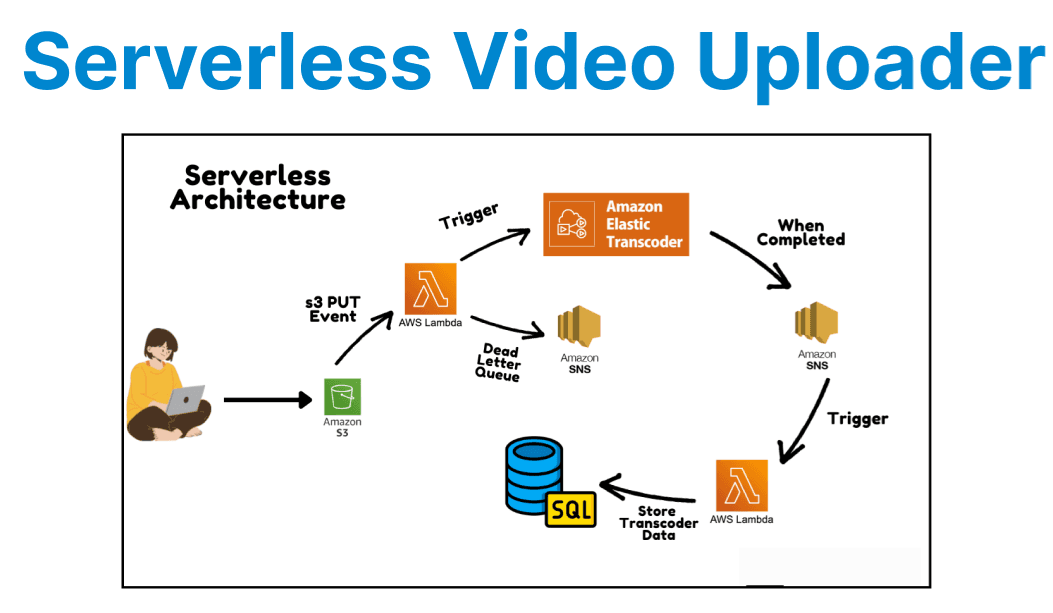
Serverless architectures enable developers to build scalable applications without managing infrastructure. AWS Lambda, in combination with Amazon S3, API Gateway, and DynamoDB, provides a powerful platform for handling video uploads, processing, and storage.
Explore a serverless video upload workflow that covers key components such as API-driven uploads, secure S3 storage, metadata management in DynamoDB, and serverless processing using Lambda.
Architecture Overview
The workflow consists of the following components:
- Frontend Client – Uploads videos via HTTP
- API Gateway – Triggers Lambda on upload requests
- AWS Lambda – Processes uploads and stores metadata
- Amazon S3 – Stores raw and processed videos
- DynamoDB – Tracks video metadata (e.g., filename, status, user ID)
- AWS Step Functions (Optional) – For complex workflows like transcoding and thumbnail generation
Step 1: Setting Up API Gateway for Video Uploads
Amazon API Gateway acts as the front door for video uploads. Create a REST API with a POST endpoint (/upload) to accept video uploads.
Key Configurations
- Binary Media Types: Enable */* to support video files.
- CORS Settings: Allow POST and PUT from frontend domains.
- Integration: Connect the endpoint to a Lambda function.
Sample OpenAPI Definition
paths:
/upload:
post:
summary: Upload a video
consumes:
- multipart/form-data
parameters:
- name: file
in: formData
type: file
responses:
200:
description: Upload successful
x-amazon-apigateway-integration:
uri: arn:aws:lambda:us-east-1:123456789012:function:VideoUploadHandler
httpMethod: POST
type: aws_proxy
Step 2: Lambda Function for Upload Handling
The VideoUploadHandler Lambda function validates the uploaded file, assigns a unique name, uploads it to S3, and records metadata in DynamoDB.
Example: Sample Lambda Function (Node.js)
const AWS = require('aws-sdk');
const s3 = new AWS.S3();
const dynamodb = new AWS.DynamoDB.DocumentClient();

exports.handler = async (event) => {
const file = event.body; // Simplified input for example
const fileName = `videos/${Date.now()}_${file.name}`;

// Upload to S3
await s3.putObject({
Bucket: 'video-uploads-bucket',
Key: fileName,
Body: file,
ContentType: file.type,
}).promise();

// Store metadata in DynamoDB
await dynamodb.put({
TableName: 'VideoMetadata',
Item: {
videoId: fileName,
uploadTime: new Date().toISOString(),
status: 'UPLOADED',
userId: event.requestContext.identity.cognitoIdentityId
}
}).promise();

return { statusCode: 200, body: JSON.stringify({ success: true, videoId: fileName }) };
};
Step 3: Secure S3 Uploads with Presigned URLs (Alternative)
Instead of routing uploads through API Gateway, Lambda can generate S3 presigned URLs to upload videos directly to S3. This improves performance and reduces API Gateway load.
Lambda for Presigned URL
exports.handler = async (event) => {
const fileName = `videos/${Date.now()}_${event.queryStringParameters.name}`;
const url = s3.getSignedUrl('putObject', {
Bucket: 'video-uploads-bucket',
Key: fileName,
Expires: 300,
ContentType: 'video/mp4'
});

return { statusCode: 200, body: JSON.stringify({ uploadUrl: url, videoId: fileName }) };
};
Step 4: Video Processing with Lambda
Once a video is uploaded, Lambda can handle post-processing tasks like transcoding using FFmpeg or AWS Elastic Transcoder, and thumbnail generation. To use FFmpeg, bundle it as a Lambda Layer.
Example: Thumbnail Generation with FFmpeg
const { execSync } = require('child_process');
const fs = require('fs');

exports.handler = async (event) => {
const { videoId } = event;
const inputPath = `/tmp/${videoId}`;
const outputPath = `/tmp/thumbnail_${videoId}.jpg`;

// Download video
await s3.getObject({ Bucket: 'video-uploads-bucket', Key: videoId })
.createReadStream().pipe(fs.createWriteStream(inputPath));

// Generate thumbnail
execSync(`ffmpeg -i ${inputPath} -ss 00:00:01 -vframes 1 ${outputPath}`);

// Upload thumbnail
await s3.upload({
Bucket: 'video-thumbnails-bucket',
Key: `thumbnails/${videoId}.jpg`,
Body: fs.readFileSync(outputPath)
}).promise();

// Update metadata
await dynamodb.update({
TableName: 'VideoMetadata',
Key: { videoId },
UpdateExpression: 'SET thumbnailUrl = :url, status = :status',
ExpressionAttributeValues: {
':url': `https://video-thumbnails-bucket.s3.amazonaws.com/thumbnails/${videoId}.jpg`,
':status': 'PROCESSED'
}
}).promise();
};
Step 5: Monitoring & Error Handling
- CloudWatch Logs – Monitor Lambda invocations and errors.
- Dead Letter Queues (DLQ) – Capture failed Lambda events.
- Retries – Automatically retry on transient failures.
Sample DLQ Configuration
Resources:
VideoProcessingFunction:
Type: AWS::Lambda::Function
Properties:
DeadLetterConfig:
TargetArn: !GetAttr VideoProcessingDLQ.Arn
Performance Considerations
| Factor | Recommendation |
| Lambda Memory | Use ≥ 2048MB for faster FFmpeg performance |
| S3 Transfer Acceleration | Enable for faster global uploads |
| Concurrency Limits | Set reserved concurrency to manage throttling risks |
| Cold Starts | Use provisioned concurrency for critical paths |