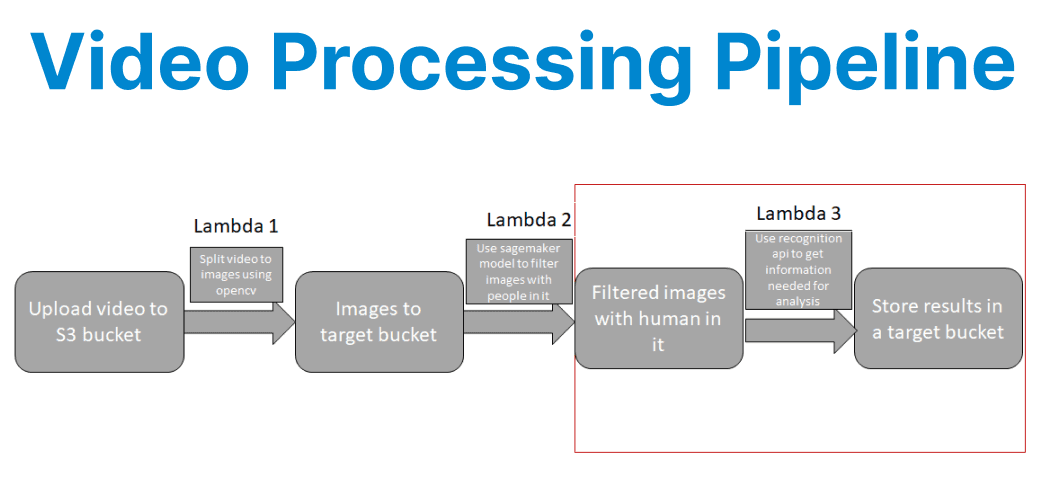
Video processing is a computationally intensive task that often involves multiple steps such as transcoding, metadata extraction, quality checks, and distribution. Managing these workflows manually can be complex and error-prone.
AWS Step Functions provides a serverless orchestration solution that simplifies the creation of scalable, fault-tolerant video processing pipelines.
Why Use AWS Step Functions for Video Processing?
AWS Step Functions enables developers to coordinate multiple AWS services into state machines, which define a sequence of steps in a workflow. For video processing, this means handling tasks such as file validation, transcoding, thumbnail generation, and content moderation in a structured, retriable manner.
Step Functions offers two workflow types: Standard (for long-running, high-throughput workflows) and Express (for short-duration, high-frequency operations). Since video processing typically involves longer-running tasks, the Standard workflow is usually the best choice.
Architecture of a Video Processing Pipeline
A typical video processing pipeline using Step Functions consists of the following stages:
- File Upload & Trigger: A user uploads a video to an S3 bucket, which triggers the workflow.
- Metadata Extraction: A Lambda function extracts metadata (e.g., resolution, duration).
- Transcoding: AWS Elemental MediaConvert converts the video into multiple formats (e.g., HLS, MP4).
- Thumbnail Generation: A Lambda function or MediaConvert generates thumbnails.
- Content Moderation (Optional): Amazon Rekognition checks for inappropriate content.
- Notification & Storage: The processed files are stored in S3, and a notification is sent via SNS or EventBridge.

Sample Step Functions State Machine (ASL)
{ "Comment": "Video Processing Pipeline", "StartAt": "ExtractMetadata", "States": { "ExtractMetadata": { "Type": "Task", "Resource": "arn:aws:lambda:us-east-1:123456789012:function:ExtractMetadata", "Next": "TranscodeVideo" }, "TranscodeVideo": { "Type": "Task", "Resource": "arn:aws:states:::mediaconvert:createJob.sync", "Parameters": { "RoleArn": "arn:aws:iam::123456789012:role/MediaConvertRole", "Settings": { "Inputs": [{ "FileInput": "$.inputVideoUrl" }], "OutputGroups": [{ "OutputGroupSettings": { "Type": "HLS_GROUP_SETTINGS", "HlsGroupSettings": { "Destination": "$.outputHlsPath" } } }] } }, "Next": "GenerateThumbnail" }, "GenerateThumbnail": { "Type": "Task", "Resource": "arn:aws:lambda:us-east-1:123456789012:function:GenerateThumbnail", "Next": "CheckContentModeration" }, "CheckContentModeration": { "Type": "Task", "Resource": "arn:aws:states:::rekognition:detectModerationLabels", "Parameters": { "Image": { "S3Object": { "Bucket": "$.bucket", "Name": "$.thumbnailKey" } } }, "Next": "NotifyCompletion" }, "NotifyCompletion": { "Type": "Task", "Resource": "arn:aws:states:::sns:publish", "Parameters": { "TopicArn": "arn:aws:sns:us-east-1:123456789012:VideoProcessedTopic", "Message": "Video processing completed for $.videoId" }, "End": true } }}Step-by-Step Implementation
1. Setting Up the S3 Trigger
When a video is uploaded to S3, an EventBridge rule or Lambda function initiates the Step Functions workflow. Below is an example Lambda function in Python that starts execution:
import boto3
import json

stepfunctions = boto3.client('stepfunctions')

def lambda_handler(event, context):
bucket = event['Records'][0]['s3']['bucket']['name']
key = event['Records'][0]['s3']['object']['key']

response = stepfunctions.start_execution(
stateMachineArn='arn:aws:states:us-east-1:123456789012:stateMachine:VideoProcessing',
input=json.dumps({
"bucket": bucket,
"key": key,
"inputVideoUrl": f"s3://{bucket}/{key}",
"outputHlsPath": f"s3://output-bucket/{key}/hls/"
})
)
return response
2. Transcoding with AWS Elemental MediaConvert
MediaConvert supports adaptive bitrate streaming (HLS/DASH) and format conversion (MP4, MOV, etc.). The Step Functions task invokes MediaConvert synchronously, waiting for job completion before proceeding.
3. Generating Thumbnails Using Lambda
A Lambda function can extract thumbnails using FFmpeg (via AWS Lambda Layers):
import subprocess
import boto3

s3 = boto3.client('s3')

def lambda_handler(event, context):
input_path = "/tmp/input.mp4"
output_path = "/tmp/thumbnail.jpg"

s3.download_file(event['bucket'], event['key'], input_path)

subprocess.run([
'ffmpeg', '-i', input_path,
'-ss', '00:00:05', '-vframes', '1',
output_path
])

s3.upload_file(output_path, 'thumbnail-bucket', f"thumbnails/{event['key']}.jpg")

return {
"thumbnailKey": f"thumbnails/{event['key']}.jpg"
}
4. Content Moderation with Amazon Rekognition
To automatically flag inappropriate content, Step Functions can call Rekognition’s DetectModerationLabels API:
{
"CheckContentModeration": {
"Type": "Task",
"Resource": "arn:aws:states:::rekognition:detectModerationLabels",
"Parameters": {
"Image": {
"S3Object": {
"Bucket": "$.bucket",
"Name": "$.thumbnailKey"
}
},
"MinConfidence": 80
},
"Next": "NotifyCompletion"
}
}
5. Error Handling & Retries
Step Functions allows defining retry and catch mechanisms for failed states. For example, if MediaConvert fails, the pipeline can retry twice before escalating:
{
"TranscodeVideo": {
"Type": "Task",
"Resource": "arn:aws:states:::mediaconvert:createJob.sync",
"Retry": [{
"ErrorEquals": ["States.ALL"],
"IntervalSeconds": 10,
"MaxAttempts": 2
}],
"Catch": [{
"ErrorEquals": ["States.ALL"],
"Next": "NotifyFailure"
}],
"Next": "GenerateThumbnail"
}
}
Optimizing Performance & Cost
To optimize performance and reduce costs in video processing workflows, developers should align their use of AWS Step Functions with task characteristics. For short-duration operations like metadata extraction, Express Workflows offer lower latency and are better suited than Standard Workflows.
To boost throughput, Step Functions supports parallel state execution, enabling concurrent tasks, such as generating multiple video resolutions or extracting thumbnails at different time intervals. Since AWS charges based on state transitions, it's essential to track usage with AWS Cost Explorer.
This tool offers detailed insights into workflow patterns, helping developers identify optimization opportunities like merging redundant states or refining retry policies. These strategies collectively improve both performance and cost-efficiency.