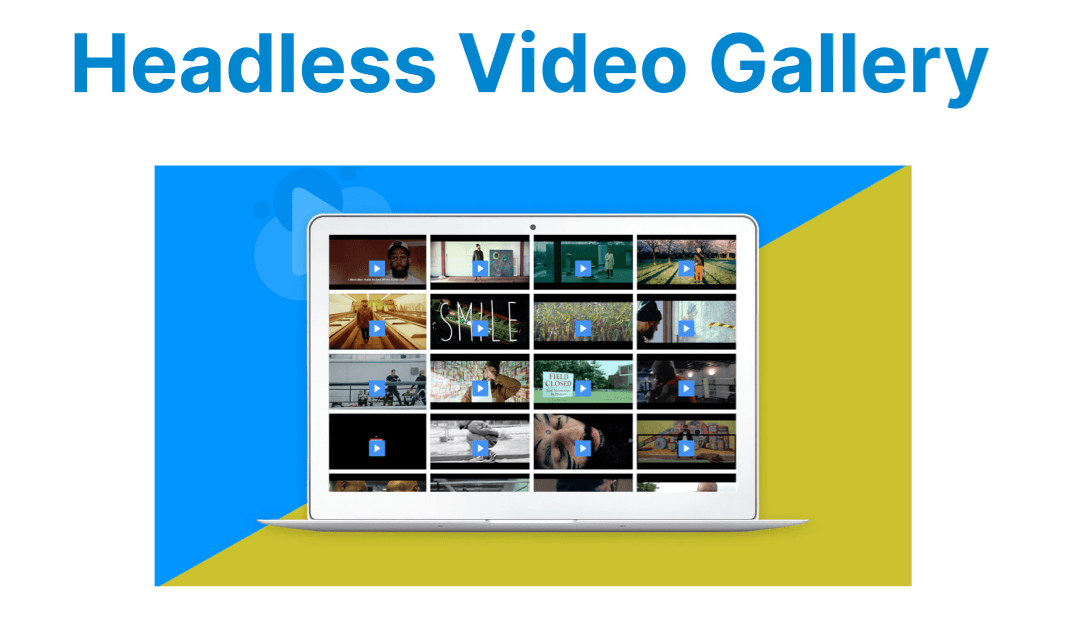
A headless CMS allows video content to be stored as structured data, giving developers full control over how videos are queried and rendered on the frontend. This decoupled approach is ideal for building flexible, dynamic galleries in JAMstack sites or SPAs without relying on tightly coupled templates or media plugins.
Using GraphQL, video assets and metadata—such as title, duration, thumbnail, and platform—can be fetched efficiently. Combined with a custom content model, this enables precise control over how videos are filtered, embedded, and displayed in front-end frameworks like React or Vue.
Define a Video Content Model in the CMS
To build a scalable and maintainable video gallery, begin by defining a custom content type (e.g., VideoItem) within your headless CMS. This model should capture all key attributes required to render and organize each video in the frontend. Structuring video content this way ensures that metadata can be queried cleanly via GraphQL and that frontend logic remains predictable and dynamic.
Example Schema:
{
"name": "VideoItem",
"fields": [
{ "id": "title", "type": "Symbol" },
{ "id": "videoUrl", "type": "Symbol" },
{ "id": "platform", "type": "Symbol" },
{ "id": "thumbnail", "type": "Link", "linkType": "Asset" },
{ "id": "duration", "type": "Integer" },
{ "id": "category", "type": "Symbol" }
]
}
Explanation:
- videoUrl: Direct link or embed ID from a third-party platform.
- Platform: Used to conditionally render the appropriate player (e.g., YouTube, Vimeo).
- Thumbnail: Displays a preview image in the gallery.
- Category: Optional field for filtering (e.g., Tutorials, Interviews).
Querying Video Data with GraphQL
Once the video content model is defined in your headless CMS, the next step is to query video entries using the GraphQL API. This enables the frontend to fetch structured data—such as titles, durations, thumbnails, and embed details—without hardcoding any video URLs or layout elements. Fetching data this way supports dynamic rendering, filtering, and layout control in real-time.
Example GraphQL Query:
query {videoItemCollection {items {title videoUrl platform duration thumbnail { url}}}}Explanation:
- videoItemCollection: Queries all records of the VideoItem content type, returning an array of video entries.
- Items: Contains individual video records with all the requested fields.
- thumbnail.url: Resolves the asset link for the video preview image, which can be rendered directly using <img src={url} /> or as a background image in styled components.
This query structure ensures that the frontend retrieves all required data in a single request, making it efficient to render video cards, populate gallery views, or support category-based filtering. For large datasets, pagination and filtering can be added using limit, skip, or where clauses in the query.
Rendering the Gallery on the Frontend
Once the GraphQL query retrieves the video data, the frontend application can dynamically render the video gallery using the fetched metadata. Each video item can be displayed as a card containing a thumbnail, title, and a player that adjusts based on the video platform. This approach avoids hardcoding and enables full control over layout and playback behavior.
Example: Basic React Gallery Layout
{videos.map(video => (
<div key={video.title} className="video-card">
<img src={video.thumbnail.url} alt={video.title} />
<h4>{video.title}</h4>
{video.platform === 'youtube' ? (
<iframe
src={`https://www.youtube.com/embed/${video.videoUrl}`}
title={video.title}
allow="autoplay; encrypted-media"
allowFullScreen
/>
) : (
<video controls src={video.videoUrl} />
)}
</div>
))}
Explanation:
- Checks the platform field to decide between rendering an iframe or native <video> player.
- Thumbnail, title, and duration can be shown in the card layout for clarity and UX.
This pattern allows the gallery to support multiple video sources while maintaining a consistent UI structure. You can further enhance the layout with metadata like duration, category tags, or filter controls, depending on your use case.
Optional Features
To enhance user experience and support large video collections, additional features such as filtering, pagination, and search can be integrated into the video gallery. These features rely on the structured metadata already stored in the content model and are powered by GraphQL queries or client-side logic.
1. Category Filtering
Use the category field defined in the VideoItem content model to allow users to filter videos by type (e.g., tutorials, product demos, interviews). This can be implemented using a dropdown or button group.
GraphQL Example with Category Filter:
query {
videoItemCollection(where: { category: "Tutorials" }) {
items {
title
videoUrl
category
}
}
}
Explanation: This retrieves only videos that match the selected category. On the front end, categories can be dynamically loaded and displayed as filter options.
2. Pagination
To improve performance and manage large datasets, implement pagination using GraphQL’s limit and skip parameters.
GraphQL Example with Pagination:
query {
videoItemCollection(limit: 10, skip: 10) {
items {
title
videoUrl
}
}
}
Explanation: Limit controls how many items are fetched, and skip defines the offset. This pattern supports “load more” buttons or paginated views.
3. Search
Client-side search allows users to filter videos by title or tags without making new API calls. After fetching the full list, use a simple input field and JavaScript filter() function to match titles in real-time.
Example (React):
const filteredVideos = videos.filter(video =>
video.title.toLowerCase().includes(searchQuery.toLowerCase())
);
Explanation: This enables lightweight, responsive search capabilities for smaller datasets without modifying the backend query.
These optional enhancements make the video gallery more interactive and user-friendly while leveraging existing schema fields and GraphQL query features.