Creating short, looping GIFs from video files is useful for demos, previews, or sharing highlights without relying on video players. With FFmpeg, you can generate high-quality GIFs from any video using precise control over timing, resolution, and frame rate.
The process involves selecting a time segment from the video, scaling it to the desired resolution, setting an appropriate frame rate, generating a color palette, and then creating the final GIF using that palette to preserve quality and reduce file size.
Prerequisites
- Install FFmpeg: Ensure FFmpeg is installed on your system. If not, download and install it based on your operating system.
- Video File: Have the video file ready for conversion.

Basic Command to Create a GIF
Create a GIF from a video using the following command in FFmpeg:
ffmpeg -i input.mp4 -vf "fps=15,scale=320:-1:flags=lanczos" output.gif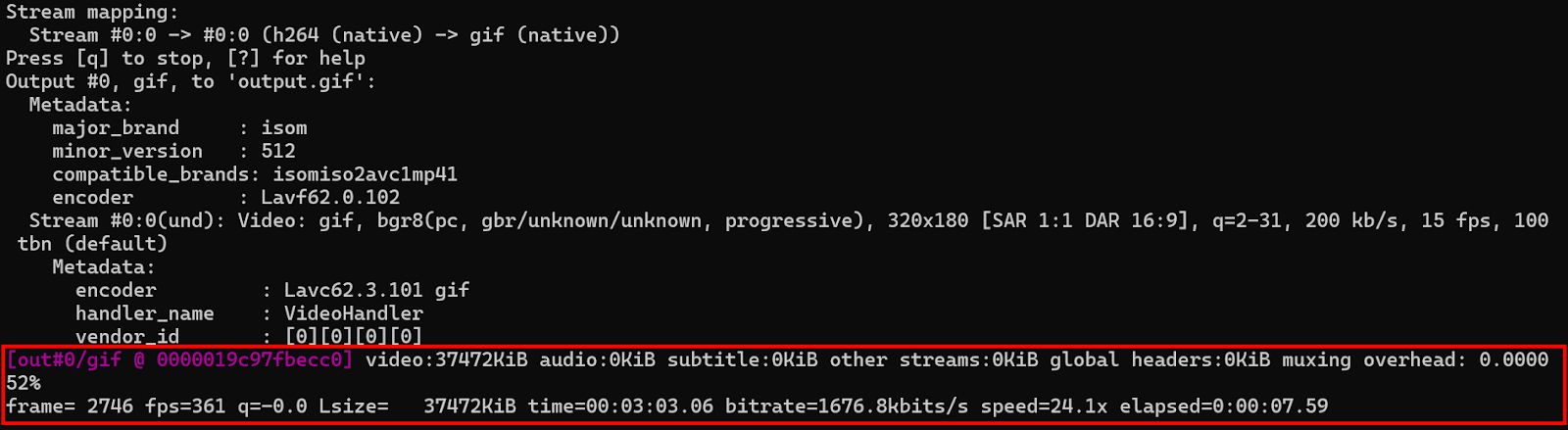
This command sets the frame rate to 15 frames per second (fps=15) and scales the video width to 320 pixels while maintaining the aspect ratio (scale=320:-1). The flags=lanczos option improves the quality of the GIF by applying the Lanczos resampling algorithm.
Extracting a Specific Portion of the Video
To create a GIF from a specific segment of the video, use the -ss (start time) and -t (duration) options:
ffmpeg -i input.mp4 -ss 00:00:10 -t 00:00:05 -vf "fps=15,scale=320:-1:flags=lanczos" output.gif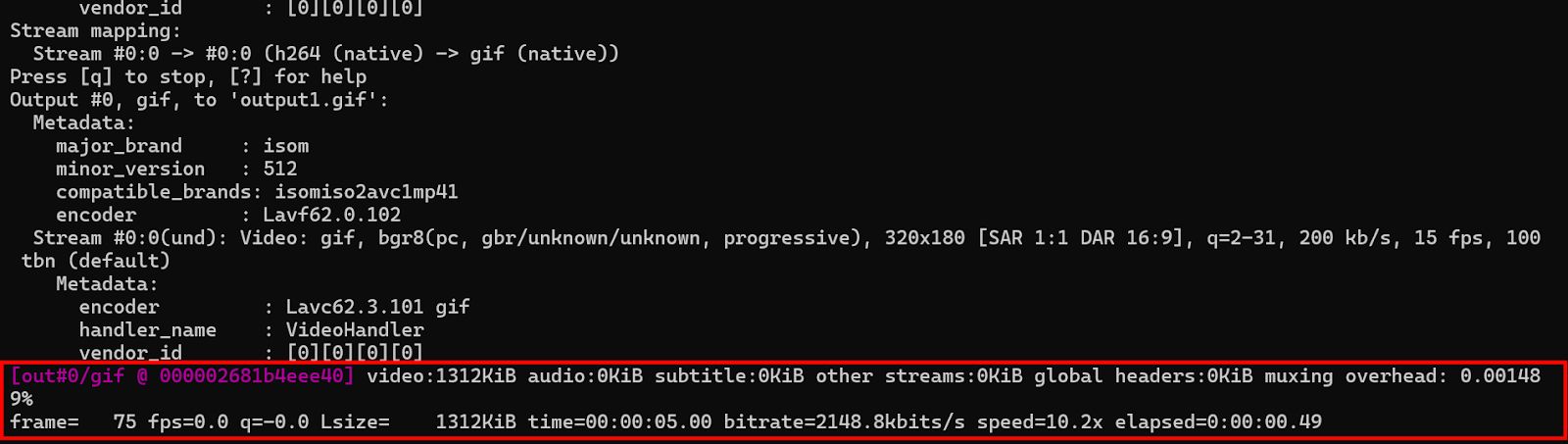
This command starts the GIF at 10 seconds (-ss 00:00:10) and makes it 5 seconds long (-t 00:00:05).
Improving GIF Quality and File Size
To control the balance between quality and file size, adjust the frame rate and size. For example:
ffmpeg -i input.mp4 -ss 00:00:10 -t 00:00:05 -vf "fps=10,scale=320:-1:flags=lanczos" -c:v gif output.gif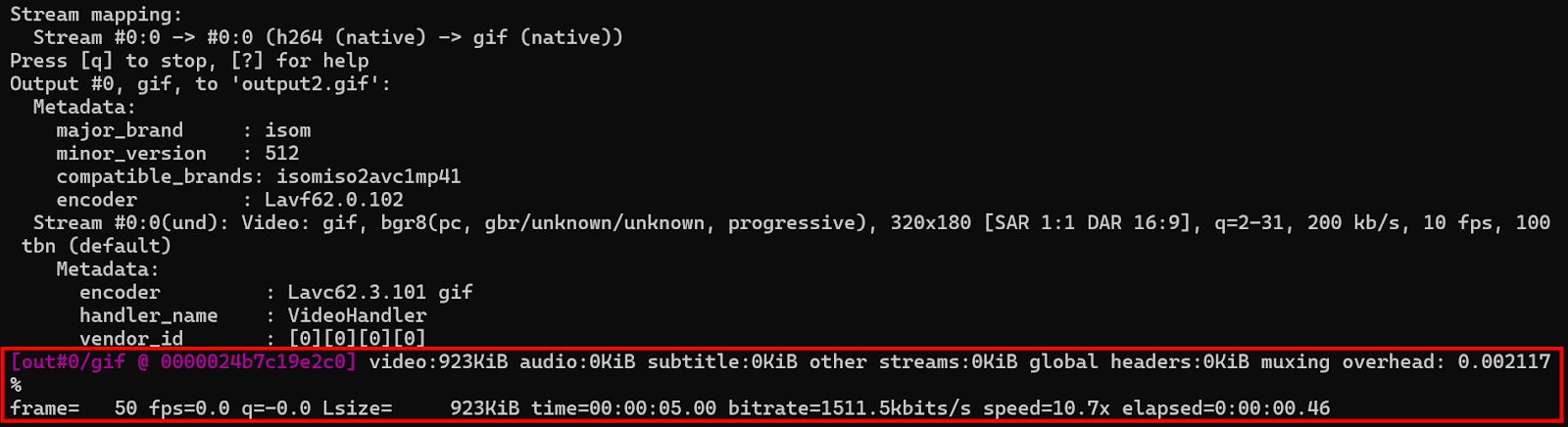
This reduces the frame rate to 10 fps, which decreases the file size while still maintaining a reasonable level of quality.
Optimizing GIF Output
For better quality and compression, you can generate a custom color palette:
ffmpeg -i input.mp4 -vf"fps=15,scale=320:-1:flags=lanczos,palettegen" palette.png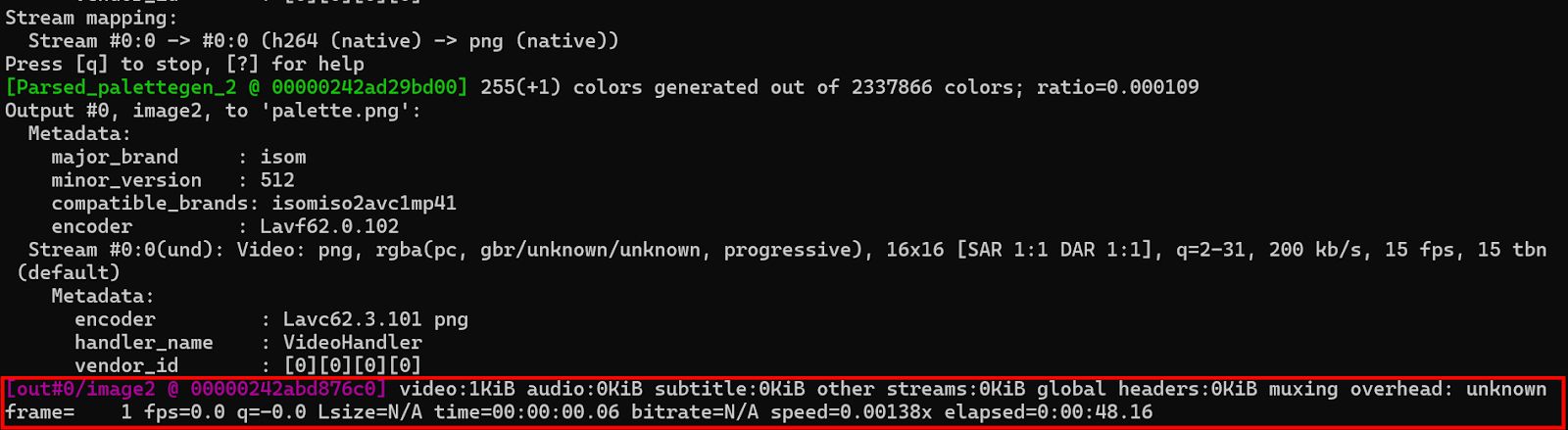
ffmpeg -i input.mp4 -i palette.png -filter_complex "fps=15,scale=320:-1:flags=lanczos[x];[x][1:v]paletteuse" output.gif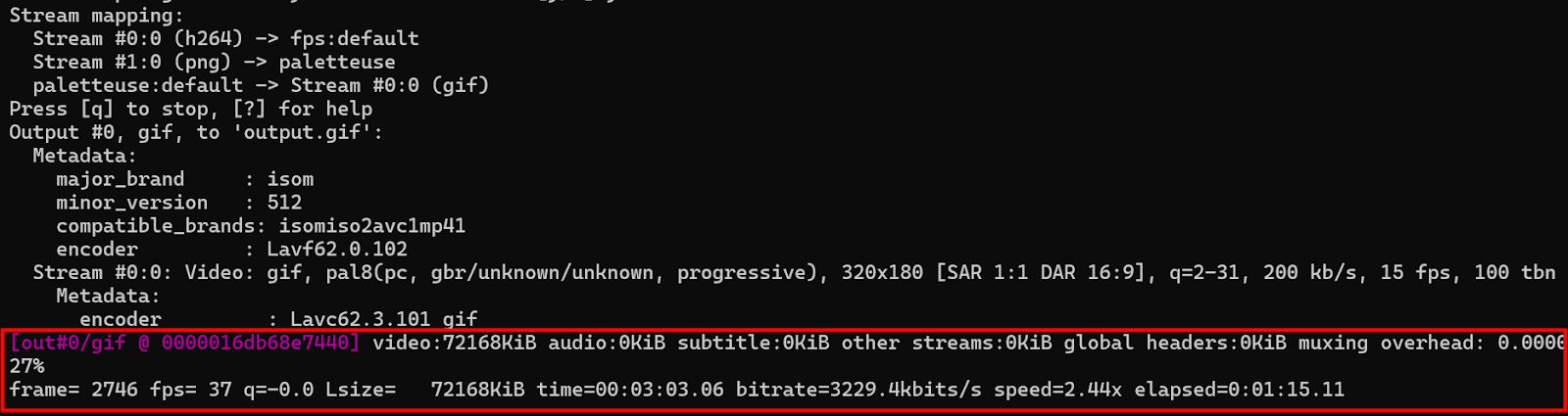
The first command generates a color palette from the video, and the second command uses that palette to produce a more optimized GIF.