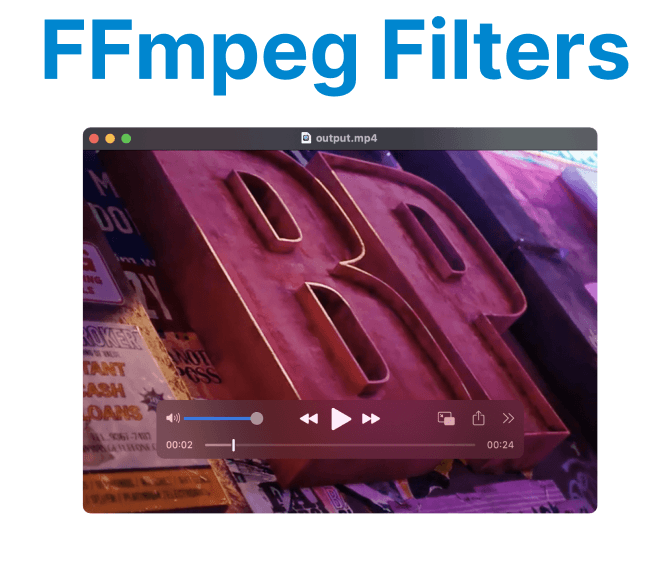
Working with video requires changing the frame, size, or layout to match specific needs. Cropping removes unwanted edges, scaling adjusts the resolution, and padding adds borders to fit a target frame. Overlaying places one video or image on top of another to build complex visuals. These filters in FFmpeg shape how the final output looks and fits into different formats.
Crop Filter
The crop filter removes parts of the video frame based on the specified dimensions. You define the area to keep by specifying the width, height, and the position to start cropping.
Example:
ffmpeg -i input.mp4 -vf "crop=w:h:x:y" output.mp4Explanation:
- w: Width of the output video.
- h: Height of the output video.
- x: Horizontal position from the left of the input video.
- y: Vertical position from the top of the input video.
For example, to crop a video to a width of 640 pixels and a height of 360 pixels, starting from position (100, 50):
ffmpeg -i input.mp4 -vf "crop=640:360:100:50" output.mp4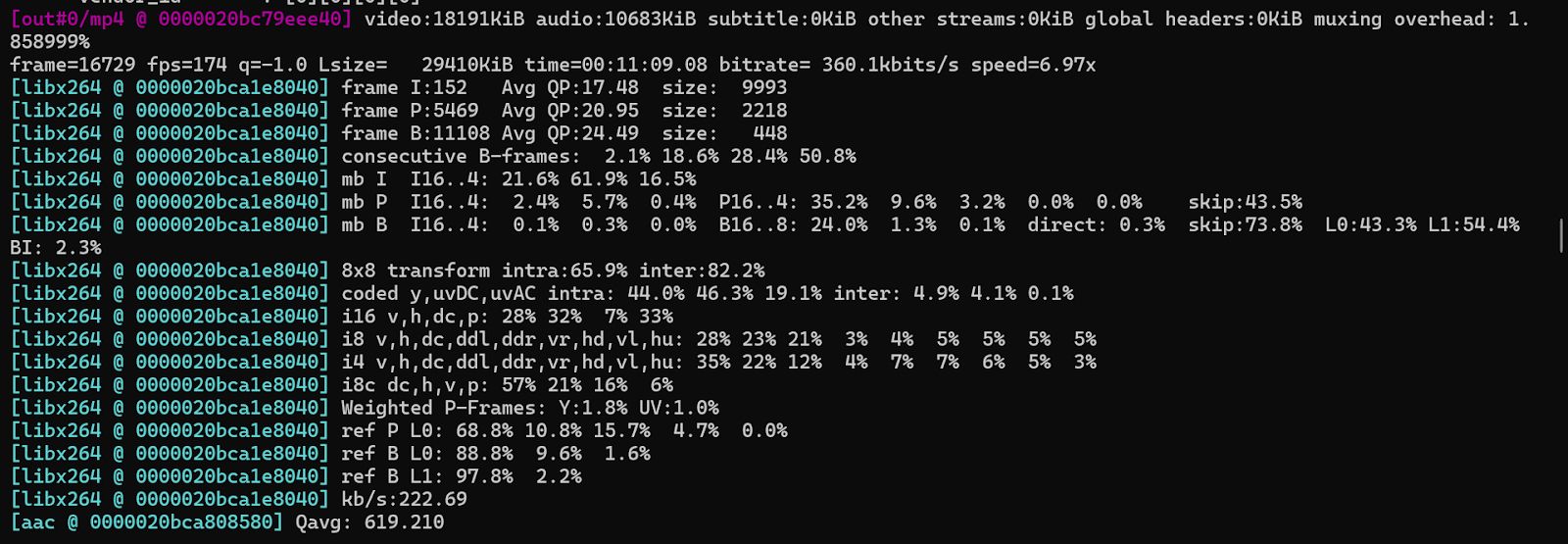
Scale Filter
The scale filter is used to resize the video to specific dimensions. You can provide explicit width and height or set one dimension (width or height) and let FFmpeg calculate the other.
Example:
ffmpeg -i input.mp4 -vf "scale=w:h" output.mp4Explanation:
- w: The new width of the video.
- h: The new height of the video.
Example: Scale a Video to 1280x720
ffmpeg -i input.mp4 -vf "scale=1280:720" output.mp4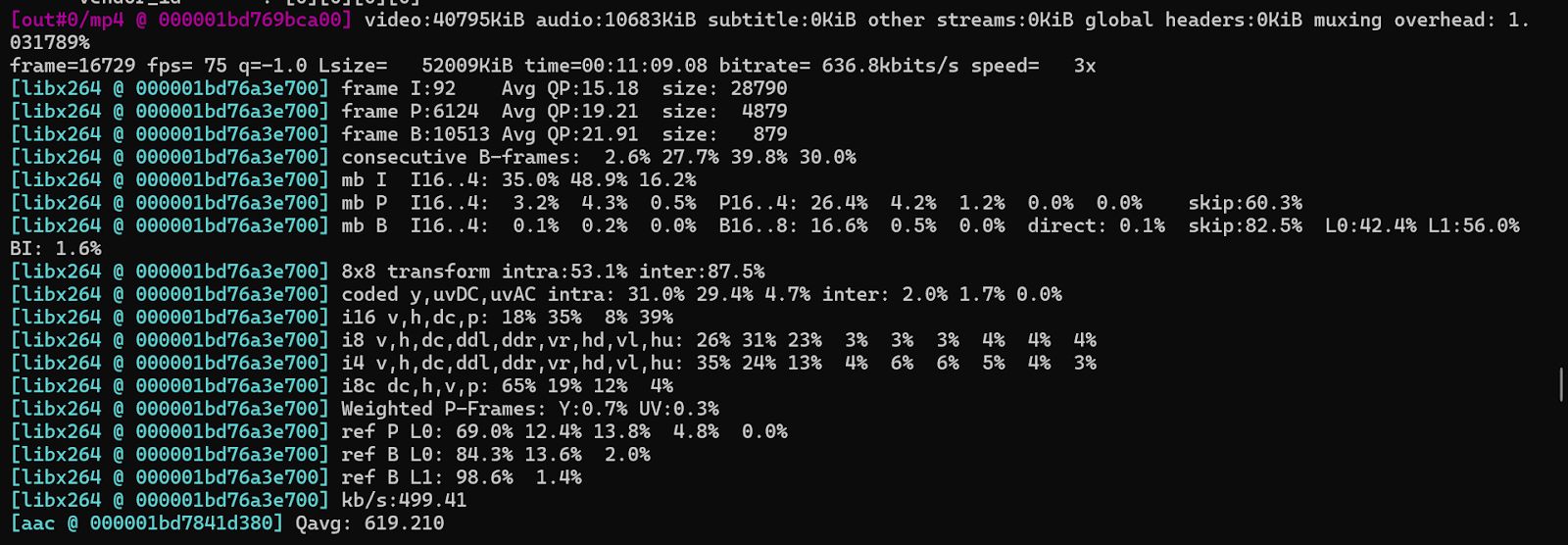
Example: Maintain Aspect Ratio while Scaling the Width to 1280
ffmpeg -i input.mp4 -vf "scale=1280:-1" output.mp4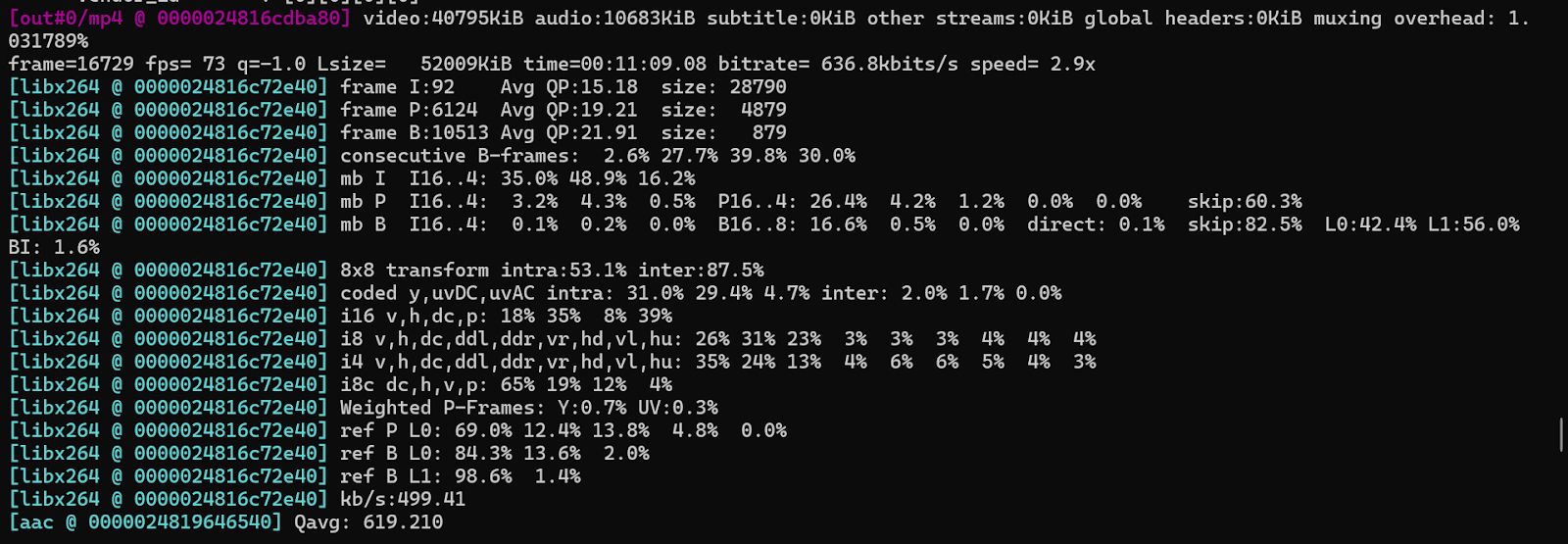
Pad Filter
The pad filter adds padding to the video, either on all sides or selectively. This is useful when you need to match a specific aspect ratio or frame size without cropping.
Example:
ffmpeg -i input.mp4 -vf "pad=w:h:x:y:color" output.mp4Explanation:
- w: The width of the output video (including padding).
- h: The height of the output video (including padding).
- x: The horizontal position of the input video inside the padded frame.
- y: The vertical position of the input video inside the padded frame.
- color: The color of the padding (e.g., black, white, #RRGGBB).
For example, to pad a 640x360 video to 1280x720 with black padding:
ffmpeg -i input.mp4 -vf "pad=1280:720:320:180:black" output.mp4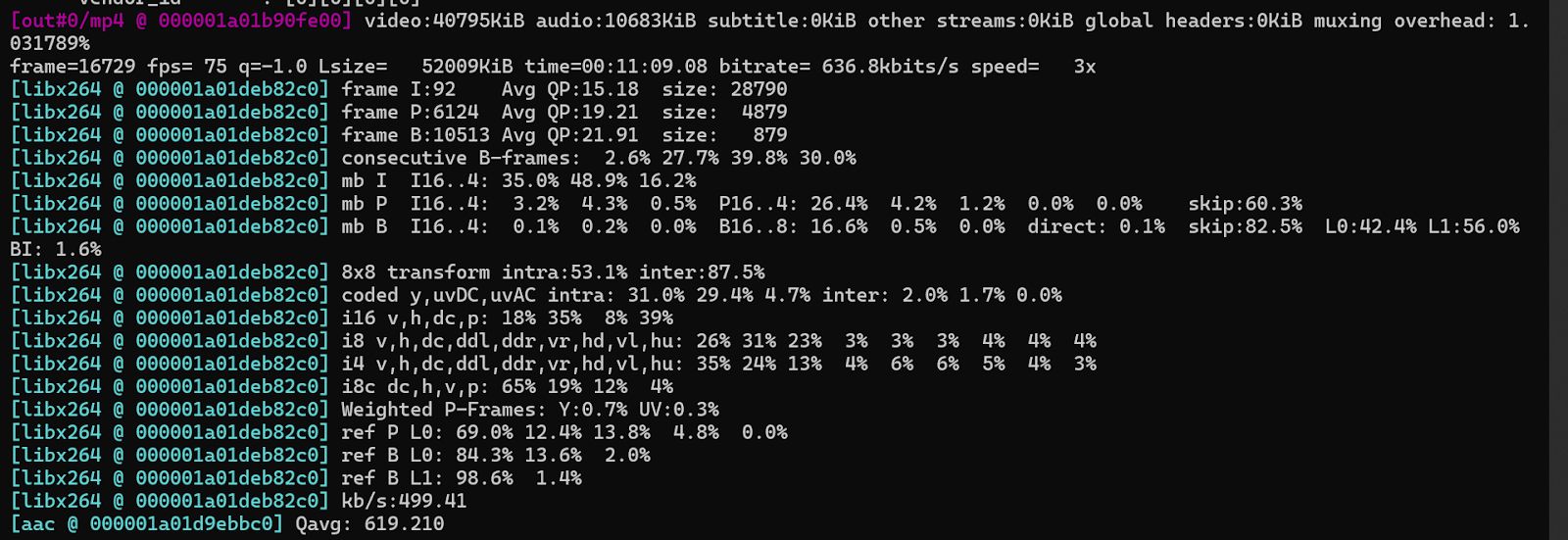
Overlay Filter
The overlay filter allows you to overlay one video or image onto another. This is commonly used for adding logos, watermarks, or picture-in-picture effects.
Example:
ffmpeg -i input.mp4 -i overlay.png -filter_complex "overlay=x:y" output.mp4Explanation:
- x: The horizontal position of the overlay (in pixels).
- y: The vertical position of the overlay (in pixels).
Example: To Overlay a Logo at Position (10, 10)
ffmpeg -i input.mp4 -i logo.png -filter_complex "overlay=10:10" output.mp4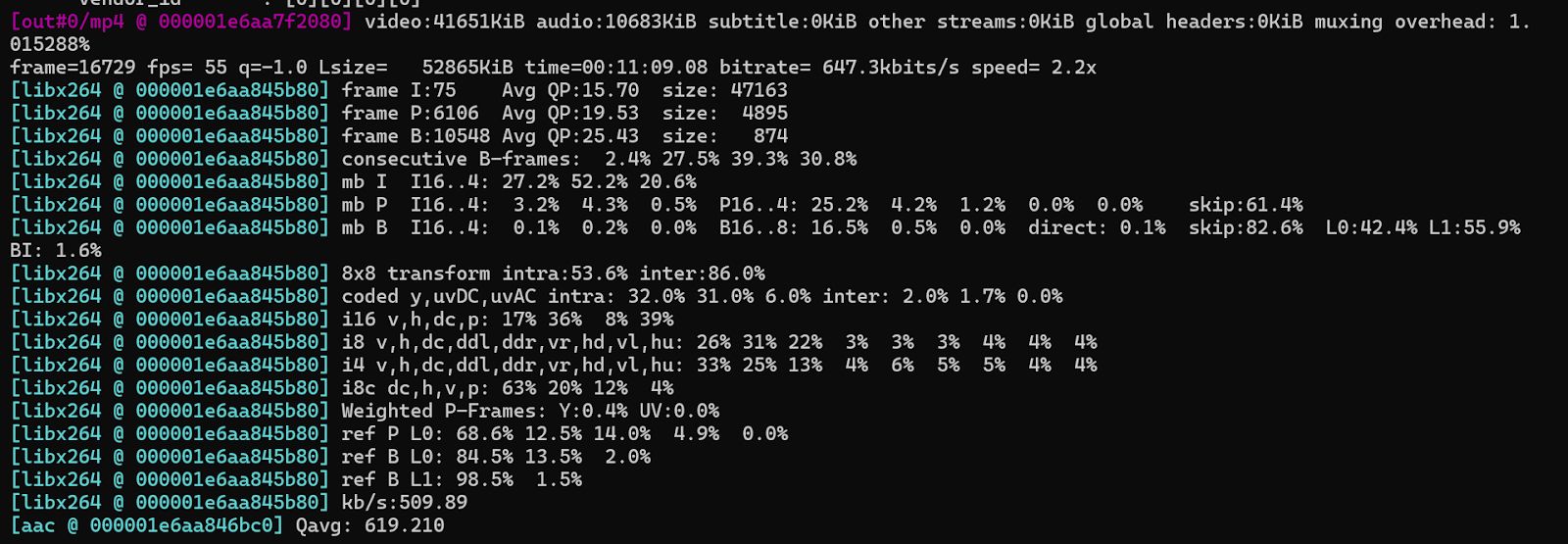
Rotate Filter
The rotate filter rotates the video by a specified angle.
Example:
ffmpeg -i input.mp4 -vf "rotate=angle" output.mp4Explanation:
- angle: The angle of rotation in radians. To rotate by 90 degrees, use PI/2 (??/2).
Example: To Rotate the Video 90 Degrees Clockwise
ffmpeg -i input.mp4 -vf "rotate=PI/2" output.mp4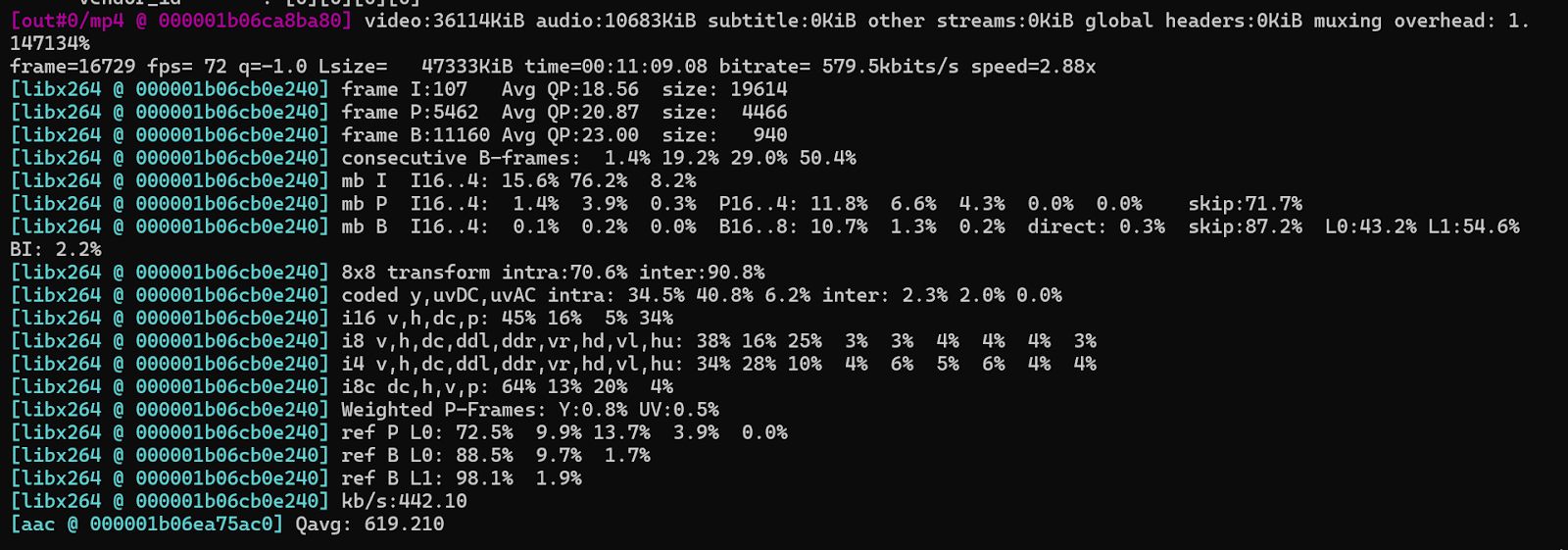
Fade Filter
The fade filter is used to create a fade-in or fade-out effect on the video.
Example (Fade In):
ffmpeg -i input.mp4 -vf "fade=t=in:st=0:d=5" output.mp4Explanation:
- t=in: Fade-in effect.
- st=0: Start time for the fade effect (in seconds).
- d=5: Duration of the fade effect (in seconds).
For example, to create a fade-in effect that starts immediately and lasts for 5 seconds:
ffmpeg -i input.mp4 -vf "fade=t=in:st=0:d=5" output.mp4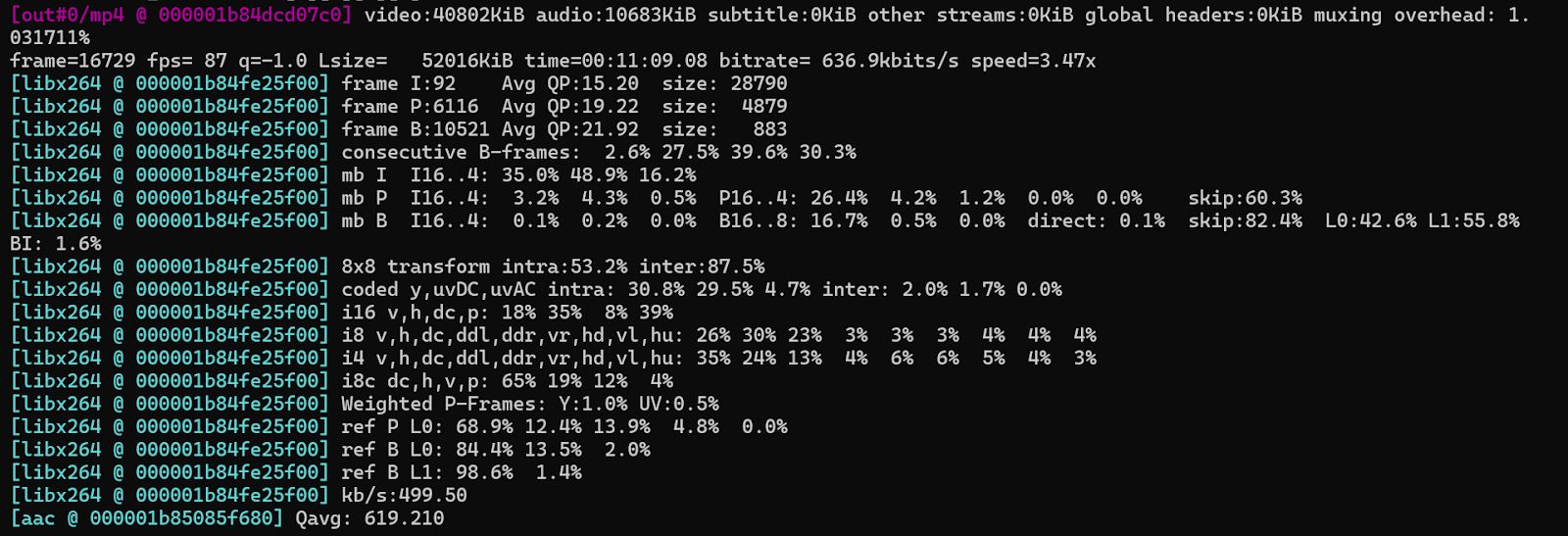
Command (Fade Out):
ffmpeg -i input.mp4 -vf "fade=t=out:st=5:d=5" output.mp4