
FFmpeg is a command-line tool used for processing video and audio files. It offers the ability to perform frame-accurate clipping, which is essential when you need to extract a precise segment from a video. Frame-accurate clipping ensures that the video starts and ends exactly at the desired frames, without any unintended trimming or loss of synchronization.
Prerequisites
- Install FFmpeg: Make sure FFmpeg is installed on your system. To check, run ffmpeg -version in the command line.
- Install if needed: If it's not installed, follow the instructions for your operating system from the official FFmpeg website.
- Prepare your video: Have the video file ready that you want to clip or work with.
Frame Accurate Clipping Overview
Frame-accurate clipping ensures that the video segment you want to extract starts and ends exactly at the specified frames, rather than relying on keyframes. By default, FFmpeg performs keyframe-based clipping, which may not result in precise frame cuts. To achieve frame accuracy, you must use specific options to control how FFmpeg processes the video.
Basic Command for Clipping
A basic FFmpeg command to clip a video from a specific start time and duration is as follows:
ffmpeg -i input.mp4 -ss 00:01:30 -t 00:00:10 -c:v copy -c:a copy -copyts output.mp4Explanation:
- -i input.mp4: Specifies the input video file.
- -ss 00:01:30: Defines the start time of the clip, in this case, 1 minute and 30 seconds into the video.
- -t 00:00:10: Specifies the duration of the clip, here set to 10 seconds.
- -c:v copy: Copies the video stream without re-encoding, maintaining the original quality.
- -c:a copy: Copies the audio stream without re-encoding.
- -copyts: Ensures that timestamps are preserved, which is essential for frame-accurate clipping.
- output.mp4: Specifies the output file.


Ensuring Frame Accuracy
By default, FFmpeg starts processing at the nearest keyframe when using the -ss option before the -i option. This may not guarantee frame accuracy. To achieve a precise clip, ensure that FFmpeg starts decoding from the exact frame by placing -ss after -i and using re-encoding.
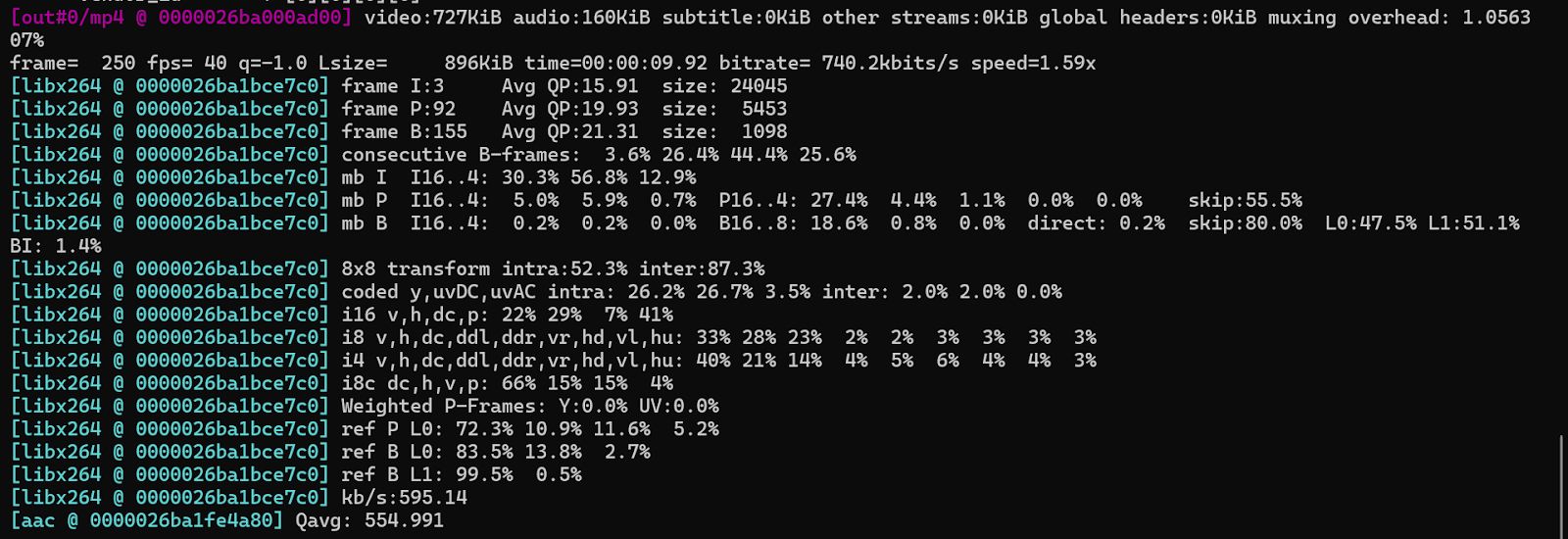
ffmpeg -i input.mp4 -ss 00:01:30 -t 00:00:10 -c:v libx264 -c:a aac output.mp4Here:
- The -ss option is placed after -i, which forces FFmpeg to decode from the exact frame, resulting in a frame-accurate start.
- Re-encoding is done using -c:v libx264 and -c:a aac to ensure accurate frame cutting.
Clipping Without Re-encoding
To clip a video without re-encoding, you can copy the streams while using -copyts to preserve timestamps. This method ensures faster processing and avoids any quality loss but may not always be frame-accurate due to keyframe dependencies. Use this command:
ffmpeg -i input.mp4 -ss 00:01:30 -t 00:00:10 -c:v copy -c:a copy -copyts output.mp4
Extracting Audio with Frame Accuracy
If you wish to extract the audio from the video while maintaining frame accuracy, the following command can be used:
ffmpeg -i input.mp4 -ss 00:01:30 -t 00:00:10 -vn -c:a copy output_audio.mp3Explanation:
- -vn: Tells FFmpeg to disable video processing, extracting only the audio.
- The audio will be copied directly from the source, ensuring no re-encoding or quality loss.

Clipping Based on Frame Number
While FFmpeg does not directly support clipping by frame number, you can convert the desired frame number to a timestamp based on the video's frame rate. For instance, if the video has 30 frames per second (fps), and you need to start at frame 300, the timestamp will be:
Start time = 300 / 30 = 10 secondsThen use this start time with the -ss option:
ffmpeg -i input.mp4 -ss 00:00:10 -t 00:00:10 -c:v copy -c:a copy output.mp4
What’s Next?
Looking to simplify video clipping and processing? Cincopa offers an easy way to manage, edit, and organize your video content. Whether you're extracting segments, ensuring frame accuracy, or automating workflows, Cincopa provides the tools to streamline your media handling.
Get started with Cincopa today to enhance your video processing tasks and improve your overall video management experience.