
FFmpeg is a powerful command-line tool used for video and audio processing. One common task is creating thumbnails and sprites from video files. Thumbnails are single images extracted from a video to represent it, while sprites are image grids containing multiple frames from a video, useful for previewing or displaying multiple scenes in a compact format.
Prerequisites
- Check FFmpeg Installation: Open your command line and run ffmpeg -version to see if FFmpeg is installed.
- Install FFmpeg if Needed: If it's not installed, download and install it from the official FFmpeg website.
- Prepare Your Video File: Have the video file ready that you want to use to create thumbnails or sprite images.
Creating Video Thumbnails
To create a thumbnail (a single frame from the video), you can use the following basic command:
ffmpeg -i input.mp4 -vf "thumbnail" -frames:v 1 output.jpgExplanation:
- -i input.mp4: Specifies the input video file.
- -vf "thumbnail": The video filter (-vf) tells FFmpeg to select a representative frame as the thumbnail.
- -frames:v 1: Ensures that only one frame is extracted.
- output.jpg: The output file where the thumbnail will be saved in JPG format. You can use other formats like PNG by changing the extension.


Creating Thumbnails at a Specific Time
If you need the thumbnail from a specific time in the video, use the -ss option to specify the start time. For example, to capture the thumbnail at 1 minute and 30 seconds:
Example:
ffmpeg -i input.mp4 -ss 00:01:30 -vframes 1 output.jpgExplanation:
- -ss 00:01:30: Starts the extraction at 1 minute and 30 seconds into the video.
- -vframes 1: Extracts one frame.
- output.jpg: Specifies the output image file.

Creating Video Sprites
A sprite is a single image that contains multiple frames from a video, arranged in a grid. To create a sprite, you need to define the number of frames you want to extract and how many frames to place per row.
Example:
ffmpeg -i input.mp4 -vf "fps=1,scale=160:90,tile=5x5" output.pngExplanation:
- -i input.mp4 specifies the input video file.
- -vf "fps=1,scale=160:90,tile=5x5" is a filter chain: it extracts 1 frame per second (fps=1), resizes each frame to 160x90 pixels (scale=160:90), and arranges the frames into a 5x5 grid (tile=5x5), resulting in 25 thumbnails.
- output.png is the output sprite image saved in PNG format. You can change the format by modifying the file extension (e.g., .jpg, .webp).

Creating a Sprite with Custom Frame Interval
If you need to control how frequently frames appear in the sprite, you can adjust the fps value. For example, to create a sprite with frames taken every 2 seconds, use:
ffmpeg -i input.mp4 -vf "fps=1/2,scale=160:90,tile=5x5" output.pngExplanation:
- fps=1/2: Extracts one frame every 2 seconds instead of every second.

Creating a Thumbnail or Sprite for a Specific Time Range
1. Output a Single Image (One Tiled Sheet)
For one single tiled image (for example, a 5x5 grid of frames), must ensure that only one frame is output. Add -frames:v 1 before the output filename.
Example:
ffmpeg -i input.mp4 -ss 00:00:30 -t 00:00:30 -vf "fps=1,scale=160:90,tile=5x5" -frames:v 1 -update 1 output.pngExplanation:
- -ss 00:00:30 -t 00:00:30: Extract frames from 30 seconds to 1 minute of the video.
- -vf "fps=1,scale=160:90,tile=5x5": Extracts 1 frame per second, resizes it to 160x90, and arranges frames in a 5x5 grid.
- -frames: v 1 -update 1 output.png: Outputs a single tiled image and overwrites the file if it exists.
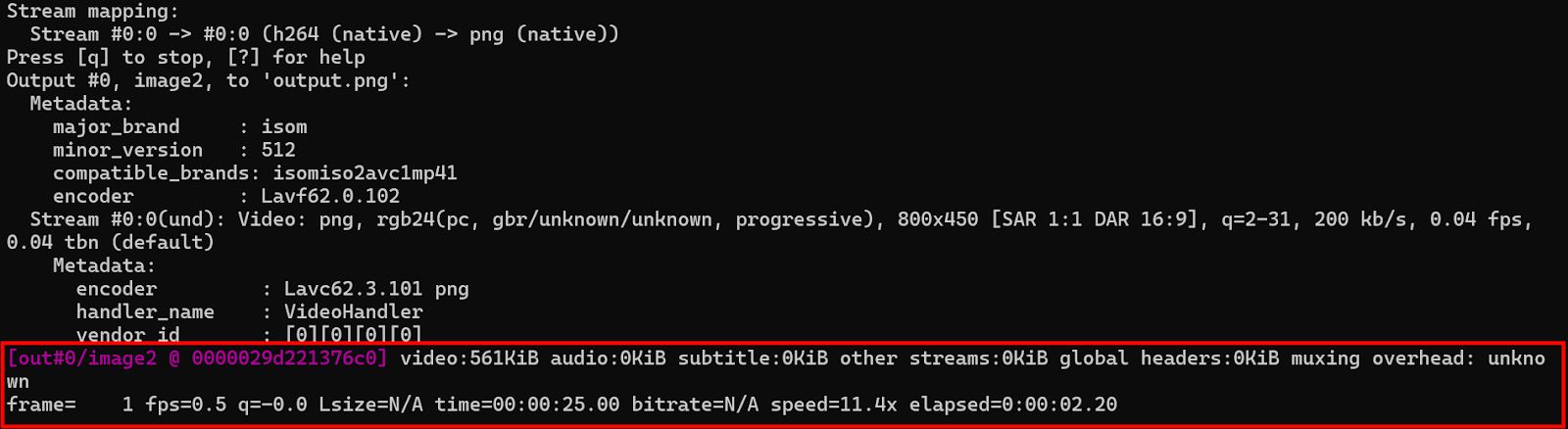
This will create a single output.png file containing a 5x5 tile of 25 frames.
2. Output Multiple Images (One Per Frame)
If you want multiple images, use a sequence pattern in the output filename.
Example:
ffmpeg -i input.mp4 -ss 00:00:30 -t 00:00:30 -vf "fps=1,scale=160:90" output_%03d.pngExplanation:
- -ss 00:00:30: Start extracting frames from 30 seconds into the video.
- -t 00:00:30: Extract frames for a duration of 30 seconds (up to 1 minute).
- -vf "fps=1,scale=160:90,tile=5x5": Extracts 1 frame per second, resizes it, and arranges the frames in a 5x5 grid.
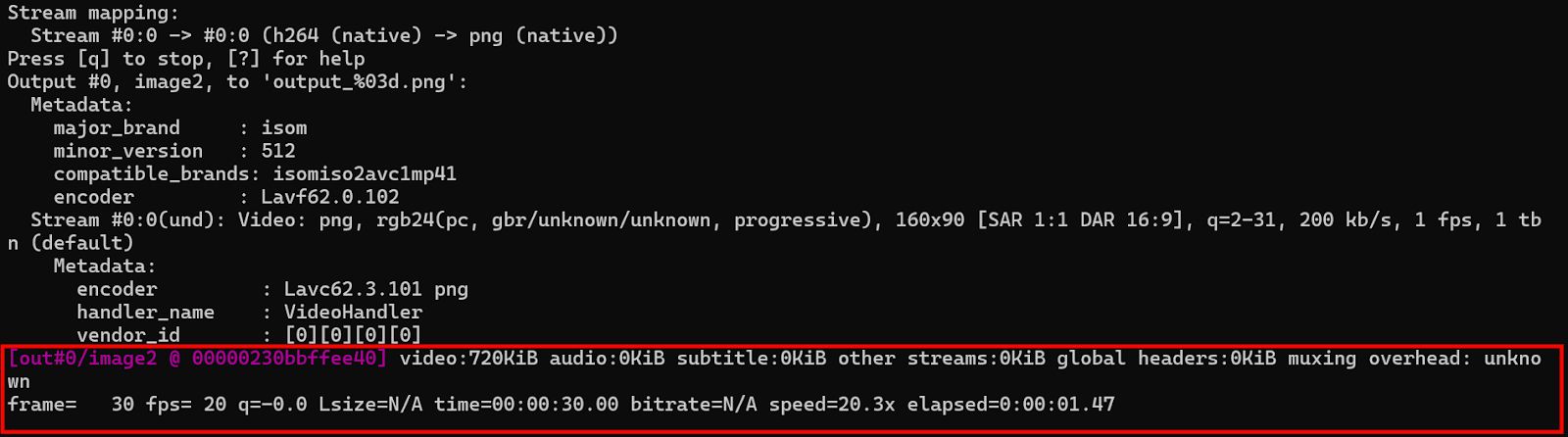
This will create output_001.png, output_002.png, etc., one for each frame
Extracting Thumbnails or Sprites from Multiple Videos
If you want to extract thumbnails or sprites from multiple videos in a batch, you can use a simple Bash script. For example, to create thumbnails for all .mp4 files in the current directory:
Example:
#!/bin/bashfor file in *.mp4; do ffmpeg -i "$file" -vf "thumbnail" -frames:v 1 "${file%.mp4}_thumbnail.jpg"doneExplanation:
- This script loops through all .mp4 files in the current directory.
- It extracts a thumbnail from each video and saves it as [filename]_thumbnail.jpg.
