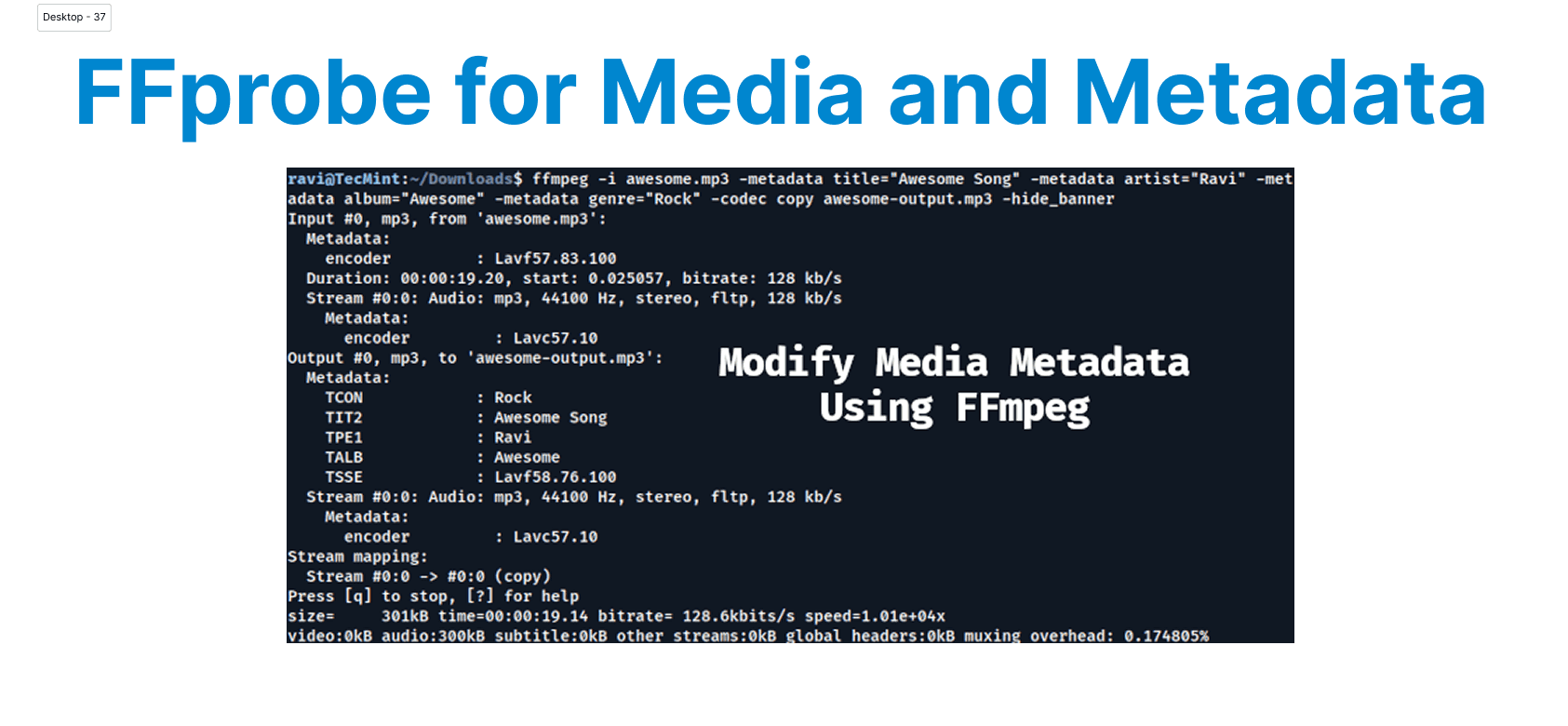
FFprobe is a command-line tool that comes with FFmpeg, used for analyzing and displaying detailed metadata about multimedia files, including video and audio streams. It provides essential information such as codec types, bitrates, frame rates, resolution, duration, and more.
Prerequisites
Before starting, ensure FFprobe is installed on your system. If FFmpeg is installed, FFprobe is likely already included. You can check if FFprobe is available by running ffprobe -version in the command line. It’s not installed; download and install FFmpeg from the official FFmpeg website.

Basic FFprobe Command
The basic command to analyze a multimedia file with FFprobe is:
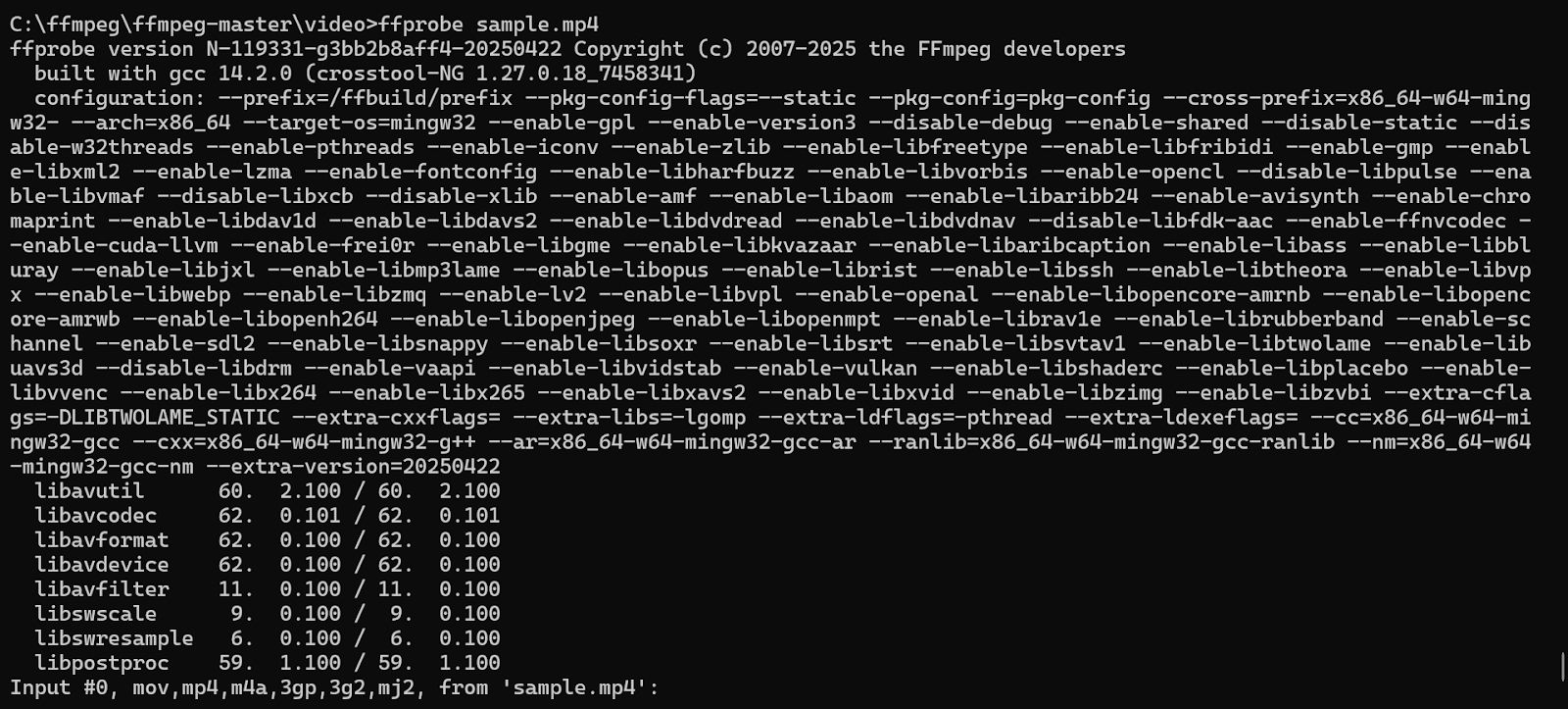
ffprobe input.mp4Explanation:
- input.mp4: The video or audio file you want to analyze.
By default, FFprobe will output a summary of the file, including basic information like format, duration, and codec information for both audio and video streams.
Getting Detailed Information
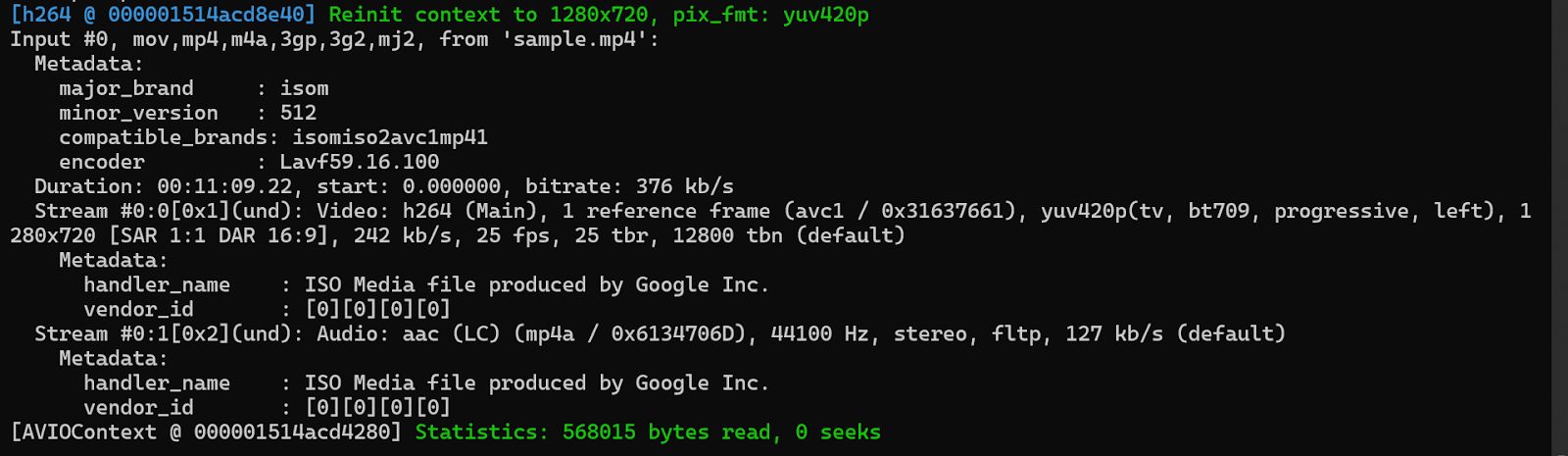
To get more detailed information, you can add the -v option followed by verbose to increase the verbosity of the output:
ffprobe -v verbose input.mp4This will provide extensive details about the file, such as the exact codec used, bit rates, stream information, and more.
Displaying Specific Metadata
To extract specific metadata, use the -show_entries option, followed by the desired metadata fields. For example, to display only the format, duration, and codec name, use
ffprobe -v quiet -show_entries format=duration,format_name -show_entries stream=codec_name input.mp4Explanation:
- -v quiet: Suppresses unnecessary output, displaying only the requested information.
- -show_entries format=duration,format_name: Extracts the duration and format name of the file.
- -show_entries stream=codec_name: Extracts the codec name used for the audio and video streams.
This command will output only the duration, format, and codec name, providing a focused overview of the video or audio file.

Analyzing Audio Metadata
To analyze audio-specific metadata, you can extract information about the audio streams by specifying stream=codec_name or stream=bit_rate. For instance, to display the codec and bitrate of the audio stream, use the following command:
ffprobe -v quiet -show_entries stream=codec_name,bit_rate input.mp4This will output the codec and bitrate used for the audio stream in the file.

Analyzing Video Metadata
Similarly, you can focus on the video stream to extract relevant metadata. To get information such as the resolution, frame rate, and codec of the video stream, use:
ffprobe -v quiet -show_entries stream=codec_name,width,height,r_frame_rate input.mp4Explanation:
- -show_entries stream=codec_name,width,height,r_frame_rate: Specifies that FFprobe should extract the codec name, width, height, and frame rate (r_frame_rate) of the video stream.

Getting Media Info in JSON Format
FFprobe can output metadata in JSON format, which is useful for parsing the information programmatically. To get metadata in JSON format, use the -of json option:
ffprobe -v quiet -of json -show_entries format=duration,codec_name input.mp4This will return the metadata in JSON format, which can easily be parsed using various programming languages or tools.

Extracting Frame-by-Frame Information
If you need frame-by-frame details, such as the PTS (presentation timestamp) for each frame, you can use the following command:
ffmpeg -i input.mp4 -vf "showinfo" -f null -
Listing All Available Metadata
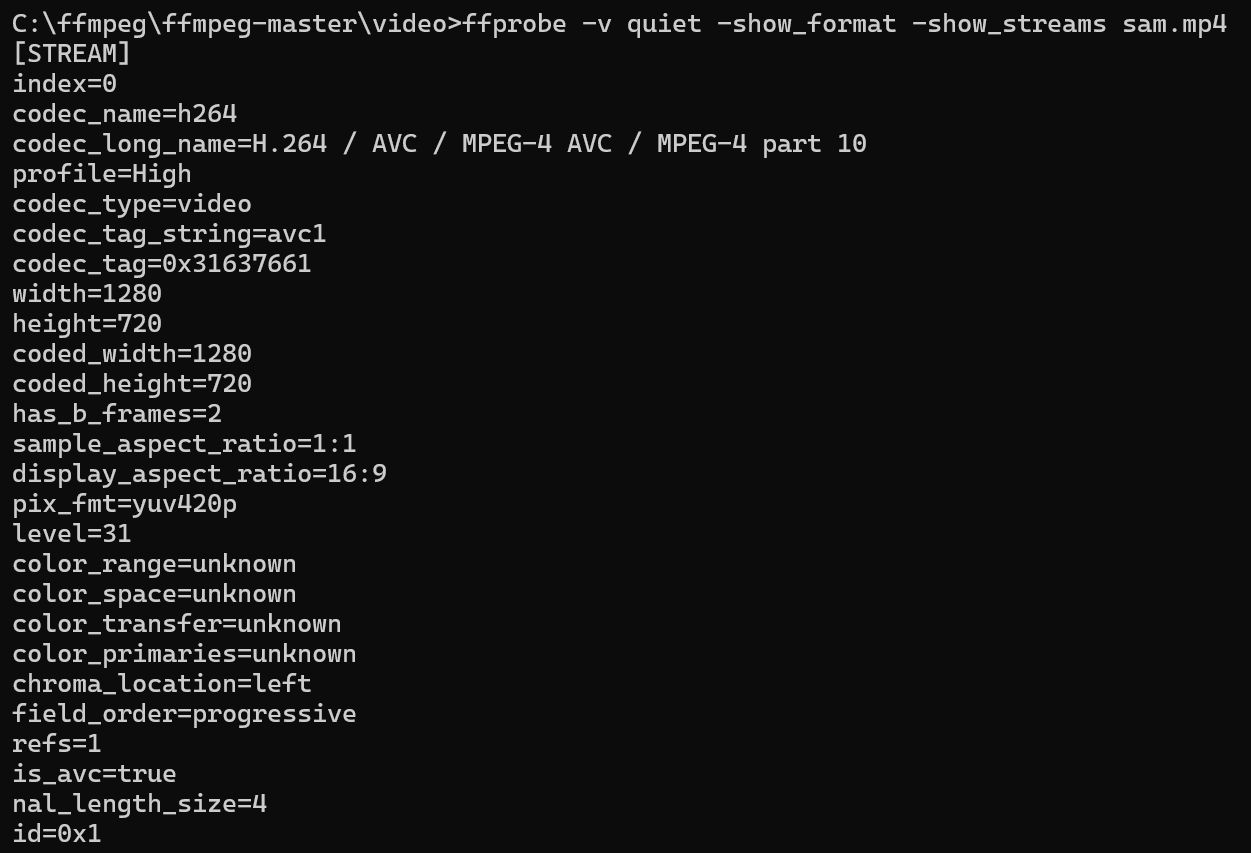
To list all available metadata in a file, you can use the -show_format and -show_streams options:
ffprobe -v quiet -show_format -show_streams input.mp4This will provide detailed information about both the format and the individual streams (audio and video) in the file.
What’s Next?
Need to manage and analyze your video and audio metadata efficiently? Cincopa offers a streamlined platform for organizing, processing, and extracting metadata from your media files.
Start using Cincopa today to simplify your media management workflows and enhance your multimedia capabilities.