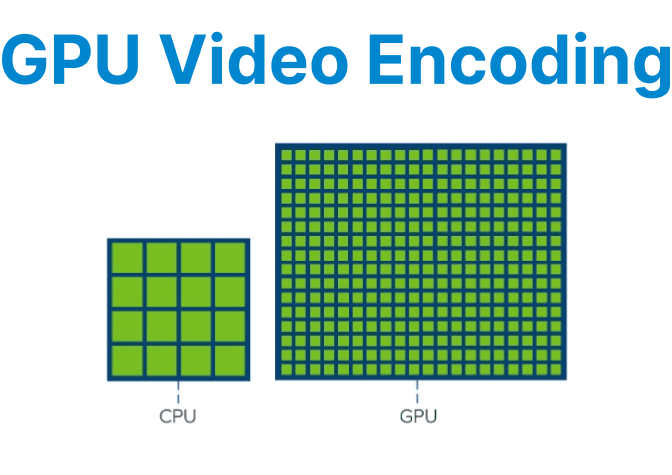
NVIDIA NVENC is a dedicated hardware encoder built into NVIDIA GPUs that enables high-performance video encoding without using CUDA cores or CPU resources. It is designed to handle real-time encoding for live streaming, batch compression, or low-latency video delivery.
Prerequisites
- NVIDIA GPU with NVENC support
- NVIDIA proprietary drivers installed
- ffmpeg compiled with --enable-nvenc and linked with the NVIDIA Video Codec SDK
- To verify NVENC support in FFmpeg, run:
ffmpeg -encoders | grep nvencThis should list available NVENC encoders like h264_nvenc, hevc_nvenc.
Basic NVENC Commands
Once FFmpeg is configured with NVENC support, you can use NVENC for hardware-accelerated video encoding.

Encoding Video to H.264 (AVC) with NVENC:
Video is encoded to H.264 using NVIDIA’s hardware encoder and software AAC audio encoding.
ffmpeg -i input.mp4 -c:v h264_nvenc -c:a aac output.mp4Explanation:
- -c:v h264_nvenc: Tells FFmpeg to use NVENC to encode the video stream in H.264 format.
- -c:a aac: Uses the AAC codec for audio encoding.
Encoding Video to H.265 (HEVC) with NVENC:
Encode video to the more efficient HEVC format using NVENC support on Maxwell GPUs and newer.
ffmpeg -i input.mp4 -c:v hevc_nvenc -c:a aac output.mp4Explanation:
- -c:v hevc_nvenc: Uses NVENC to encode the video stream in H.265 (HEVC) format.
Controlling Video Bitrate:
Shows how to set a fixed target bitrate using -b:v, which determines file size and compression level.
ffmpeg -i input.mp4 -c:v h264_nvenc -b:v 2M -c:a aac output.mp4Explanation:
- -b:v 2M: Sets the video bitrate to 2 Mbps.
Optimizing Encoding Speed and Quality
NVENC offers several options to balance encoding speed and video quality. These options are controlled through FFmpeg’s -preset and -tune parameters.
Encoding Speed and Quality Balance with Presets:
NVENC presets in FFmpeg are labeled numerically (p1 to p7), with p1 being fastest and p7 highest quality.
Example:
ffmpeg -i input.mp4 -c:v h264_nvenc -preset p7 -c:a aac output.mp4Using Multiple GPUs with NVENC
FFmpeg can use all available GPUs for parallel processing for systems with multiple NVIDIA GPUs. The -hwaccel_device N option lets you specify which GPU to use for encoding.
Example of using multiple GPUs:
# GPU 0
ffmpeg -hwaccel_device 0 -i input.mp4 -c:v h264_nvenc output0.mp4# GPU 1
ffmpeg -hwaccel_device 1 -i input.mp4 -c:v h264_nvenc output1.mp4Explanation:
- -hwaccel_device 0: Uses the first GPU for encoding.
- -hwaccel_device 1: Uses the second GPU.
Advanced Features of NVENC
Rate Control Modes: NVENC supports multiple rate control modes to adjust how the encoder handles bitrate. Some of the key modes are:
CBR (Constant Bitrate): Maintains a constant bitrate for consistent video quality.
VBR (Variable Bitrate): Allows for efficient compression by varying the bitrate depending on the video complexity.
Example:
# CBR (Constant Bitrate)
ffmpeg -i input.mp4 -c:v h264_nvenc -rc cbr -b:v 5M -maxrate 5M -bufsize 5M -preset p4 -c:a aac output.mp4# VBR (Variable Bitrate)
ffmpeg -i input.mp4 -c:v h264_nvenc -rc vbr -b:v 5M -maxrate 7M -bufsize 10M -preset p4 -c:a aac output.mp4# Constant QP
ffmpeg -i input.mp4 -c:v h264_nvenc -rc constqp -qp 23 -preset p4 -c:a aac output.mp4Explanation:
- -rc: Rate control method (cbr, vbr, or constqp)
- -qp: Quantizer value for CONSTQP (lower = better quality)
Motion Compensation and B-Frames:
NVENC can use motion compensation and B-frames for better compression. You can adjust these settings using the -b_ref_mode options.
Example: Setting the Number of B-frames
ffmpeg -i input.mp4 -c:v h264_nvenc -bf 4 -b_ref_mode each -c:a aac output.mp4Explanation:
- -bf 4: Enables up to 4 B-frames between P/I frames.
- -b_ref_mode each: Allows B-frames to be used as reference frames for better efficiency.
Lookahead: Lookahead enables NVENC to analyze future frames and optimize rate allocation across them.
ffmpeg -i input.mp4 -c:v h264_nvenc -rc-lookahead 32 -c:a aac output.mp4Explanation:
- -rc-lookahead 32: Analyzes 32 future frames to improve compression.
- Higher values increase latency but improve visual consistency.