When working with rich content in Sanity, you may need to embed YouTube videos. Instead of pasting raw HTML embed codes (which mix content with presentation) it’s better to store only the video data and let your frontend handle rendering. This keeps content clean, reusable, and consistently styled.
Add a YouTube Schema Type
A YouTube schema type is a custom field definition in Sanity that tells your studio how to store YouTube video data. Instead of embedding raw HTML, this schema captures just the essentials (like the video URL or ID) so the frontend decides how to display it.
We need this schema type to:
- Keep video content structured and reusable
- Ensure consistent rendering across different frontends
- Separate content from presentation for easier maintenance
Add this schema type to your Sanity schema folder (usually in `schemas/` inside your project). Once defined, it can be reused in blog posts, documentation, or any other content type where videos are needed.
To start, define a custom schema type for YouTube videos in your Sanity Studio:
// ./schemaTypes/youTubeType/index.tsimport {defineType, defineField} from 'sanity'import {PlayIcon} from '@sanity/icons'
export const youTubeType = defineType({name: 'youtube',type: 'object',title: 'YouTube Embed',icon: PlayIcon,fields: [defineField({name: 'url',type: 'url',title: 'YouTube video URL',}),]})Explanation:
- preview.select.title: Maps the video URL to the preview title, so the YouTube URL is passed into the YouTubePreview component.
- preview.components.preview: Overrides the default Sanity preview with a custom React component (YouTubePreview).
- <ReactPlayer url={value.url} />: Renders the YouTube video in the frontend using the video URL stored in Sanity.
- getIdFromUrl: A helper function from vue-youtube that extracts the video ID from a full YouTube URL.
- components.types.youtube: Defines how to render the youtube block type when using @portabletext/vue in a Vue app.
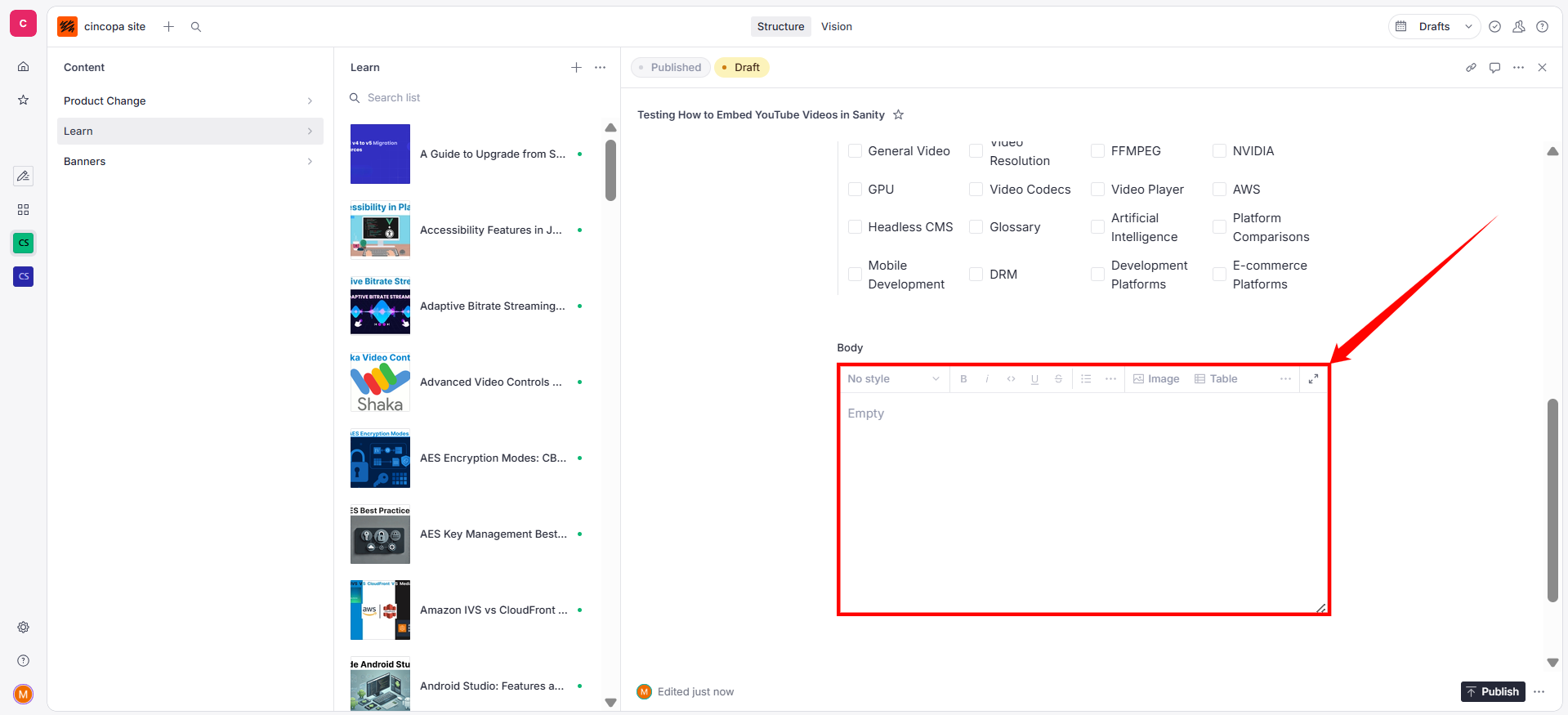
Now import and register this type in your main schema file so it’s available across your project:
// ./schemaTypes/index.tsimport youtube from './youtube'
export const schemaTypes = [// other schema typesyoutube]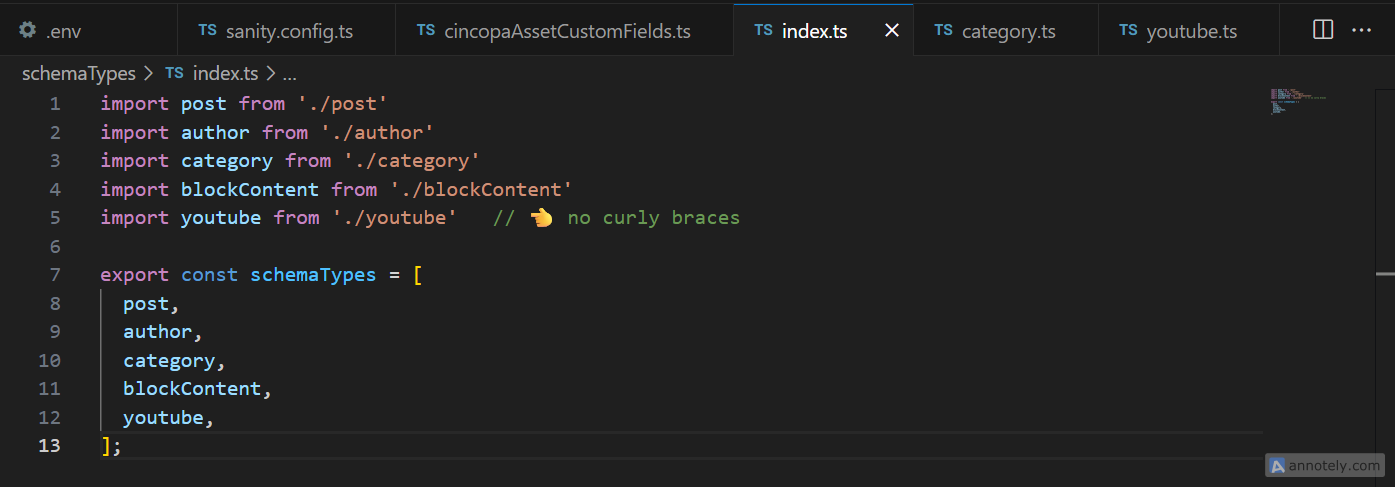
Add to Block Content
The YouTube schema type you just created defines how Sanity stores video data. But on its own, it won’t appear inside your rich text fields (like blog posts or documentation pages).
That’s where extending block content comes in. By adding the YouTube schema type to your block content definition, you allow editors to insert YouTube videos directly within rich text, right alongside text, images, and other content.
Here’s the code to enable the YouTube type inside Portable Text:
// ./schemaTypes/blockContentType.ts
import {defineType, defineArrayMember} from 'sanity'
export const blockContentType = defineType({name: 'blockContent',type: 'array',title: 'Body',of: [defineArrayMember({type: 'block'}),defineArrayMember({type: 'youTube'})]})Explanation:
- blockContentType: The schema definition for rich text content, allowing both text blocks and YouTube embeds.
- defineType: A Sanity function used to define a new custom schema type.
- defineArrayMember: A helper used to declare the types of content allowed within an array field.
- type: 'youTube': Allows YouTube embeds (defined in a custom schema) to be inserted into the rich text content.
This allows content creators to insert YouTube videos directly from the editor UI and improve usability without touching raw code or embed snippets.
Add a Block Preview Using ReactPlayer
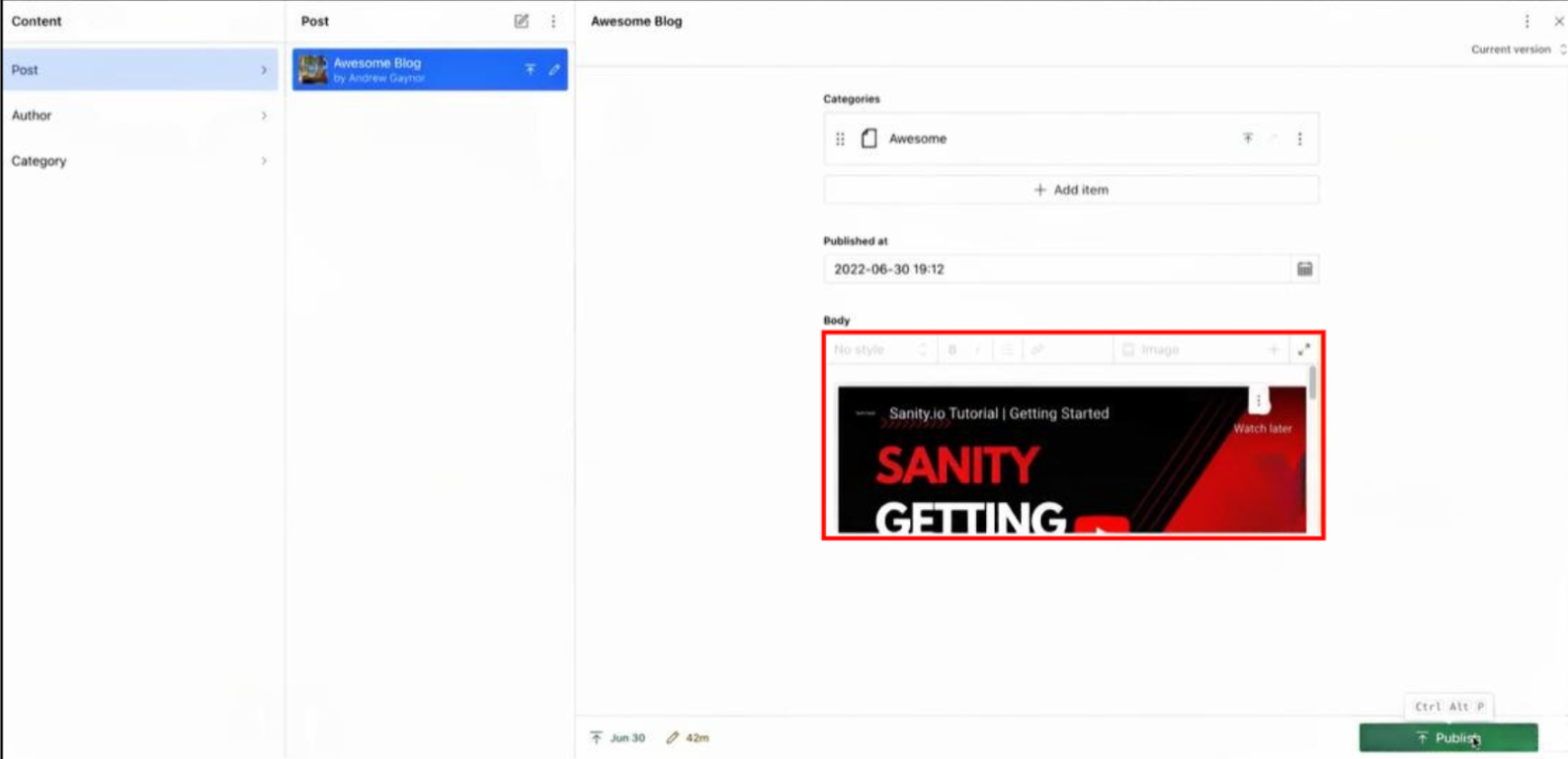
By default, Sanity only shows the URL in the editor, which can be unclear and frustrating. This is especially true when working with multiple videos. To enhance the editorial experience, you can provide a live preview of the embedded video using ReactPlayer.
Example: Install the Required Dependencies
npm install react-player @sanity/uiThen, create a preview component that renders the video player using the pasted URL:
// ./schemaTypes/youTubeType/YouTubePreview.tsximport type {PreviewProps} from 'sanity'import {Flex, Text} from '@sanity/ui'import YouTubePlayer from 'react-player/youtube'
export function YouTubePreview({title: url}: PreviewProps) {return (<Flex padding={3} align="center" justify="center">{typeof url === 'string'? <YouTubePlayer url={url} />: <Text>Add a YouTube URL</Text>}</Flex>)}Explanation:
- PreviewProps: The type definition for Sanity preview component props, used to ensure correct structure for preview data.
- YouTubePlayer: A React component from react-player/youtube used to render the YouTube video preview based on the provided URL.
- typeof url === 'string' ? <YouTubePlayer url={url} />: <Text>Add a YouTube URL</Text>: A conditional rendering logic that shows the video if a valid URL is present, or fallback text if not.
Next, update your schema to use this preview:
// ./schemaTypes/youTubeType/index.tsimport {defineType, defineField} from 'sanity'import {PlayIcon} from '@sanity/icons'import {YouTubePreview} from './YouTubePreview'
export const youtube = defineType({name: 'youtube',type: 'object',title: 'YouTube Embed',icon: PlayIcon,fields: [defineField({name: 'url',type: 'url',title: 'YouTube video URL',}),],preview: {select: {title: 'url'},},components: {preview: YouTubePreview,},})Explanation:
- fields: [...]: Defines the set of fields included in the YouTube object schema.
- name: 'url': The internal identifier for the field storing the full YouTube video URL.
- title: 'YouTube video URL': The label shown to content editors when entering the video URL.
- preview.select.title: Maps the url field to the title property used in the preview component.
- components.preview: Overrides the default preview with the custom YouTubePreview component.
Render the YouTube Embed in a Frontend
Sanity stores YouTube embeds as custom blocks inside the Portable Text array. To display them correctly on your website or app, you’ll need to define a custom serializer that knows how to render the YouTube block.
React Example
If you don’t have it yet, install the Portable Text React package and React Player:
npm install @portabletext/react react-playerThen, create a reusable component that renders Portable Text with the YouTube serializer:
// src/components/Body.tsximport React from 'react'import {PortableText} from '@portabletext/react'import ReactPlayer from 'react-player'
const serializers = {types: {youtube: ({value}) => <ReactPlayer url={value.url} />}}
export default function Body({blocks}) {return <PortableText value={blocks} components={serializers} />}Explanation:
- serializers.types.youtube: A custom serializer that tells PortableText how to render youtube block types using ReactPlayer.
- value.url: The YouTube video URL stored in the Sanity document, passed to ReactPlayer for playback.
- Body({blocks}): A React component that receives blocks (Portable Text content) as a prop and renders it using PortableText.
- components={serializers}: Passes the custom serializers to PortableText, enabling support for embedded YouTube videos.
Using ReactPlayer here ensures consistent video behavior across devices and browsers, and allows you to maintain a single rendering strategy for all your rich content blocks.
Vue Example
To integrate YouTube embeds in Vue, Install the packages:
npm install @portabletext/vue vue-youtubeCreate a Vue component for the video:
<template><youtube :video-id="videoId"></youtube></template>
<script>import { getIdFromUrl } from 'vue-youtube'
export default {props: {url: String},computed: {videoId() {return getIdFromUrl(this.url)}}}</script>Explanation:
- getIdFromUrl: A utility function from vue-youtube that extracts the video ID from a full YouTube URL.
- videoId(): A computed property that returns the extracted YouTube video ID using getIdFromUrl.
- <youtube :video-id="videoId"></youtube>: A Vue component that renders the embedded YouTube video using the extracted video ID.
Then, configure Portable Text rendering:
<template><PortableText :value="value" :components="components" /></template>
<script>import {PortableText} from "@portabletext/vue";import YouTube from './YouTube.vue'
export default {props: {value: Array},data() {return {components: {types: { youtube: YouTube }}}}}</script>Explanation:
- components.types.youtube: A custom block renderer that tells PortableText to use the YouTube component for youtube block types.
- <PortableText :value="value" :components="components" />: Renders the provided Portable Text content using the custom YouTube renderer.
The same pattern works for other frameworks like Svelte or Astro; just adapt the serializer to match the framework’s conventions.