
Embedding YouTube videos in Shopify blogs enhances engagement, improves content quality, and boosts SEO. By incorporating multimedia, you can provide a richer user experience, increase time spent on your site, and effectively showcase products, tutorials, or testimonials. Adding videos helps drive traffic and create interactive content that resonates with visitors, ultimately enhancing your brand presence.
Navigation
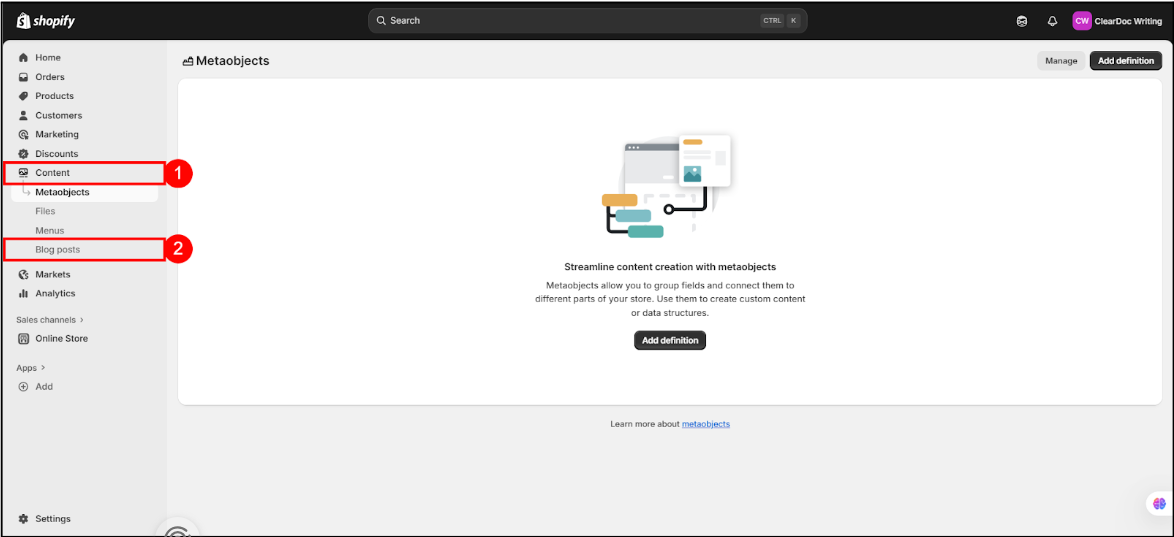
Step 1: Navigate to the left-side bar, unwrap the “Content” dropdown, then click on the “Blog Post” option.
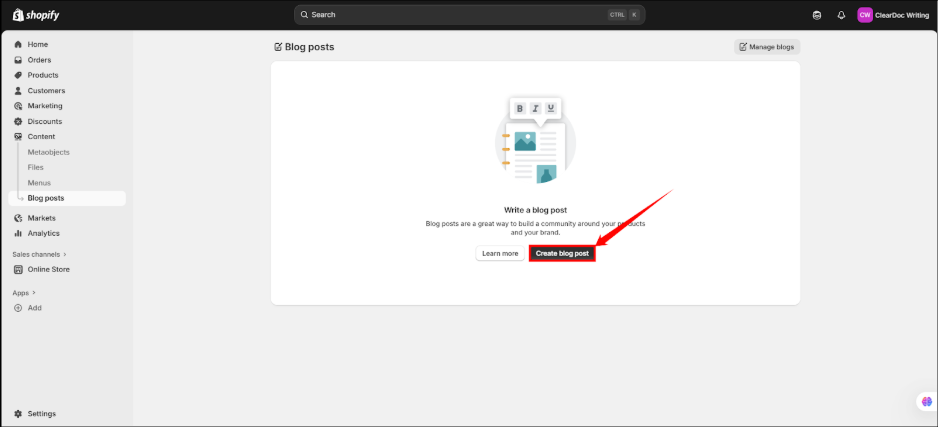
Step 2: Click on the “Create Blog Post” button in the center of the screen.
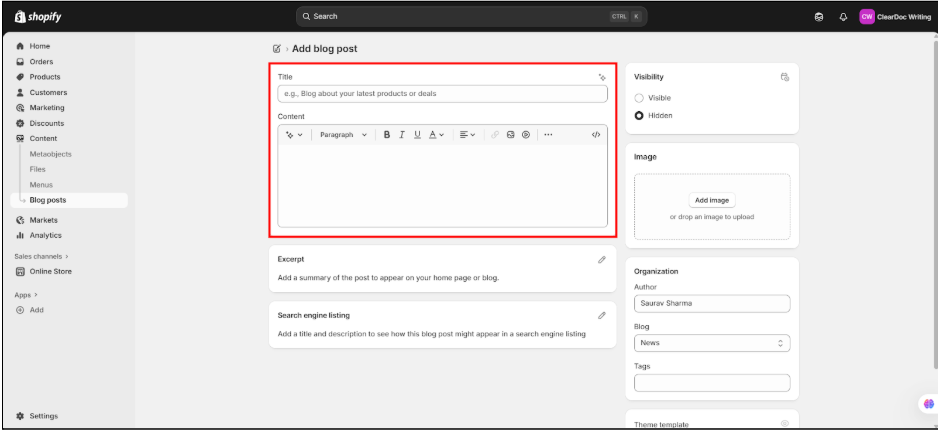
Step 3: A new window will open where you must fill in your desired blog.
Copy the YouTube Video Embed Code
Step 1: Visit the YouTube video, then click on the share button at the bottom of the video.
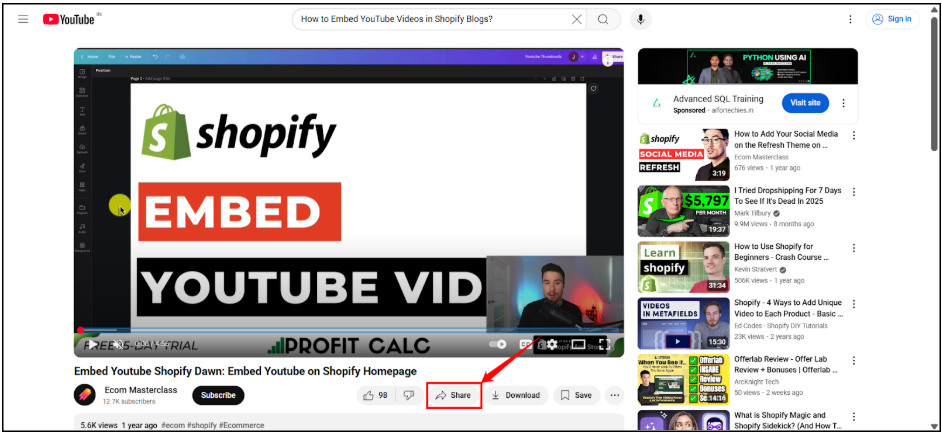
Step 2: A new share window will open. Click on the “Embed” button.
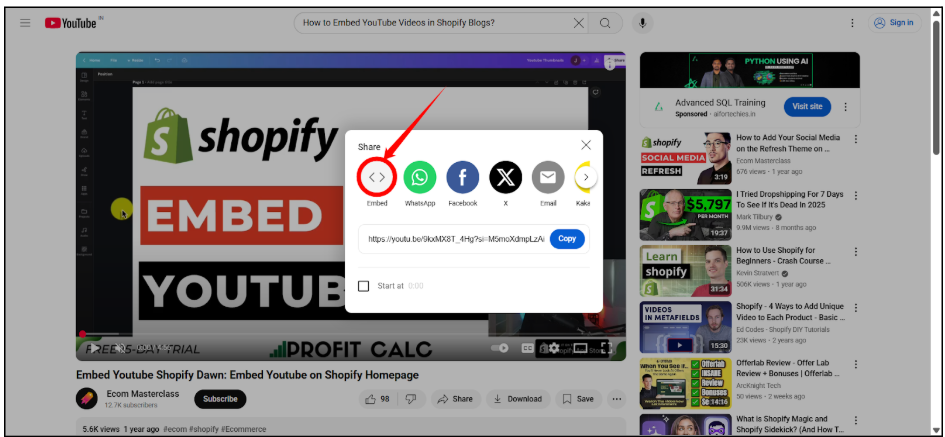
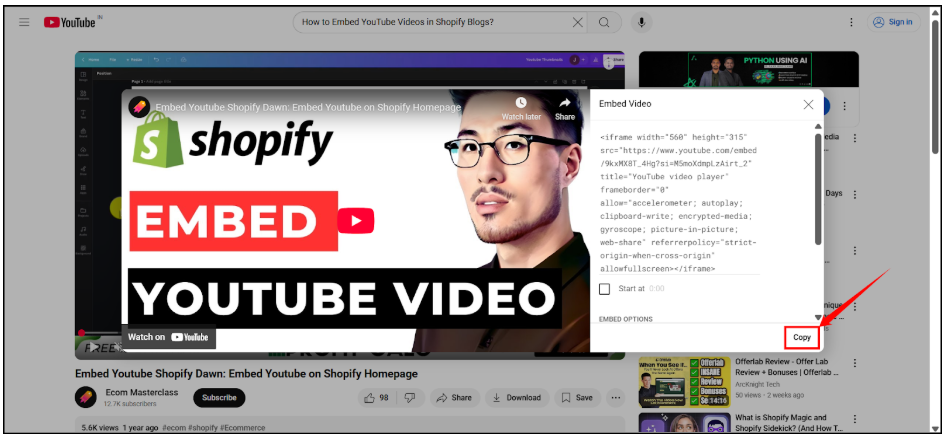
Step 3: A new window will open with the Video Embed Code. Click on the “Copy” button at the bottom right corner of the window.
Embedding YouTube Videos in Shopify Blogs
Step 1: After adding the blog to the text editor, navigate to the editor toolbar at the top of the text editor, then click on the “Insert Video” icon.
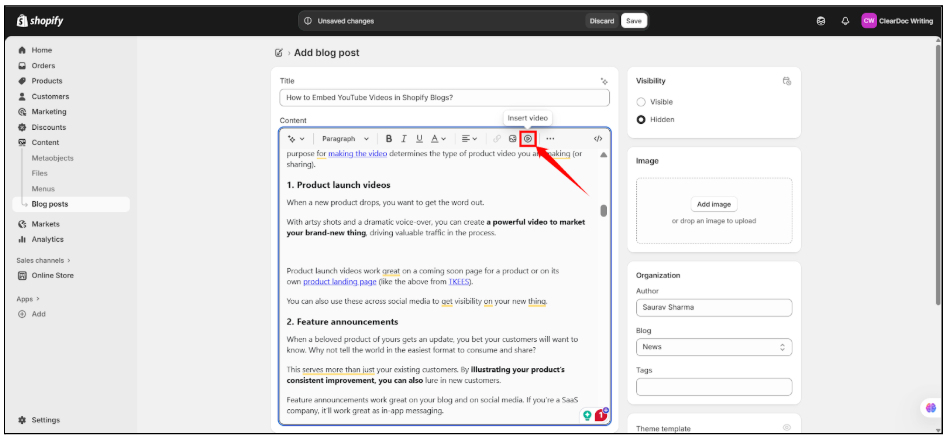
Step 2: A new video embed window will appear in the center of the screen. Enter the embed snippet of the YouTube Video that you want to embed, then click on the “Insert Video” button.
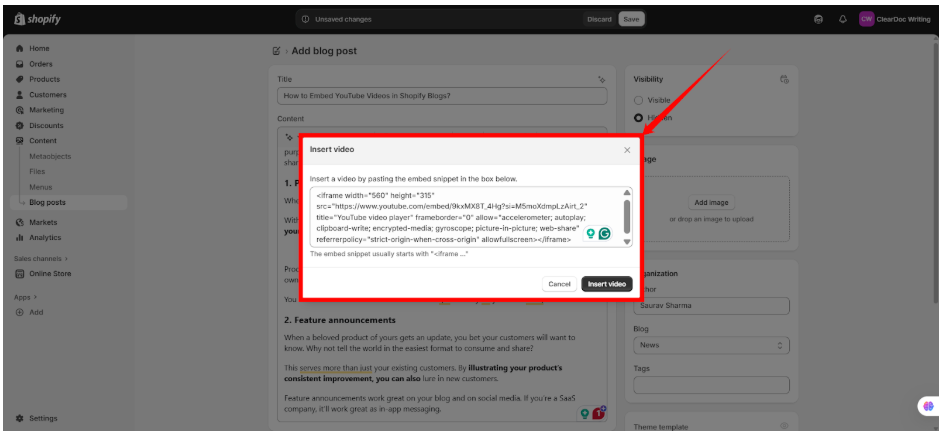
Step 3: After adding the embed code, click on the “Save” button at the top of the screen.
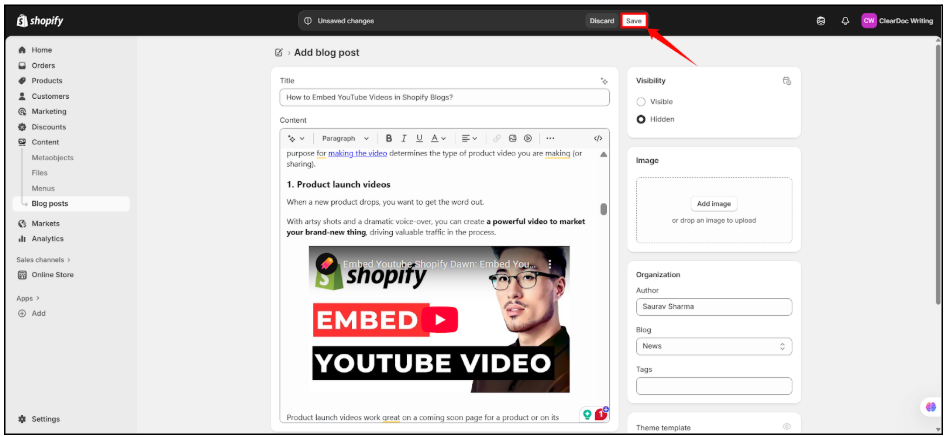
Step 4: After clicking on the “Save” button, a success message appears at the top of the screen.
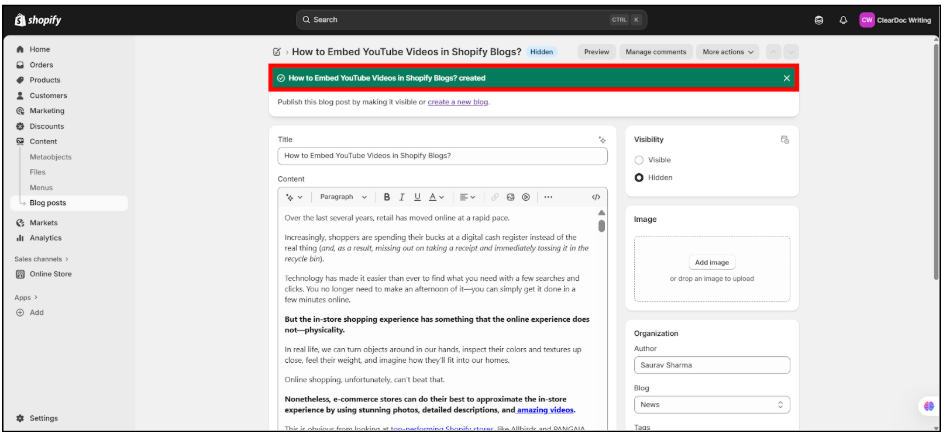
Step 5: After successfully publishing the blog post, this is how it will appear to the readers.