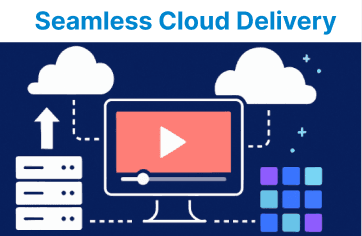
Hybrid cloud hosting combines private infrastructure for secure processing and public cloud services for scalable video delivery. It enables control over sensitive data while taking advantage of the performance benefits of cloud-based CDN and storage. In a typical workflow, videos are processed in the private environment and then moved to public services like AWS S3 and CloudFront for global access. This setup ensures control, redundancy, and efficient streaming under varying network and user loads.
Hybrid Cloud Video Hosting Architecture for Enterprises
In an enterprise setup, the hybrid cloud model ensures video processing and storage are handled securely in a private cloud, while delivery is optimized through public cloud resources like AWS S3, CloudFront, and MediaLive. This architecture benefits businesses by providing scalability, security, and high-performance video delivery to global audiences.
Video Processing in Private Cloud
Processing within a private cloud allows the use of in-house GPUs or transcoding clusters for format conversion, watermarking, and metadata generation. Tools like FFmpeg or enterprise transcoders are used before transferring the final outputs to public storage. This reduces cloud egress fees and provides control over quality and encoding profiles.
FFmpeg Transcoding Command for Video Processing
ffmpeg -i input_video.mp4 -c:v libx264 -c:a aac -b:v 1000k -b:a 128k -s hd1080 output_1080p.mp4
ffmpeg -i input_video.mp4 -c:v libx264 -c:a aac -b:v 500k -b:a 128k -s hd720 output_720p.mp4
This converts an input video into multiple quality streams (1080p and 720p), which will later be uploaded to cloud storage.
Explanation:
- ffmpeg: A command-line tool used to transcode the input video into multiple resolutions (1080p, 720p) using H.264 for video and AAC for audio.
- -c:v libx264: Specifies H.264 as the video codec.
- -c:a aac: Specifies AAC as the audio codec.
- -b:v 1000k / 500k: Sets the video bitrate to control quality and file size.
- -s hd1080 / hd720: Sets the resolution of the output video.
Video Storage and Delivery in Public Cloud
Once processed, video files are uploaded to S3 using CLI tools or SDKs. Each resolution variant is stored in a structured path, usually organized by video ID or quality. CloudFront is then used to distribute these files globally. Regional edge locations pull content from S3 origins and cache frequently accessed assets. This setup minimizes origin fetches and improves time-to-first-frame for end users.
AWS S3 Upload Command
# Upload videos to S3
aws s3 cp output_1080p.mp4 s3://your-video-bucket/videos/1080p/
aws s3 cp output_720p.mp4 s3://your-video-bucket/videos/720p/
Explanation:
- aws s3 cp: CLI command to copy local video files to the specified S3 bucket.
- s3://your-video-bucket/videos/: Destination path structured by resolution for organized storage.
- output_1080p.mp4 / output_720p.mp4: Processed video files ready for cloud-based distribution.
This command uploads the processed video files to the designated S3 bucket.
Configuring AWS CloudFront for Video Delivery
You can optimize content delivery by configuring AWS CloudFront, which caches videos closer to the users and ensures that the content is delivered with minimal latency.
# Create a CloudFront distribution for efficient video delivery
aws cloudfront create-distribution --origin-domain-name your-video-bucket.s3.amazonaws.com
Explanation:
- aws cloudfront create-distribution: CLI command to initiate a CloudFront CDN setup.
- --origin-domain-name: Specifies the source S3 bucket from which CloudFront will fetch and cache content.
- your-video-bucket.s3.amazonaws.com: Domain name of the S3 bucket acting as the origin.
Stream Video with AWS MediaLive and CloudFront
For live streaming, AWS MediaLive is ideal for encoding and delivering live video streams to large audiences. MediaLive integrates easily with CloudFront to ensure low-latency streaming.
Example of AWS MediaLive Integration
- Set Up MediaLive Channel: Configure a MediaLive channel in the AWS Management Console. This channel will encode your live video stream and prepare it for delivery.
- Push Stream to CloudFront: Once MediaLive is set up, it sends the stream to CloudFront for delivery to end users.
Automating Video Processing with AWS Lambda
Lambda automation allows you to trigger workflows on S3 events like file uploads. This removes the need for manual processing or polling. Once a video is uploaded, the Lambda function can initiate a transcoding job, store logs, and update metadata in DynamoDB. Timeouts and memory must be configured carefully based on the expected file size and processing duration.
Lambda Function Example to Process Video Files
exports.handler = async (event) => {
const s3 = new AWS.S3();
const bucket = event.Records[0].s3.bucket.name;
const key = decodeURIComponent(event.Records[0].s3.object.key.replace(/\+/g, ' '));

// Trigger video transcoding logic (e.g., using AWS Elastic Transcoder or FFmpeg)
console.log(`Processing video: ${bucket}/${key}`);

// Return response after processing
return {
statusCode: 200,
body: JSON.stringify('Video processed successfully'),
};
};
This Lambda function will trigger whenever a new video is uploaded to the S3 bucket, automatically starting the transcoding process.
Explanation:
- exports.handler: Lambda function entry point triggered by S3 upload events.
- const s3 = new AWS.S3(): Initializes S3 client to interact with uploaded objects.
- event.Records[0].s3.bucket.name / object.key: Extracts bucket name and uploaded file key from the S3 event.
- console.log: Logs the name of the video being processed.
- return: Responds with a success message after handling the event.
Security with Signed URLs for Video Access
When handling video content in a hybrid cloud environment, securing your video streams is essential. Using Signed URLs in AWS ensures that only authorized users can access the content. A signed URL grants temporary access to a video file in S3 for a specific period.
Generating Signed URLs for Secure Access
const s3 = new AWS.S3();
const params = {
Bucket: 'your-video-bucket',
Key: 'videos/1080p/output_1080p.mp4',
Expires: 3600, // Signed URL expiration time in seconds
};

s3.getSignedUrl('getObject', params, (err, url) => {
if (err) {
console.log('Error generating signed URL:', err);
} else {
console.log('Signed URL:', url);
}
});
This function generates a temporary signed URL for video access, ensuring that users can only access the video file for a limited time.
Explanation:
- AWS.S3(): Instantiates an S3 client for generating URLs.
- params: Defines parameters like bucket name, object key, and expiration time for the signed URL.
- getSignedUrl('getObject'): Creates a time-limited URL that grants secure access to the video object.
- Expires: 3600: URL is valid for 3600 seconds (1 hour).
- console.log: Outputs the generated signed URL or any errors.
Monitoring Video Streaming Performance
Monitoring is done via AWS CloudWatch by collecting metrics like cache hit ratio, response time, error rates, and latency. Custom metrics can be added for playback failures or Lambda execution duration. Real-time alarms can be configured to alert on CDN slowdowns or increased 4xx/5xx errors. Logs can be pushed to S3 for retention and batch analysis.
CloudWatch Metrics for Video Streaming
const cloudwatch = new AWS.CloudWatch();

const params = {
MetricName: 'VideoStreamingLatency',
Namespace: 'AWS/CloudFront',
Dimensions: [
{
Name: 'DistributionId',
Value: 'your-cloudfront-distribution-id',
},
],
};

cloudwatch.getMetricData(params, function (err, data) {
if (err) {
console.log('Error monitoring streaming performance:', err);
} else {
console.log('Streaming performance data:', data);
}
});
This code pulls CloudWatch metrics to monitor the performance of the CloudFront distribution serving video streams.
Explanation:
- AWS.CloudWatch(): Initializes CloudWatch client for metric queries.
- MetricName: Specifies the metric to track (e.g., latency of video streaming).
- Namespace: Categorizes the metric under AWS/CloudFront.
- Dimensions: Filters the metric data by a specific CloudFront distribution.
- getMetricData: Queries the specified metric and returns performance data.
- console.log: Outputs metric results or error messages.
Best Practices for Hybrid Cloud Video Hosting
Network Optimization
Ensure your hybrid cloud environment is configured for optimal network performance. Set up Quality of Service (QoS) settings on your cloud network to prioritize video data traffic and reduce latency.
Cost Management
While hybrid cloud environments offer scalability, managing costs is important. Use AWS Cost Explorer to monitor the costs of storage, processing, and data transfer.
aws costexplorer get-cost-and-usage --time-period Start=2022-01-01,End=2022-01-31This command helps monitor AWS usage and associated costs to ensure you stay within budget.
Explanation:
- aws costexplorer get-cost-and-usage: CLI command to fetch AWS billing and usage data.
- --time-period: Specifies the start and end dates for the cost report.
- Start=2022-01-01,End=2022-01-31: Time range for analyzing service costs related to video hosting.