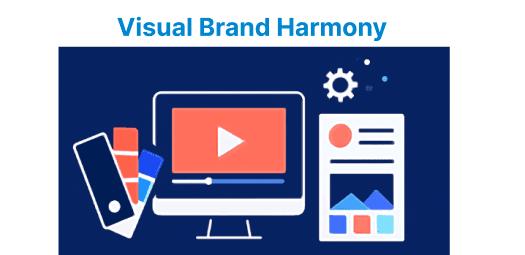
When delivering video content across multiple brands or platforms, maintaining a consistent visual identity is critical. This involves ensuring that every aspect of the video player, from controls to overlays, aligns with the brand’s design system.
Utilizing brand kits for video presentation provides a way to automate the customization process and keep the video presentation consistent across platforms. This allows for dynamic theme switching and design adjustments based on the active brand.
Setting Up the Video Player with Brand Kit
Before applying a brand kit, you first need to create a base video player. A basic video player can include standard HTML5 video tags, controls, and the essential functionality.
<video id="videoPlayer" class="video-js" controls>
<source src="video.mp4" type="video/mp4">
Your browser does not support the video tag.
</video>
Now, we’ll apply the brand kit dynamically based on the brand configuration. A brand kit can include components like brand-specific colors, fonts, logos, and video control customizations.
Using JavaScript for Dynamic Brand Customization
You can leverage JavaScript to dynamically modify the player’s appearance based on the brand’s configuration. This can be done by loading brand settings (e.g., logo, theme color, fonts) into the player using JavaScript and applying them on the fly.
function applyBrandKit(brandConfig) {
// Set theme color
document.getElementById("videoPlayer").style.backgroundColor = brandConfig.themeColor;

// Set brand logo
const logoElement = document.createElement("div");
logoElement.style.backgroundImage = `url(${brandConfig.logoUrl})`;
logoElement.style.width = '100px';
logoElement.style.height = '50px';
document.body.appendChild(logoElement);
}

// Example brand configuration
const brandConfig = {
themeColor: "#FF5733", // Brand-specific theme color
logoUrl: "https://example.com/brand-logo.png" // Brand-specific logo
};

applyBrandKit(brandConfig);
Explanation:
- themeColor: Applies brand background styling.
- logoElement: Inserts a brand logo overlay onto the page.
- applyBrandKit: Applies branding parameters dynamically to the DOM.
Applying Brand Styles Using CSS
Brand-specific colors and styles can be applied using CSS. By using CSS variables (custom properties), you can ensure that your video player automatically adjusts to the selected brand.
:root {
--play-button-color: #FF5733;
--control-bar-color: #333;
--seekbar-color: #FF5733;
}

#videoPlayer {
background-color: var(--control-bar-color);
}

.video-js .vjs-play-control {
background-color: var(--play-button-color);
}

.video-js .vjs-seekbar {
background-color: var(--seekbar-color);
}
Now, by setting the CSS variables dynamically based on the brand configuration, you ensure that the video player’s appearance is aligned with the selected brand. Here’s how you could update the variables programmatically:
function setBrandStyles(brandStyles) {
document.documentElement.style.setProperty('--play-button-color', brandStyles.playButtonColor);
document.documentElement.style.setProperty('--control-bar-color', brandStyles.controlBarColor);
document.documentElement.style.setProperty('--seekbar-color', brandStyles.seekbarColor);
}

// Example brand styles
const brandStyles = {
playButtonColor: '#FF5733',
controlBarColor: '#333',
seekbarColor: '#FF5733'
};

// Apply the styles
setBrandStyles(brandStyles);
Customizing Video Controls for Different Brands
In addition to adjusting the visual appearance of the player, you may want to customize video controls such as the play/pause button, volume control, and fullscreen button. For example, you might want the play button to display a custom icon or have a different hover effect based on the active brand.
Here’s an example of how you could add a custom play/pause button with a brand-specific style:
const playButton = document.querySelector('.vjs-play-control');
playButton.style.backgroundColor = brandConfig.playButtonColor; // Customize play button color
playButton.innerHTML = '<i class="custom-play-icon"></i>'; // Custom play icon
Explanation:
- backgroundColor: Adjusts play button color using brand-specific value.
- innerHTML: Replaces the default icon with a custom one.
Using a Web Component for Reusable Video Players
For reusability, especially in large applications, you can use a Web Component to encapsulate the video player and its customizations. By creating a custom video player element, you can easily apply the brand kit whenever you need the player.
class BrandVideoPlayer extends HTMLElement {
constructor() {
super();
this.attachShadow({ mode: 'open' });
}

connectedCallback() {
const videoUrl = this.getAttribute('video-url');
const brandLogo = this.getAttribute('brand-logo');
const themeColor = this.getAttribute('theme-color');
this.shadowRoot.innerHTML = `
<style>
video {
width: 100%;
background-color: ${themeColor};
}
.brand-logo {
position: absolute;
top: 10px;
left: 10px;
background-image: url(${brandLogo});
width: 100px;
height: 50px;
}
</style>
<video controls>
<source src="${videoUrl}" type="video/mp4">
Your browser does not support the video tag.
</video>
<div class="brand-logo"></div>
`;
}
}

customElements.define('brand-video-player', BrandVideoPlayer);
Explanation:
- connectedCallback: Lifecycle method that injects brand-specific HTML and styles.
- shadowRoot: Isolates styling from the rest of the page.
- customElements.define: Registers the custom component.
Now you can use this custom element in your HTML:
<brand-video-player video-url="video.mp4"
brand-logo="https://example.com/logo.png"
theme-color="#FF5733"></brand-video-player>Integrating Multiple Brand Kits Dynamically
In a large application where multiple brands are supported, you might want to load the brand configuration dynamically based on user input or an API call. This allows you to swap out the brand kit without needing to modify the codebase for each brand.
Example of loading brand settings dynamically from an API:
function fetchBrandConfig(brandId) {
return fetch(`/api/brand-config/${brandId}`)
.then(response => response.json())
.then(config => {
applyBrandKit(config);
setBrandStyles(config.styles);
});
}

fetchBrandConfig('brandA'); // Dynamically load brand A's configurationExplanation:
- fetchBrandConfig: Retrieves brand configuration via HTTP.
- applyBrandKit and setBrandStyles: Use the fetched data to update player visuals dynamically.