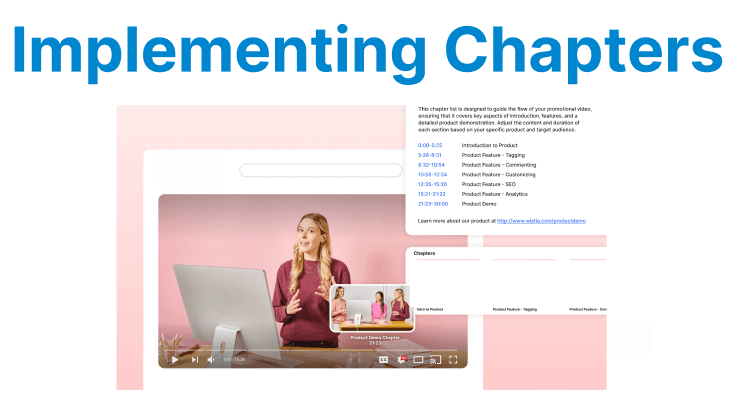
Chapters and bookmarks in video players allow for a more organized and navigable viewing experience. By dividing content into sections (chapters) or enabling users to mark specific moments (bookmarks), users can easily jump to key moments in the video, enhancing content accessibility and usability.
This feature is particularly useful for long-form content like tutorials, presentations, or educational videos, where viewers might want to revisit specific sections without manually seeking through the video.
Chapters in Video Players
Chapters are predefined points in a video that break the content into logical segments. Chapters are often displayed as clickable timestamps in a video player, enabling users to navigate to specific sections of the video.
Setting Up Chapters in HTML5 Video Players
The easiest way to implement chapters in HTML5 video players is through the use of track elements with WebVTT (Web Video Text Tracks). WebVTT allows for adding text-based tracks (e.g., subtitles, chapters, descriptions) that can be parsed by the browser and displayed to the user.
Step 1: Create a Chapter Track (WebVTT File)
A chapter track is defined in a WebVTT file, which contains sequential timestamped entries with chapter titles.
Example:
WEBVTT

1
00:00:00.000 --> 00:05:00.000
Introduction

2
00:05:01.000 --> 00:15:00.000
Getting Started

3
00:15:01.000 --> 00:30:00.000
Advanced Features
Explanation:
- Each chapter entry consists of a number, a timestamp range (start and end), and the chapter title.
- Timestamps are formatted as HH:MM:SS.MS to ensure proper synchronization with the video.
Step 2: Adding the WebVTT File to the Video Player
To integrate the chapters into the video player, you use the <track> element within the HTML5 <video> tag.
<video id="myVideo" controls>
<source src="video.mp4" type="video/mp4">
<track src="chapters.vtt" kind="chapters" srclang="en" label="English">
</video>
Explanation:
- The <track> element specifies the source for the WebVTT file (chapters.vtt).
- kind="chapters" indicates that the track contains chapters.
- srclang="en" specifies the language of the chapters.
Step 3: Displaying Chapters in the Player
Once the track is added, the browser’s default video controls will display the chapters in the player’s subtitle or captions menu, allowing users to select a chapter to jump to.
Add Custom Chapter UI Example
Browsers typically display chapter titles through default controls, but it is often necessary to create a custom UI to show the currently playing chapter prominently. This can be achieved by listening to changes in the video’s text track cues, which represent chapter segments.
<div id="customChapters"></div>

<script>
const customChapters = document.getElementById('customChapters');
video.textTracks[0].oncuechange = (e) => {
if (video.textTracks[0].activeCues[0]) {
const cue = video.textTracks[0].activeCues[0];
customChapters.innerHTML = `Now Playing: ${cue.text}`;
}
};
</script>
Explanation:
- This example listens for changes to the active chapter cue in the video’s text tracks.
- When a chapter cue becomes active, it updates a custom UI element to display the currently playing chapter title.
- This allows developers to create a more customized and visible chapter display outside the default browser UI.
Bookmarks in Video Players
Bookmarks provide users with the ability to mark specific points in a video for later viewing. These are often manually created by users or automatically inserted based on defined criteria (e.g., user interactions, moments of interest).
Implementing Bookmarks in JavaScript
To implement bookmarks, you need to add functionality that lets users mark a point in the video by clicking a button or using a shortcut. The video player can then store these bookmarks in memory or on a server for persistent storage.
Step 1: HTML Setup for Video Player
Create the video element, a button for adding bookmarks, and a container to display bookmarks:
<video id="myVideo" controls>
<source src="video.mp4" type="video/mp4">
</video>
<button id="bookmarkButton">Bookmark</button>
<div id="bookmarks"></div>
Explanation:
- The <video> element is the player for displaying the video content.
- The bookmarkButton allows the user to mark the current video time as a bookmark.
- The bookmarks div will display the list of saved bookmarks.
Step 2: JavaScript to Handle Bookmarks
In the following code, clicking the "Bookmark" button saves the current playback time of the video and displays it as a clickable timestamp for easy navigation.
const video = document.getElementById('myVideo');
const bookmarkButton = document.getElementById('bookmarkButton');
const bookmarksContainer = document.getElementById('bookmarks');

let bookmarks = [];

bookmarkButton.addEventListener('click', function() {
const currentTime = video.currentTime;
const bookmark = { time: currentTime, label: `Bookmark at ${formatTime(currentTime)}` };

// Save the bookmark
bookmarks.push(bookmark);

// Update the UI with the new bookmark
const bookmarkElement = document.createElement('button');
bookmarkElement.textContent = bookmark.label;
bookmarkElement.addEventListener('click', () => {
video.currentTime = bookmark.time;
video.play();
});

bookmarksContainer.appendChild(bookmarkElement);
});

// Helper function to format time in HH:MM:SS
function formatTime(seconds) {
const date = new Date(null);
date.setSeconds(seconds);
return date.toISOString().substr(11, 8);
}
Explanation:
- The bookmarkButton listens for click events and saves the current playback time (video.currentTime).
- A new bookmark is stored as an object with the time and a formatted label.
- The bookmarks are displayed as buttons, which users can click to skip to that point in the video.
- The formatTime() function formats the time in HH:MM:SS format for easy display.
Step 3: Persisting Bookmarks Across Sessions
For persistent bookmarks (i.e., keeping bookmarks even when the user reloads the page), you can use the browser’s localStorage API.
// Save bookmarks to local storage
localStorage.setItem('bookmarks', JSON.stringify(bookmarks));

// Load bookmarks from local storage
const savedBookmarks = JSON.parse(localStorage.getItem('bookmarks')) || [];
savedBookmarks.forEach(bookmark => {
const bookmarkElement = document.createElement('button');
bookmarkElement.textContent = bookmark.label;
bookmarkElement.addEventListener('click', () => {
video.currentTime = bookmark.time;
video.play();
});
bookmarksContainer.appendChild(bookmarkElement);
});
Explanation:
- localStorage.setItem('bookmarks', JSON.stringify(bookmarks)): Saves the bookmarks to localStorage as a JSON string.
- JSON.parse(localStorage.getItem('bookmarks')): Loads the bookmarks back when the page is reloaded, preserving the state.
Add Bookmark Deletion
For bookmark management, users need the ability to remove saved bookmarks. Adding a deletion feature can be achieved by listening for a specific user action, such as a double-click on the bookmark’s UI element.
bookmarkElement.addEventListener('dblclick', () => {
bookmarks = bookmarks.filter(b => b.time !== bookmark.time);
localStorage.setItem('bookmarks', JSON.stringify(bookmarks));
bookmarkElement.remove();
});
Explanation:
- This code adds the ability to delete bookmarks by double-clicking on their UI element.
- It removes the bookmark from the bookmarks array and updates localStorage accordingly.
- The bookmark button is also removed from the UI, giving users control over managing their bookmarks.
Advanced Features: Dynamic Bookmarking and Chapter Integration
For advanced implementations, bookmarks can be dynamically generated based on user behavior, content analysis, or AI-powered features. You can integrate bookmarks with chapters so that users can see both saved moments and predefined sections (chapters) of the video.
Integrating Bookmarks with Chapters
You can combine chapters and bookmarks by synchronizing user-selected bookmarks with predefined chapters. This allows for a hybrid navigation system that provides automatic and user-driven navigation options.
Example:
// Assuming chapters array is defined similarly to the playlist array
const chapters = [
{ time: 0, title: 'Introduction' },
{ time: 300, title: 'Getting Started' },
{ time: 600, title: 'Advanced Topics' }
];

chapters.forEach(chapter => {
const chapterElement = document.createElement('button');
chapterElement.textContent = chapter.title;
chapterElement.addEventListener('click', () => {
video.currentTime = chapter.time;
video.play();
});
document.body.appendChild(chapterElement);
});
Explanation:
- This allows users to easily jump between both user-created bookmarks and predefined chapters, improving navigation.
Highlighting Active Chapters and Bookmarks
To provide better context during playback, highlight the current chapter or bookmark based on the current playback time.
video.addEventListener('timeupdate', () => {
const currentTime = video.currentTime;
// Logic to highlight chapters or bookmarks based on currentTime
});
Explanation:
- By listening to the timeupdate event, you can dynamically update the UI to indicate which chapter or bookmark is active as the video plays.
Keyboard Accessibility for Navigation
Implement keyboard controls to allow navigation through chapters and bookmarks for improved accessibility.
document.addEventListener('keydown', (event) => {
if(event.key === 'ArrowRight') {
// Skip forward to next chapter or bookmark
}
if(event.key === 'ArrowLeft') {
// Skip backward to previous chapter or bookmark
}
});
Explanation:
- Keyboard shortcuts enable users to navigate without relying on mouse or touch input, improving usability for all users.