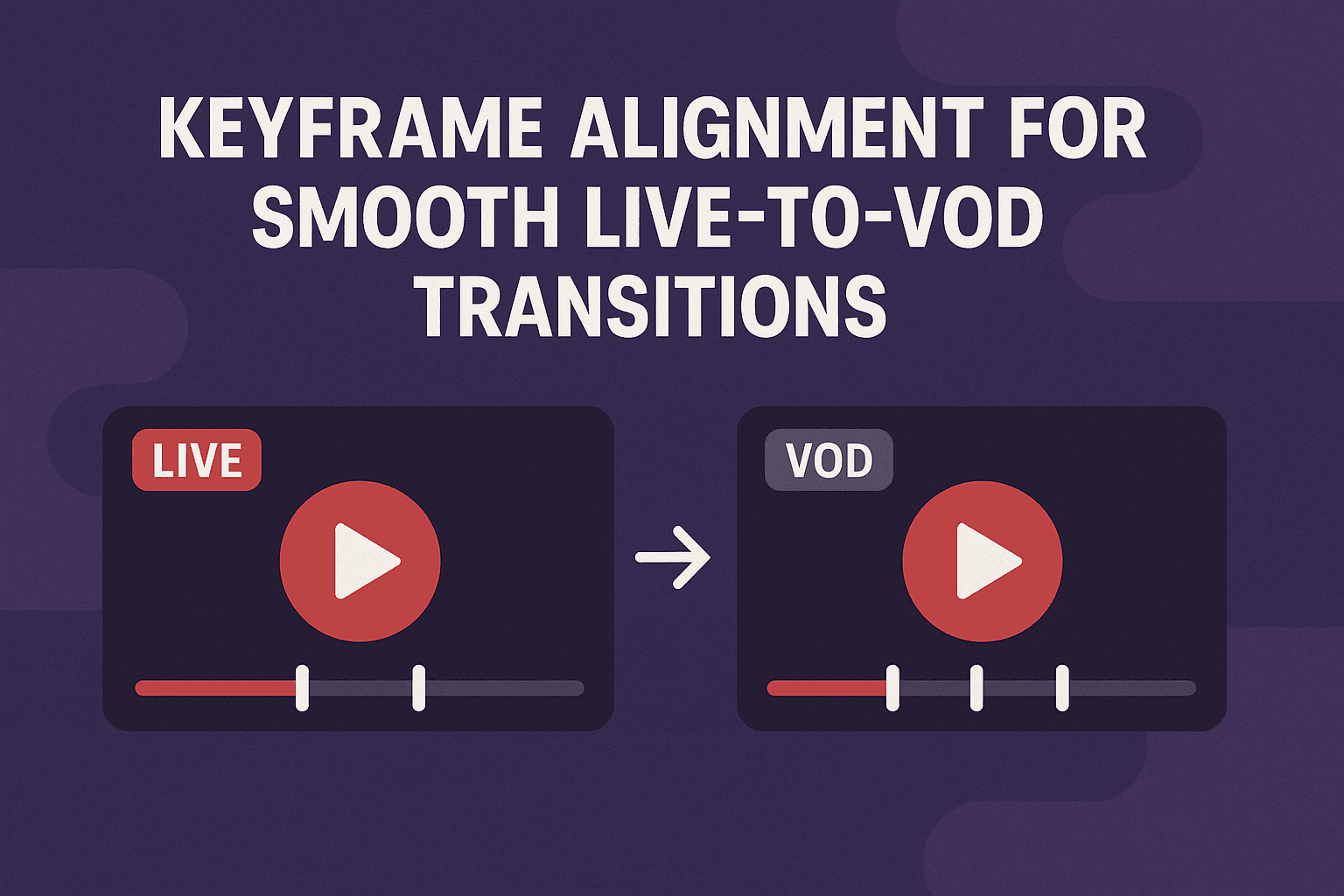
Keyframe alignment ensures a seamless transition between live video as well as video on-demand (VOD) video streams. When live streams are recorded and later converted to VOD, differences in keyframe intervals can cause playback issues such as buffering, glitches, or desynchronization. Proper keyframe alignment maintains a consistent video structure.
This enables smooth playback when switching between live and recorded versions. Moreover, this process also helps deliver uninterrupted viewing experiences, preserves video quality, and supports faster start times for on-demand content. In live-to-VOD workflows, aligning keyframes helps achieve technical efficiency as well as viewer satisfaction.
Understanding Keyframes in Live Streams
In live streams, content is encoded in real-time, with keyframes inserted at regular intervals (e.g., every 2 seconds) to enable efficient compression and seeking. Video-on-demand (VOD) content (derived from recorded or archived streams) uses similar structures. However, it may differ in keyframe placement if not aligned.
Live-to-VOD transitions occur when playback shifts from a real-time stream to a pre-recorded version, such as replaying a highlight. Misaligned keyframes can disrupt this switch and cause artifacts like stuttering or freezes. Proper alignment ensures uninterrupted continuity to preserve user experience and prevent playback failures.

The Challenge of Switching from Live to Recorded Video
Live streams are encoded into short segments (typically 2-6 seconds) for adaptive bitrate delivery. Upon event completion, these segments are archived as VOD assets. However, if keyframe positions differ between live and VOD encodings, the transition may land mid-segment on a delta frame.
This misalignment leads to several critical issues, such as visual glitches (including brief freezes or jumps), audio-video desynchronization, as well as player failures, which require reloads or buffering.
These problems arise as decoders rely on keyframes to reconstruct frames independently. Without alignment, the decoder lacks a clean entry point, degrading quality and increasing latency; key concerns in high-stakes applications like sports broadcasting or e-commerce live events.
Aligning Keyframes for Uninterrupted Transitions
Keyframe alignment synchronizes keyframe positions across live and VOD pipelines, enabling uninterrupted segment switching. This involves:
Fixed GOP Structure: Maintaining a consistent Group of Pictures (GOP) pattern, where each GOP starts with a keyframe and includes a fixed number of frames.
Deterministic Keyframe Interval: Inserting keyframes at precise, repeatable timestamps (such as every 2 seconds at 30 Frames Per Second).
Shared Timestamp Base: Using identical presentation timestamps in both live and VOD workflows to ensure exact alignment.
Alignment prevents discontinuities in manifests (e.g., HLS or DASH playlists) for players to switch without re-buffering. This enhances viewer satisfaction and also reduces server load and supports compliance with streaming standards like those from MPEG-DASH or Apple HLS.
Implementation in a Streaming Workflow
Implementing keyframe alignment requires coordinated configuration across encoding, segmentation, and verification stages. Below are best practices for common tools, such as FFmpeg.
Encoder Configuration
Configure encoders (e.g., x264 or NVENC) with fixed parameters to enforce keyframe intervals. Disable adaptive features that could introduce variability:
keyint=60
min-keyint=60
scenecut=0- keyint=60: Forces a keyframe every 60 frames (2 seconds at 30 fps).
- min-keyint=60: Prevents shorter intervals.
- scenecut=0: Disables scene-change detection, ensuring deterministic placement.
Apply identical settings to both live and VOD transcoding pipelines.
Segmenter Configuration
Use segmenters (like FFmpeg's HLS muxer or DASH packagers) to align segment boundaries with keyframes. Ensure segments start and end on keyframes to avoid mid-GOP cuts. For example, in FFmpeg:
ffmpeg -i input.mp4 -f hls -hls_time 2 -hls_keyframe 1 output.m3u8This command segments at 2-second intervals, forcing alignment with keyframes.
Timestamp Continuity
Synchronize clocks between live encoders and VOD transcoders using a common reference (e.g., NTP or SMPTE timecodes). Even minor drifts (e.g., 1 to 2 frames) can misalign timestamps, so monitor and correct for clock skew in production environments.
Verification
Post-encoding, validate alignment to confirm smooth transitions:
Step 1: Extract keyframe timestamps using ffprobe:
ffprobe -select_streams v:0 -show_frames -skip_frame nokey input.mp4 | grep pkt_pts_timeStep 2: Compare timestamps from the last live segment and first VOD segment.
Step 3: Ensure matches within 1 frame duration (e.g., <33ms at 30 fps).
Automated tools like MediaInfo or custom scripts can flag discrepancies. If alignment fails, re-encode with adjusted parameters. Successful verification guarantees glitch-free playback, improving metrics like viewer retention and reducing support tickets.