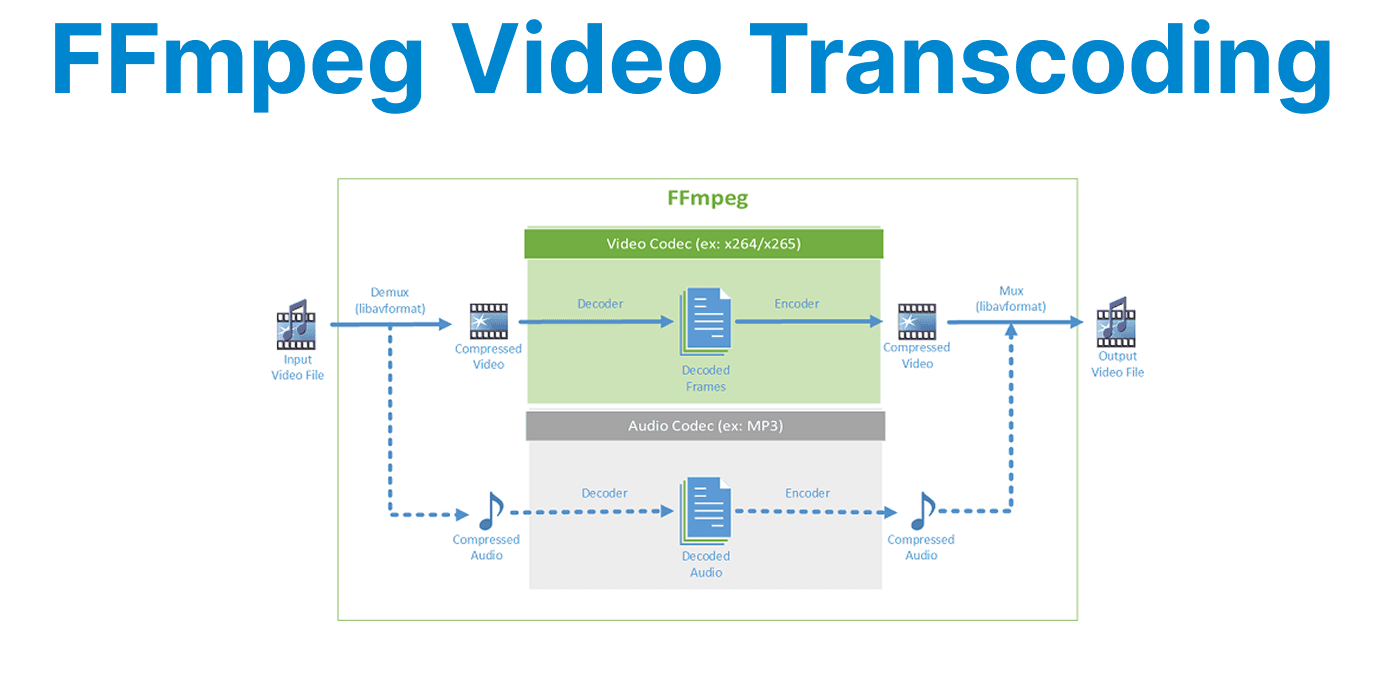
Real-time video transcoding involves converting a video from one format to another while it is being processed, usually with minimal latency. This is essential for use cases such as live streaming, video-on-demand services, and real-time video editing. FFmpeg, a powerful multimedia framework, is commonly used to handle video transcoding tasks.
Prerequisites
- Before starting, ensure that FFmpeg is installed on your system. To check if FFmpeg is installed, run the following command in the terminal:
ffmpeg -version- If FFmpeg is not installed, download it from the official FFmpeg website and follow the installation instructions.
You will also need:
- A video file or a video stream to transcode.
- Understanding of video formats, codecs, and streaming protocols.
Understanding Real-time Transcoding
Real-time video transcoding requires processing video files or streams with minimal delay. In this context, FFmpeg can be used to convert video streams in real-time while ensuring the output is produced without significant lag.
The main goal of real-time transcoding is to convert video into a compatible format suitable for immediate use, such as for streaming platforms, web applications, or devices that support different video formats and qualities.

Basic FFmpeg Command for Real-time Transcoding
To perform real-time video transcoding using FFmpeg, use the following command structure:
ffmpeg -i input.mp4 -c:v libx264 -c:a aac -preset ultrafast -f flv rtmp://localhost/live/stream- -i input.mp4: Specifies the input video file.
- -c:v libx264: Uses the H.264 codec for video encoding.
- -c:a aac: Uses the AAC codec for audio encoding.
- -preset ultrafast: Sets the encoding speed. The ultrafast preset provides the fastest encoding at the cost of compression efficiency.
- -f flv: Specifies the output format, which is FLV in this case, commonly used for streaming.
- rtmp://localhost/live/stream: The output URL, in this case, streaming to an RTMP server.
This command performs real-time transcoding and streams the video live to the specified RTMP server.
Optimizing Real-time Video Transcoding
To optimize the transcoding process for real-time performance, consider the following adjustments:
✅ Use Faster Encoding Presets: FFmpeg provides several encoding presets for H.264, such as ultrafast, superfast, veryfast, faster, fast, medium, slow, and slower. The faster presets consume more CPU resources but result in quicker encoding, which is crucial for real-time processing.
Example:
ffmpeg -i input.mp4 -c:v libx264 -preset veryfast -c:a aac -f flv rtmp://localhost/live/stream✅ Use Hardware Acceleration (Optional): FFmpeg supports hardware acceleration for encoding and decoding using various hardware encoders like NVIDIA CUDA, Intel Quick Sync, or AMD VCE. Enabling hardware acceleration can significantly improve transcoding performance in real-time.
Example using NVIDIA CUDA:
ffmpeg -i input.mp4 -c:v h264_nvenc -c:a aac -f flv rtmp://localhost/live/stream✅ Limit Video Resolution: Reducing the resolution can reduce the computational load, which is important for real-time processing. Use the -s option to specify the resolution.
Example:
ffmpeg -i input.mp4 -c:v libx264 -s 1280x720 -c:a aac -f flv rtmp://localhost/live/stream✅ Control Bitrate: Limiting the bitrate can help in maintaining a consistent output stream, especially for streaming applications where bandwidth is limited. You can use the -b:v option to set a target bitrate.
Example:
ffmpeg -i input.mp4 -c:v libx264 -b:v 1500k -c:a aac -f flv rtmp://localhost/live/streamHandling Live Streams
FFmpeg can also handle live streaming input and output. You can transcode live video streams with the same basic principles. For example, to transcode an incoming live video stream (from an RTSP feed) to an RTMP stream for delivery to a live streaming server, use the following command:
ffmpeg -i rtsp://example.com/live/stream -c:v libx264 -c:a aac -preset veryfast -f flv rtmp://localhost/live/streamThis command reads the video stream from an RTSP source, transcodes it in real-time, and sends it to an RTMP server for streaming.
Troubleshooting Real-time Transcoding
Real-time transcoding can be resource-intensive. Below are common issues and their solutions to ensure smooth transcoding and streaming.
1. High CPU Usage
- Issue: High CPU usage may occur when transcoding videos, especially at high resolutions or with complex encoding settings.
- Solution: Use faster presets like ultrafast or superfast to speed up the encoding process. You can also enable hardware acceleration if your system supports it. This offloads the processing to the GPU, reducing CPU load.
2. Buffering or Delay
- Issue: Buffering or delay may occur when there is not enough processing power or network bandwidth, leading to lag in the output stream.
- Solution: Reduce the resolution or bitrate. Lowering the resolution decreases the data processed, and reducing the bitrate helps avoid buffering during streaming.
3. Video/Audio Sync Issues
- Issue: Sometimes, the audio and video can become out of sync during transcoding, causing poor playback quality.
- Solution: Use the -async 1 option to force FFmpeg to sync the audio and video streams during transcoding.