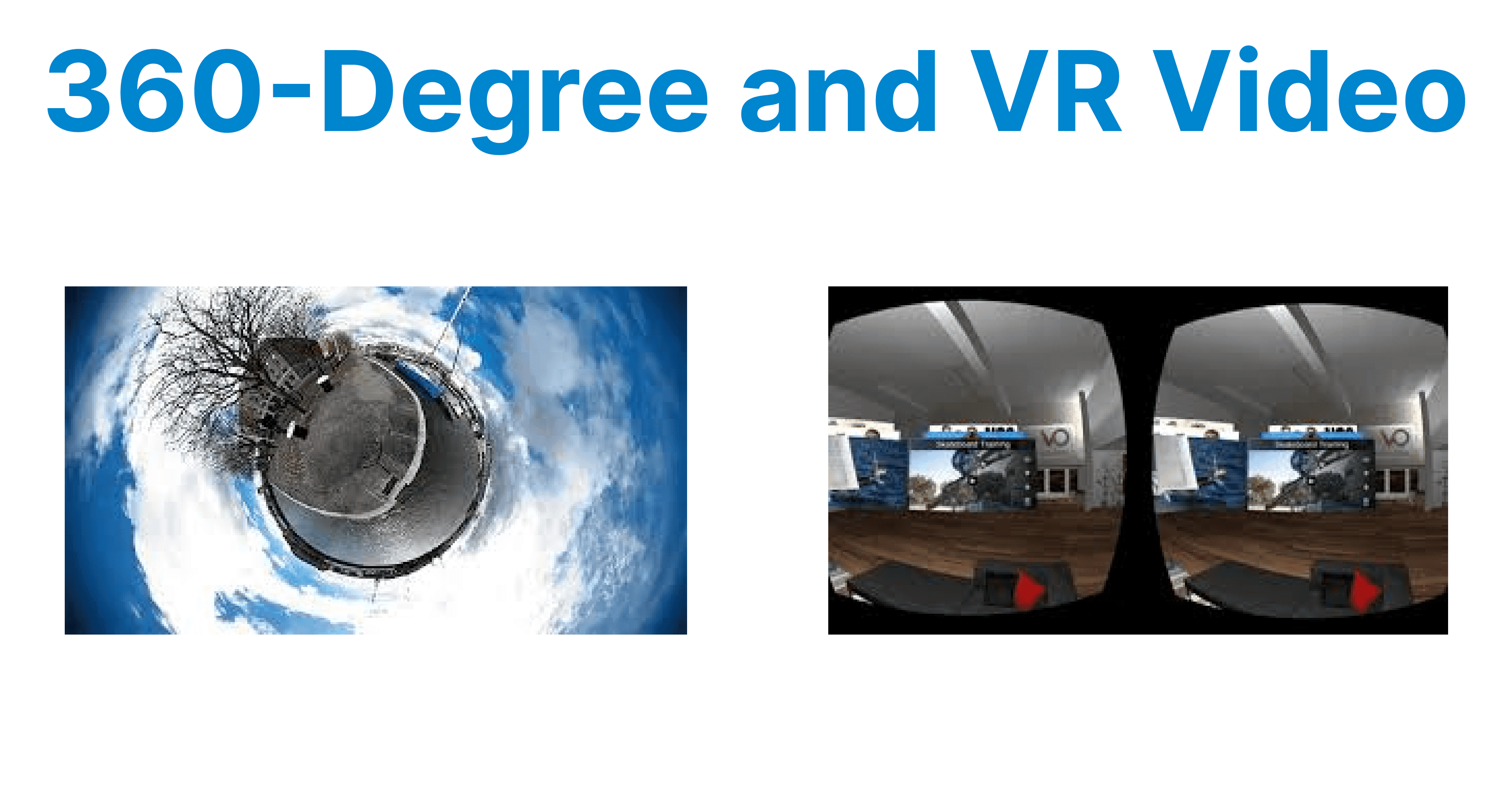
360-degree and Virtual Reality (VR) videos are revolutionizing how immersive content is created, experienced, and distributed. These types of videos differ significantly from traditional 2D video, requiring specific workflows, technologies, and tools for both production and playback.
360-Degree Video Capture
360-degree video involves capturing footage from all directions simultaneously. It requires specialized cameras that are equipped with multiple lenses or sensors to record a spherical view of the environment.
Multi-Lens Cameras
A 360-degree video camera uses multiple lenses placed around a central point to capture footage from every angle. Common setups include omnidirectional cameras with 6, 8, or more lenses.
Stitching
The individual footage from each lens is combined into a single spherical video. This process is called "stitching," where software aligns and merges the images seamlessly, correcting for lens distortion and ensuring a smooth visual experience. This can be done in real-time or post-production, depending on the software and processing power.
Resolution
360-degree video often requires higher-resolution cameras to maintain visual clarity when viewers are looking in different directions. Higher resolution (e.g., 8K or more) helps mitigate pixelation when the video is explored in detail during playback.

360-Degree Video Capture Workflow
Step 1: Setup and Calibration. Begin by selecting the appropriate multi-lens camera and calibrating it to ensure accurate coverage of the entire environment.
Step 2: Recording: Capture the scene using a multi-lens camera that simultaneously records in all directions.
Step 3: Post-Capture Stitching: Use specialized software to stitch the captured footage from different lenses, ensuring that the video is correctly aligned and merged without visible seams.
Step 4: Preview and Adjustments: After stitching, preview the video to check for issues like ghosting, stitching errors, or inconsistencies. Fine-tune the video for alignment and smoothness.
Step 5: Exporting: After final adjustments, export the video into an appropriate format (e.g., MP4 or MKV) with proper metadata for 360-degree playback.
VR Video Capture
VR video is a type of 360-degree video designed for full immersion in a virtual environment. VR captures not only the visual aspects but also spatial audio to provide an accurate representation of the environment.
Camera Setup
VR cameras may use a similar multi-lens setup to 360-degree cameras but often include additional features like depth-sensing or stereoscopic capabilities for depth perception.
Stereoscopic 3D
To achieve a 3D effect, VR video must be captured in stereoscopic 3D, which involves using two cameras spaced apart to simulate the human eyes’ viewing perspective. This allows viewers to perceive depth and feel more immersed in the virtual environment.
Audio Capture
Spatial or binaural audio is critical in VR video. Specialized microphones, like ambisonic microphones, capture audio in three dimensions, providing an accurate soundscape that complements the video content. This enhances the sense of immersion by aligning audio cues with visual stimuli.
VR Video Capture Workflow
Step 1: Stereoscopic Camera Setup: Set up two cameras with a proper spacing to capture the scene in 3D. The cameras should be synchronized to avoid discrepancies between the left and right-eye views.
Step 2: 360-Degree and Depth Capture: Record the footage, ensuring that the video captures the depth of the scene to create a more realistic VR experience.
Step 3: Audio Synchronization: Capture spatial audio using an ambisonic microphone to ensure that the audio accurately corresponds to the spatial layout of the video.
Step 4: Post-Production Stitching and Alignment: Stitch the video footage from the two cameras and ensure correct alignment. This includes adjusting for depth consistency and ensuring no visual mismatches.
Step 5: Exporting: Export the final video in a format that supports VR devices, ensuring compatibility with different headsets and platforms.
Encoding and Compression
360-degree and VR videos require specific encoding methods to ensure compatibility with playback devices while maintaining high quality and efficient file sizes.
Video Encoding
VR video files are encoded in formats like H.264 or HEVC (H.265) for streaming due to their balance of compression and quality. Higher bitrates and efficient compression techniques are required to preserve the detail in the video, particularly with high-resolution content.
Example: FFmpeg Encoding Command
Here's an example of using FFmpeg to encode a VR video in H.265:
ffmpeg -i input.mp4 -c:v libx265 -preset medium -crf 22 -c:a aac -b:a 128k output.mp4
Spatial Video Encoding
Unlike traditional 2D video, 360-degree videos need special encoding techniques that take into account the spherical nature of the video. Google’s VP9 and HEVC are commonly used for 360-degree videos, as they support spatial video coding that reduces file sizes while maintaining quality across the 360-degree frame.
Adaptive Streaming
Due to the large size of VR videos, adaptive bitrate streaming is often employed, where different video qualities are delivered based on the user’s internet connection. HLS (HTTP Live Streaming) and DASH (Dynamic Adaptive Streaming over HTTP) are two common protocols used to stream VR and 360-degree video.
Playback and Distribution
For 360-degree and VR videos to be effectively delivered and experienced, they require specific playback systems, platforms, and devices.
Video Players
VR video players like YouTube VR, Vimeo 360, and Panoscope are optimized for viewing spherical video content. These players support user interactions like changing the viewing angle and zooming into different areas of the video.
360-Degree Video Playback
360-degree video players allow users to navigate the spherical video with their mouse, touchscreens, or even head movements (in VR headsets). On desktops, users can drag to change their viewpoint, while on mobile devices, users can tilt and swipe.
VR Headsets
Devices like Oculus Rift, HTC Vive, and PlayStation VR provide the most immersive experiences. These headsets track head movements and adjust the view accordingly, ensuring that the user feels as though they are physically present within the VR environment.
WebVR and WebXR
These APIs allow VR and 360-degree video to be accessed directly from web browsers without requiring dedicated apps. They enable seamless viewing on both desktop and mobile devices with compatible browsers (such as Chrome and Firefox).
Developer Considerations
Optimizing for Different Devices
VR content must be optimized for a range of devices, from low-end mobile VR headsets to high-end PC-based setups. Developers need to ensure that the content works smoothly across all devices, adjusting for factors like screen resolution and performance limitations.
Interactivity
For interactive VR experiences, developers must integrate real-time rendering and motion tracking into the content. Tools like Unity or Unreal Engine are essential for building interactive environments, where the video responds to user actions and decisions within the VR world.
Latency
Reducing latency in VR video is critical to avoid motion sickness. High latency between user actions and video response can lead to disorientation and discomfort. Ensuring smooth and real-time playback provides a good VR experience.
If the 360/VR content is streamed live, use this low-latency encoding configuration:
ffmpeg -f v4l2 -i /dev/video0 -f alsa -i default \
-c:v libx264 -preset ultrafast -tune zerolatency -g 30 -keyint_min 30 \
-c:a aac -ar 44100 -b:a 128k -f flv rtmp://yourserver/live/360vr
This configuration minimizes delay and maintains frame sync during live delivery.
File Size and Streaming
VR and 360-degree videos are large files, and their delivery needs to be optimized for streaming. Compression and adaptive streaming technologies, as well as the use of efficient video codecs, are necessary to ensure high-quality playback with minimal buffering, especially for live streaming.