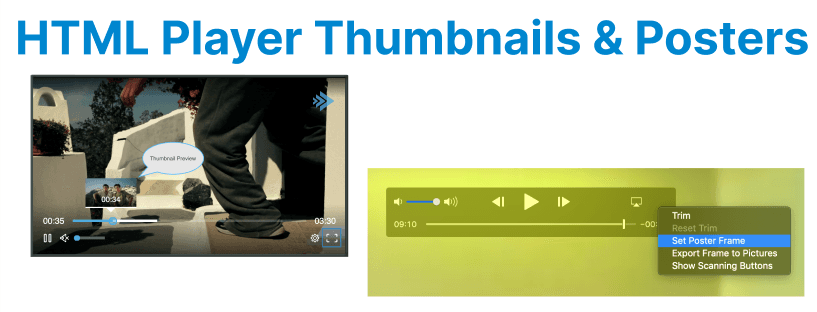
Custom thumbnails and poster frames in HTML5 video players are elements for improving the user experience. They allow developers to control what content is displayed before the video starts playing, offering a preview image or custom message. These features are especially useful in media galleries, video-on-demand (VOD) platforms, and interactive video applications where the initial user interaction with the video player needs to be engaging and informative.
Custom Thumbnails in HTML5 Video Players
A custom thumbnail is typically used as the still image displayed in place of the video before the user clicks play. This image can be a frame from the video or a separate custom image that provides a preview of the content.
Setting a Custom Thumbnail:
To set a custom thumbnail for a video, HTML5"s <video> element allows the use of the poster attribute. This attribute is used to specify an image that will be shown as the thumbnail until the video starts playing.
<video controls poster="path/to/custom-thumbnail.jpg">
<source src="video.mp4" type="video/mp4">
Your browser does not support the video tag.
</video>
Explanation:
- The poster attribute defines the URL to the image that will be shown before the video starts.
- The controls attribute is used to display basic video controls like play, pause, and volume.
- The <source> element provides the path to the video file.
Custom Thumbnail Use Cases:
- Branding: You can use a custom thumbnail to align with your site's branding or provide more context for the video content.
- Preview and Engagement: Displaying a meaningful frame or image related to the content encourages users to click and watch.
Poster Frames as Fallback for Video Content
Poster frames serve as a visual fallback for videos in cases where no thumbnail is provided. They can be used to display information about the content, such as the video title, an image, or an instructional graphic.
In scenarios where no poster attribute is specified, the first frame of the video is used as the default poster. However, you may want more control over the frame that appears, especially when you want the thumbnail to be more engaging or informative.
Using a Custom Poster Frame for Videos:
The following code snippet demonstrates how to add a custom poster frame with fallback content for browsers that don't support HTML5 video.
<video controls poster="path/to/placeholder-image.jpg">
<source src="video.mp4" type="video/mp4">
<p>Your browser does not support HTML5 video. You can download the video <a href="video.mp4">here</a>.</p>
</video>
Explanation:
- The poster attribute displays a placeholder image before the video starts playing. This image can be a frame from the video or a separate image that provides insight into the video"s content.
- The <p> tag within the video element provides fallback text for users who may not have HTML5 video support.
Handling Multiple Poster Frames for Different Screen Sizes
Modern responsive design often requires different poster images optimized for varying screen resolutions. Use the <picture> element or CSS media queries to serve appropriate poster frames for desktop, tablet, and mobile devices.
Example using CSS:
video {
poster: url('poster-desktop.jpg');
}

@media (max-width: 768px) {
video {
poster: url('poster-mobile.jpg');
}
}
This ensures the smallest, optimized image loads depending on device capabilities, improving load times and visual clarity.
Using Poster Frames with Lazy Loading
To improve page load performance, especially on media-heavy pages, lazy load video elements with poster frames so that the video content loads only when it enters the viewport.
Example: Using Intersection Observer API
const video = document.querySelector('video');

const observer = new IntersectionObserver((entries) => {
entries.forEach(entry => {
if(entry.isIntersecting) {
video.load(); // Load video only when visible
observer.unobserve(video);
}
});
});

observer.observe(video);
This approach delays video download until necessary, conserving bandwidth.
Creating Interactive Thumbnails for Enhanced User Engagement
Interactive thumbnails can provide an additional layer of engagement by allowing users to hover over or click on a thumbnail to preview the video content or trigger an action, such as a brief preview.
Example: HTML and CSS for Interactive Thumbnail
<video controls id="my-video">
<source src="video.mp4" type="video/mp4">
Your browser does not support the video tag.
</video>

<div class="thumbnail-container" id="thumbnail">
<img src="thumbnail.jpg" alt="Video Thumbnail" id="video-thumbnail">
</div>

<script>
const video = document.getElementById('my-video');
const thumbnail = document.getElementById('thumbnail');
const videoThumbnail = document.getElementById('video-thumbnail');

// Hover effect to preview video thumbnail
thumbnail.addEventListener('mouseenter', () => {
videoThumbnail.style.opacity = '0.5'; // Make thumbnail semi-transparent
video.play(); // Start playing video
});

thumbnail.addEventListener('mouseleave', () => {
videoThumbnail.style.opacity = '1'; // Restore thumbnail opacity
video.pause(); // Pause video when mouse leaves
});
</script>

<style>
.thumbnail-container {
position: relative;
width: 100%;
height: 100%;
}

#video-thumbnail {
width: 100%;
height: 100%;
transition: opacity 0.5s ease;
}
</style>
Explanation:
- The mouseenter and mouseleave events are used to dynamically play and pause the video when the user hovers over the thumbnail.
- The video.play() and video.pause() methods control the video"s playback based on user interaction.
- The transition in CSS makes the opacity of the thumbnail change smoothly, giving a more engaging effect.
Customizing Thumbnail Aspect Ratios and Styles
In some cases, the aspect ratio of a video may not align with the thumbnail size you desire. You can use CSS to control the thumbnail size and aspect ratio to fit the container or page layout.
CSS for Controlling Thumbnail Aspect Ratio:
<video controls poster="path/to/custom-thumbnail.jpg">
<source src="video.mp4" type="video/mp4">
Your browser does not support the video tag.
</video>

<style>
video {
width: 100%;
height: auto;
object-fit: cover; /* Ensures the video fills the container without distortion */
}

video::before {
content: "Watch Now";
position: absolute;
top: 50%;
left: 50%;
transform: translate(-50%, -50%);
color: white;
font-size: 1.5em;
}
</style>
Explanation:
- The object-fit: cover property ensures that the video covers the entire area of the container without distorting the aspect ratio.
- You can use pseudo-elements like ::before to overlay text or graphics on top of the thumbnail to encourage users to play the video.
Best Practices for Custom Thumbnails and Poster Frames
- Use High-Quality Images: Ensure that the images used for custom thumbnails and poster frames are high-quality and relevant to the video content to increase user engagement.
- Optimize for Mobile: Make sure that your thumbnails and video players are responsive, providing a smooth experience across different screen sizes.
- Add Alt Text: Use descriptive alt attributes for your thumbnails to improve accessibility for users with disabilities or those using screen readers.
- Avoid Using Autoplay: Autoplaying videos can negatively impact the user experience. Instead, consider using custom thumbnails and letting the user decide when to start the video.
- Limit File Size: While thumbnails and poster images are important for visual appeal, make sure that their file sizes are optimized for fast loading.