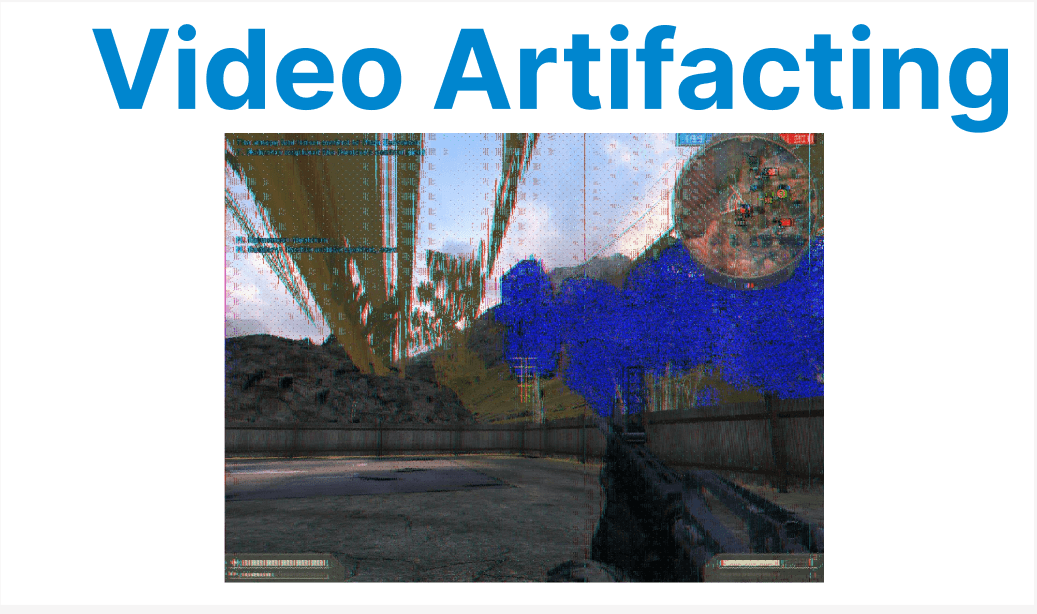
Video artifacting refers to unwanted distortions that can appear in a video, often resulting from issues during encoding, compression, or transmission. These artifacts can degrade the visual and audio quality, making it difficult for viewers to enjoy the content.
Types of Video Artifacts
Compression artifacts are visual distortions caused by video file compression, commonly used to reduce file size for storage or streaming. While compression helps reduce the size, it can introduce visible issues, especially when the video is encoded at a low bitrate.
I. Blockiness (Macroblocking)
Blockiness (Macroblocking) occurs when visible square blocks appear in the video, especially in uniform color areas, due to low bitrate compression. To fix this, increase the video bitrate or use more efficient codecs like HEVC (H.265) or VP9, which handle compression better at lower bitrates.
ffmpeg -i input.mp4 -c:v libx265 -b:v 2M output.mp4
II. Banding
Banding happens when smooth color gradients are replaced by distinct color bands, particularly noticeable in areas like skies or shadows. This issue can be fixed by using a higher bit depth (10-bit or 12-bit) and increasing the bitrate.
ffmpeg -i input.mp4 -c:v libx265 -pix_fmt yuv420p10le -b:v 3M output.mp4

III. Blurring
Blurring is a softening of edges and fine details due to over-compression. To address this, increase the bitrate or use two-pass encoding to allocate the bitrate more efficiently.
ffmpeg -i input.mp4 -c:v libx265 -b:v 2M -pass 1 -f null /dev/null
ffmpeg -i input.mp4 -c:v libx265 -b:v 2M -pass 2 output.mp4
Motion artifacts occur during fast-moving scenes, often due to inadequate motion compensation or incorrect frame rates.
IV. Ghosting
Ghosting is a trailing effect behind fast-moving objects, caused by previous frames being faintly visible in the current frame. This can be mitigated by using codecs with better motion compensation, such as HEVC, and increasing the frame rate for smoother motion.
ffmpeg -i input.mp4 -r 60 output.mp4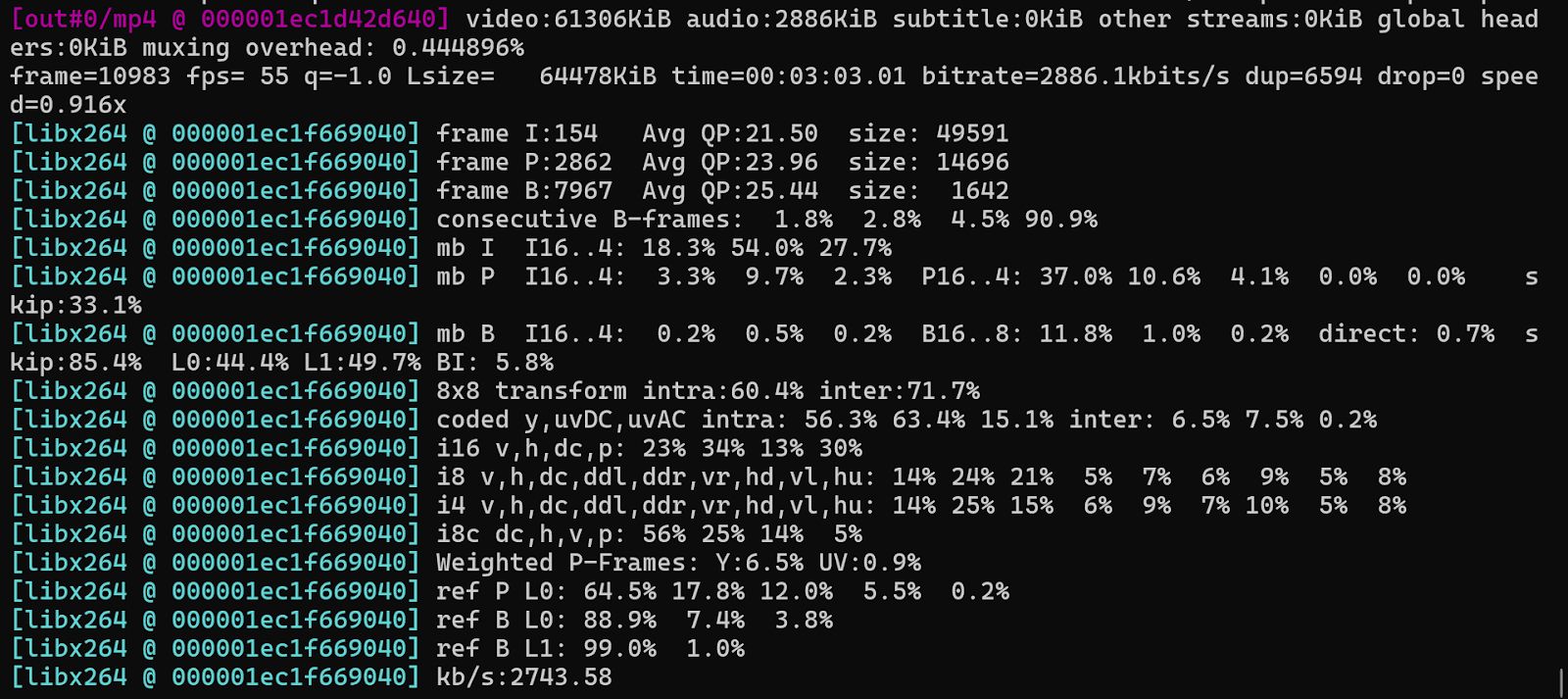
V. Judder
Judder is uneven motion or stuttering that occurs when the frame rate does not match the display’s refresh rate. To prevent judder, ensure the video is encoded at the correct frame rate for the target device. Frame rate conversion techniques can also be applied.
ffmpeg -i input.mp4 -r 30 output.mp4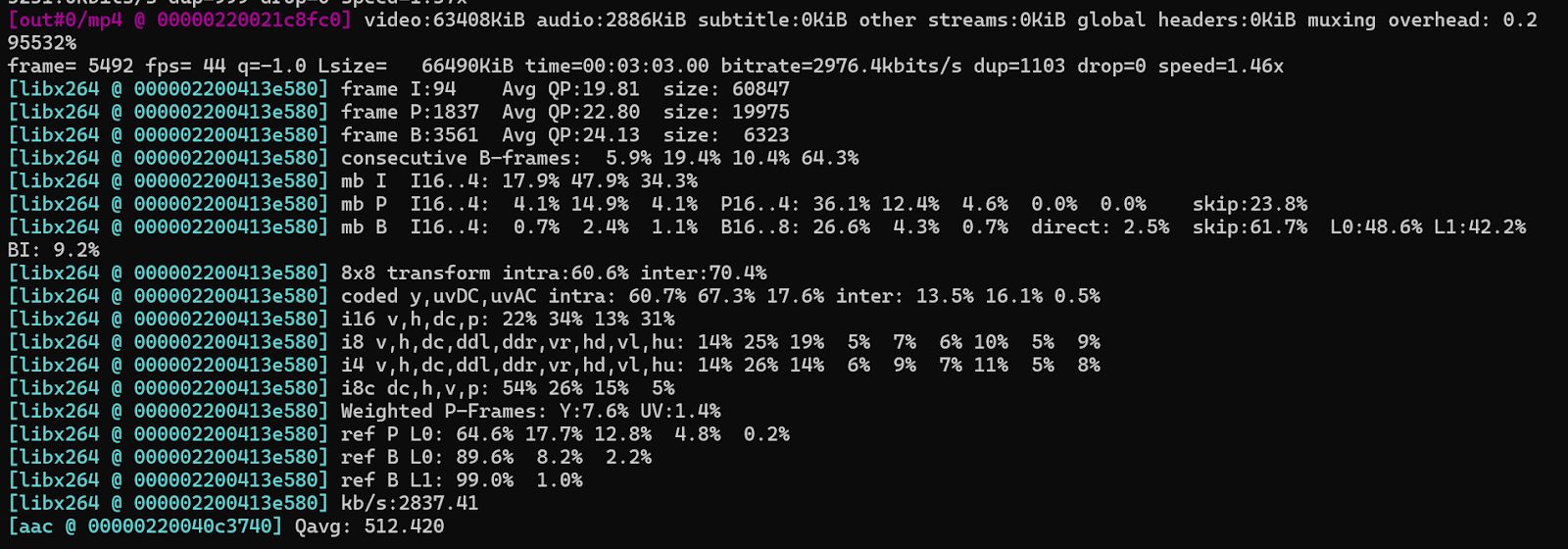
Color artifacts distort the color accuracy in a video, making the colors appear unnatural or inaccurate.
VI. Color Shifting
Color Shifting occurs when colors are misrepresented, often due to improper color space conversion. To avoid this, ensure correct color space handling during encoding. Use higher bit-depth encoding for HDR content to preserve accurate colors.
ffmpeg -i input.mp4 -c:v libx265 -color_range 2 -color_primaries bt2020 -color_trc smpte2084 output.mp4
VII. Chroma Noise
Chroma Noise appears as random color speckles, especially noticeable in dark areas of the video. To reduce chroma noise, increase the bitrate, and apply noise reduction filters.
ffmpeg -i input.mp4 -vf "hqdn3d" -c:v libx265 -b:v 3M output.mp4
Audio artifacts occur with the audio track in the video, impacting the overall experience.
VIII. Audio Clipping
Audio Clipping happens when the audio signal exceeds the maximum level, causing distortion. To prevent this, use a higher audio bitrate and apply proper normalization during encoding.
ffmpeg -i input.mp4 -filter:a loudnorm -c:v copy output.mp4
IX. Audio Dropouts
Audio dropouts occur when sections of the audio are lost due to errors during transmission or encoding. Implement error correction techniques for streaming, or use a more robust audio codec like AAC with a higher bitrate.
ffmpeg -i input.mp4 -c:a aac -b:a 192k output.mp4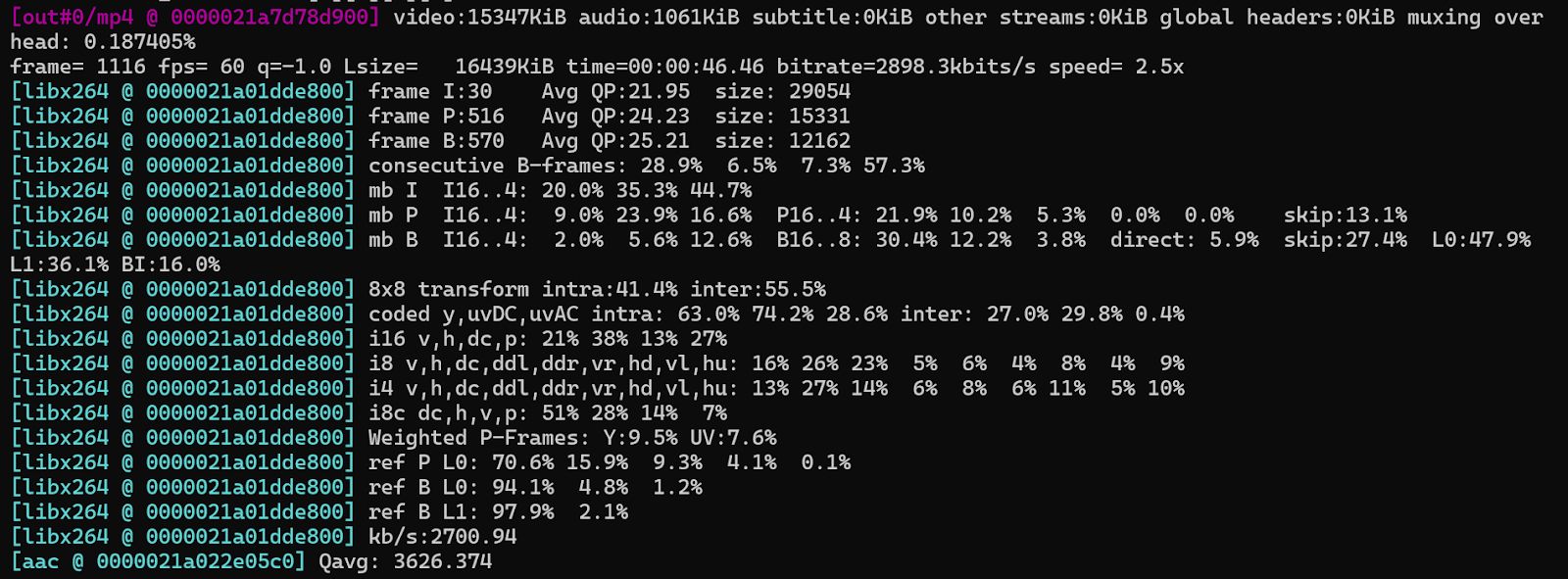
Causes of Video Artifacting
Video artifacting generally stems from a combination of the following causes:
Low Bitrate Compression
Compression algorithms reduce file sizes by discarding data, often resulting in visible artifacts like blockiness, banding, and blurring.
Improper Encoding Settings
Incorrect codec settings, resolution mismatches, or frame rate issues can introduce distortions.
Faulty Video Processing Algorithms
Algorithms used for deinterlacing, scaling, or color space conversion can lead to artifacts like combing, banding, or ghosting.
Transmission Errors
Network instability or packet loss during video streaming can lead to missing frames or corrupted video and audio.
Fixing Video Artifacts
To effectively fix video artifacts, addressing the root cause is crucial. Here are several approaches to reduce or eliminate video artifacts:
Increase Bitrate
Ensure that the bitrate is high enough to preserve visual and audio quality. A higher bitrate allows more data to be retained during compression, minimizing artifacts.
Use Advanced Codecs
Employ modern codecs like HEVC (H.265) or VP9, which provide better compression efficiency without sacrificing quality.
Two-Pass Encoding
Two-pass encoding ensures that bitrate is allocated more efficiently, preserving quality in high-complexity scenes while reducing unnecessary data usage in simpler areas.
Match Frame Rate and Resolution
Ensure that the video’s frame rate matches the target playback device’s refresh rate to avoid judder. Additionally, avoid excessive downscaling, which can lead to pixelation and blurring.
Error Correction for Streaming
In streaming applications, implement error-correction algorithms such as Forward Error Correction (FEC) to handle packet loss and improve video quality.
Noise Reduction
Apply noise reduction filters, especially in low-light scenes, to minimize chroma noise and improve the overall visual quality.