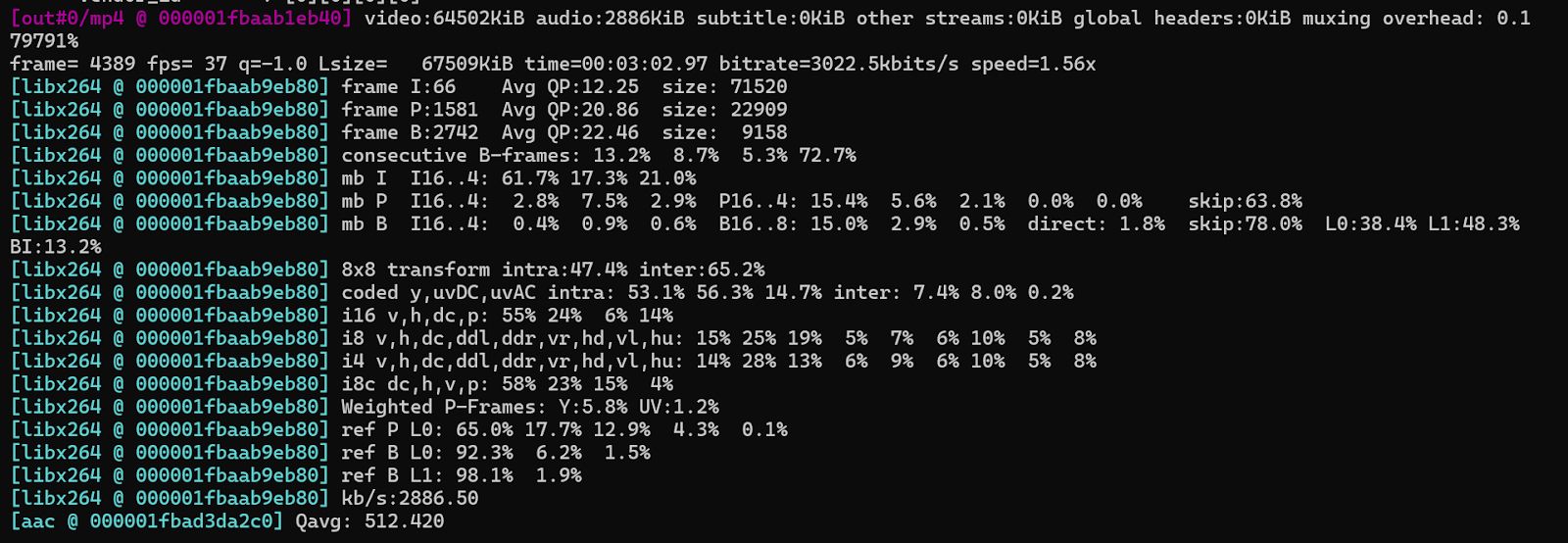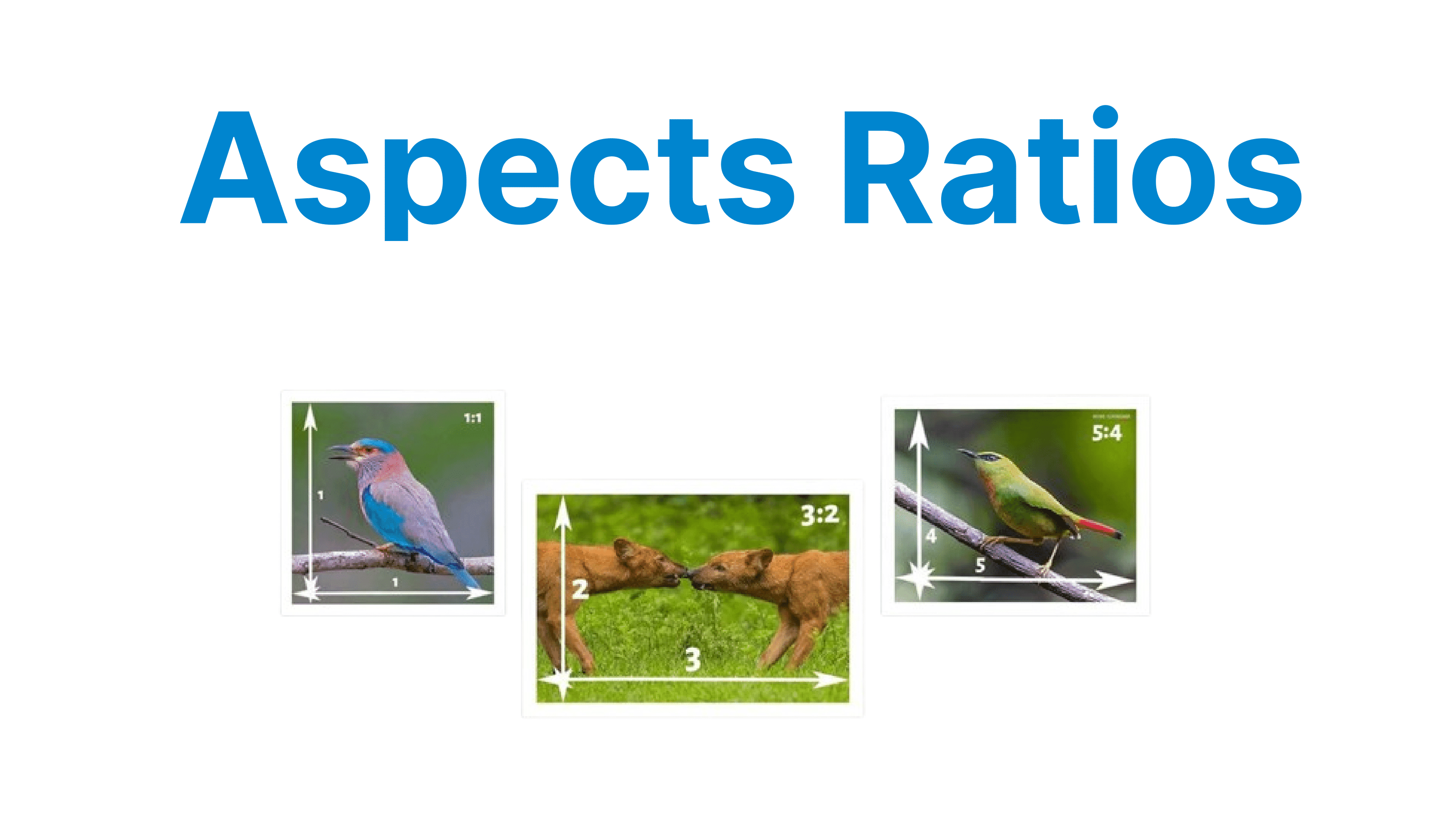
The aspect ratio defines the proportional relationship between a video's width and height, expressed as width ÷ height. It is a fundamental parameter in video encoding, display formatting, and playback design. Aspect ratio affects raster resolution, pixel interpretation, scaling behavior, and cross-platform compatibility across physical and digital display pipelines.
Formula: Aspect Ratio = Width/Height
For example, a 1920×1080 frame has an aspect ratio of 16:9 because 1920 ÷ 1080 = 1.777.
Common Aspect Ratios
4:3 (Standard Definition)
Used predominantly in analog broadcast and early digital formats, 4:3 yields a nearly square image, common in VHS, DVD, and retro gaming content.
- Resolution: 640×480 (SD)
- Display Ratio: 1.33:1
- Encoding Context: MPEG-2 (DVD), early H.264 broadcasts
- Display Handling: Requires boxing on 16:9 and 21:9 displays
16:9 (High Definition)
Standard for HDTV, streaming platforms, and digital video cameras. All modern consumer devices default to 16:9 displays.
- Resolutions: 1280×720 (720p), 1920×1080 (1080p), and 3840×2160 (4K UHD)
- Display Ratio: 1.777:1
- Encoding Context: H.264, HEVC, VP9, AV1
- Display Handling: Supported on most screens; no letterboxing or cropping required.
21:9 (Ultra-Wide Cinema)
Used for cinematic production and increasingly popular in ultra-wide monitors. Encodes a wider horizontal field of view.
- Resolutions: 2560×1080 (UW-FHD), 3440×1440 (UW-QHD), and 5120×2160 (UW-5K).
- Display Ratio: ~2.33:1
- Encoding Context: Same as 16:9 but may require custom profile parameters (PAR handling, resolution constraints)
- Display Handling: On 16:9 screens: letterboxed (black bars top and bottom) and On 21:9 displays: full utilization requires higher decoding bandwidth and GPU load.
Impact on Video Encoding & Compression
When dealing with different aspect ratios, developers must account for how video content is encoded and compressed. Video codecs (e.g., H.264, HEVC) and containers (e.g., MP4, MKV) support various aspect ratios but require certain considerations when optimizing for playback on multiple devices.

Pixel Aspect Ratio (PAR)
The pixel aspect ratio defines how non-square pixels are handled in the video encoding process. While modern displays generally use square pixels, some aspect ratios, like anamorphic video (used in the film), may involve non-square pixels. In H.264 and HEVC, you need to account for PAR when encoding content with anamorphic lenses or legacy systems.
For example, in anamorphic content, each pixel is stretched horizontally to produce a wider image. Encoding such content requires handling the pixel aspect ratio correctly to ensure that the video is rendered properly on playback devices.
Letterboxing & Pillarboxing
To ensure proper presentation across multiple aspect ratios, developers often use techniques such as letterboxing (adding black bars at the top and bottom) and pillarboxing (adding black bars on the sides). These are required when displaying a video with one aspect ratio (e.g., 21:9) on a device with a different aspect ratio (e.g., 16:9).
The issue of black bars is handled dynamically in video players through CSS (in web apps) or with player SDKs, which automatically scale and add padding to the video element, preserving the aspect ratio while preventing distortion.
Example: Responsive 16:9 Aspect Ratio Container
.video-container {
position: relative;
width: 100%;
padding-top: 56.25%; /* 9/16 = 0.5625 */
}
.video-container iframe {
position: absolute;
top: 0;
left: 0;
width: 100%;
height: 100%;
}
Display Considerations for Different Aspect Ratios
The way a video is displayed on different devices greatly depends on its aspect ratio. Understanding how to render content optimally across varying screens is crucial.
4:3 on 16:9 or 21:9 Displays
When playing 4:3 video on 16:9 or 21:9 displays, the video must be either pillar-boxed (black bars on the left and right) or cropped. Most media players, such as HTML5 video players or desktop video software, automatically add padding or crop to fit the screen.
16:9 on 21:9 Displays
Displaying a 16:9 video on a 21:9 screen results in letterboxing (black bars at the top and bottom) because the 16:9 video doesn’t take up the entire screen. Video players typically add letterboxing during playback to preserve the aspect ratio without distorting the image.
Scaling & Resizing
When displaying video on devices with different screen sizes and aspect ratios, developers often use algorithms to scale and fit the video to the available screen space. Techniques like object-fit: contain in CSS or the use of adaptive bitrate streaming (ABR) can ensure proper scaling without distortion or cropping.
HTML5 Video Tag with CSS Fit:
video {
width: 100%;
height: auto;
object-fit: contain; /* maintains aspect ratio within bounds */
}
Multi-Ratio Handling in Video Players
Developers who build custom video players or video streaming platforms must address how videos of different aspect ratios are handled during playback. Key considerations include:
Aspect Ratio Detection
The video player must be able to detect the video's inherent aspect ratio and adjust the display accordingly. This can be done by extracting the video’s metadata (e.g., via HTML5's video tag or by using video processing libraries like FFmpeg) and applying responsive design principles.
Dynamic Letterboxing or Pillarboxing
Implementing a system that dynamically adds letterboxing or pillarboxing can enhance the user experience by ensuring that the content is shown without distortion. Media players like VLC or web-based players (HTML5) handle this automatically, but custom-built players need to calculate the padding dynamically.
Custom Video Encoding
Developers may need to customize encoding settings for ultra-wide content, adjusting the resolution and bitrate to fit the intended platform. For example, an ultra-wide movie (21:9) encoded for a streaming platform might require a higher bitrate and adaptive streaming protocols like HLS or DASH to handle the larger resolution and bandwidth demands.
Aspect Ratio Conversion in Post-Production
In post-production, videos may be edited or resized to fit a specific aspect ratio. Developers working with video editing software (e.g., Adobe Premiere, Final Cut Pro) or custom video processing scripts may need to automate this process.
Resizing
In video processing pipelines, resizing functions can be used to crop or scale videos to fit the desired aspect ratio. For example, using FFmpeg for automated conversion between aspect ratios:
ffmpeg -i input.mp4 -vf "crop=w=1920:h=1080:x=0:y=0" output.mp4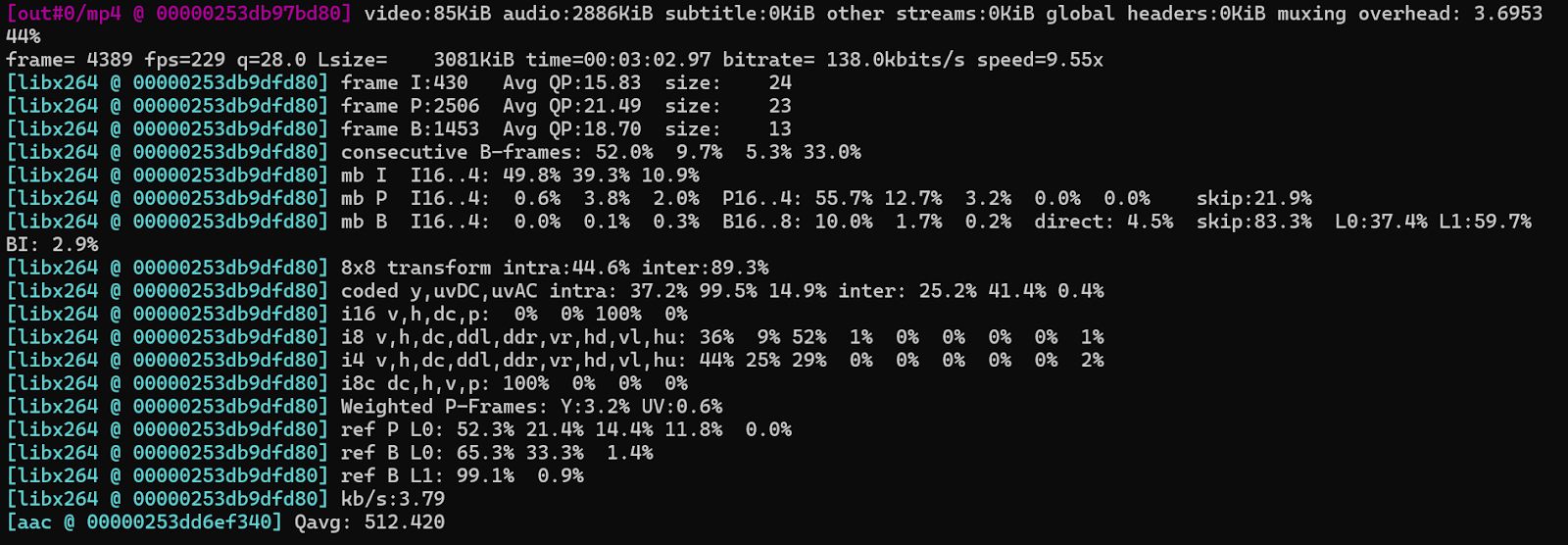
Padding
Padding (adding black bars) is often used to adjust the aspect ratio without cropping. This technique can be applied in FFmpeg as well:
ffmpeg -i input.mp4 -vf "pad=width=1920:height=1080:x=(ow-iw)/2:y=(oh-ih)/2" output.mp4