Batch processing in FFmpeg allows automation of repetitive video tasks across multiple files. This is useful for encoding, scaling, converting formats, or applying filters to large numbers of videos efficiently without manual intervention.
Why Use FFmpeg for Batch Processing
- Process large video libraries with consistent settings.
- Automate format conversion, resizing, compression, or enhancement.
- Reduce manual effort and minimize human error.
Creating a Batch Script for Video Conversion
FFmpeg is commonly used for converting video files from one format to another. Using a batch script, you can convert multiple video files automatically.
Script Example for Converting .avi to .mp4:
#!/bin/bash
for file in *.avi; do
ffmpeg -i "$file" -c:v libx264 -c:a aac -strict experimental "${file%.avi}.mp4"
done- This script loops over all .avi files in the current directory.
- It converts each file to .mp4 using the H.264 codec for video (libx264) and AAC codec for audio (aac).
- The ${file%.avi}.mp4 syntax renames the output file by removing the .avi extension and replacing it with .mp4.

Automating Video Resizing
One of the most common tasks when batch processing videos is resizing. You can batch resize multiple videos by applying a consistent resolution across all files.
Script Example for Resizing Videos to 1280x720:
#!/bin/bash
for file in *.mp4; do
ffmpeg -i "$file" -vf "scale=1280:720" -c:v libx264 -c:a aac "${file%.mp4}_resized.mp4"
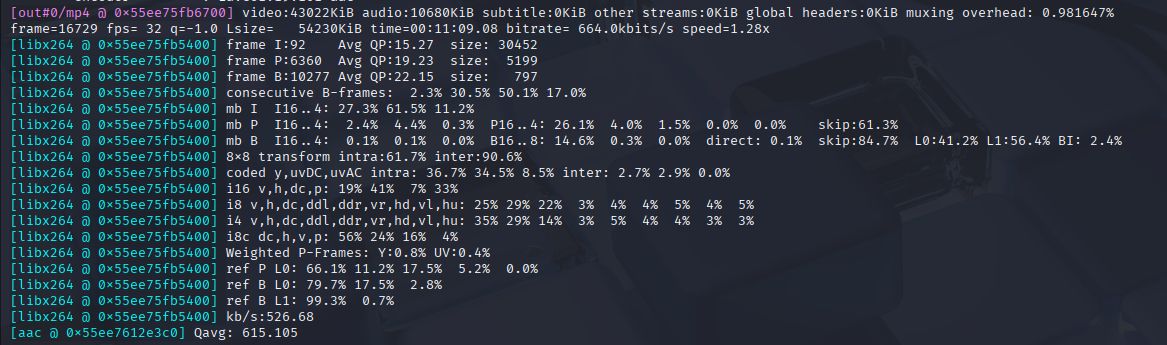
done- This script processes all .mp4 files in the directory, resizing them to 1280x720 resolution.
- The output file names are appended with _resized to distinguish them from the original files.
Batch Encoding with Custom Parameters
In some cases, you may want to encode videos with specific parameters such as bitrate or frame rate. Batch processing makes it easy to apply these settings to a large number of videos.
Script Example for Custom Encoding (Bitrate and Frame Rate):
#!/bin/bash
for file in *.mp4; do
ffmpeg -i "$file" -c:v libx264 -b:v 1M -r 30 -c:a aac "${file%.mp4}_encoded.mp4"
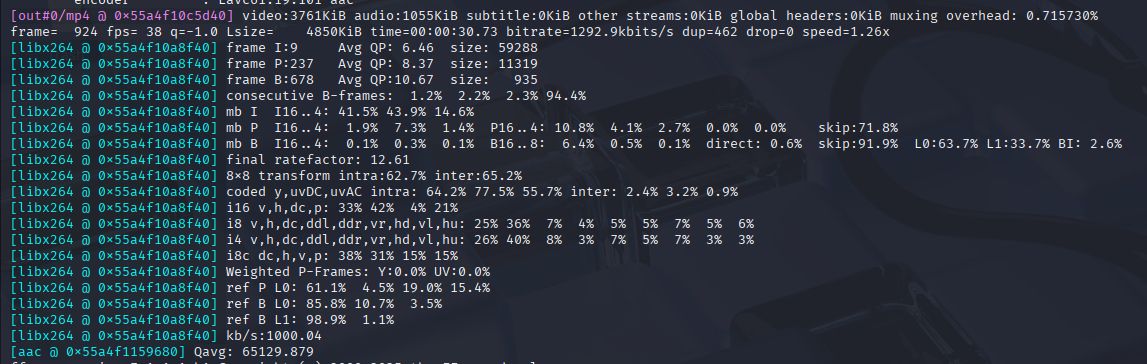
done- This script sets the video bitrate to 1 Mbps (-b:v 1M) and the frame rate to 30 frames per second (-r 30).
- It uses libx264 for encoding and aac for audio.
- The output files are renamed to include _encoded for clarity.
[Cincopa API for Video Processing]
Handling Audio-Video Sync Issues in Batch
Sometimes, videos might have audio synchronization issues. In such cases, FFmpeg provides the option to adjust the sync by modifying the audio or video timestamps.
Script Example for Audio Sync Adjustment:
#!/bin/bash
for file in *.mp4; do
ffmpeg -i "$file" -itsoffset 0.5 -i "$file" -c:v copy -c:a aac "${file%.mp4}_sync_fixed.mp4"
done- The -itsoffset 0.5 option shifts the audio by 0.5 seconds forward.
- The video stream is copied without re-encoding (-c:v copy), and the audio is re-encoded to AAC (-c:a aac).
- The output files are named with _sync_fixed to indicate that the audio sync issue has been addressed.


[Cincopa API for Audio Processing]
Batch Processing for Different Output Formats
In batch processing, you may need to convert multiple video files into different formats, depending on specific use cases or platforms. FFmpeg scripting can handle this by processing each file with different output formats.
Script Example for Converting Videos to Different Formats:
#!/bin/bash
for file in *.mp4; do
ffmpeg -i "$file" -c:v libx264 -c:a aac "${file%.mp4}.avi"
ffmpeg -i "$file" -c:v libvpx -c:a libopus "${file%.mp4}.webm"
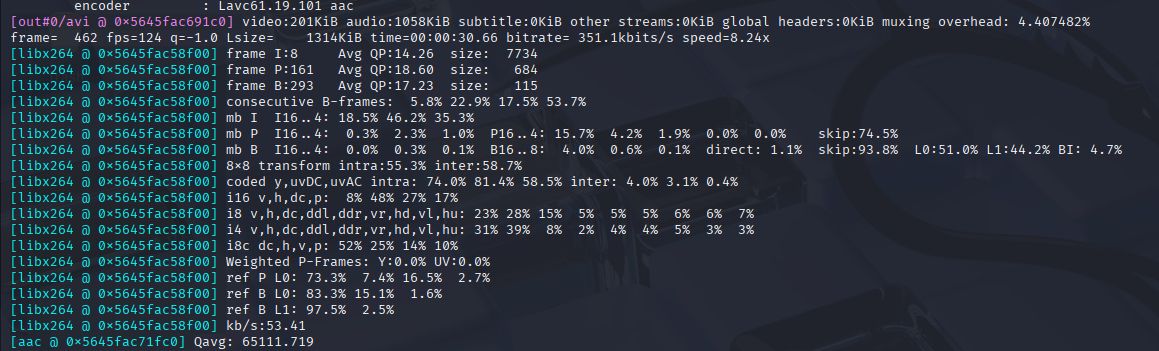
done- This script processes each .mp4 file twice: once for .avi format using H.264 for video and AAC for audio, and once for .webm format using VP8 for video and Opus for audio.

Automating Video Watermarking in Batch
Adding a watermark to videos is a common task for batch processing. FFmpeg overlay images on videos to create watermarks.
Script Example for Watermarking:
#!/bin/bash
for file in *.mp4; do
ffmpeg -i "$file" -i watermark.png -filter_complex "overlay=10:10" -c:v libx264 -c:a aac "${file%.mp4}_watermarked.mp4"
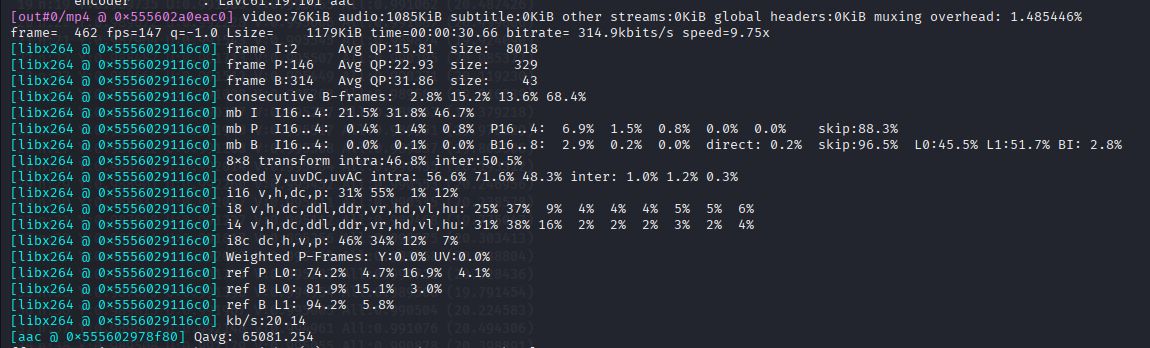
done- This script uses the -filter_complex option to overlay the watermark.png image at the position (10, 10) on the video.
- The video and audio are encoded with the libx264 and AAC codecs, respectively, and the output file is named with _watermarked.
Optimizing Performance in Batch Processing
When processing a large number of videos, it's essential to optimize the FFmpeg command to improve performance and reduce processing time.
Script Example for Parallel Processing:
#!/bin/bash
for file in *.mp4; do
ffmpeg -i "$file" -c:v libx264 -c:a aac "${file%.mp4}_optimized.mp4" &
done
wait- The & symbol runs each FFmpeg process in the background, allowing multiple files to be processed concurrently. The wait command ensures that the script waits for all background processes to finish before exiting.