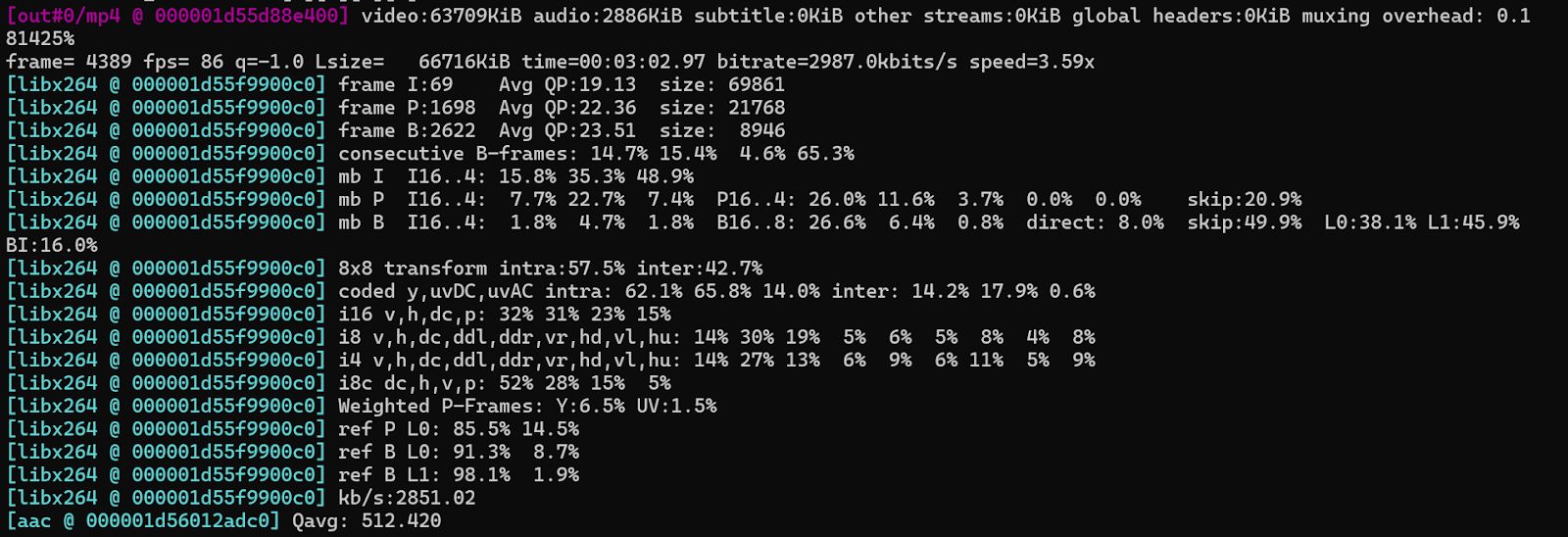
FFmpeg offers several options to enhance the performance of encoding and decoding tasks. By properly configuring thread usage, selecting the right presets, and tuning encoding parameters, you can optimize video processing for speed and efficiency.
These adjustments allow you to handle large video files, reduce processing time, and maintain a balance between performance and quality, depending on your specific needs.
Using Threads for Parallel Processing
FFmpeg supports multi-threaded processing, allowing tasks to be distributed across multiple CPU cores. This can speed up both encoding and decoding processes, particularly when working with high-resolution videos or complex filters.
Threads Parameter: The -threads option controls the number of threads used for processing. Example Command:
ffmpeg -i input.mp4 -c:v libx264 -threads 4 output.mp4- The -threads 4 argument uses 4 threads. For maximum performance, use a value equal to the number of CPU cores.
- Thread Scheduling: FFmpeg dynamically assigns tasks based on available CPU cores. Using too many threads may slow down performance due to excessive context switching and overhead.
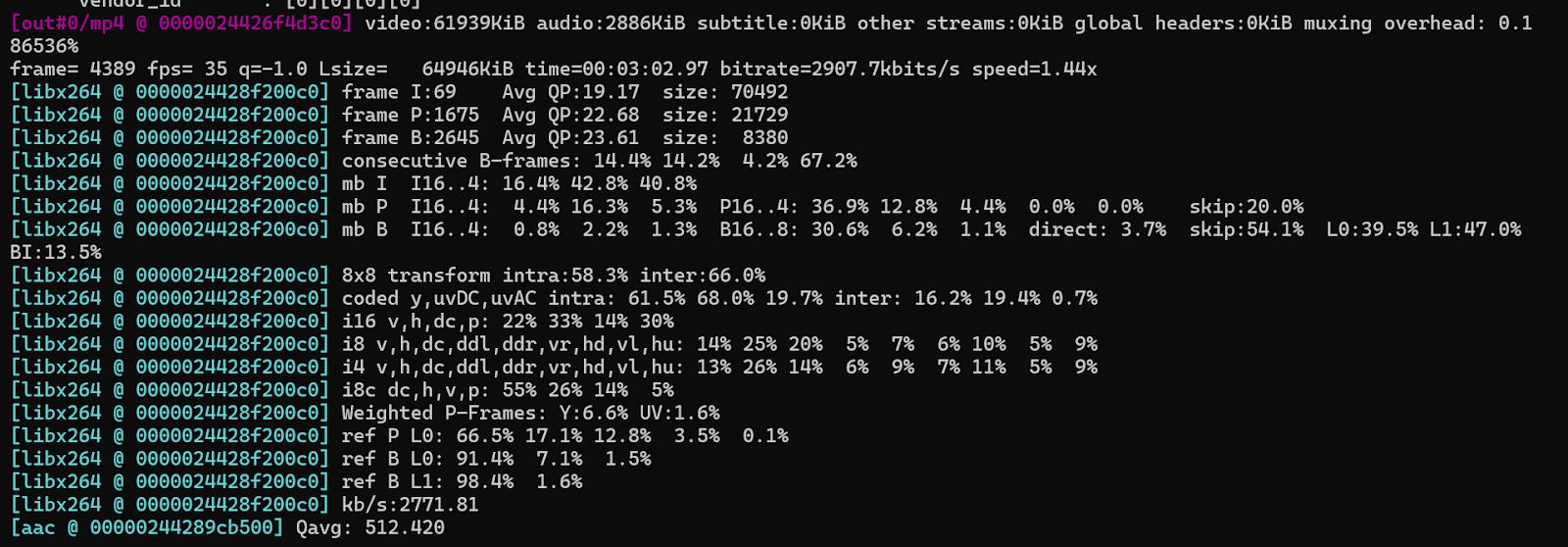

Choosing the Right Preset
Presets control the speed vs. quality trade-off for video encoding. A faster preset results in faster encoding times, but the video quality may not be as high as with a slower preset. The slower the preset, the better the compression and quality, but the encoding process will take longer.
Presets for H.264 and H.265: Use the -preset option to choose the appropriate preset for your needs. Example Command:
ffmpeg -i input.mp4 -c:v libx264 -preset slow output.mp4- Common preset values: ultrafast, superfast, very fast, faster, fast, medium, slow, and very slow.
- Fast Presets: Useful for real-time streaming or when speed is the priority.
- Slow Presets: Best for offline encoding, where maximizing compression and quality is more important.
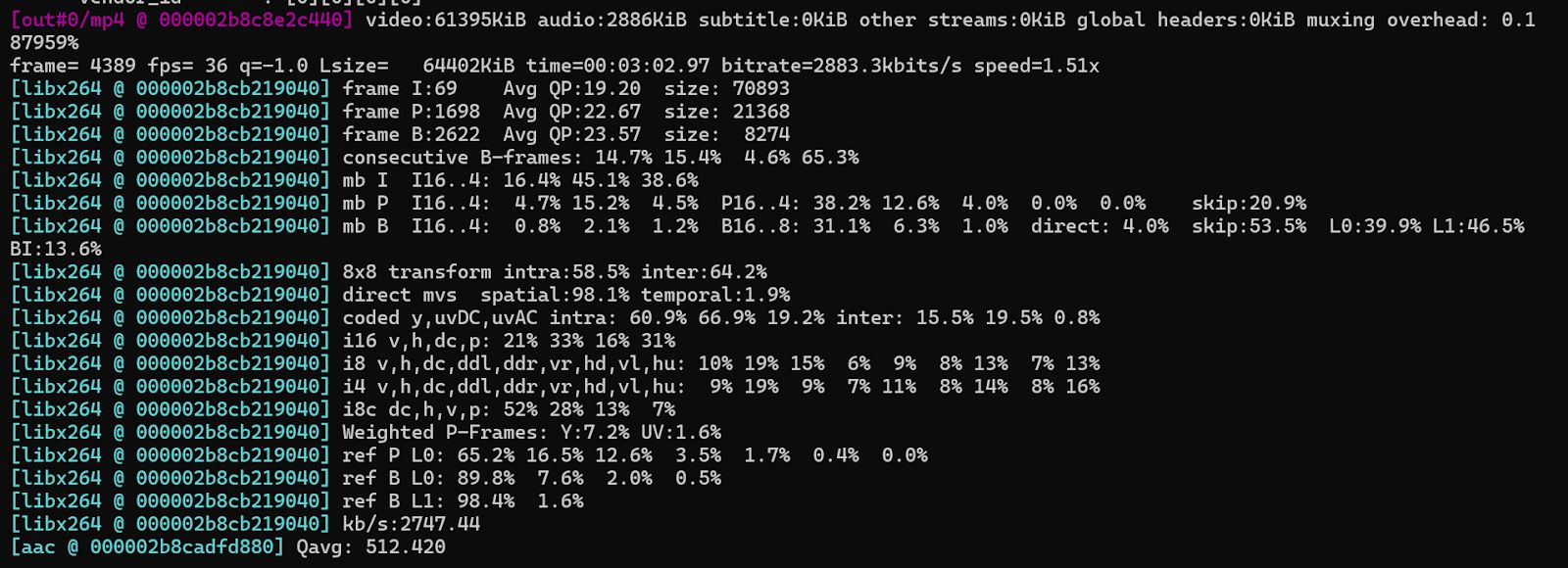
Tuning for Specific Use Cases
FFmpeg provides tuning options that can further optimize encoding for specific use cases, such as high-quality video or real-time streaming.
Tune Option: The -tune option allows you to optimize for specific use cases such as "film," "animation," or "grain." Example Command:
ffmpeg -i input.mp4 -c:v libx264 -preset medium -tune film output.mp4- Film: Best for high-quality film content.
- Animation: Optimizes for animated content to reduce banding and blockiness.
- Grain: Used for videos with a significant amount of grain, like old films.
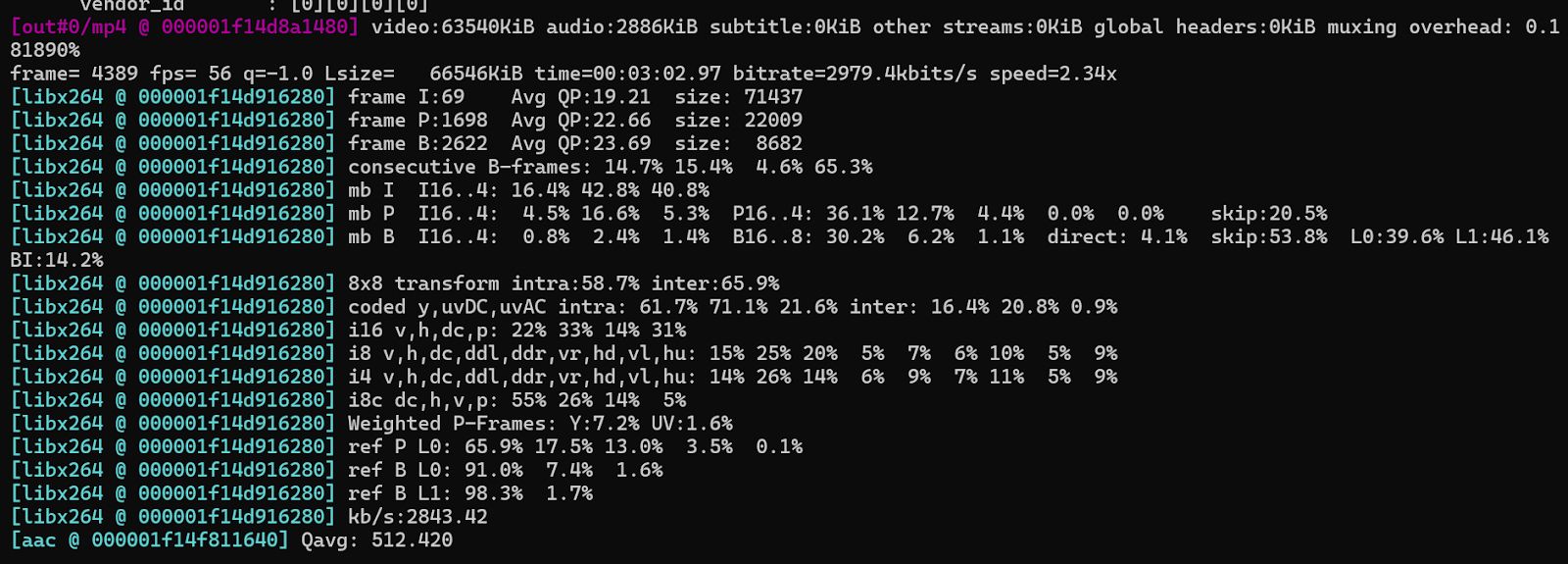
Combining Threads, Preset, and Tune
You can combine all three options to balance CPU usage, quality, and output size.
Full Example:
ffmpeg -i input.mp4 -c:v libx264 -preset faster -tune film -threads 8 output.mp4- Uses 8 threads
- Choose faster preset for good speed
- Tunes for film content