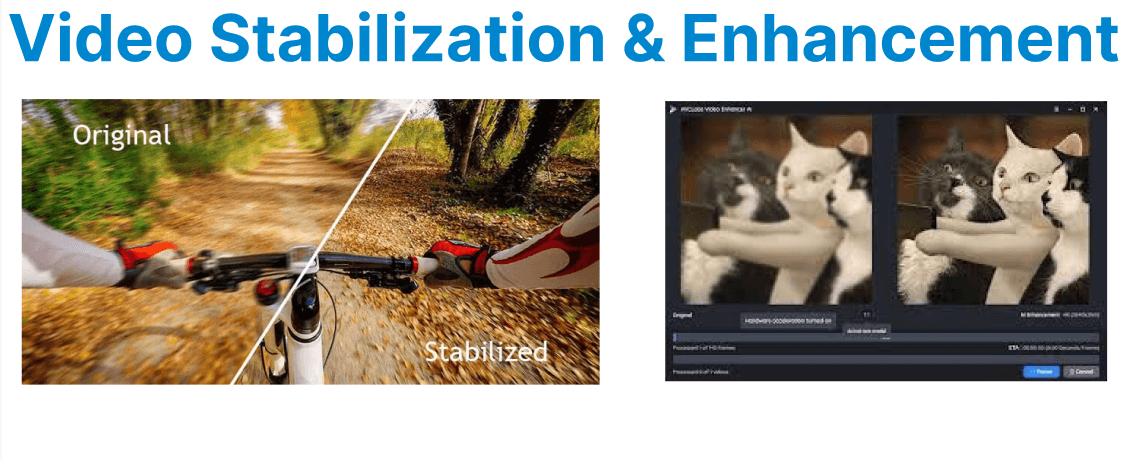
FFmpeg is a multimedia framework that allows video processing tasks, including stabilization and enhancement. Video stabilization helps reduce shaky footage caused by handheld cameras or other movement during video recording. FFmpeg offers various methods to stabilize and enhance videos without requiring high-end hardware or complex software.
Video Stabilization
FFmpeg provides video stabilization via the vidstab library, which stabilizes shaky video footage in two key phases: detecting motion and applying stabilization transforms.
Detect Shaky Movements
Before stabilizing a video, you must analyze the footage to identify shaky movements. This is done by creating a transforms.trf file that stores motion information. The following command analyzes the video and generates this file:
ffmpeg -i input.mp4 -vf vidstabdetect=shakiness=5:accuracy=15:result=transforms.trf -f null -- shakiness=5: Higher values for very shaky videos.
- accuracy=15: Improves detection precision at the cost of speed.
- result=transforms.trf: Output file storing motion information.


Apply Stabilization
Once the shaky movements are detected and stored in the transforms.trf file, you can use it to stabilize the video. The following command applies the stabilization using the transform file generated in the previous step:
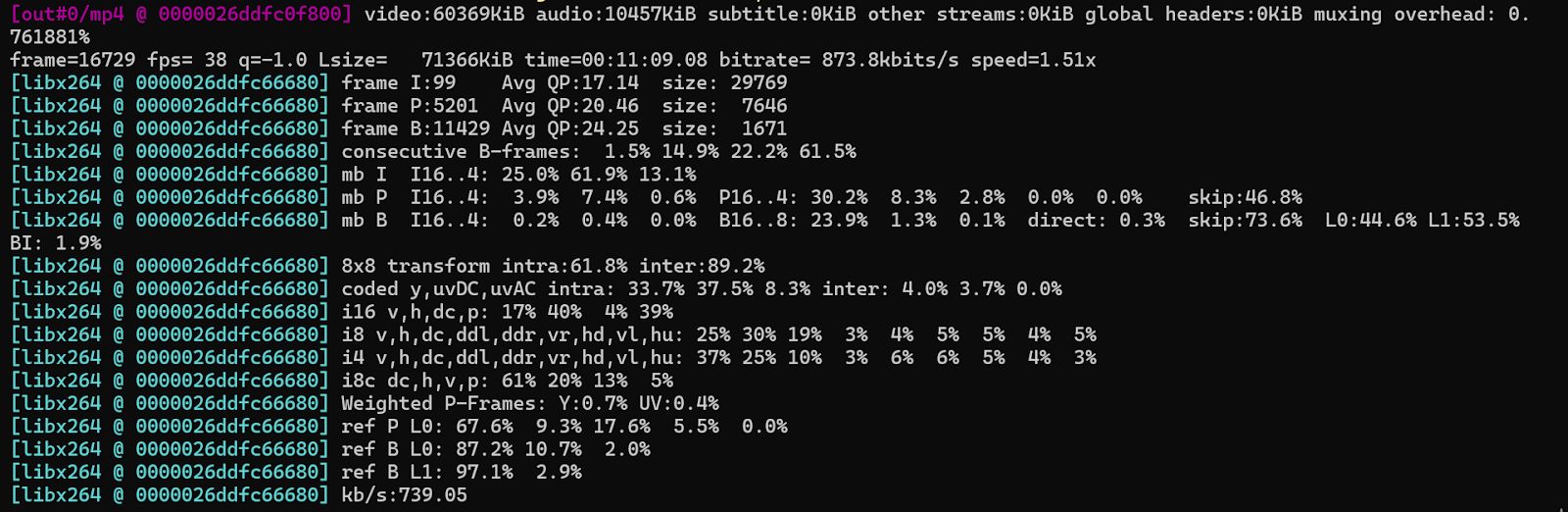
ffmpeg -i input.mp4 -vf vidstabtransform=input=transforms.trf:smoothing=30 -c:v libx264 -c:a copy stabilized.mp4- smoothing=30: Higher values make stabilization smoother but may crop more.
Video Enhancement
Once the video is stabilized, you can apply further enhancement filters to improve the overall quality. These filters include noise reduction, sharpening, and adjustments to brightness and contrast.
Denoising
Denoising removes unwanted noise and artifacts from the video to enhance visual quality. The following command uses the hqdn3d filter to perform spatial and temporal denoising:
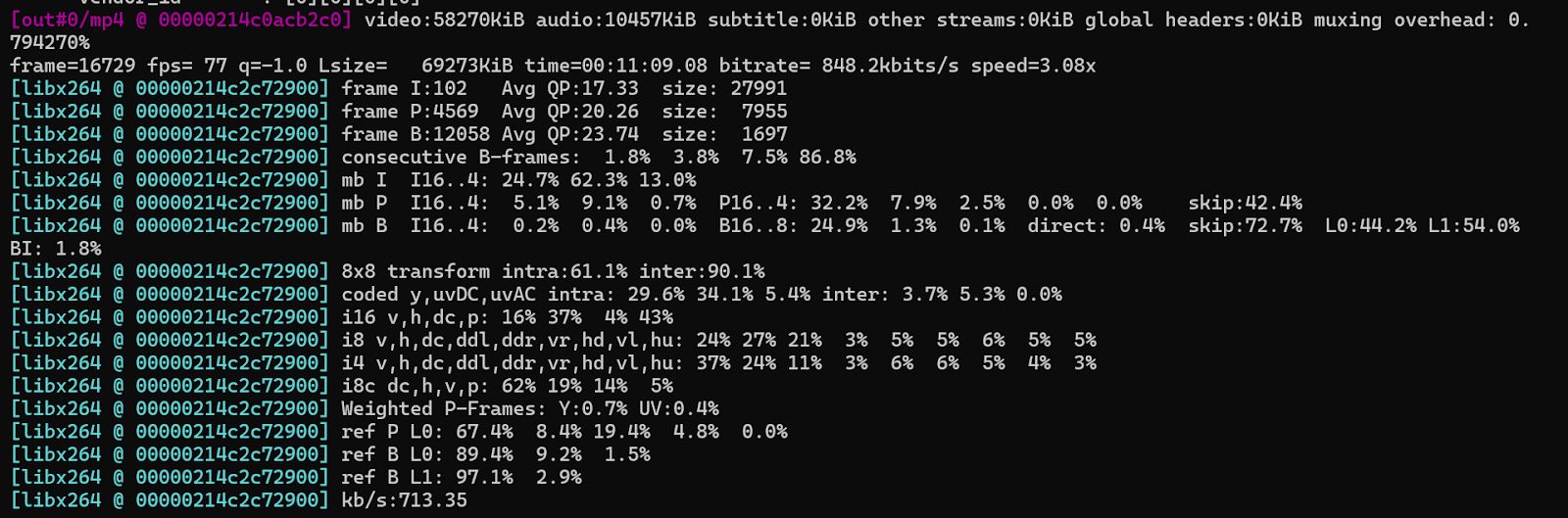
ffmpeg -i stabilized.mp4 -vf hqdn3d=4.0:3.0:6.0:4.5 -c:v libx264 -c:a copy denoised.mp4- hqdn3d parameters control spatial and temporal denoising strength.
- 4.0: Spatial denoising strength.
- 3.0: Temporal denoising strength.
- 6.0: Temporal denoising strength for the second component.
- 4.5: Another temporal denoising strength.
Sharpening
Sharpening improves the clarity of the video by enhancing fine details. The unsharp filter is used to sharpen the video, as shown below:
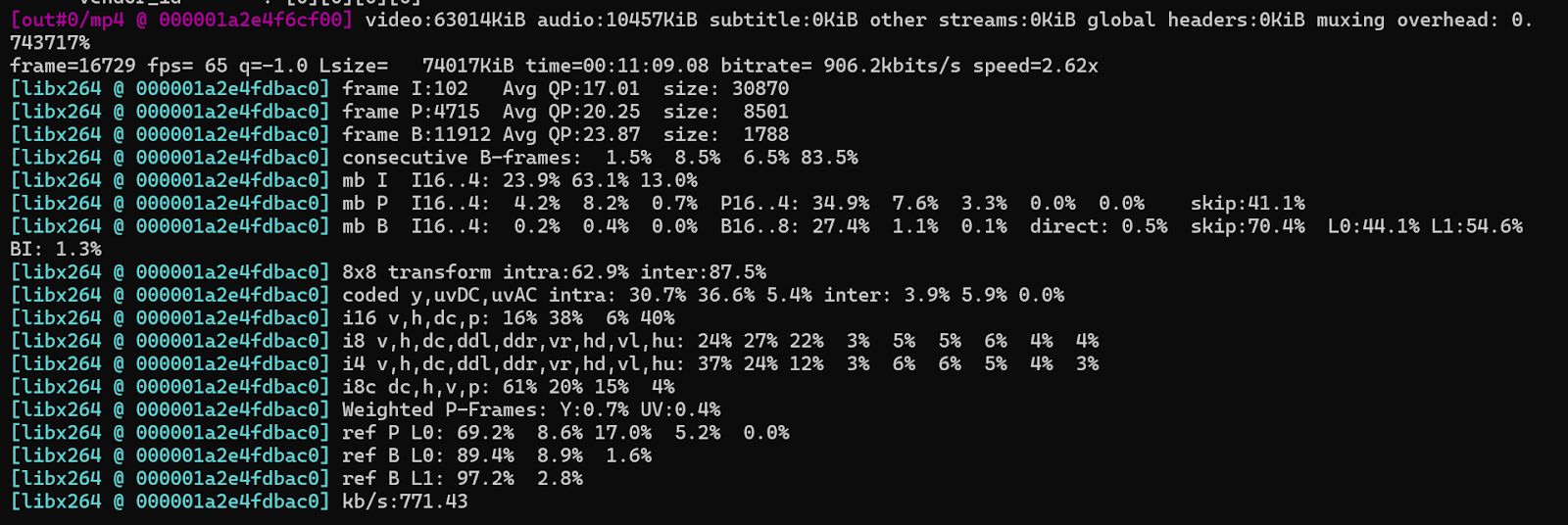
ffmpeg -i denoised.mp4 -vf unsharp=5:5:1.0:5:5:0.0 -c:v libx264 -c:a copy sharpened.mp4- unsharp=5:5:1.0:5:5:0.0: The filter applies sharpening based on a specified matrix size and strength.
Contrast and Brightness Adjustment
After sharpening, adjusting the contrast and brightness can further improve video quality. The eq filter can be used to adjust these properties:
ffmpeg -i sharpened.mp4 -vf eq=contrast=1.2:brightness=0.05 -c:v libx264 -c:a copy enhanced_output.mp4- contrast=1.2: Increases contrast slightly.
- brightness=0.05: Lightens the video slightly.
What’s Next?
Looking to automate video stabilization and enhancement workflows? Use Cincopa’s API to trigger motion detection, stabilization passes, denoising, sharpening, and contrast correction at scale. Build pipelines that detect shaky footage, apply batch improvements, and output high-quality, viewer-ready videos optimized for web and mobile platforms without manual intervention.