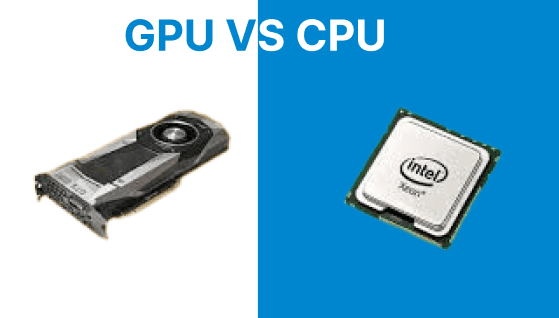
Encoding efficiency directly impacts processing time, system utilization, and output characteristics in video workflows. The comparison between CPU-based software encoders (libx264/libx265) and GPU-based hardware encoders (NVENC) highlights differences in performance, compression behavior, and resource consumption.
Encoding Configuration and Execution Logic
CPU encoding utilizes general-purpose processor cores to perform complex operations like motion estimation, rate-distortion optimization, and entropy coding. The most common software encoders in FFmpeg are libx264 for H.264 and libx265 for H.265/HEVC. These encoders support a range of presets and CRF (Constant Rate Factor) values that allow users to trade off between speed and quality.
Example: H.264 Encoding Via CPU Using libx264
ffmpeg -i input.mp4 -c:v libx264 -preset medium -crf 23 output_cpu_h264.mp4Explanation:
- -i input.mp4: Specifies the input file.
- -c:v libx264: Uses the H.264 software encoder.
- -preset medium: Balances speed and quality.
- -crf 23: Controls quality. Lower = better quality. Typical values range from 18–28.
- output_cpu_h264.mp4: Output filename.
Example: Encode in HEVC Format Using CPU
ffmpeg -i input.mp4 -c:v libx265 -preset medium -crf 28 output_cpu_hevc.mp4On the other hand, GPU encoding offloads the encoding task to specialized hardware. With FFmpeg, NVENC (NVIDIA's hardware encoder) is accessible via h264_nvenc and hevc_nvenc. This mode enables significantly faster processing and lower CPU utilization, though with limited control over compression algorithms.
Example: H.264 GPU encoding using NVENC
ffmpeg -i input.mp4 -c:v h264_nvenc -preset p4 -cq:v 23 output_gpu_h264.mp4Explanation:
- -c:v h264_nvenc: Uses the NVENC hardware H.264 encoder.
- -preset p4: Controls encoding speed vs quality (range: p1 fastest, p7 highest quality).
- -cq:v 23: Constant quantizer value for quality targeting (not CRF).
Example: HEVC GPU encoding using NVENC
ffmpeg -i input.mp4 -c:v hevc_nvenc -preset p4 -cq:v 28 output_gpu_hevc.mp4
Bitrate and Rate Control Behavior
The libx264 and libx265 encoders support CRF mode, which dynamically adjusts the bitrate to maintain consistent perceptual quality. This is ideal for offline encoding workflows where quality must be preserved within a certain size constraint.
Example: Encode with High Quality in CRF Mode
ffmpeg -i input.mp4 -c:v libx264 -preset slow -crf 20 output_master.mp4Explanation:
- -crf 20: High quality (lower = better).
- -preset slow: More compression, slower encoding.
This is ideal for scenarios where exact file size isn’t critical, like archival or mastering.
NVENC does not support CRF. Instead, it offers control via constant quantization (cq:v) and variable bitrate modes (rc:v vbr). Although this lacks the precision of CRF, it enables very fast encoding with predictable performance, making it suitable for live encoding scenarios.
Example of NVENC with Constrained Bitrate:
ffmpeg -i input.mp4 -c:v h264_nvenc -b:v 4M -maxrate 5M -bufsize 8M output_bitrate_gpu.mp4Explanation:
- -b:v 4M: Target average bitrate.
- -maxrate 5M: Max bitrate during peaks.
- -bufsize 8M: Rate control buffer size.
Stream Copy, Audio Handling, and Metadata Preservation
FFmpeg allows selective encoding and stream copying, which is useful when you want to keep original audio or trim videos without re-encoding.
In CPU
Encode Video and Copy Original Audio
Use this when you need to re-encode the video stream (e.g., apply CRF, change codec), but want to preserve the original audio as-is without degrading its quality or reprocessing it.
ffmpeg -i input.mp4 -c:v libx264 -crf 23 -c:a copy output.mp4Explanation:
- -c:v libx264: Re-encodes the video using the H.264 software encoder.
- -crf 23: Sets a perceptual quality target; lower values increase quality.
- -c:a copy: Bypasses audio re-encoding and copies the original audio stream directly.
Trim a Specific Video Segment and Re-Encode
When you want to extract a portion of the video and ensure frame-accurate trimming, this approach decodes and re-encodes the selected section.
ffmpeg -ss 00:00:30 -i input.mp4 -t 00:00:10 -c:v libx264 -c:a aac output_clip.mp4Explanation:
- -ss 00:00:30: Seek to 30 seconds from the beginning.
- -t 00:00:10: Set duration of the clip to 10 seconds.
- -c:v libx264: Re-encodes the selected portion with the H.264 encoder.
- -c:a aac: Encodes audio to AAC format for compatibility.
- This method ensures GOP alignment and maintains A/V sync, ideal for generating clips or previews.
Extract Audio Without Video
This method removes the video stream and extracts only the audio from the source file.
ffmpeg -i input.mp4 -vn -acodec copy audio.aacExplanation:
- -vn: Disables video processing (video = no).
- -acodec copy: Copies the audio stream without re-encoding.
In GPU
Encode Video with NVENC and Copy Audio
Similar to the CPU example, but uses the GPU to speed up video encoding while still preserving the original audio stream.
ffmpeg -i input.mp4 -c:v h264_nvenc -c:a copy output_nvenc.mp4Explanation:
- -c:v h264_nvenc: Uses NVIDIA’s hardware encoder for fast H.264 encoding.
- -c:a copy: Copies the existing audio without re-encoding.
Trim Without Re-encoding (Fast Copy with Timestamps)
When you only want to quickly extract a segment without touching the encoded data (no quality loss), this command performs a stream copy.
ffmpeg -i input.mp4 -ss 00:01:00 -t 00:00:20 -c copy -copyts fast_trim.mp4Explanation:
- -ss 00:01:00: Seek to 1 minute mark.
- -t 00:00:20: Duration of 20 seconds.
- -c copy: Copies both video and audio streams as-is (no re-encoding).
- -copyts: Keeps original timestamps instead of re-zeroing them.
Hardware Compatibility and Encoder Availability
Checking for NVENC support in your FFmpeg build and validating hardware capabilities is essential for deploying GPU encoding reliably.
In CPU
No hardware checks are required. CPU encoding works out of the box with any FFmpeg installation, assuming libx264 and libx265 are compiled in.
To List Available Software Encoders:
ffmpeg -hide_banner -encoders | grep libxIn GPU
Verify Available GPU Encoders:
ffmpeg -hide_banner -encoders | grep nvencTo Test CUDA/NVENC Availability:
ffmpeg -hwaccel cuda -i input.mp4 -f null -If not available, you must use an FFmpeg build with --enable-nvenc and a compatible NVIDIA driver. Without these, fallback to CPU encoding will occur.
Tooling and Debugging
| Feature | CPU Encoding | GPU Encoding (NVENC) |
| Tuning Controls | CRF, Presets, Filters | Presets, CQ, Rate Control |
| Debugging Tools | Standard FFmpeg logging | FFmpeg + NVENC SDK logs |
| System Monitoring | htop, perf, time | nvidia-smi, nvtop |
Summary Comparison Table
| Features | CPU Encoding (libx264/libx265) | GPU Encoding (NVENC) |
| Encoding Speed | Slower (1.5–3 min for 5-min video) | Very fast (20–30 sec) |
| CPU Utilization | High (90–95%) | Low (10–15%) |
| GPU Utilization | None | Moderate (~60% Video Engine) |
| File Size | Smaller | Slightly larger |
| Compression Control | CRF, presets | CQ, VBR |
| Use Case | Archival, mastering, high fidelity | Live encoding, batch conversion |