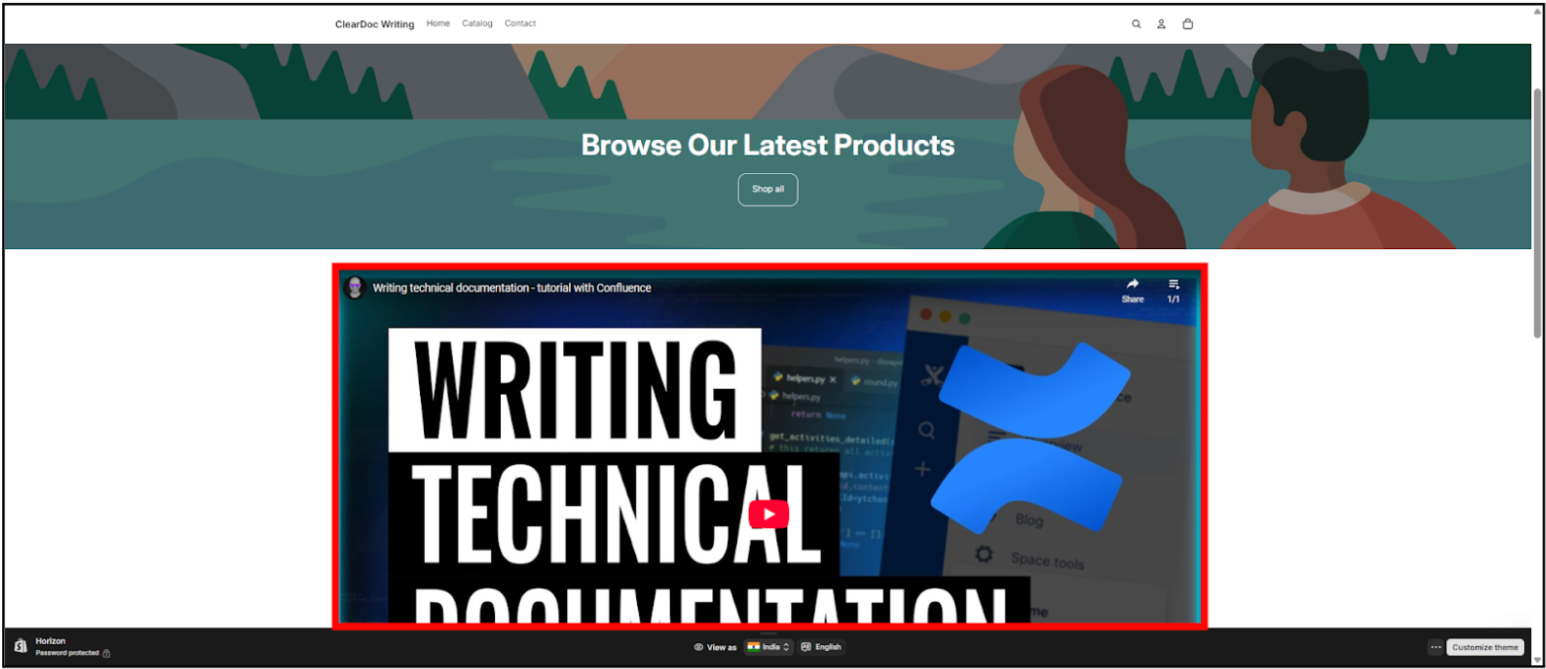
Adding a video to your Shopify homepage can enhance your website’s appeal, providing customers with an interactive and engaging experience. Whether you want to showcase a product, introduce your brand story, or simply provide an eye-catching element, embedding a video is a powerful way to boost your store's visual appeal and customer engagement. Shopify makes it relatively easy to add video content to your homepage by using its built-in features.
Steps to Insert a Video in the Shopify Home Page

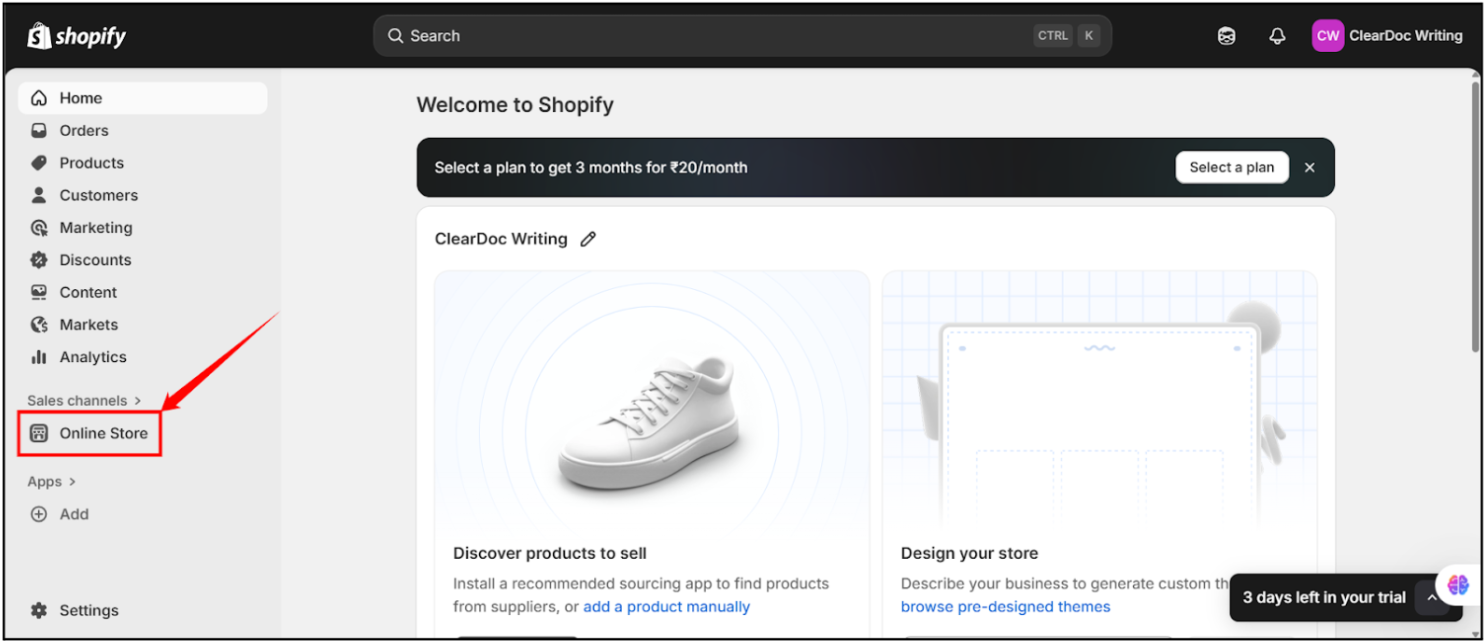
Step 1: Access your Shopify account as you normally would to manage your store or make updates, then click on the “Online Store” button on the left sidebar.
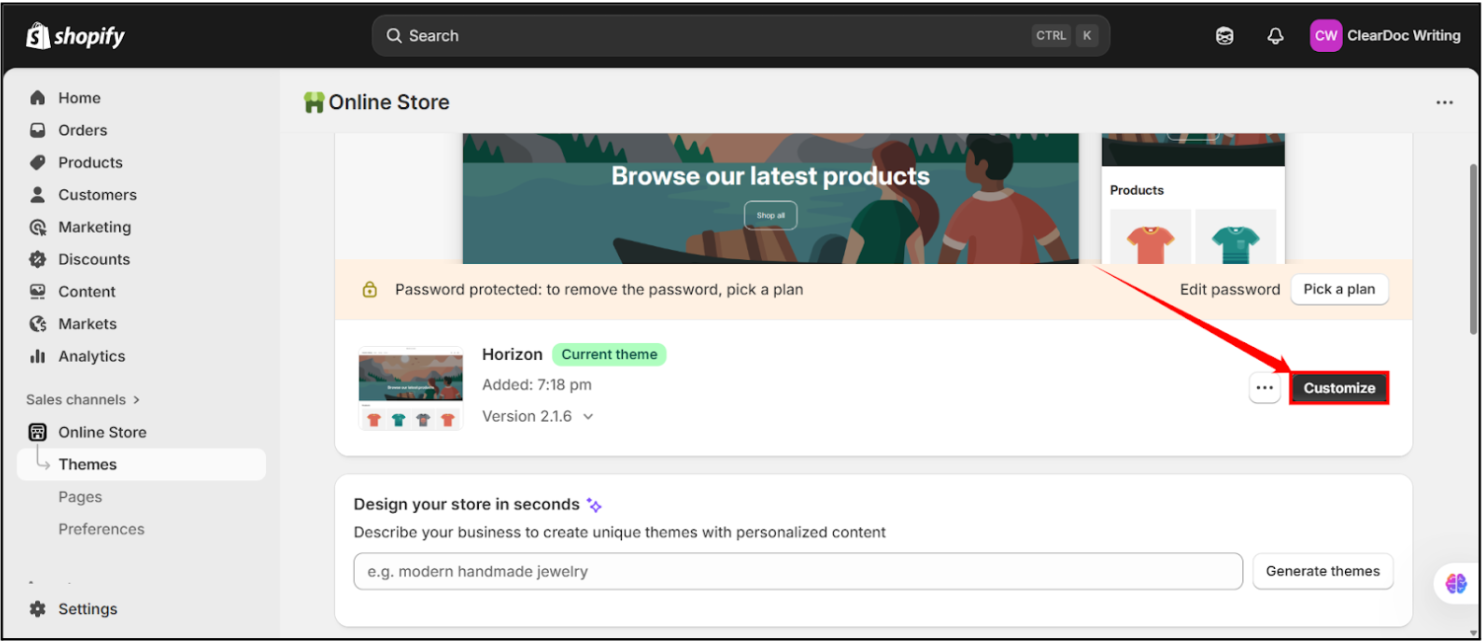
Step 2: Scroll down and click on the “Customize” button, located at the end of your current theme.
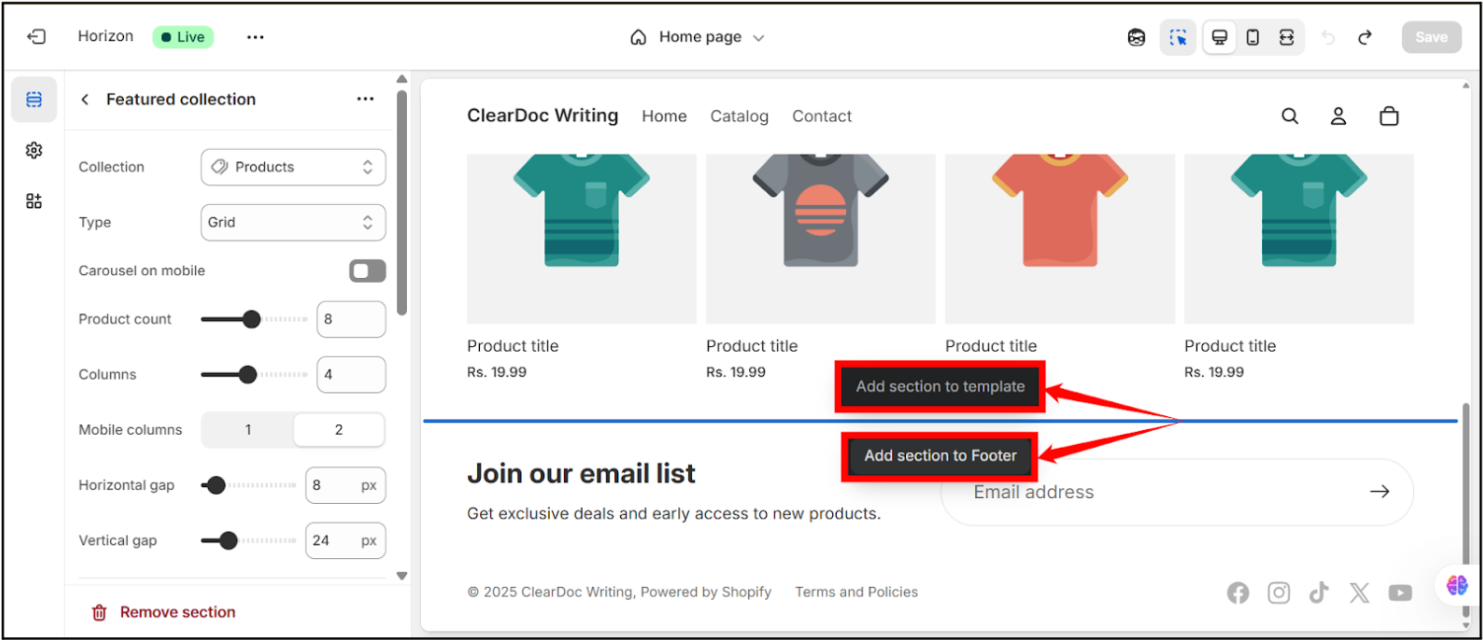
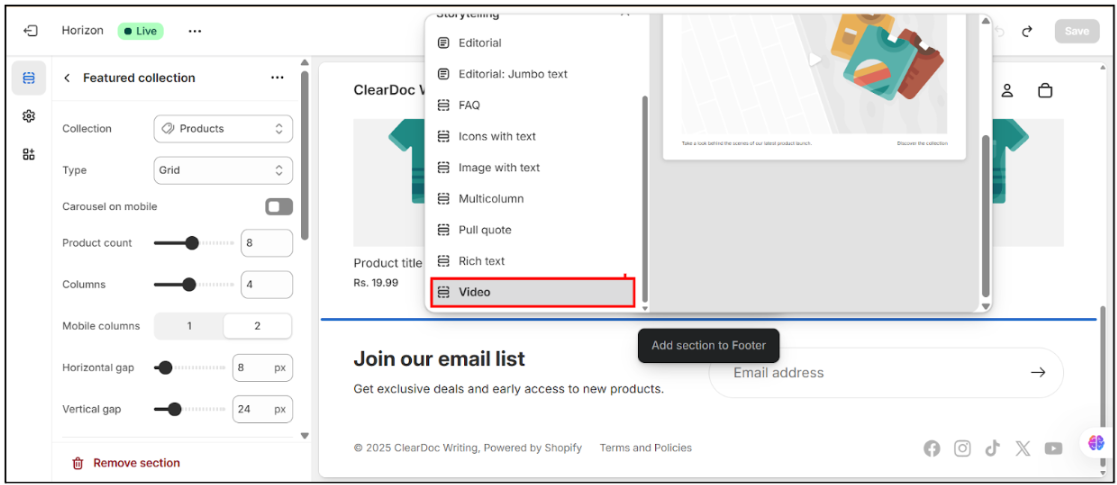
Step 3: Click on the “Add Section to Template” or “Add Section to Footer” button to open the sections’ list.
Step 4: Scroll down to the bottom of the list,then click on the “Video” button.
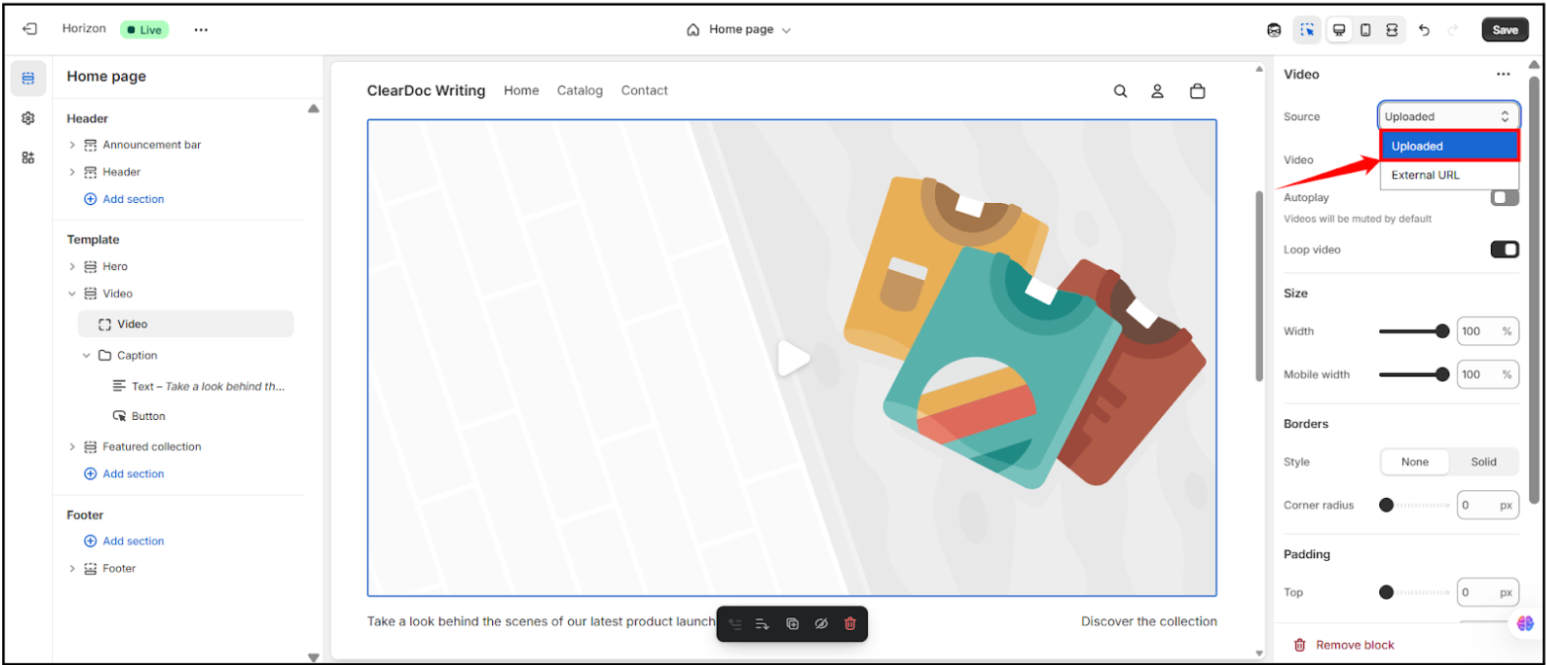
Step 5: Navigate to the right sidebar, click on the “Source” dropdown, then click on the “Uploaded” option.
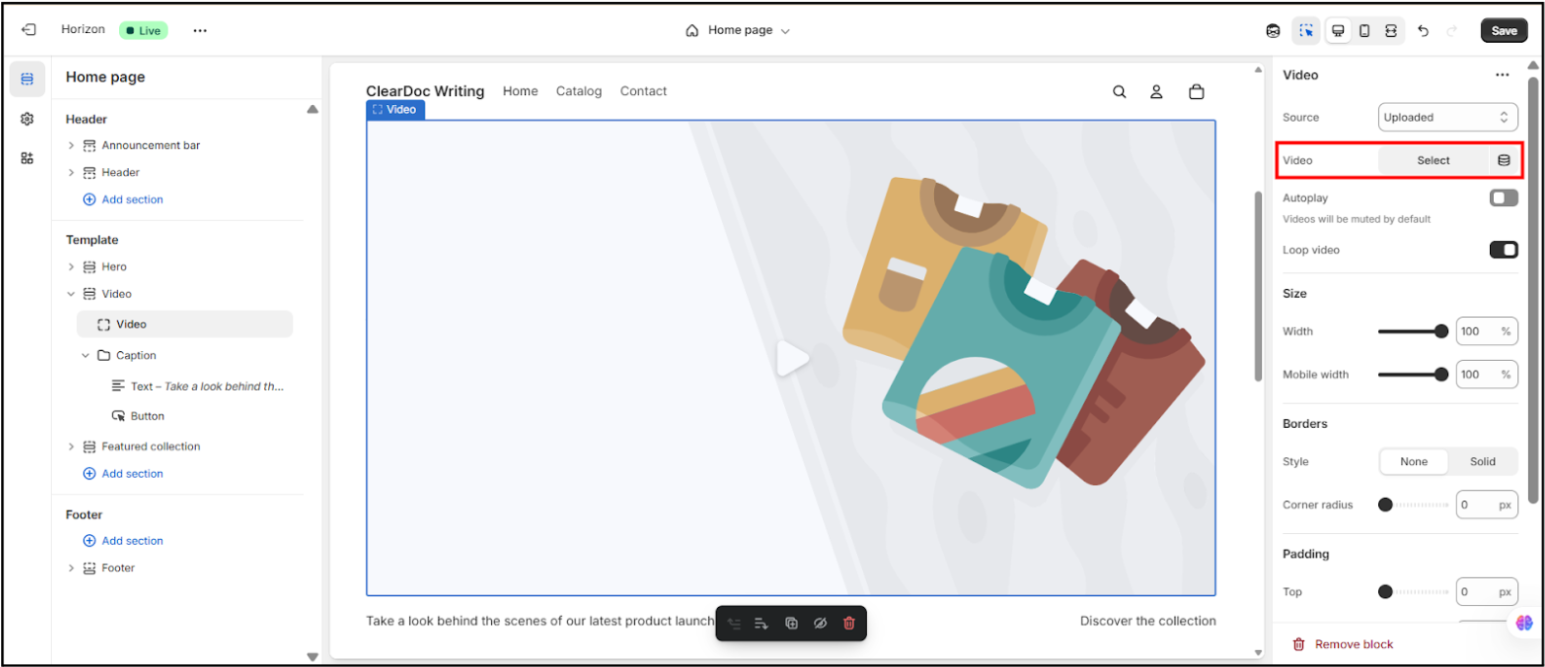
Step 6: Then click on the “Select” option under “Video.”
Step 7: In the dialog that opens, select the “Upload File” option, choose your video, and wait for the upload to complete.
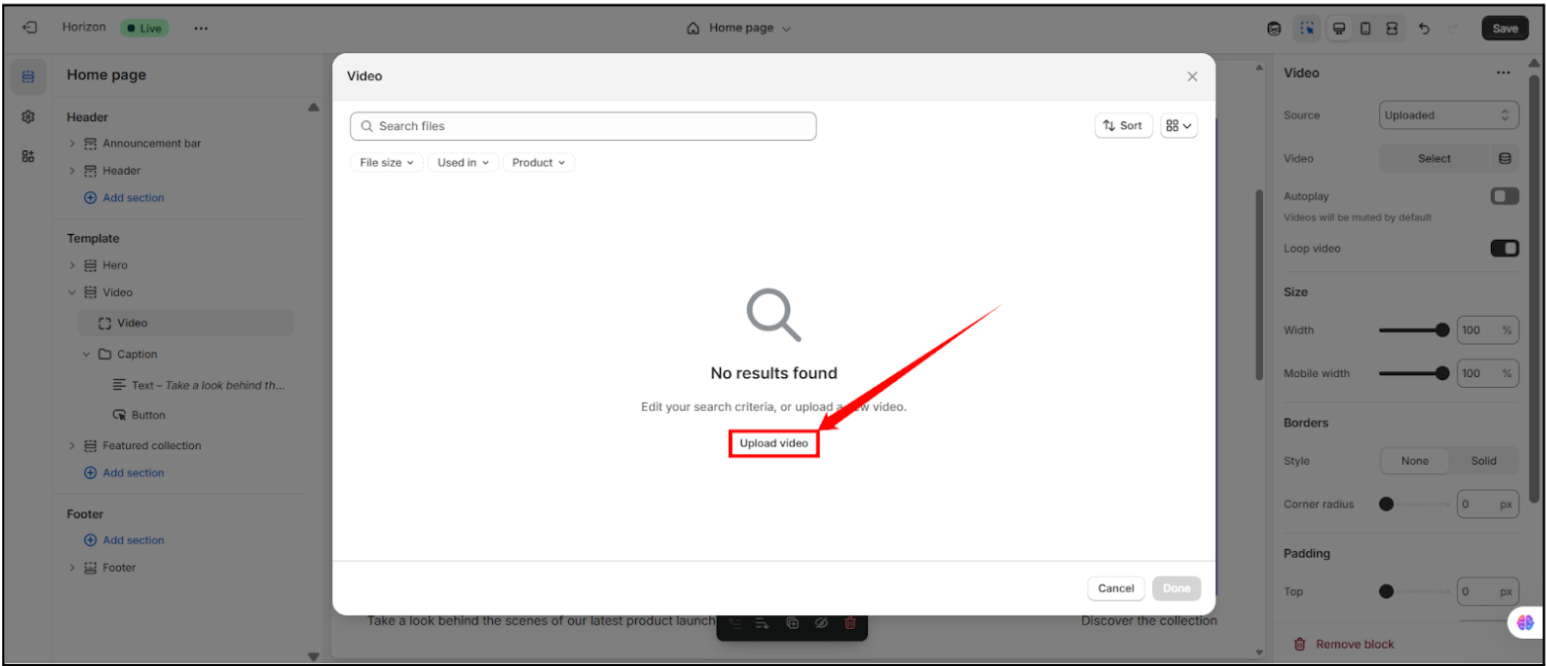
Step 8: Once the upload is complete, click on the “Select” button to confirm.
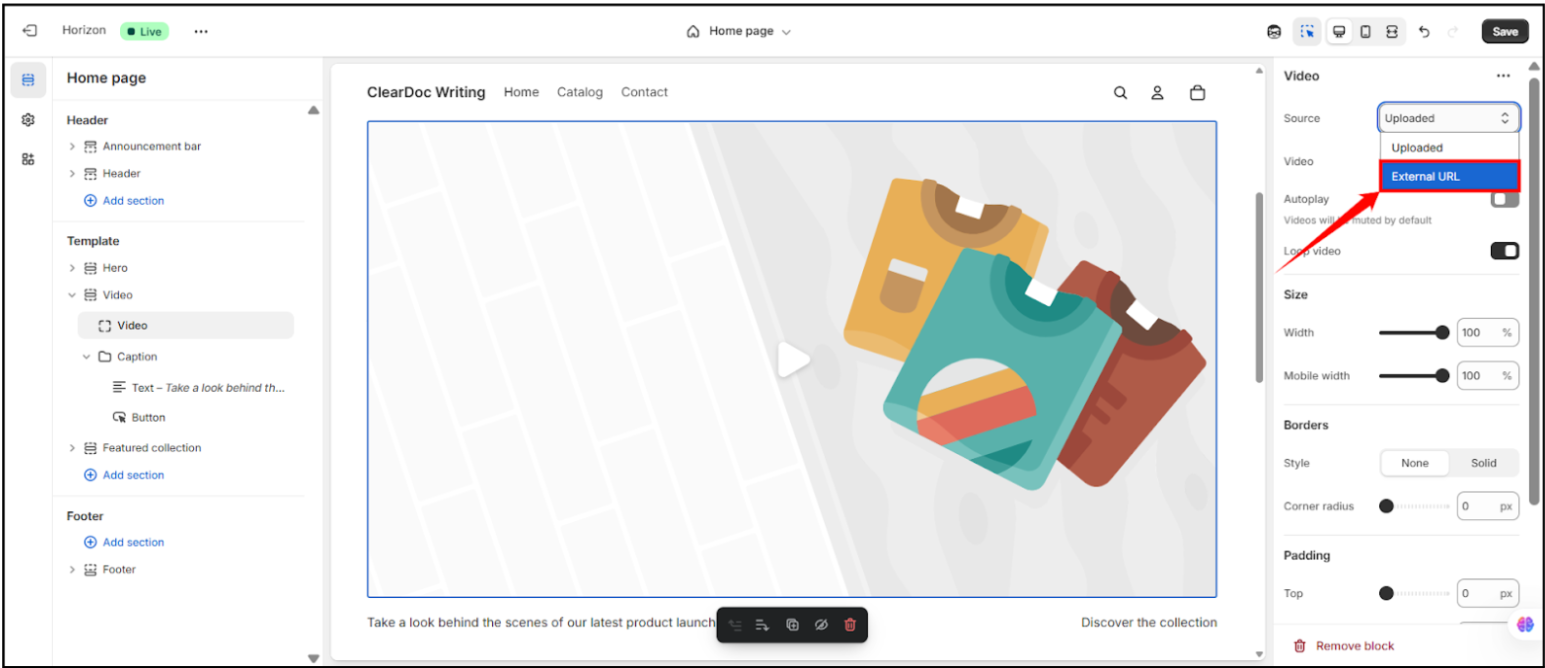
Step 9: But if you want to upload the video file via URL, unwrap the “Source” dropdown, then click on the “External URL” option.
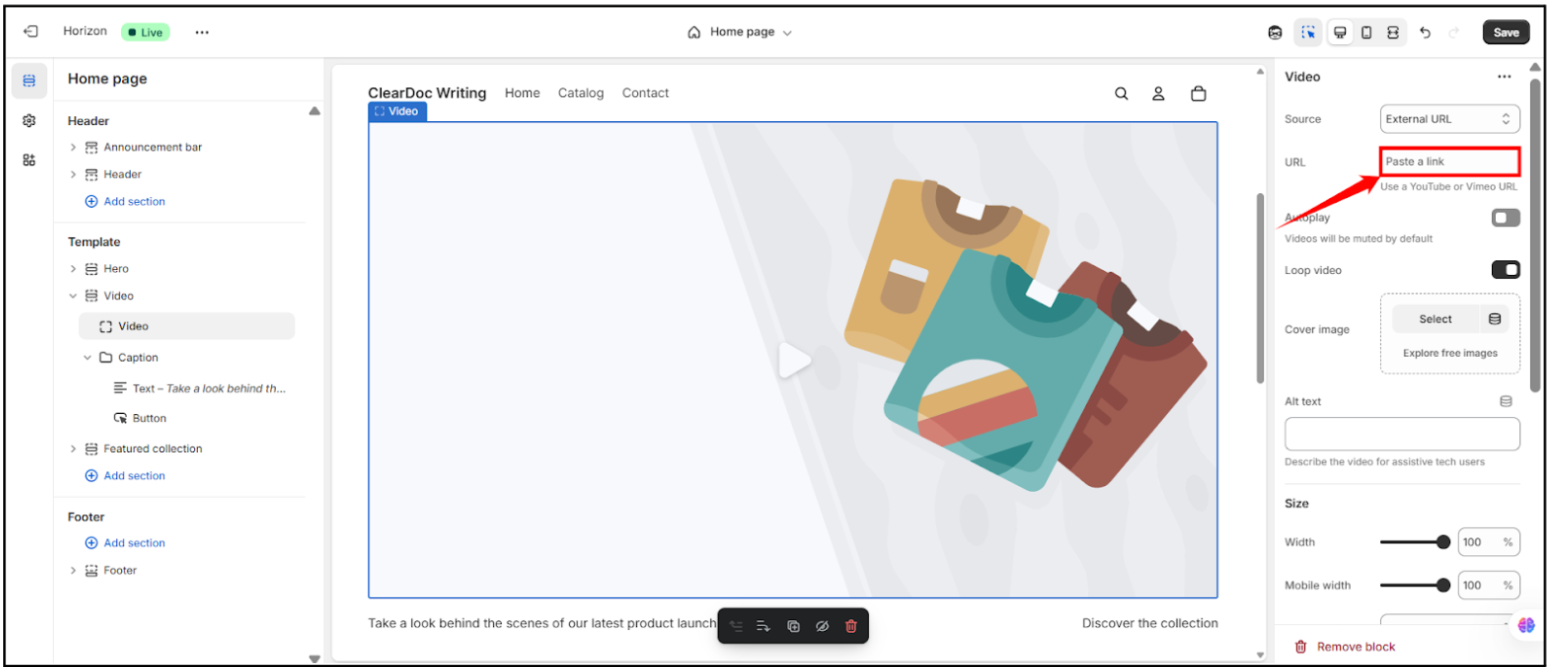
Step 10: A URL bar will appear below it, where you can insert a YouTube or Vimeo link.
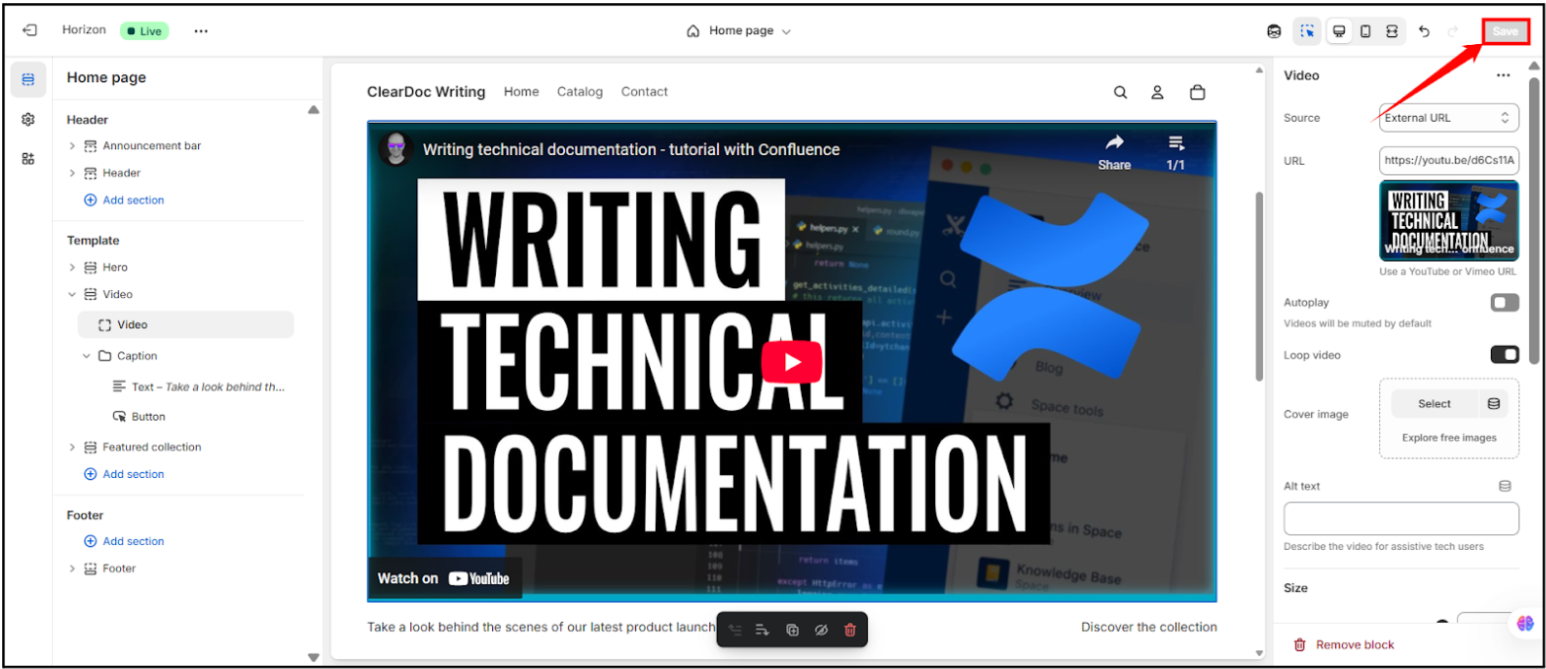
Step 11: Click on the “Save” button at the top-right corner of the page.
Step 10: After clicking on the “Save” button, a success message will appear at the bottom of the page.
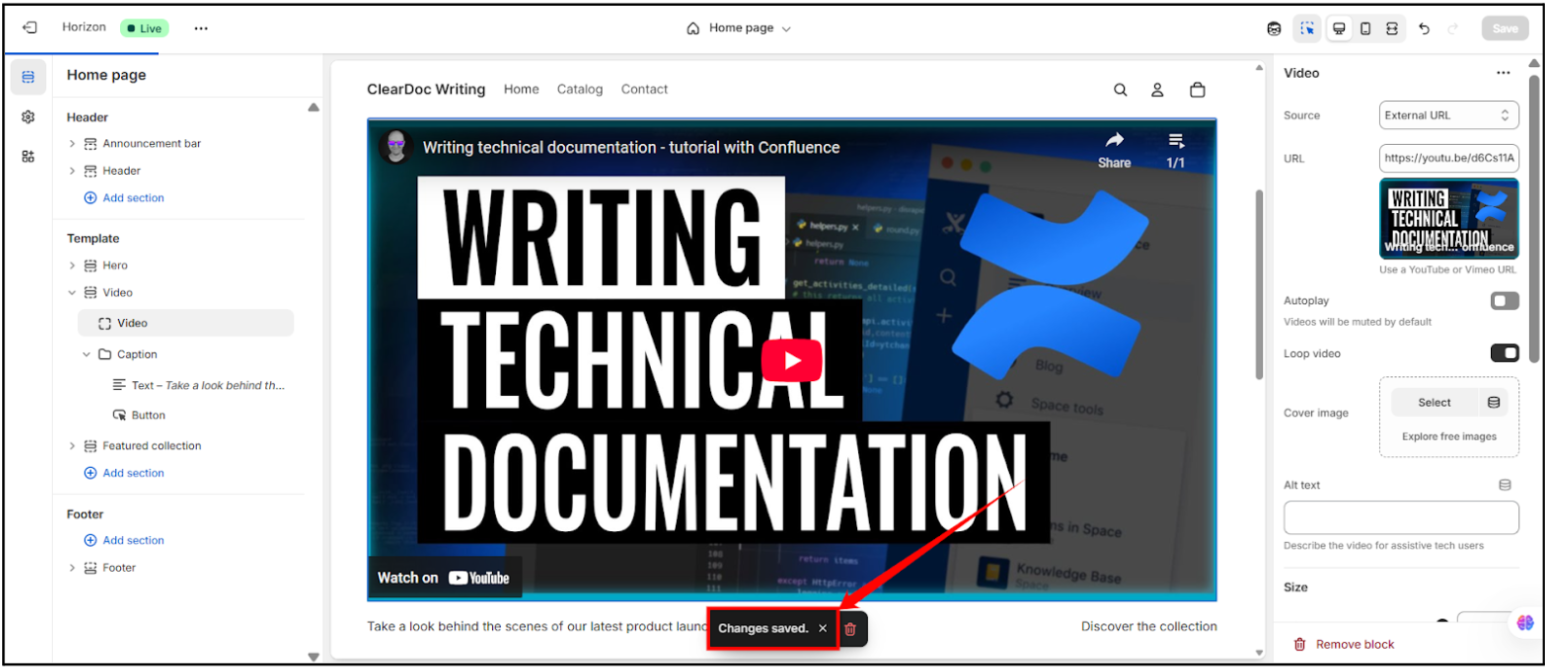
Step 11: Once you save the uploaded video, this is how it will appear to your customers.