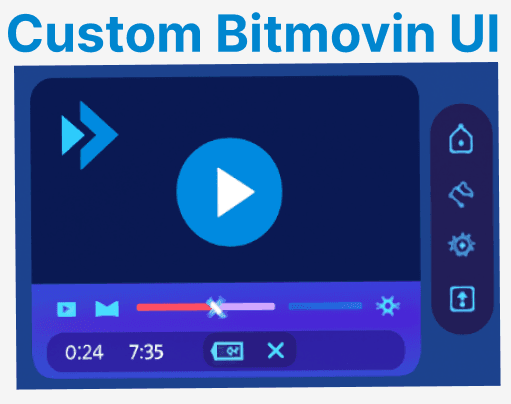
The Bitmovin Player allows complete UI customization by exposing a flexible API and modular event architecture. This guide demonstrates how to disable Bitmovin’s default UI, replace it with a custom control layer, and implement production-grade functionality, including playback controls, quality selection, volume adjustment, and accessibility features.
Setup: Player SDK and HTML Structure
To get started, first, include the Bitmovin Player SDK in your HTML file. This SDK is essential for embedding and controlling the player through its API. Next, create a container for the Bitmovin Player and a separate layer for your custom controls.

Including the SDK:
<script src="https://cdn.bitmovin.com/player/web/8/bitmovinplayer.js"></script>HTML Structure:
<div id="player-container" style="position: relative; width: 100%; height: 100%;">
<div id="bitmovin-player" style="width: 100%; height: 100%;"></div>
<div id="custom-controls" style="position: absolute; bottom: 10px; left: 10px; z-index: 10; display: flex; gap: 8px;">
<button id="play-pause" aria-label="Play or Pause">Play</button>
<input id="seekbar" type="range" min="0" max="100" value="0" aria-label="Seekbar"/>
<input id="volume" type="range" min="0" max="1" step="0.01" value="1" aria-label="Volume Control"/>
<button id="mute-toggle" aria-label="Mute or Unmute">Mute</button>
<button id="fullscreen-toggle" aria-label="Toggle Fullscreen">Fullscreen</button>
<select id="quality-select" aria-label="Select Video Quality"></select>
<select id="subtitle-select" aria-label="Select Subtitles"></select>
</div>
</div>
Explanation:
- #bitmovin-player: The container for the Bitmovin video player.
- #custom-controls: A div containing all your custom controls.
Initialize Bitmovin Player Without UI
To implement custom UI controls with Bitmovin Player, disable the default interface by setting ui: false in your player configuration. This allows initialization without built-in components while maintaining playback functionality through the API.
Example:
const playerConfig = {
key: 'YOUR_BITMOVIN_PLAYER_KEY',
ui: false,
playback: {
autoplay: false
}
};

const sourceConfig = {
title: 'Test Video',
hls: 'https://path-to-your-stream.m3u8'
};

const player = new bitmovin.player.Player(
document.getElementById('bitmovin-player'),
playerConfig
);

player.load(sourceConfig);
player.load(sourceConfig);
Explanation:
- const playerConfig = {...}: Defines the configuration for the Bitmovin player, including the API key and disabling the default UI with ui: false. The autoplay: false setting ensures the video does not play automatically.
- const sourceConfig = {...}: Specifies the video source configuration, including the video title and the URL for the HLS stream (m3u8 file).
- const player = new bitmovin.player.Player(...): Initializes a new Bitmovin player instance and binds it to the DOM element with the ID bitmovin-player, using the playerConfig for settings.
- player.load(sourceConfig): Loads the video source into the player, using the provided sourceConfig that includes the video URL and title.
This configuration initializes the player inside the #bitmovin-player container and disables the default Bitmovin UI, allowing you to implement your custom controls.
Implement Custom Controls
After disabling Bitmovin's default UI, implement your custom controls using the player's API. The following examples demonstrate essential playback interactions, including play/pause, seeking, volume adjustment, and fullscreen toggling through event listeners and DOM manipulation.
Play / Pause Button
This control toggles between playing and pausing the video while updating the button's text based on the video's state (isPaused).
const playPauseBtn = document.getElementById('play-pause');
playPauseBtn.addEventListener('click', () => {
if (player.isPaused()) {
player.play();
playPauseBtn.textContent = 'Pause';
} else {
player.pause();
playPauseBtn.textContent = 'Play';
}
});
This checks the player’s state (isPaused) and toggles between play and pause, updating the button text accordingly.
Seekbar Sync and Interaction:
Synchronizes the seekbar position with video playback by listening to the TimeChanged event and updating the seekbar value accordingly.
player.on(bitmovin.player.PlayerEvent.TimeChanged, (event) => {
const duration = player.getDuration();
const progress = (event.time / duration) * 100;
document.getElementById('seekbar').value = progress;
});
Allow Manual Seeking:
Allows users to manually seek to a specific video position by interacting with the seekbar.
document.getElementById('seekbar').addEventListener('input', (e) => {
const percentage = parseFloat(e.target.value);
const duration = player.getDuration();
const seekTo = (percentage / 100) * duration;

player.seek(seekTo);
});
Volume Control:
Adjusts the video volume by listening to input changes from a volume slider and updating the player's volume accordingly.
const volumeSlider = document.getElementById('volume');
volumeSlider.addEventListener('input', (e) => {
player.setVolume(parseFloat(e.target.value));
});
Mute:
Toggles the video mute state, updating the button text to reflect whether the video is muted or unmuted.
const muteToggle = document.getElementById('mute-toggle');
muteToggle.addEventListener('click', () => {
const isMuted = player.isMuted();
player.mute(!isMuted);
muteToggle.textContent = isMuted ? 'Mute' : 'Unmute';
});
Fullscreen Toggle:
This toggle enables or disables full-screen mode for the video player when the full-screen button is clicked.
const fullscreenToggle = document.getElementById('fullscreen-toggle');
fullscreenToggle.addEventListener('click', () => {
if (document.fullscreenElement) {
document.exitFullscreen();
} else {
document.getElementById('player-container').requestFullscreen();
}
});
Handling Buffering and Playback Events
Bitmovin's event system enables your custom UI to respond to playback states like buffering, playing, and pausing. Implement event listeners to trigger UI updates during these events, such as displaying a spinner during stalls for improved user feedback.
Example Event Handling:
player.on(bitmovin.player.PlayerEvent.Playing, () => {
console.log('Playback started');
});

player.on(bitmovin.player.PlayerEvent.Paused, () => {
console.log('Playback paused');
});

player.on(bitmovin.player.PlayerEvent.StallStarted, () => {
// Show buffering spinner
});

player.on(bitmovin.player.PlayerEvent.StallEnded, () => {
// Hide buffering spinner
});
Explanation:
- player.on(bitmovin.player.PlayerEvent.Playing, () => {...});: Listens for the Playing event and logs a message when playback starts.
- player.on(bitmovin.player.PlayerEvent.Paused, () => {...});: Listens for the Paused event and logs a message when playback is paused.
- player.on(bitmovin.player.PlayerEvent.StallStarted, () => {...});: Detects when buffering starts, allowing you to show a buffering spinner to the user.
- player.on(bitmovin.player.PlayerEvent.StallEnded, () => {...});: Detects when buffering ends, enabling you to hide the buffering spinner once playback resumes.
This listens to events like Playing, Paused, and StallStarted and lets you update the UI accordingly (e.g., showing a buffering spinner during stalls).
Error Handling and Events
Implement Bitmovin's error event handling to capture playback issues and buffering states, ensuring smoother user experiences. Use these listeners to log errors for troubleshooting and trigger UI feedback mechanisms during interruptions.
Example:
player.on(bitmovin.player.PlayerEvent.Error, (e) => {
console.error('Player error:', e);
});

player.on(bitmovin.player.PlayerEvent.StallStarted, () => {
console.log('Buffering...');
});

player.on(bitmovin.player.PlayerEvent.StallEnded, () => {
console.log('Buffering ended.');
});
Explanation:
- player.on(bitmovin.player.PlayerEvent.Error, (e) => {...});: Listens for an error event and logs the error message when an issue occurs during playback.
- player.on(bitmovin.player.PlayerEvent.StallStarted, () => {...});: Detects when buffering starts and logs "Buffering..." to indicate that the video is paused for data loading.
- player.on(bitmovin.player.PlayerEvent.StallEnded, () => {...});: Detects when buffering ends and logs "Buffering ended." to indicate that playback has resumed.
As a result, this further catches any error triggered during playback and logs it for troubleshooting.
Subtitle and Quality Selection
Implement user-selectable video quality and subtitle options to enhance playback flexibility. Dynamically populate selection menus with available settings using Bitmovin's API, and update the player state when users make selections.
Example:
player.on(bitmovin.player.PlayerEvent.SourceLoaded, () => {
const qualitySelect = document.getElementById('quality-select');
const qualities = player.getAvailableVideoQualities();

qualities.forEach((q) => {
const opt = document.createElement('option');
opt.value = q.id;
opt.textContent = `${q.height}p`;
qualitySelect.appendChild(opt);
});

qualitySelect.addEventListener('change', (e) => {
player.setVideoQuality(parseInt(e.target.value));
});
});
Explanation:
- player.on(bitmovin.player.PlayerEvent.SourceLoaded, () => {...});: Listens for the SourceLoaded event and initializes the quality selector dropdown with available video qualities.
- const qualitySelect = document.getElementById('quality-select');: Retrieves the HTML element for the video quality selector dropdown.
- const qualities = player.getAvailableVideoQualities();: Fetches the list of available video qualities from the player.
- qualities.forEach((q) => {...});: Iterates through the available qualities and adds each one as an option in the dropdown.
- qualitySelect.addEventListener('change', (e) => {...});: Listens for changes in the quality selector and updates the video quality based on the selected option.
Subtitle Selection:
const subtitleSelect = document.getElementById('subtitle-select');
const subtitles = player.getAvailableSubtitles();

subtitles.forEach((s) => {
const opt = document.createElement('option');
opt.value = s.id;
opt.textContent = s.label;
subtitleSelect.appendChild(opt);
});

subtitleSelect.addEventListener('change', (e) => {
player.setSubtitle(parseInt(e.target.value));
});
Explanation:
- const subtitleSelect = document.getElementById('subtitle-select');: Retrieves the HTML element for the subtitle selector dropdown.
- const subtitles = player.getAvailableSubtitles();: Fetches the list of available subtitles from the player.
- subtitles.forEach((s) => {...});: Iterates through the available subtitles and adds each one as an option in the dropdown.
- subtitleSelect.addEventListener('change', (e) => {...});: Listens for changes in the subtitle selector and updates the player's subtitle based on the selected option.
This allows users to choose from available video qualities and subtitles. The player's current state updates based on user selections.
Accessibility Considerations
Enhance player accessibility by implementing ARIA labels, keyboard navigation, and visible focus indicators for all interactive controls. These features ensure that assistive technologies can interpret UI elements and support navigation for users with disabilities.
Example Accessibility Features:
- ARIA Labels: Each button or control element should have an accessible label.
- Keyboard Navigation: Implement keyboard events for navigation between controls.
- Focus Styles: Use CSS to highlight focused controls, improving usability for users with disabilities.
<button id="play-pause" aria-label="Play or Pause">Play</button>
<input id="seekbar" type="range" min="0" max="100" value="0" aria-label="Seekbar"/>