FFmpeg is an essential tool for video processing, providing robust features for scaling and adjusting the aspect ratio of video files. These tasks are critical for ensuring that video content fits specific display or streaming requirements, such as optimizing the resolution for different platforms or maintaining the correct width-to-height ratio without distortion.
Scaling a Video with FFmpeg
Scaling refers to the process of resizing a video to a different resolution. This might be necessary when preparing content for platforms requiring specific resolutions or optimizing file sizes for streaming or playback.
Basic Scaling Command
To scale a video to a specific resolution, use the -s option followed by the target resolution:
ffmpeg -i input.mp4 -s 1280x720 output.mp4Explanation:
- -i input.mp4 specifies the input video file.
- -s 1280x720 resizes the video to 1280x720 pixels (HD resolution).
- output.mp4 is the output file name and format.

Scaling While Maintaining Aspect Ratio
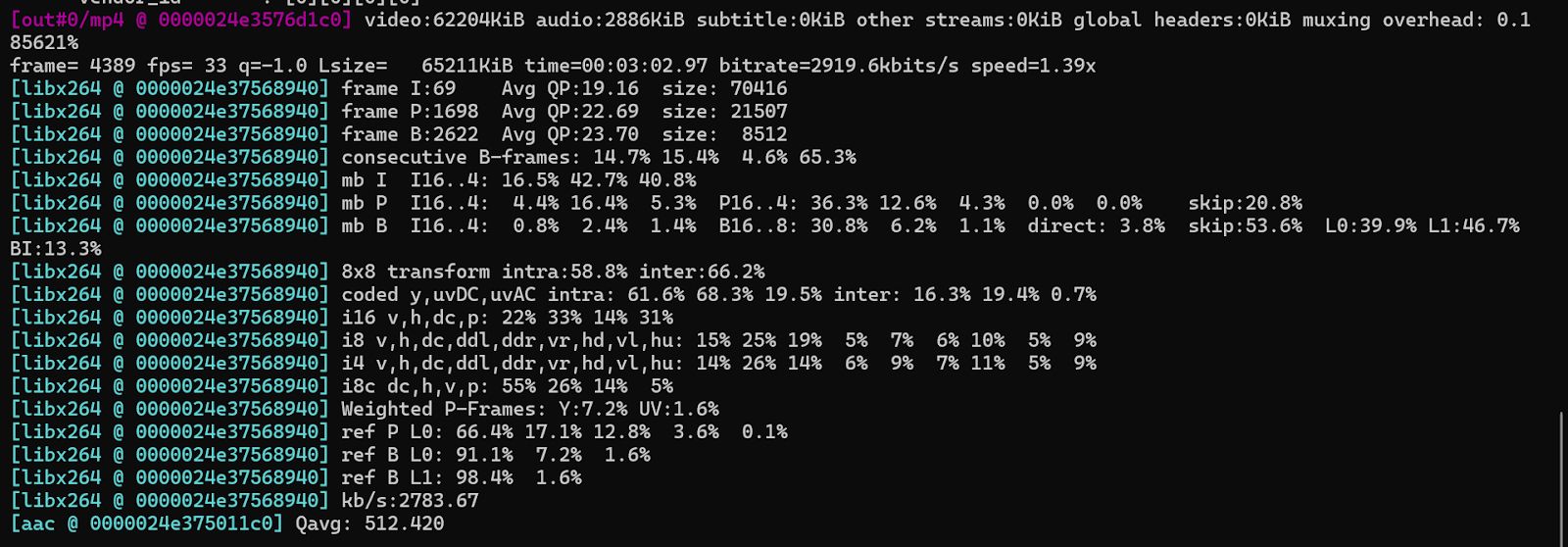
You can scale a video while maintaining its aspect ratio by specifying one dimension (either width or height) and letting FFmpeg automatically adjust the other dimension to preserve the ratio:
ffmpeg -i input.mp4 -vf "scale=1280:-1" output.mp4Explanation:
- scale=1280:-1 specifies that the width should be 1280 pixels, and the height is automatically adjusted to preserve the original aspect ratio (-1 automatically calculates the height based on the width).
Using Scale for Padding
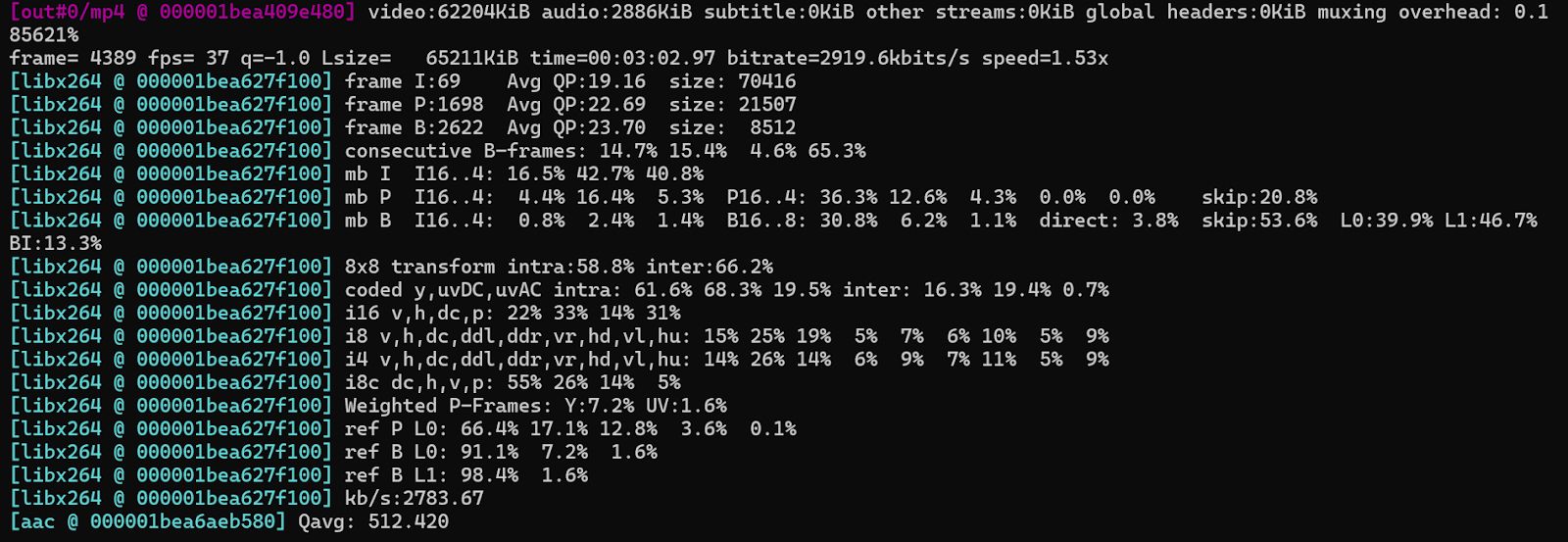
If you need to scale the video to fit a specific resolution while keeping the original aspect ratio, you can add padding around the video. This is useful for platforms or displays that require a fixed resolution, but you want to avoid distorting the video.
ffmpeg -i input.mp4 -vf "scale=1280:720,pad=1280:720:(ow-iw)/2:(oh-ih)/2" output.mp4Explanation:
- scale=1280:720 resizes the video to fit within a 1280x720 frame.
- pad=1280:720:(ow-iw)/2:(oh-ih)/2 adds black padding (letterboxing or pillarboxing) where necessary to ensure the final video fits exactly within the 1280x720 resolution.
Aspect Ratio Adjustment
Adjusting the aspect ratio of a video means changing the width and height to fit a new ratio. Depending on the needs, this could involve stretching or compressing the video or adding padding to avoid distortion.
Changing Aspect Ratio without Distortion
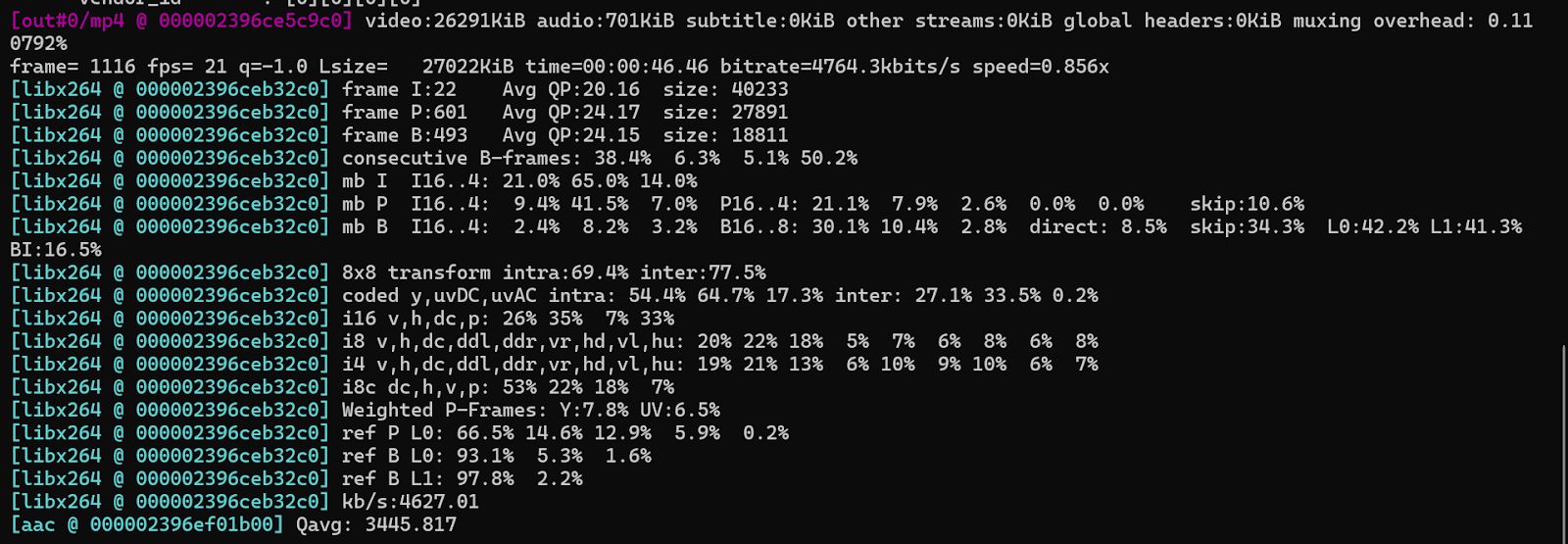
If you want to adjust the aspect ratio without distorting the video, you can add black bars (letterboxing or pillarboxing) to preserve the video’s original aspect ratio. This can be done by scaling the video to fit within a specified container size and then padding the edges.
To adjust the video to fit within a 16:9 container (e.g., 1280x720 resolution) while maintaining the original aspect ratio:
ffmpeg -i input.mp4 -vf "scale=1280x720:force_original_aspect_ratio=decrease,pad=1280:720:(ow-iw)/2:(oh-ih)/2" output.mp4Explanation:
- scale=1280x720:force_original_aspect_ratio=decrease scales the video to fit within a 1280x720 frame, keeping the aspect ratio intact.
- pad=1280:720:(ow-iw)/2:(oh-ih)/2 adds padding to the sides (letterboxing) or top/bottom (pillarboxing) to ensure the final video fits exactly within the 1280x720 resolution.
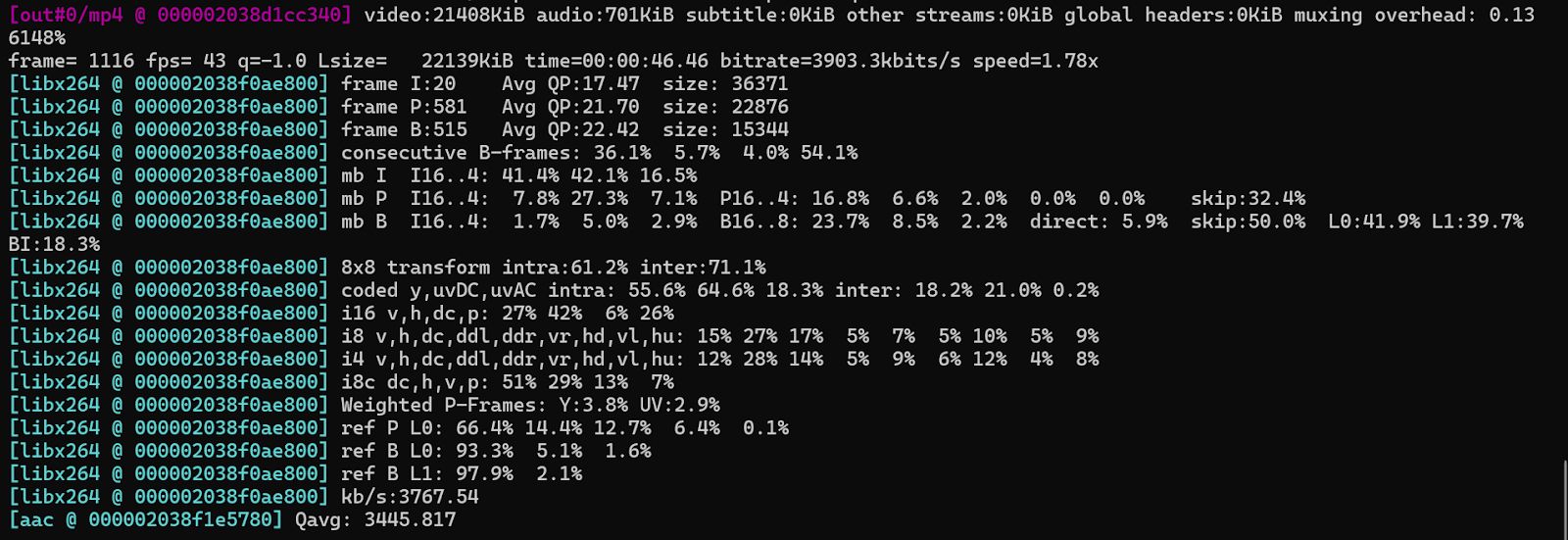
Stretching or Compressing to Fit a New Aspect Ratio
If you need to force the video to fit into a specific aspect ratio, even if it requires distortion, use the -vf "scale" filter without preserving the original aspect ratio:
ffmpeg -i input.mp4 -vf "scale=1280:720" output.mp4Explanation:
- scale=1280:720 resizes the video to exactly 1280x720 resolution, which may distort the video depending on its original aspect ratio.
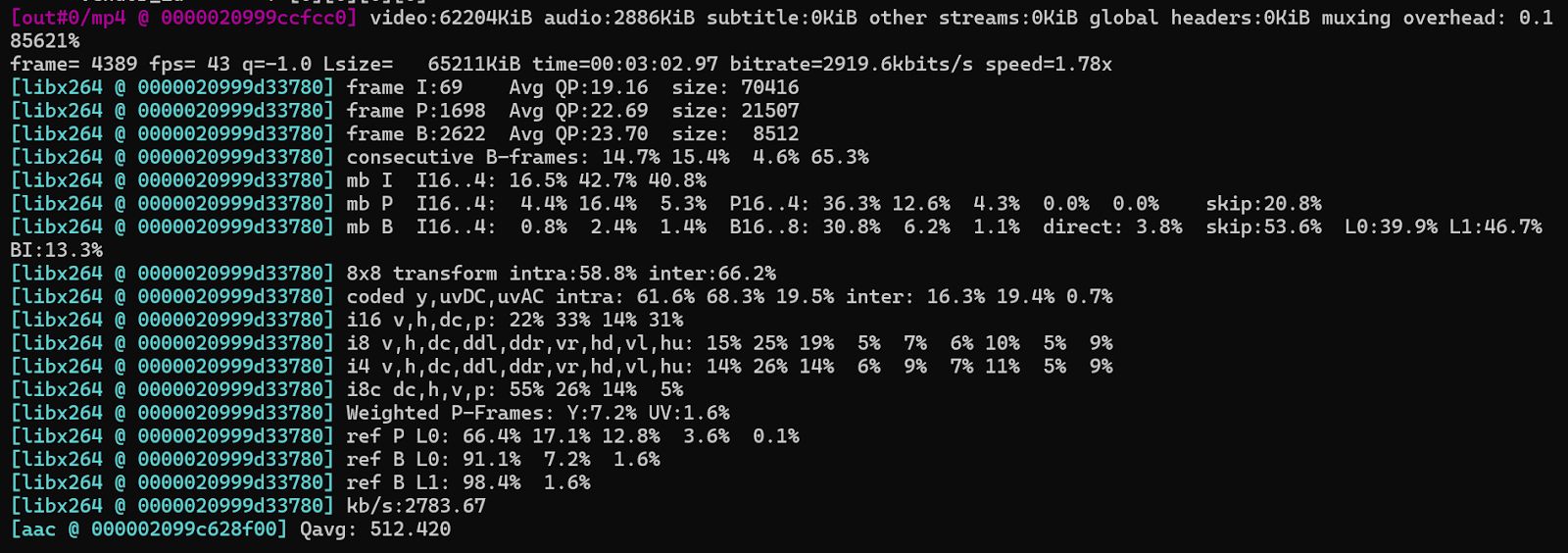
Scaling for Different Platforms
When preparing a video for a specific platform like YouTube, Instagram, or Facebook, you may need to scale the video to meet platform-specific resolution requirements. For example, YouTube often requires videos in 1920x1080 (Full HD) resolution.
Example: Scaling for YouTube (Full HD)
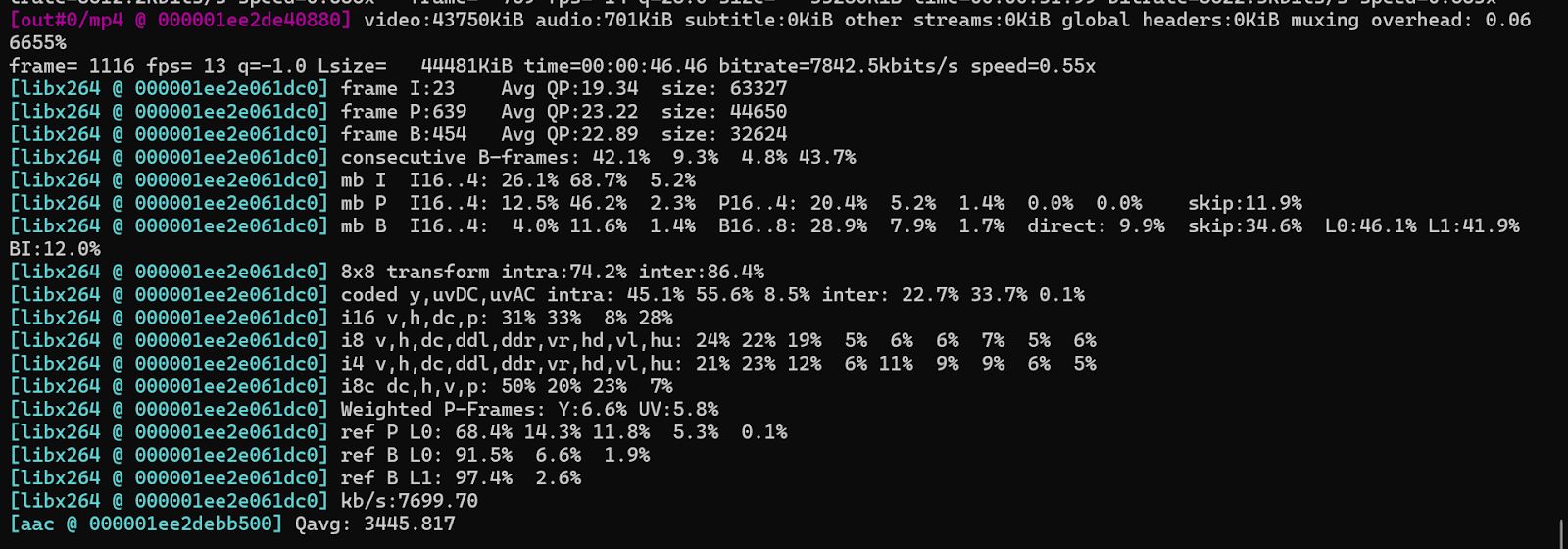
ffmpeg -i input.mp4 -s 1920x1080 output.mp4This command scales the video to 1920x1080 (Full HD) resolution, which is ideal for YouTube.
Advanced Techniques for Developers
Batch Processing Multiple Videos: For processing multiple videos, you can create a script to loop through all video files in a directory and apply the same scaling or aspect ratio adjustments.Example in bash:
for file in *.mp4; do ffmpeg -i "$file" -vf "scale=1280x720" "scaled_$file"doneThis script processes all .mp4 files in the current directory, scaling them to 1280x720 resolution and saving the output with a scaled_ prefix.
1. Automating with FFmpeg in Code: If you're integrating FFmpeg into a custom application, use libraries like FFmpeg-python or node-fluent-ffmpeg to automate video processing from your code. Example in Python using ffmpeg-python:
import ffmpegffmpeg.input('input.mp4').output('output.mp4', vf='scale=1280:720').run()
2. Using Presets for Faster Processing: FFmpeg allows you to use presets like ultrafast, superfast, or fast to speed up video processing, which is particularly helpful in real-time video streaming scenarios. Example:
ffmpeg -i input.mp4 -vf "scale=1280:720" -preset ultrafast output.mp4