Running FFmpeg in a Docker container allows consistent builds, isolated dependencies, and easier deployment across environments. This setup avoids system conflicts and ensures codec compatibility.
Prerequisites
- Docker is installed on your system (docker --version)
- A video file for processing (e.g., input.mp4)
- Basic understanding of Docker CLI
Pulling an FFmpeg Docker Image
To run FFmpeg inside a Docker container, you first need to pull the appropriate Docker image. Docker Hub offers several community-maintained and official FFmpeg images. Here's how to pull the popular jrottenberg/ffmpeg image to support various codecs:
docker pull jrottenberg/ffmpegThis image supports popular codecs and common FFmpeg configurations.

Run FFmpeg in a Docker Container
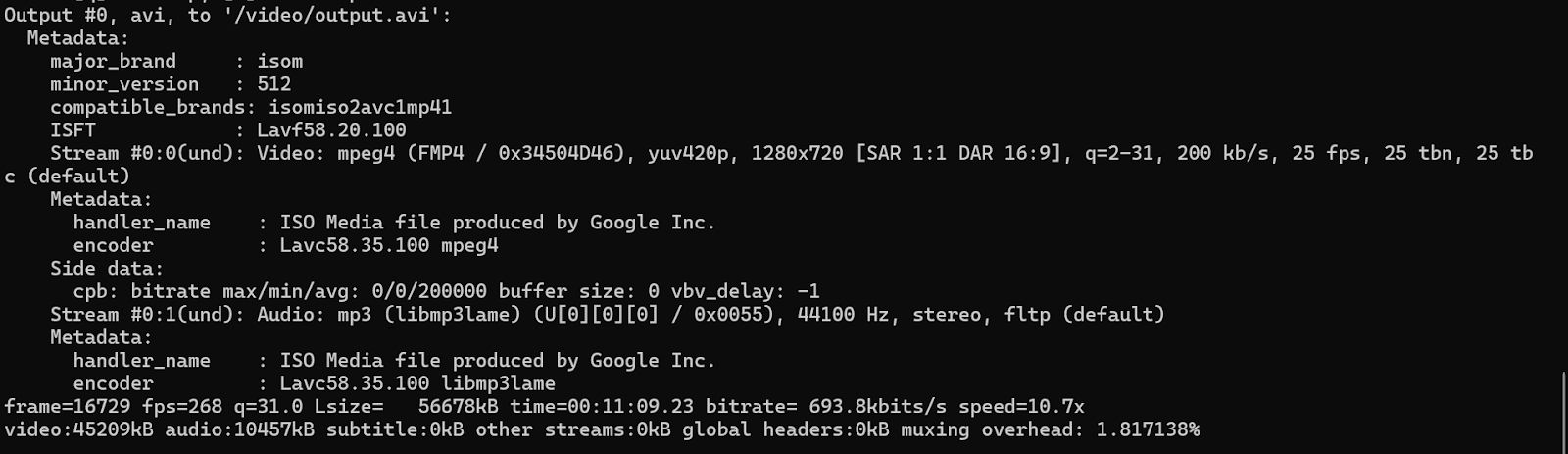
Once the image is downloaded, you can run FFmpeg in a Docker container. For example, to convert a video file from MP4 to AVI format:
docker run --rm -v /path/to/local/video:/video jrottenberg/ffmpeg -i /video/input.mp4 /video/output.avi- --rm: Automatically removes the container after it finishes executing.
- -v /path/to/local/video:/video: Mounts the local directory /path/to/local/video to the container's /video directory, making files accessible inside the container.
- jrottenberg/ffmpeg: The Docker image that contains FFmpeg.
- -i /video/input.mp4: The input file inside the container.
- /video/output.avi: The output file is saved back to the mounted directory.
Limit Resource Usage
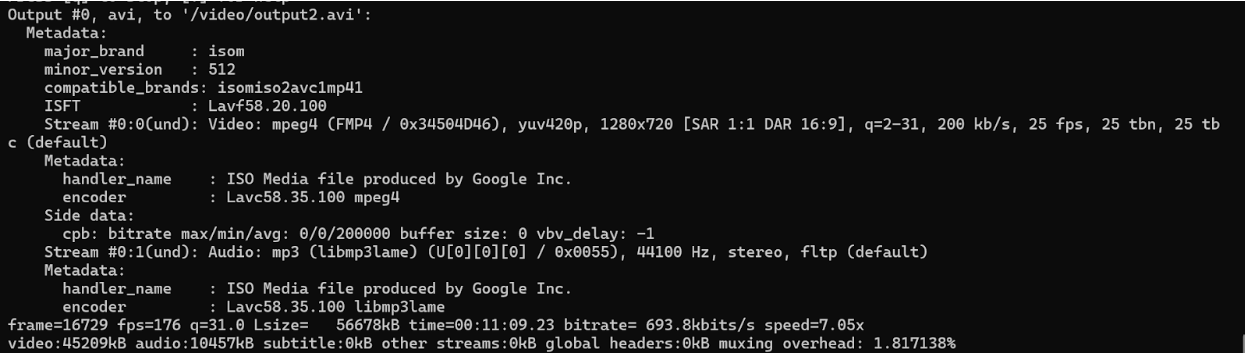
Running video processing tasks in Docker can be resource-intensive. You can limit the CPU and memory resources used by the FFmpeg container to prevent it from consuming too many system resources.
Example: Limits the container’s memory to 2 GB and restricts CPU usage to 2 cores.
docker run --rm -v /path/to/local/video:/video --memory="2g" --cpus="2" jrottenberg/ffmpeg -i /video/input.mp4 /video/output.avi- --memory="2g": Limits memory usage to 2 GB.
- --cpus="2": Limits CPU usage to 2 cores.
Use Parallel Processing with Docker
If you have multiple video files to process, you can run multiple FFmpeg containers in parallel. For instance, you can use Docker Compose or a simple script to process multiple files simultaneously.
Example: Run FFmpeg on Multiple Files
for video in /path/to/videos/*.mp4; do
docker run --rm -v /path/to/videos:/videos jrottenberg/ffmpeg -i /videos/$(basename "$video") /videos/$(basename "$video" .mp4).avi &
done- for video in /path/to/videos/*.mp4: Loops through all MP4 files in the specified directory.
- docker run --rm -v /path/to/videos:/videos: Runs FFmpeg in a new Docker container for each video file, mounting the video directory to the container.
- $(basename "$video"): Extracts the filename from the full path of each video file.
- &: Runs each docker run command in the background, allowing parallel processing of multiple video files.
Encode Video with Codec Parameters in Docker
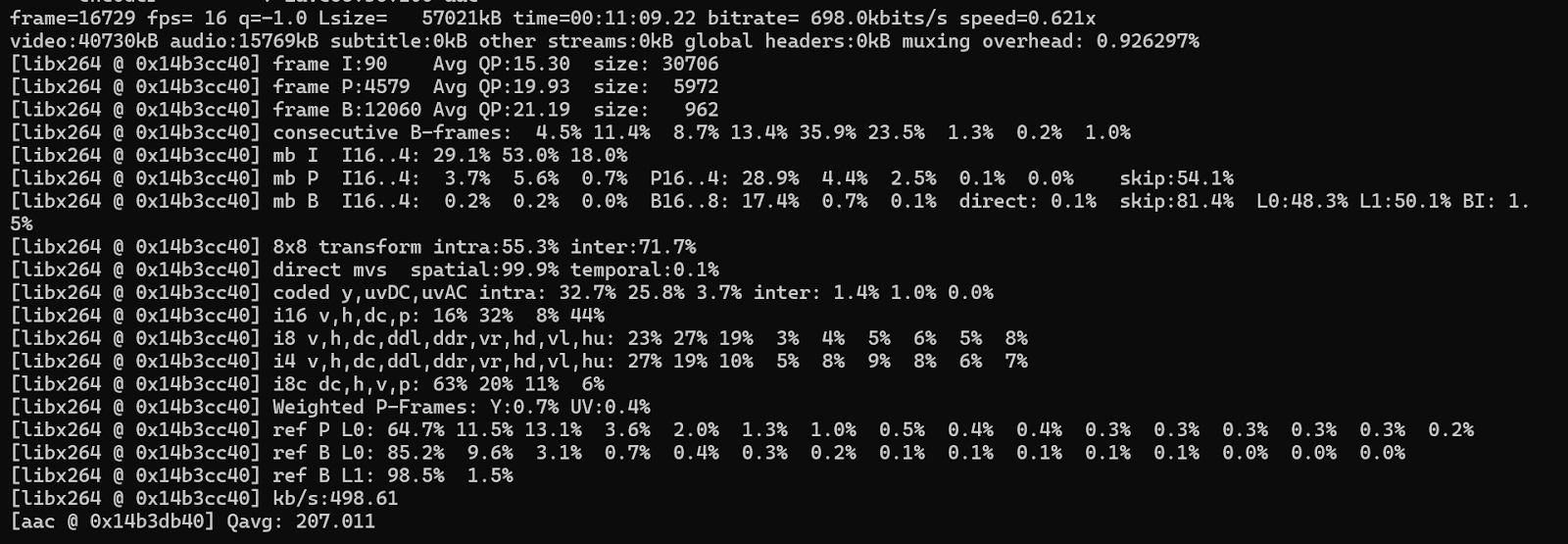
You can pass detailed codec parameters to control quality, bitrate, and encoding standards. For example, encoding a video to H.264 with CRF control:
docker run --rm -v /video:/video jrottenberg/ffmpeg \
-i /video/input.mp4 \
-c:v libx264 -preset veryslow -crf 22 \
-c:a aac -b:a 192k \
/video/output_encoded.mp4- -c:v libx264: Use H.264 codec
- -preset veryslow: Better compression
- -crf 22: Constant Rate Factor for quality control
- -b:a 192k: Audio bitrate
What’s Next?
Looking to automate video encoding and transformation inside containers? Use Cincopa’s API to trigger transcoding jobs, apply codec presets, manage format conversions, and control bitrate and resolution settings at scale. Build Docker-based workflows that offload heavy video processing, handle multiple files in parallel, and deliver optimized media for web and mobile platforms without manual steps.